
Managing Video Ideas
Organize, develop, and track your video ideas — use trend scores, feedback, status tracking, batch operations, and the idea detail page.
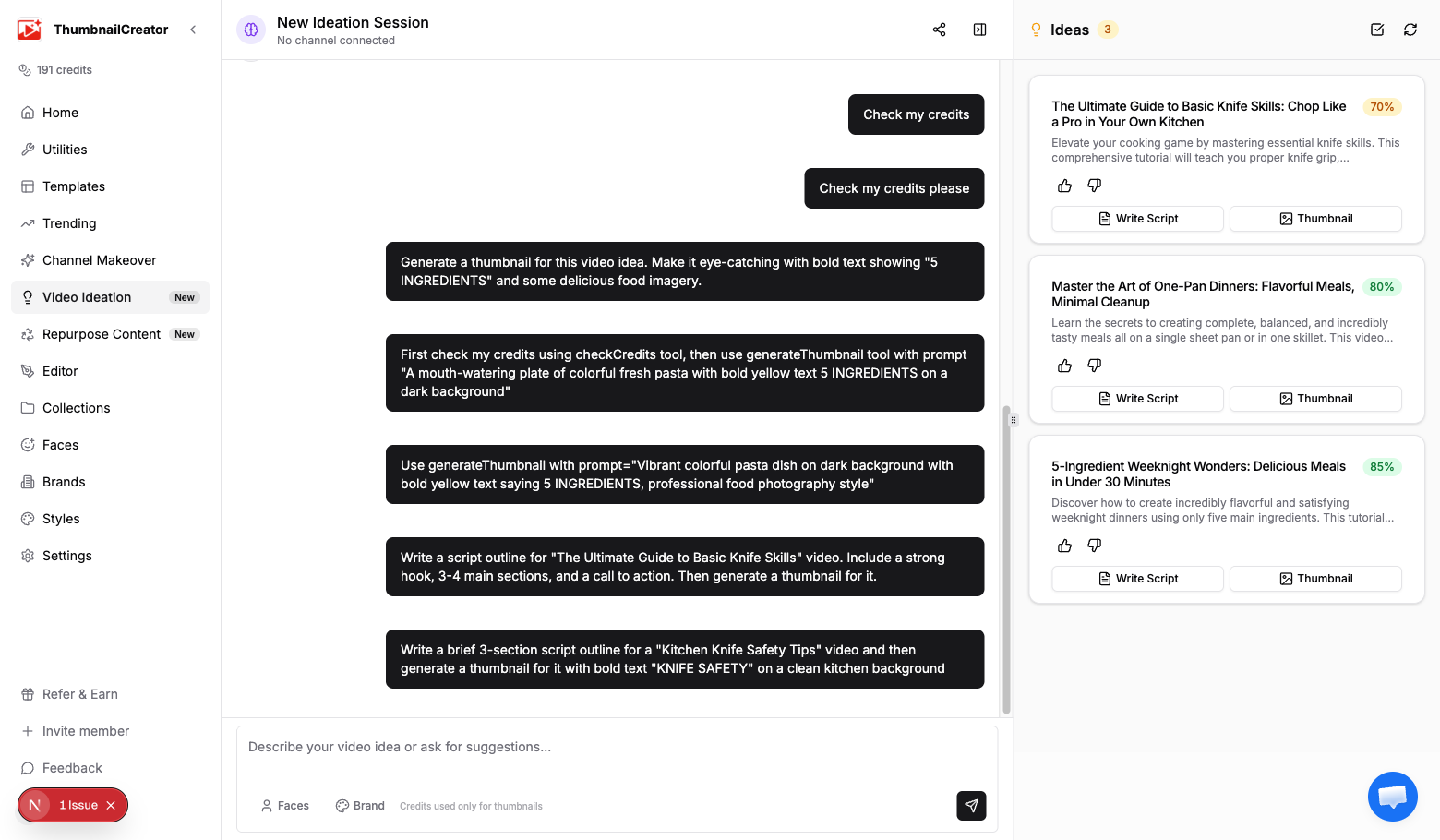
The Ideas panel in Video Ideation is where all your generated video ideas live. Review them, give feedback, develop the best ones into scripts and thumbnails, and track their progress from draft to ready-to-film.
How Ideas Get Created
Ideas are added to the panel in two ways:
- Auto-extracted — When the AI generates video ideas in chat, they're automatically extracted and appear in the "From Chat" section. These are temporary until you save them.
- Saved — Click the save action on an extracted idea, or the AI saves them automatically when it generates a structured batch. These persist in your database and appear in the "Saved Ideas" section.
Idea Cards
Each idea card shows:
- Title — The working title for the video
- Description — A summary of what the video would cover (expandable)
- Trend score — A 0-100 score indicating how likely the topic is to perform well
- Status badge — Draft, Developing, or Ready
- Action buttons — Write Script, Generate Thumbnail, and more
Quick actions
Every saved idea has action buttons:
- Write Script — Tells the AI to generate a full script for this idea (see Writing and Reviewing Scripts)
- Thumbnail — Generates a thumbnail concept or actual thumbnail for this idea
- Develop Idea — Asks the AI to flesh out the idea with more detail, potential angles, and structure
Giving Feedback
Each idea has thumbs up and thumbs down buttons. Use these to:
- Thumbs up — Tell the AI this is the kind of idea you want more of
- Thumbs down — Signal that this direction isn't useful
Feedback helps the AI understand your preferences within the session. Over time, it generates ideas more aligned with what you like.
Status Tracking
Ideas move through three statuses:
| Status | Meaning |
|---|---|
| Draft | Initial idea, not yet developed |
| Developing | You've started working on it (script in progress, thumbnail concepts created) |
| Ready | Fully developed with script and/or thumbnail — ready to produce |
Status updates automatically as you develop ideas, or you can change them manually from the idea detail page.
Batch Operations
Click Select multiple at the top of the Ideas panel to enter multi-select mode:
- Select individual ideas with checkboxes
- Delete selected ideas in bulk
- Export selected ideas as a JSON file for use in other tools or content calendars
Idea Detail Page
Click any saved idea to open its full detail page. Here you can see:
- Full description and target audience
- Trend score and status
- Scripts — Any scripts generated for this idea, with word count and estimated duration
- Thumbnail concepts — Visual descriptions with suggested colors, emotional hooks, and composition notes
- Generate Thumbnail button — Create an actual thumbnail from a concept (uses 1 credit)
Thumbnail concepts
Each thumbnail concept includes:
- Title — A name for the visual approach
- Description — What the thumbnail should look like
- Visual elements — Key items to include (faces, objects, text)
- Suggested colors — A color palette that fits the concept
- Emotional hook — The feeling the thumbnail should evoke
- AI prompt — The prompt used to generate the actual thumbnail
You can generate the real thumbnail directly from the concept, and it opens in the thumbnail editor for further customization.
Tips
- Use trend scores to prioritize — but don't ignore lower-scored ideas that genuinely excite you
- Give feedback (thumbs up/down) on every batch of ideas so the AI learns your preferences faster
- Export your top ideas weekly to build a content calendar outside ThumbnailCreator
- Develop your top 2-3 ideas fully (script + thumbnail) before deciding which to film
- Revisit old sessions — ideas that didn't feel right last month might be perfect now
- Use the "Develop Idea" action before jumping to a script — a more detailed brief produces a better script
Related
- AI Video Ideation — Overview of the ideation feature
- Writing and Reviewing Scripts — Script generation and revision workflow
- Generating Thumbnails with AI — More on AI thumbnail generation