
AI Video Ideation
Brainstorm video ideas, develop scripts, and generate thumbnail concepts with an AI-powered chat assistant that researches trends and analyzes your channel.
Video Ideation is an AI chat assistant that helps you plan your next video from start to finish. Describe what you're looking for, and the AI researches trends, generates ideas with trend scores, writes scripts, and creates thumbnail concepts — all in one conversation.
Starting a New Session
- Go to Video Ideation in the sidebar
- Click Start Brainstorming
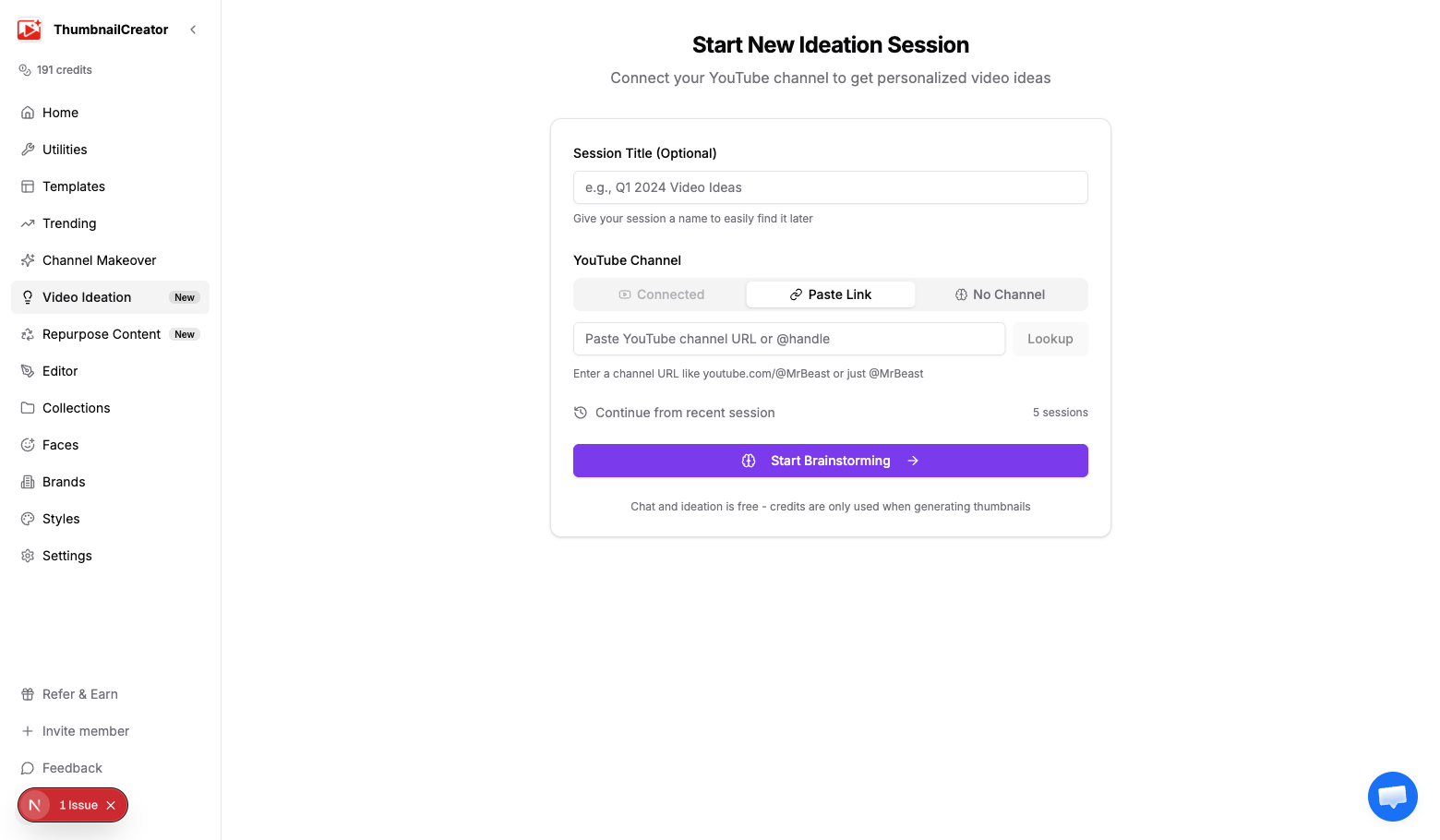
- Choose how to connect your channel:
Channel options
- Connected — Select from your authenticated YouTube channels. The AI uses your existing videos, audience data, and channel analytics for personalized suggestions. (Requires a connected YouTube account in Settings.)
- Paste Link — Enter a YouTube channel URL or @handle. The AI fetches public channel data to provide context-aware ideas.
- No Channel — Start without any channel context. Good for exploring new niches or brainstorming before you have a channel.
You can also give your session a name (e.g., "Q1 Video Ideas") to find it later.
The Chat Interface
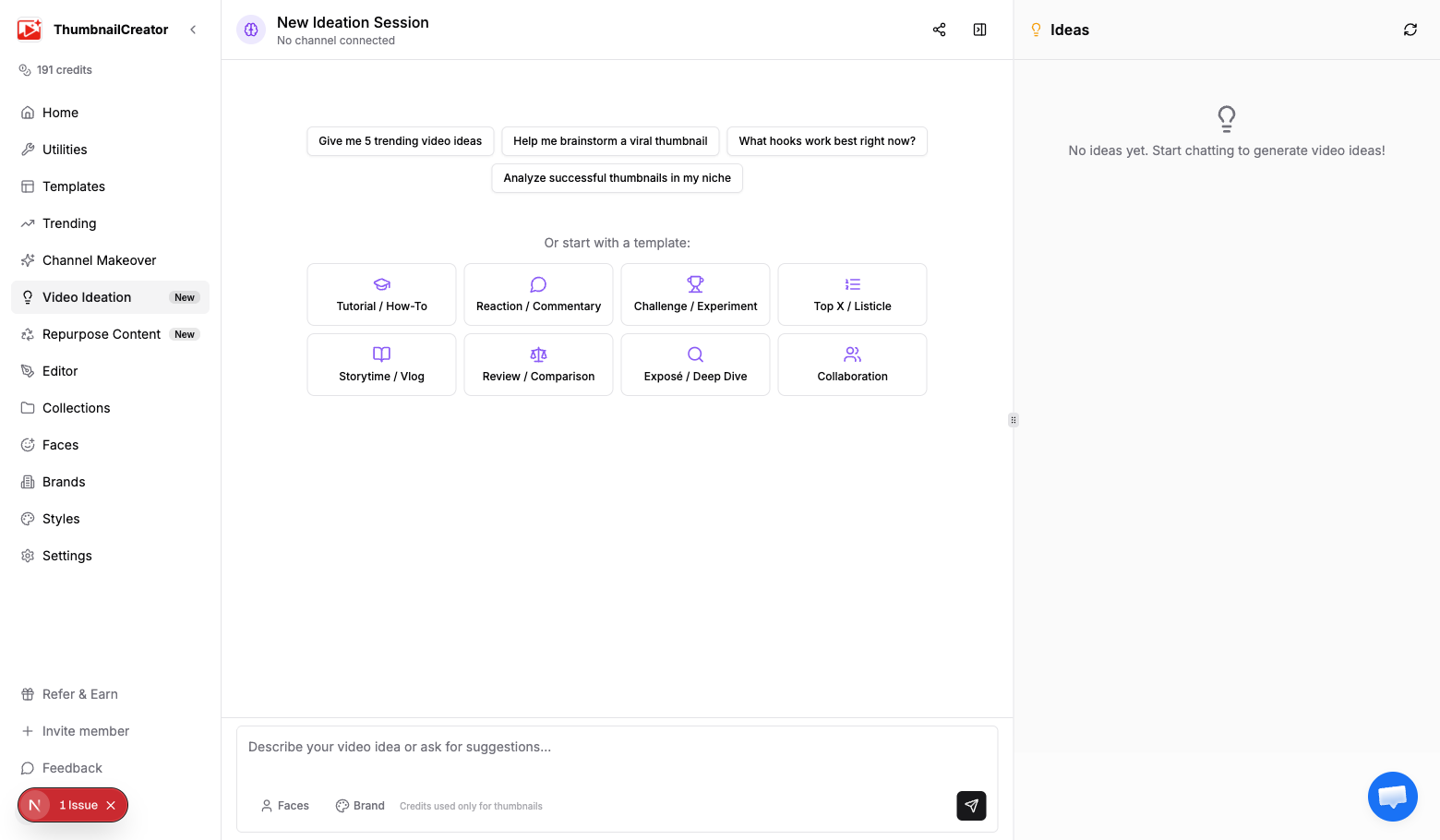
The ideation workspace is split into two panels:
- Left panel — The AI chat conversation. Type your requests, and the AI responds with ideas, research, scripts, and more.
- Right panel — Tabs for Ideas (saved video ideas) and Script (when a script is being generated or reviewed).
What you can ask
The AI can do much more than generate ideas. In a single session you can:
- Research trends — "What's trending in tech YouTube right now?"
- Generate ideas — "Give me 5 video ideas about React development"
- Analyze competitors — "Look at @Fireship's recent videos and find gaps"
- Write scripts — "Write a 10-minute script for the hallucination video idea"
- Critique scripts — "Critique this script and suggest improvements"
- Create thumbnail concepts — "Generate a thumbnail for the micro-SaaS idea"
- Check your channel — "What topics haven't I covered recently?"
Quick-start templates
When you start a new session, 8 pre-built templates are available to get you going fast:
| Template | What it does |
|---|---|
| Tutorial / How-To | Step-by-step educational content ideas |
| Reaction / Commentary | Ideas for reacting to trending content |
| Challenge / Experiment | Time-limited challenges with visual results |
| Top X / Listicle | Ranked lists and compilation ideas |
| Storytime / Vlog | Personal stories with emotional hooks |
| Review / Comparison | Product review and comparison concepts |
| Exposé / Deep Dive | Investigative or revealing content |
| Collaboration | Ideas designed for two creators |
Click any template to pre-fill your first message. You can edit it before sending.
How Ideas Are Generated
When the AI generates video ideas, each one includes:
- Title — A working title optimized for clicks
- Description — What the video would cover
- Hook — Why this idea stands out
- Trend score (0-100) — How likely the topic is to perform well right now
- Engagement factors — What makes viewers click and watch
Ideas are automatically extracted from the AI's responses and appear in the Ideas panel on the right. See Managing Video Ideas for more on organizing and developing your ideas.
Asset Integration
The chat input toolbar includes buttons for attaching context:
- Faces — Select a saved face model so the AI can reference your appearance in thumbnail concepts
- Brand — Apply your brand guidelines (colors, fonts, style) to any generated thumbnails
These appear as small buttons below the chat input.
Session Management
Sharing with your team
Click Share with team at the top of a session to make it visible to other members of your organization.
Returning to sessions
All sessions are saved automatically. Go to Video Ideation in the sidebar to see your recent sessions with their idea count and message count. Click any session to continue where you left off.
Session status
Sessions can be Active (in use), Completed, or Archived. Use the menu at the top of a session to change its status.
Pricing
- Chat and ideation: Free — unlimited conversations and idea generation
- Script writing: Free — generate, critique, and revise scripts
- Thumbnail generation: Uses credits (1 credit per thumbnail)
Related
- Writing and Reviewing Scripts — Script generation, critique, and revision workflow
- Managing Video Ideas — Organizing, developing, and exporting your ideas
- Generating Thumbnails with AI — More on AI thumbnail generation
Tips
- Connect your YouTube channel for the best results — the AI uses your existing content to avoid overlap and find opportunities
- Use trend scores as a guide, not a rule — your unique perspective matters more than any number
- Generate 5+ ideas at once and narrow down — quantity leads to quality in brainstorming
- Ask the AI to "develop" an idea further before committing to a script
- Run ideation weekly to stay ahead of content trends in your niche
- Combine ideation with Repurpose to plan content across multiple platforms from a single video