

Best Thumbnail Dimensions for Mobile and Desktop
Your YouTube thumbnail is the first thing viewers notice - and it can make or break your video's performance. Stick to 1280×720 pixels with a 16:9 aspect ratio to ensure clarity across devices. Over 70% of YouTube views happen on mobile, so your design must work at smaller sizes like 120×90 pixels. Thumbnails with custom designs can boost click-through rates by up to 30%, and 90% of top-performing videos use them.
Key Takeaways:
- Dimensions: 1280×720 pixels (minimum width: 640 pixels).
- Aspect Ratio: 16:9 for seamless display.
- File Size: Max 2MB (standard videos); supports JPG, PNG, GIF (non-animated), and WEBP.
- Mobile Scaling: Design for clarity at 120×90 pixels.
- Best Practices: Use bold fonts, high-contrast colors, and minimal text (3–5 words).
Thumbnails with expressive faces, contrasting colors, and clear visuals can increase engagement dramatically. Always preview at smaller sizes to ensure readability on mobile!
YouTube's Official Thumbnail Requirements
Required Dimensions and Resolution
YouTube's thumbnail guidelines are designed to help your videos stand out while maintaining a polished look. The recommended resolution is 1280×720 pixels, which ensures your thumbnail appears crisp on both desktop and mobile screens.
The minimum width is 640 pixels. Anything smaller risks looking blurry when upscaled. To fit YouTube's player perfectly, thumbnails should have a 16:9 aspect ratio. Using a different ratio, like 4:3, can result in unwanted black bars on the sides, which can be distracting.
When it comes to file formats, YouTube supports JPG, PNG, GIF (non-animated), and WEBP. For thumbnails with text, logos, or graphics, PNG is ideal for its sharpness. For photo-based designs or gradients, JPG works well since it keeps file sizes smaller. The file size limit is 2MB for standard videos, though some creators have reported being able to upload files as large as 50MB.
Custom thumbnails are only available after verifying your phone number with YouTube. Without verification, you’ll need to rely on auto-generated screenshots. Interestingly, 90% of top-performing YouTube videos use custom thumbnails - a clear indicator of their importance.
Why Resolution and Aspect Ratio Are Important
Creating thumbnails at 1280×720 pixels with a 16:9 aspect ratio ensures they look great across all devices. YouTube automatically generates multiple versions of your thumbnail, from a tiny 120×90 pixel image for mobile search results to larger sizes for desktop. Starting with a high-resolution image guarantees your thumbnail remains clear, no matter the format.
The 16:9 aspect ratio also ensures your thumbnail fills the YouTube player seamlessly. This eliminates distracting black bars and enhances the viewing experience, which can improve your video's click-through rate.
Here’s a quick breakdown of YouTube’s thumbnail requirements:
| Specification | Requirement | Why It Matters |
|---|---|---|
| Dimensions | 1280×720 pixels | Ensures clarity on all devices |
| Minimum Width | 640 pixels | Prevents pixelation during upscaling |
| Aspect Ratio | 16:9 | Matches YouTube's player dimensions seamlessly |
| File Size | Max 2MB for standard videos; 10MB for podcasts | Balances quality with upload speed |
| File Formats | JPG, PNG, GIF (non-animated), WEBP | Ensures compatibility with YouTube's platform |
For digital thumbnails, DPI (dots per inch) doesn’t matter - what counts are the pixel dimensions, which directly affect how your thumbnail looks on screen.
How Thumbnails Appear on Desktop vs Mobile
Desktop Display: Full-Size Thumbnails
On desktops, thumbnails are displayed at their full 1280×720 resolution within the video player. However, in other areas like the homepage, search results, or suggested videos, they are resized to approximately 320×180, 246×138, and 168×94 pixels, respectively. The larger screen size on desktops allows viewers to notice finer details and subtle color variations that might not stand out on smaller devices.
When designing for desktop, avoid placing critical elements in the bottom-right corner (where the timestamp appears) or in the center (where the play button overlays) to prevent important details from being obscured. Additionally, desktop users benefit from hover previews, which give them a chance to examine your thumbnail more closely before clicking.
Now, let’s see how these considerations shift for mobile viewers.
Mobile Display: Scaled-Down Thumbnails
On mobile devices, thumbnails are scaled down significantly, sometimes shrinking to as small as 120×90 pixels in the YouTube app feed. This drastic reduction can make text and intricate details that are clear on a desktop appear blurry or indistinct on a smartphone.
To ensure your design works for mobile, try a "Shrink Test" by previewing the thumbnail at 120×90 pixels. If the central subject or text becomes hard to recognize at this size, the design may be too complex for mobile users.
To improve visibility on smaller screens, increase the brightness by 10-15%. Use bold, sans-serif fonts with minimal text - ideally 2-5 words - to keep everything legible. Aim for the text to occupy around 30-40% of the thumbnail space to ensure clarity on mobile devices.
YouTube Thumbnail Size for Videos in 2025 (Resolutions & Aspect Ratio)
Mobile vs Desktop: Side-by-Side Comparison
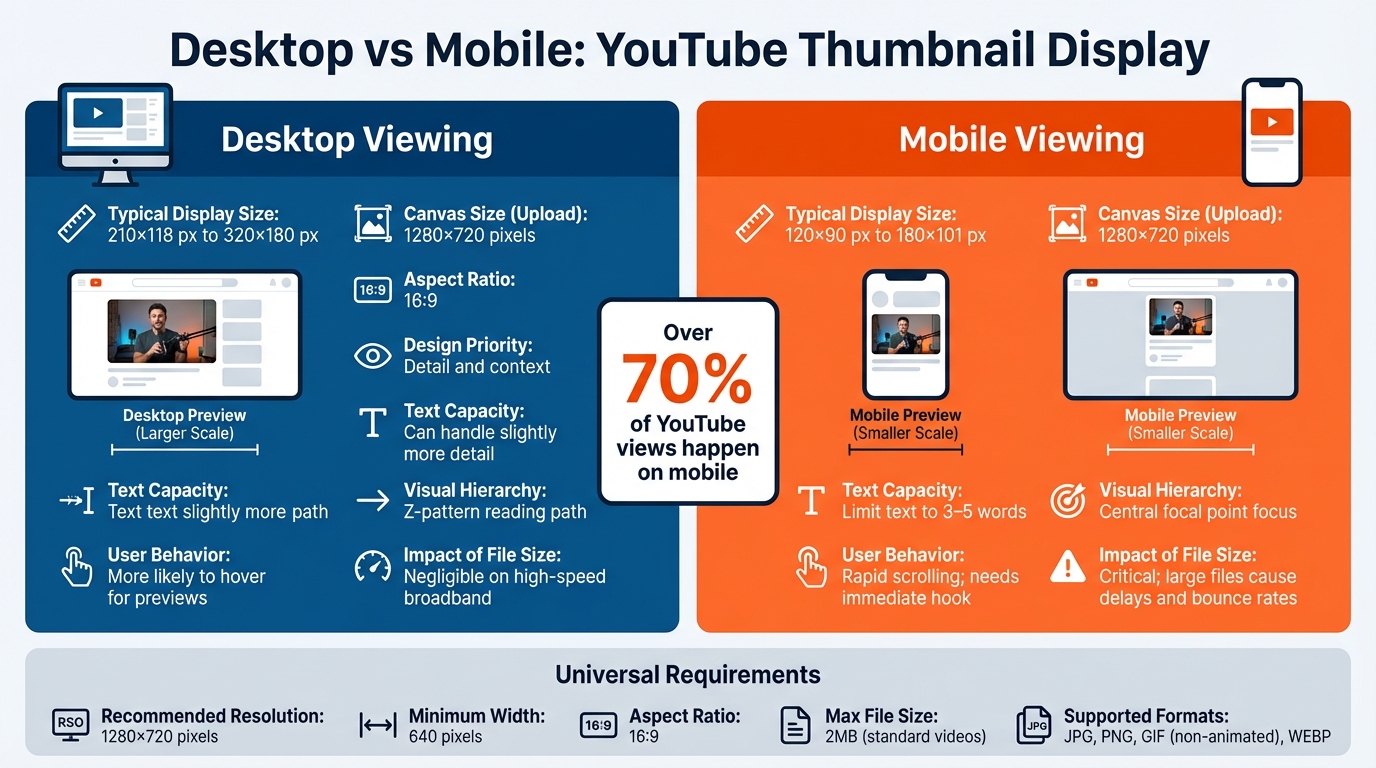
YouTube Thumbnail Requirements: Desktop vs Mobile Display Comparison
Comparison Table: Device-Specific Metrics
Knowing how thumbnails perform on different devices is key to creating designs that work everywhere. While both platforms share the same 1280×720 pixel upload size, their display and design needs vary quite a bit.
| Metric | Desktop Viewing | Mobile Viewing |
|---|---|---|
| Typical Display Size | 210×118 px to 320×180 px | 120×90 px to 180×101 px |
| Canvas Size (Upload) | 1280×720 pixels | 1280×720 pixels |
| Aspect Ratio | 16:9 | 16:9 (Standard) / 9:16 (Shorts) |
| Design Priority | Detail and context | Instant readability and high contrast |
| Text Capacity | Can handle slightly more detail | Limit text to 3–5 words |
| Visual Hierarchy | Z-pattern reading path | Central focal point focus |
| User Behavior | More likely to hover for previews | Rapid scrolling; needs an immediate hook |
| Impact of File Size | Negligible on high-speed broadband | Critical; large files cause delays and bounce rates |
On mobile, thumbnails can shrink to just 120×90 pixels, making clear, legible designs a must. These differences highlight the need for tailored strategies to fit each platform's unique demands.
Design Tips for Both Platforms
YouTube's resolution and aspect ratio guidelines are a solid foundation, but effective thumbnails require extra attention to ensure they stand out on any device.
- Test at Small Sizes: Always check your thumbnail at 120×90 pixels. If the text or subject isn’t clear at this size, it likely won’t work well on mobile. This quick test can save you from creating thumbnails that look great on desktops but fail on smartphones.
- High Contrast and Bold Fonts: Use a contrast ratio of at least 4.5:1 and bold sans-serif fonts like Impact, Montserrat, or Bebas Neue. These ensure text remains readable, even at smaller sizes. High-contrast designs can boost click-through rates by up to 30% compared to lower-contrast options.
- Apply the Rule of Thirds: For desktop viewers, align key elements (like branding or text) along the Z-pattern, starting from the top left and moving to the bottom left. Mobile users, however, focus on the center of the thumbnail, so make sure the central subject is bold and prominent.
- Choose the Right File Format: Use PNG for text-heavy designs to avoid compression artifacts, especially on high-density screens. For photo-based thumbnails, stick with JPG to keep file sizes smaller. This matters because large files nearing the 2MB limit can lead to load delays of up to 300ms, which directly impacts bounce rates on mobile networks.
sbb-itb-b59debf
Research-Backed Thumbnail Design Tips
Design Elements That Increase Click-Through Rates
The secret to creating a thumbnail that stands out lies in a few proven design strategies. For starters, including an expressive human face can increase your click-through rate (CTR) by an impressive 47%, potentially adding up to 921,000 extra views.
When it comes to text, less is definitely more. Limiting your text to just 3–5 words can boost your CTR by 44%. Pair that with high-contrast color combinations like yellow and black or blue and orange, and you could see an additional CTR increase of 30% to 39%. For example, yellow and black are particularly effective for high-energy content, delivering an average CTR of 8.2%. Adding outlines or shadows to your text is another smart move, improving your CTR by 23%.
Visual cues such as arrows, circles, or pointing gestures can guide viewers' eyes to the most important part of your thumbnail. At the same time, consistent branding elements - like using the same color palette or style across all thumbnails - can increase CTR by 24%. Chucky Appleby, part of MrBeast's creative team, highlighted the power of branding:
"In 2019 we decided to start putting Jimmy's face in every thumbnail because we were branding the videos around him. If you trusted Jimmy on the last video... then the next video you see his face, you'd be like, 'Oh, that's the guy that delivered... so I'm going to click.'"
One major pitfall to avoid? Using stock photos. Generic imagery can reduce CTR by 42%. Viewers are far more likely to engage with authentic stills pulled directly from your video.
Now, let’s dive into how to test these design choices effectively across different screen sizes.
Testing Thumbnails at Different Sizes
Even the best-designed thumbnail can fall flat if it doesn’t work across all devices. To ensure your design holds up, start by applying a glance test: shrink your thumbnail down to 120 pixels wide. If the key text or image becomes unclear, simplify the design.
YouTube’s "Test & Compare" feature is invaluable for A/B testing. Run tests with up to three thumbnail variations over 48–72 hours, aiming for at least 10,000 impressions per variant. This approach has been shown to improve video performance by 25% over six months.
Another helpful tip is the 1/10th rule - view your thumbnail at just 10% of its original size to mimic how it will appear in a mobile feed. Checking how your thumbnail looks in an incognito browser window can also uncover rendering issues across various layouts. If your design elements blend into the background when scaled down, consider enhancing them with drop shadows, boosting color saturation, or increasing contrast to maintain a minimum 4.5:1 ratio between text and background.
How ThumbnailCreator Helps Optimize Thumbnails
AI-Powered Design Features
ThumbnailCreator simplifies thumbnail creation by using AI-driven tools to ensure your designs are optimized for YouTube's official resolution and aspect ratio. This means your thumbnails will look sharp on desktops and scale perfectly for mobile devices without losing quality or appearing distorted.
The AI examines successful thumbnails in your niche to uncover patterns that boost click-through rates. You can quickly generate and test multiple thumbnail variations in under a minute, even at smaller sizes like 120 x 90 pixels, to confirm that text stays readable and visuals remain eye-catching on mobile screens. Plus, features like face swapping, text editing, and object swapping make it easy for anyone - regardless of design experience - to create professional-quality thumbnails.
Templates Built for All Devices
ThumbnailCreator offers pre-sized templates tailored for various formats, including standard YouTube videos (16:9), YouTube Shorts (9:16), and even platforms like Instagram and LinkedIn. These templates are pre-configured with the correct dimensions, eliminating the need for manual resizing or aspect ratio adjustments.
For creators in specific niches like gaming, tech, or beauty, the platform provides specialized templates alongside built-in stock libraries filled with high-resolution backgrounds. This ensures your thumbnails remain crisp and clear, no matter the device. Considering that over 70% of YouTube watch time happens on mobile, these mobile-first tools ensure your thumbnails perform where they matter most.
Boosting Click-Through Rates with Better Design
Thumbnails play a critical role in attracting viewers - up to 90% of a viewer's decision to click is influenced by the thumbnail. ThumbnailCreator’s design libraries include high-contrast colors, bold fonts, and professional imagery, all rooted in proven design principles. These principles emphasize expressive faces, concise text (3–5 words), and visual cues to grab attention.
The platform also makes A/B testing a breeze by allowing you to create multiple click-through-rate (CTR) optimized designs quickly. In just 48–72 hours, you can identify the design that resonates most with your audience, whether they’re viewing on mobile or desktop. This streamlined testing process ensures you’re always putting your best thumbnail forward.
Conclusion
Getting your thumbnail dimensions right is crucial for making your videos stand out. Stick to the standard 1280×720 resolution with a 16:9 aspect ratio to ensure your thumbnails look crisp on desktops and scale down perfectly for mobile screens. Considering that 88% of YouTube viewership happens on mobile devices, this is a step you can’t afford to skip.
Beyond dimensions, design choices matter. Using high-contrast colors, bold text (3–5 words), and expressive human faces can significantly boost engagement, potentially increasing viewership by up to 154%. These small tweaks can make a big difference.
If you’re looking for a tool to simplify the process, ThumbnailCreator has you covered. It automates technical aspects with AI-driven design features and offers pre-sized templates tailored for both mobile and desktop. In less than a minute, you can generate multiple thumbnail options and preview them at smaller scales to ensure they’re mobile-friendly.
FAQs
Why is the 16:9 aspect ratio crucial for YouTube thumbnails?
The 16:9 aspect ratio is a must for YouTube thumbnails because it ensures your image looks sharp and well-fitted on any device, whether it's a desktop, tablet, or smartphone. This ratio aligns perfectly with YouTube's recommended dimensions of 1280 x 720 pixels, preventing common problems like awkward cropping or blurry pixelation.
Sticking to this aspect ratio also keeps your channel looking polished and consistent. Plus, it matches how YouTube displays videos in search results, playlists, and suggested video sections. A thumbnail that’s the right size doesn’t just look better - it can also make your content more eye-catching and boost your click-through rate.
What are the best practices for creating clear thumbnails for mobile devices?
To make sure your thumbnails appear crisp and clear on mobile screens, stick to a 16:9 aspect ratio with a resolution of 1280 x 720 pixels. Steer clear of using tiny text or cluttered visuals - these can become unreadable when the thumbnail is scaled down. Instead, aim for bold, straightforward designs that catch the eye and stay easy to read, even on smaller displays.
What are the key design tips to create high-performing thumbnails?
When designing thumbnails to improve click-through rates (CTR), focus on visual clarity, emotional appeal, and simplicity. These elements help your content grab attention in a crowded feed.
- Bold and high-contrast colors: Choose colors that pop, especially on smaller mobile screens, where most users view thumbnails. This makes your design stand out immediately.
- Human faces with emotion: People are naturally drawn to faces. Using expressive emotions in your thumbnails can spark curiosity and make the content feel more relatable.
Keep text short - under 12 characters is ideal - and ensure it’s easy to read, even at smaller sizes. Remember, most viewers are scrolling quickly on their phones, so clarity is key.
Another trick? Create a curiosity gap. Tease the content without revealing too much. This approach intrigues viewers and encourages them to click to learn more. Lastly, make sure your thumbnail aligns with the video title. Consistency between the two builds trust and reinforces your message.
By combining bold visuals, expressive faces, minimal text, and a touch of mystery, you can drive more clicks and boost your video’s performance.