

Best Thumbnail Size for YouTube: Complete Guide
Your YouTube thumbnail is the first thing viewers notice, and it can make or break your video's success. Here's what you need to know upfront:
- Recommended Size: 1280 x 720 pixels (16:9 aspect ratio).
- File Formats: JPG, PNG, GIF, BMP.
- File Size Limit: Under 2MB for standard videos.
- Key Design Tips: Use bold, readable text (3–5 words), high-contrast colors, leveraging color psychology to influence viewer behavior, and expressive faces to grab attention.
90% of top-performing videos use custom thumbnails, and optimizing yours and avoiding common thumbnail mistakes can increase views by up to 154%. Whether you're a beginner or an experienced creator, following these guidelines ensures your thumbnails stand out and drive clicks. Tools like ThumbnailCreator can simplify the process, saving time while improving results.
Keep reading for a step-by-step breakdown of technical requirements, design strategies, and tips to create thumbnails that boost your video's performance.
YouTube Thumbnail Size for Videos in 2025 (Resolutions & Aspect Ratio)
YouTube Thumbnail Technical Requirements
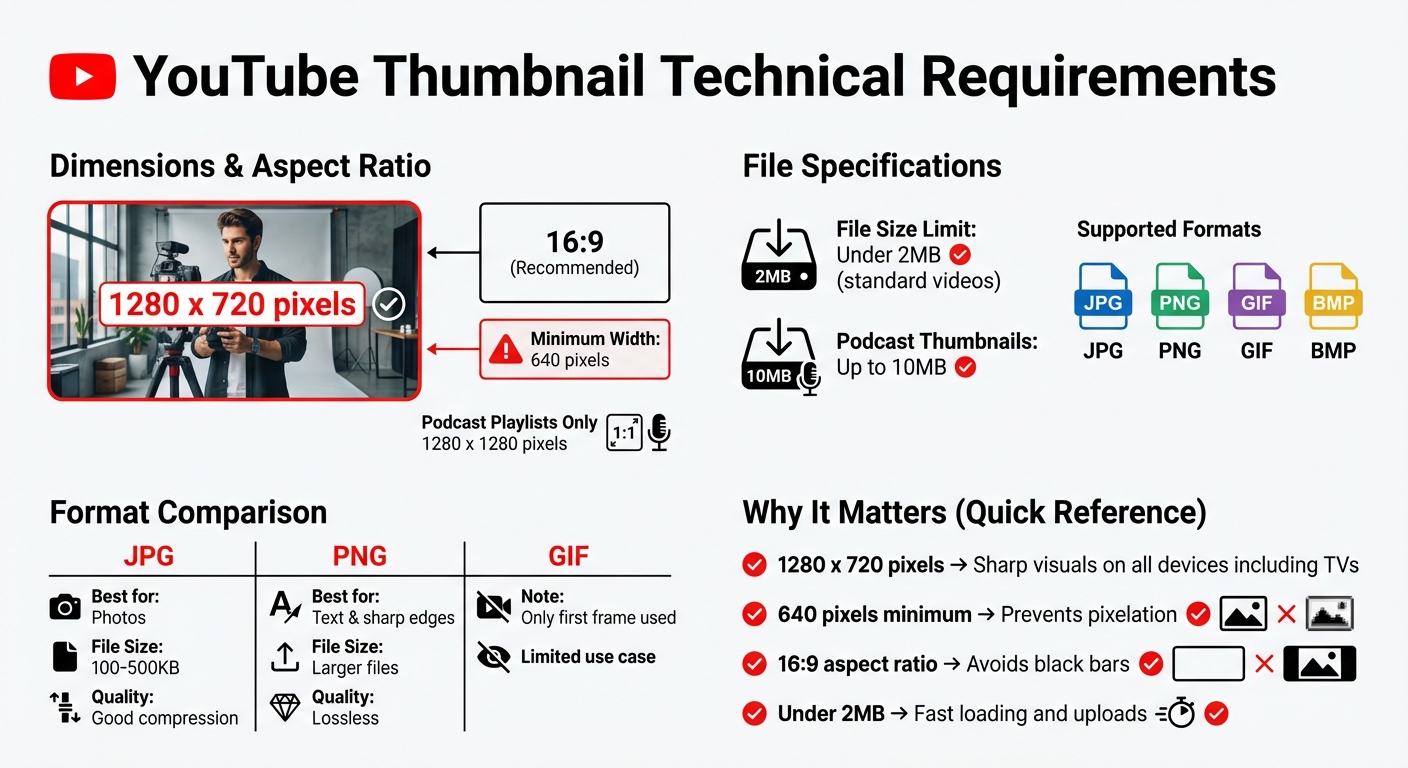
YouTube Thumbnail Technical Requirements and Specifications Guide
YouTube has specific technical guidelines to ensure thumbnails upload smoothly and display clearly across all devices. Here's a breakdown of the key dimensions, file sizes, and formats you need to follow.
Required Dimensions and Aspect Ratio
The recommended thumbnail size is 1280 x 720 pixels with a 16:9 aspect ratio. This aligns perfectly with YouTube's video player, avoiding those annoying black bars (pillarboxing) on the sides. While thumbnails may appear smaller - around 120 pixels wide - in feeds, YouTube uses the full-resolution image when the thumbnail is displayed.
To avoid pixelation, your image width must be at least 640 pixels. Images smaller than this will stretch and lose clarity. On the other hand, uploading ultra-high-resolution images, like 4K (3840 x 2160 pixels), can cause errors without improving quality. For non-standard content like podcast playlists, YouTube requires a 1:1 aspect ratio (1280 x 1280 pixels) instead of the 16:9 format.
File Size and Format Requirements
For standard video thumbnails, the file size must be under 2MB, while podcast thumbnails can go up to 10MB. YouTube supports several file formats, including JPG, PNG, GIF, and occasionally BMP. Each format has its strengths:
- JPG: Best for photos, offering smaller file sizes (typically 100–500KB) with good quality.
- PNG: Ideal for designs with sharp edges or text but tends to result in larger files.
- GIF: Only the first frame will be used as the thumbnail.
If your PNG file exceeds 2MB, compress it before uploading. Alternatively, you can use an AI thumbnail generation guide to create optimized designs from scratch. Many experts recommend saving thumbnails as JPG/JPEG for optimal quality and efficient compression.
| Specification | Requirement | Why It Matters |
|---|---|---|
| Ideal Dimensions | 1280 x 720 pixels | Ensures sharp visuals on all devices, including TVs |
| Minimum Width | 640 pixels | Prevents pixelation and meets upload standards |
| Aspect Ratio | 16:9 | Matches YouTube's player to avoid black bars |
| File Size | Up to 2MB (standard) | Balances quality with fast loading and uploads |
| File Formats | JPG, PNG, GIF, BMP | Ensures compatibility with YouTube's platform |
How to Design Thumbnails That Get Clicks
Meeting YouTube's technical requirements is just the first step. The real challenge lies in crafting thumbnails that grab attention in a crowded feed and entice viewers to click. Here’s how you can create thumbnails that deliver results.
Combining Text and Images
Your thumbnail should instantly convey your video’s message. Keep text short - just 3–5 words. Anything longer can become unreadable, especially on smaller screens. Bold, heavy fonts like Impact, Anton, or Montserrat Bold work well because they stay legible even at smaller sizes.
Rather than repeating your video title, use text to spark curiosity or highlight a specific benefit. For example, in December 2024, the cooking channel "Tasty Creations" revamped its thumbnails by using extreme close-ups paired with minimal, high-contrast text. This change boosted their click-through rate from 2.8% to 7.1%, a massive 150% increase.
To improve text clarity, add a 2–4 pixel contrasting outline or a subtle drop shadow, especially on busy backgrounds. Avoid placing important text in the bottom-right corner, as YouTube’s timestamp will obscure it. High-contrast color combos like Yellow/Black, Blue/Orange, or Red/White can make your design pop.
"The thumbnail and title are the most important things for getting clicks." - MrBeast, Content Creator
Choosing High-Resolution Images
Always use sharp, high-quality images - blurry video stills won’t cut it. Design your thumbnail at 1920 x 1080 resolution and then downscale it to 1280 x 720 for crisp details.
Including human faces with genuine emotional expressions can significantly boost engagement. Thumbnails featuring expressive faces get 30% more clicks, and direct eye contact can increase click-through rates by up to 25% . A gaming channel applied this strategy by showcasing character close-ups with exaggerated expressions and bold outlined text, leading to a 112% jump in views - from 4,200 to 8,900 per video.
To make sure your design works for mobile users, test it at a smaller size (around 320 x 180 pixels). If all elements remain clear at this scale, you’re good to go. Once your visuals are engaging, tie them into a consistent branding approach.
Maintaining Brand Consistency
Your audience should recognize your videos at a glance. Stick to a signature color palette, consistent typography, and familiar layouts to build trust and stand out in crowded feeds.
For example, an educational science channel rebranded its thumbnails in late 2024. They moved away from text-heavy designs, focusing instead on striking visuals and color-coded topic categories (e.g., blue for physics). This shift resulted in a 78% increase in new subscriber acquisition, growing from 215 to 383 new subscribers per video.
sbb-itb-b59debf
Creating Thumbnails with ThumbnailCreator
Designing eye-catching thumbnails doesn’t have to be complicated. With ThumbnailCreator, you can produce professional-quality thumbnails without any design experience. This tool uses AI to create thumbnails that not only look great but also boost views and engagement. Plus, it automatically handles all the technical details, so you can focus on your content instead of formatting headaches.
ThumbnailCreator Features
ThumbnailCreator simplifies the thumbnail design process with a range of powerful features:
- URL-to-Thumbnail: Just paste your YouTube video URL, and the AI will analyze your content to generate professional thumbnails in seconds. This feature eliminates guesswork and saves hours of manual effort.
- Spot Edit: Need to tweak specific parts of your thumbnail? The Spot Edit tool lets you make precise adjustments - like repositioning text or swapping out backgrounds - without starting from scratch.
- Faces for Branding: Maintain a consistent look across your thumbnails with the Faces feature. The AI can generate the same face style for multiple thumbnails, helping establish your brand identity.
- AI Optimize: Automatically enhance your design by improving contrast, colors, and layout. This feature ensures your thumbnails are polished and visually striking.
- YouTube-Ready Formatting: All thumbnails are automatically sized to meet YouTube’s specifications (1280 x 720 resolution, 16:9 aspect ratio, under 2MB file size).
"ThumbnailCreator has saved me so much time. I used to spend 1-3 hours per thumbnail... Now, my thumbnails are finished within a few mins and they look (and convert) better as well." – Dave S Anderson, Creator
Step-by-Step Guide to Using ThumbnailCreator
Here’s how you can create a thumbnail in just a few steps:
- Input Your Content: Paste your YouTube video URL into ThumbnailCreator. The AI will analyze your video and generate multiple thumbnail options in seconds. Alternatively, you can provide a text prompt to guide the design process.
- Customize Your Design: Use the Faces feature for consistent branding across your thumbnails. Then, fine-tune specific elements with the Spot Edit tool - whether it’s adjusting text placement or swapping out a background. This is particularly useful when creating gaming thumbnails that require high-energy visuals and precise text overlays.
- Optimize and Export: Click the AI Optimize button to enhance contrast, colors, and layout. Once satisfied, download your thumbnail as a JPG or PNG file. It’s already formatted perfectly for YouTube.
ThumbnailCreator Pricing Options
ThumbnailCreator offers flexible pricing plans to suit different needs. You can start with a 7-day free trial, which includes your first 10 thumbnails at no cost. If you decide it’s not for you, there’s a 7-day money-back guarantee.
| Plan | Monthly Cost | Description | Key Features |
|---|---|---|---|
| Free Plan | $0 | For testing | Basic templates, AI generation, limited number of thumbnails |
| Pro Plan | Starting at $9 | For individual creators | Full template access, unlimited thumbnails, advanced AI features, face/object swapping |
| Agency Plan | Custom pricing | For agencies managing channels | All Pro features, team collaboration tools, priority support |
Whether you’re a solo creator or managing multiple channels, ThumbnailCreator has a plan to fit your needs.
Conclusion
Creating the perfect YouTube thumbnail isn't just about meeting technical requirements - it’s about making your videos stand out and perform better. As we've outlined, combining the right specs with smart design choices can significantly influence your video's success. Stick to the essentials: limit text to 3–5 words, use bold, high-contrast colors, and, when possible, feature expressive faces. These small tweaks can make a big difference in boosting your click-through rate.
Here’s a standout statistic: 90% of top-performing videos on YouTube use custom thumbnails, and optimized thumbnails can increase viewership by up to 154%. With nearly 70% of YouTube views coming from mobile devices, designing thumbnails that look great on smaller screens is more important than ever.
For those looking to streamline the process, tools like ThumbnailCreator can be game-changers. This tool allows you to create professional thumbnails in minutes by handling the technical aspects, so you can focus on crafting eye-catching designs.
Start applying these tips today. Experiment with different designs, track your click-through rate, and refine your approach based on what resonates with your audience. Whether you’re launching a new channel or improving an existing one, better thumbnails lead to better results - take action and watch your performance improve.
FAQs
Why should I use custom thumbnails on YouTube?
Custom thumbnails are a fantastic way to make your videos pop on YouTube. They catch the eye in search results and suggested video sections, making it more likely that viewers will click on your content. In fact, a well-crafted thumbnail can dramatically improve your click-through rate compared to the default, auto-generated options.
Think of a custom thumbnail as a visual snapshot of your video. It gives viewers an immediate idea of what to expect and helps convey your message at a glance. Plus, it’s a great way to reinforce your channel’s brand identity. By using consistent colors, fonts, or design elements, your videos become more recognizable, which is especially helpful for building a loyal audience. For mobile users, where thumbnails appear smaller, having a clean and engaging design is even more critical.
By using bold visuals, striking text, and vibrant colors, custom thumbnails can stir curiosity or spark an emotional reaction. This encourages more clicks, engagement, and ultimately more views. They’re a simple yet powerful tool to boost visibility, grow your audience, and establish a stronger presence on YouTube.
How can I make sure my YouTube thumbnail looks great on mobile devices?
To make your YouTube thumbnail pop on mobile screens, here are some essential tips to keep in mind:
- Stick to the recommended resolution of 1280 x 720 pixels with a 16:9 aspect ratio to ensure your thumbnail looks crisp across all devices.
- Keep the file size under 2 MB and save it in formats like JPG or PNG for quick loading and broad compatibility.
- Use bold, high-contrast colors and large, easy-to-read text to make sure your thumbnail stays clear and attention-grabbing, even when displayed at smaller sizes.
It's a good idea to preview your thumbnail on a smartphone during the design process. This helps you check its clarity and appeal. Avoid cluttered or overly detailed visuals - simple, striking designs work best to catch the viewer's eye instantly.
What tools and features does ThumbnailCreator offer for designing YouTube thumbnails?
ThumbnailCreator offers a suite of AI-driven tools to simplify the process of designing YouTube thumbnails. It enables users to craft polished, attention-grabbing thumbnails that align with YouTube’s technical specs - like a resolution of 1280×720 pixels, 16:9 aspect ratio, and supported formats such as JPG or PNG - all while keeping the file size under 2MB.
The platform takes the hassle out of design by automating essential elements like improving visual hierarchy, boosting contrast, and incorporating engaging text overlays. These features are tailored to increase click-through rates and ensure thumbnails look sharp on both mobile and desktop screens. Whether you’re just starting out or a seasoned content creator, ThumbnailCreator makes it straightforward to design top-notch thumbnails that strengthen your channel’s branding and connect with your audience.