

Canva vs Photoshop for YouTube Thumbnails: Which Wins?
When creating YouTube thumbnails, Canva and Photoshop cater to different needs. Canva is perfect for beginners or those short on time, offering an intuitive drag-and-drop interface and thousands of templates. You can design thumbnails in just 2–8 minutes with minimal effort, helping you avoid common thumbnail mistakes. At $120/year for the Pro version, it’s budget-friendly and includes tools like background removal and AI features.
Photoshop, on the other hand, is for professionals who need pixel-level control and advanced editing tools. It provides unmatched precision but comes with a steep learning curve and higher costs at $263.88/year. Creating thumbnails takes 12–30 minutes, but the results are highly customizable and polished. This level of detail is often necessary to reach competitive thumbnail CTR benchmarks.
Quick Comparison
| Feature | Canva | Photoshop | Best For |
|---|---|---|---|
| Ease of Use | Beginner-friendly | Complex, requires training | Canva |
| Speed | 2–8 minutes per thumbnail | 12–30 minutes per thumbnail | Canva |
| Customization | Limited, template-based | Unlimited, pixel-level editing | Photoshop |
| Price | $120/year (Pro) | $263.88/year | Canva (budget-friendly) |
| AI Tools | Basic (25 uses/month) | Advanced (Generative Fill, more) | Photoshop |
If you need fast, simple designs, Canva is the way to go. For detailed, professional thumbnails, Photoshop is worth the investment.
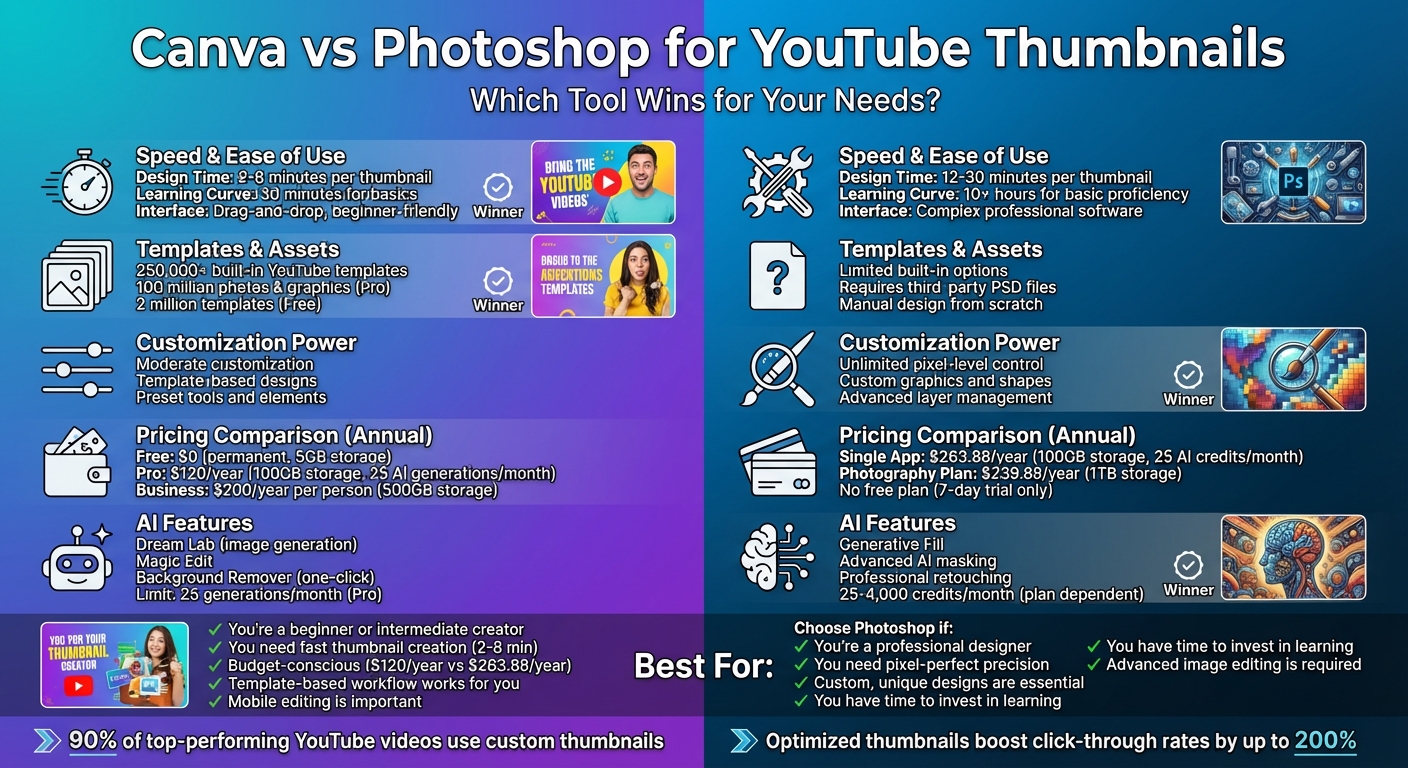
Canva vs Photoshop for YouTube Thumbnails: Complete Feature and Pricing Comparison
Canva vs Photoshop for thumbnails
Canva for YouTube Thumbnails
Canva is a web-based design platform that makes creating professional visuals a breeze, even for those with no prior design experience. Its intuitive drag-and-drop editor allows you to move elements, resize graphics, and layer components effortlessly. With access to over 2 million templates (or 4.5 million with a Pro subscription), you can easily customize designs by swapping out text, images, and colors. Let’s dive into the features that make Canva a go-to tool for quick and effective thumbnail creation.
Key Features of Canva
Canva’s strength lies in its template-driven workflow and user-friendly tools that remove the technical hurdles of design. One standout feature is the Background Remover - available with Canva Pro for $15/month or $120/year - which lets you isolate subjects like headshots with a single click. This is a game-changer for creating eye-catching thumbnails. The Brand Kit is another essential tool, allowing you to save your channel’s colors, fonts, and logos for consistent branding across all your uploads.
The platform has also introduced powerful AI-driven tools in 2025. Features like "Dream Lab" generate custom images from text inputs, while "Magic Edit" lets you refine specific areas without affecting the rest of your design. However, Pro users should note the 25 AI generation limit per month. Canva’s stock media library is another highlight, offering access to 100 million photos and graphics for Pro users and 3 million for those on the free plan.
To ensure your thumbnails grab attention on mobile devices - where most YouTube content is consumed - Canva includes text styling options like font pairings, shadows, outlines, and gradient fills. The platform also features an accessibility checker to maintain a minimum color contrast ratio of 4.5:1, ensuring designs are inclusive for color-blind viewers. For creators juggling multiple platforms, the "Magic Switch" feature instantly resizes thumbnails for different platforms, though this is exclusive to Pro subscribers.
With these tools, Canva offers a mix of speed and ease of use, making it a strong contender for YouTube thumbnail creation. Below is a quick breakdown of Canva's strengths and limitations.
Pros and Cons of Canva
| Advantages | Drawbacks |
|---|---|
| Quick design process: Templates allow thumbnails to be created in 2–8 minutes | Limited precision: Lacks pixel-level control found in advanced software |
| Beginner-friendly: No tutorials needed to get started | Template reliance: Custom designs take more time and skill |
| Affordable options: Free tier available; Pro costs $120/year compared to Photoshop’s $239.88 | AI limitations: Pro plan caps AI image generation at 25 per month |
| Cross-platform access: Usable on browsers, iOS, and Android | Export restrictions: Free version doesn’t support transparent PNGs or advanced compression |
| Branding tools: Save up to 1,000 Brand Kits for consistent design | Stock media quality: Some premium assets feel generic or overused |
Canva shines when it comes to speed and accessibility, though it does trade off some of the precision that advanced designers might require. For YouTube creators who prioritize publishing thumbnails quickly over achieving intricate, pixel-perfect designs, Canva is an excellent choice. The free version is perfect for beginners experimenting with their content strategy, while the Pro plan becomes invaluable for creators producing multiple videos each week, thanks to features like background removal and unlimited Brand Kits.
Photoshop for YouTube Thumbnails
Photoshop gives creators unmatched control over their designs, making it a go-to tool for crafting standout YouTube thumbnails. Unlike template-based tools, Photoshop uses a layer system that separates text, images, and effects. This setup allows you to tweak individual elements - like adjusting a text shadow - without affecting the rest of the design. If you're aiming for thumbnails that feel polished and distinct, Photoshop provides the professional-grade tools you need.
One of its biggest strengths is its advanced image editing capabilities. You can refine facial features, eliminate unwanted background distractions, adjust lighting in specific areas, and apply custom effects like gradients or bevels. The layer styles panel (accessible via the FX icon) lets you stack effects like drop shadows, strokes, and glows, ensuring your text pops against even the busiest backgrounds. Shannon Craig from Custom Thumbnails notes:
"Using Photoshop requires training, practice, and financial commitment"
For beginners, mastering Photoshop can take weeks or even months through tutorials and hands-on practice. Paul Wilson, an eLearning Designer and Developer, reinforces this:
"It's been my experience that being well versed in Adobe Photoshop is an important skill to be a successful eLearning designer/developer"
For creators who need to churn out videos quickly, this learning curve might seem daunting.
A practical solution? Use professional Photoshop templates (PSD files). These templates let you skip time-consuming tasks like creating custom backgrounds or intricate text effects. You simply insert your images and text, then export. This way, you can enjoy Photoshop's professional quality without spending hours on each thumbnail. To optimize your design for YouTube, use the "Save for Web" feature to export JPEGs under the platform's 2MB size limit. Next, let’s dive into the specific tools and workflow that make Photoshop so powerful.
Key Features of Photoshop
Photoshop’s tools are designed for creators who demand precision. Its layer management system allows for unlimited stacking and grouping of elements, with blending modes that dictate how layers interact. Unlike platforms reliant on pre-made assets, Photoshop lets you create custom vector shapes, giving your thumbnails a more original feel. Precision tools like retouching brushes, clone stamps, and healing brushes enable pixel-level editing for a refined look.
Typography is another area where Photoshop shines. Beyond basic text boxes, it offers advanced controls for kerning and tracking, so you can perfectly align your text within the composition. Layer styles let you add dimension with effects like drop shadows, outer glows, and gradient overlays, all of which can be customized for opacity, angle, and spread. Tools like grids and guides help you apply the rule of thirds or centered compositions, ensuring your design is visually balanced.
Photoshop also supports non-destructive editing through Smart Objects. This means you can resize or apply filters to images without permanently altering the original file - a lifesaver when experimenting with layouts. Additionally, its color management tools help verify contrast ratios (aiming for at least 4.5:1), making your thumbnails accessible to viewers with color blindness. With 90% of top-performing YouTube videos featuring custom thumbnails, these tools can give your content a competitive edge.
For exporting, Photoshop supports high-resolution formats like PNG-24 and JPEG, ensuring your 1,280 x 720 pixel thumbnails remain sharp and free of compression artifacts while staying under YouTube's 2MB limit. Exporting in sRGB and adhering to YouTube's 1,280 x 720 px standard is key. To maximize click-through rates, keep text coverage under 40% of the thumbnail area and use the zoom-out function to ensure your design looks great even at smaller sizes. Optimized thumbnails can boost click-through rates by up to 200%.
Pros and Cons of Photoshop
| Advantages | Drawbacks |
|---|---|
| Total creative control: Edit every element down to the pixel. | Learning curve: Requires time and effort to master. |
| Professional results: High-quality exports maintain sharpness. | Time-consuming: Designing from scratch can be slow. |
| Advanced editing tools: Perfect for detailed image adjustments. | Costly: Requires an Adobe Creative Cloud subscription. |
| Unlimited layers: Build intricate compositions with precision. | Overwhelming for beginners: The interface can be confusing at first. |
| Custom graphics: Freedom to create unique shapes and effects. | Slower for frequent uploads: Not ideal for creators with tight schedules. |
| Template support: PSD files can speed up the process. | Requires technical skills: Understanding resolution, color modes, and export settings is essential. |
Photoshop is the ultimate choice for creators who want complete creative freedom and have the time to learn its features. It’s ideal for professionals looking to create thumbnails that stand out with a polished, custom look. However, if you’re new to YouTube or need to produce thumbnails quickly, the complexity and cost might feel like hurdles - at least until you’ve built up your skills and workflow.
Feature Comparison Table
When deciding on a thumbnail design tool, factors like ease of use, available templates, customization options, and speed are essential. This breakdown is tailored to help YouTube creators make an informed choice.
Canva stands out for its accessibility and speed. With a simple drag-and-drop interface, even beginners can create thumbnails in just 2–8 minutes, compared to the 12–30 minutes it typically takes with Photoshop. Canva also boasts over 250,000 customizable templates, saving users the hassle of starting from scratch. On the other hand, Photoshop requires users to manually build designs or rely on third-party PSD files, demanding more technical expertise.
However, Photoshop shines in areas where Canva falls short. For creators seeking professional-grade image quality and unparalleled customization, Photoshop is the clear choice. It offers pixel-level control, advanced typography, and the ability to process raw files, making it ideal for those needing unique branding that templates alone can't achieve. While Canva’s learning curve is about 30 minutes, Photoshop requires over 10 hours to grasp its basic functions.
Comparison Table
| Feature | Canva | Photoshop | Winner |
|---|---|---|---|
| Ease of Use | Drag-and-drop interface | Complex professional software | Canva |
| Template Availability | 250,000+ built-in YouTube templates | Limited built-in options; third-party PSDs | Canva |
| Customization Options | Moderate; preset tools and elements | Unlimited; pixel-level control | Photoshop |
| Text Controls | Basic effects (shadows, curves, glows) | advanced typography and layer styles | Photoshop |
| Image Quality | High-quality exports (up to 1080p) | Professional-grade with raw file support | Photoshop |
| AI Tools | Dream Lab, Magic Edit, Background Remover (25 generations/month) | Generative Fill, advanced AI masking | Tie |
| Learning Curve | 30 minutes for basics | 10+ hours for basic proficiency | Canva |
| Workflow Speed | 2–8 minutes per thumbnail | 12–30 minutes per thumbnail | Canva |
The table highlights the strengths of each tool. Canva’s AI features, such as Dream Lab and Magic Edit, streamline design workflows but are limited to 25 AI generations per month for Pro users. Photoshop’s advanced AI tools, like Generative Fill and sophisticated masking, cater to creators tackling intricate projects. Ultimately, the choice depends on whether you prioritize speed and simplicity or advanced customization and precision.
sbb-itb-b59debf
Pricing Comparison Table
When it comes to selecting the right tool, cost can be a deciding factor. Canva stands out with its permanent free tier, priced at $0.00, which never expires. This free plan includes over 1.6 million templates, an easy-to-use drag-and-drop editor, and 5GB of cloud storage - an excellent starting point for beginners. On the other hand, Photoshop does not offer a free plan, operating exclusively on a subscription basis after a 7-day trial.
For premium options, Canva Pro costs $120.00 per year (equivalent to $10 per month when billed annually). This plan includes 100GB of storage and up to 5 Brand Kits. Comparatively, the Photoshop Single App plan is priced at $263.88 annually (approximately $21.99 per month) and comes with Adobe Express Premium and 100GB of cloud storage. Solo users can save around 16% by choosing Canva's annual billing option.
Canva also provides a 30-day free trial for its Pro and Business plans, giving users a full month to explore its premium features before committing. Adobe, however, offers only a 7-day trial for its subscriptions. Additionally, Adobe subscriptions come with annual contracts - cancellations within 14 days are eligible for a full refund, but beyond that, the service continues until the end of the term. Below is a detailed breakdown of these pricing options.
Pricing Table
| Plan | Monthly Cost | Annual Cost | Trial Period | Cloud Storage | AI Access | Key Limitations |
|---|---|---|---|---|---|---|
| Canva Free | $0.00 | $0.00 | N/A (Permanent) | 5GB | Limited monthly | 1 Brand Kit (3 colors only) |
| Canva Pro | $12.99 | $120.00 | 30 days | 100GB | 25 generations/month | Single user only |
| Canva Business | $14.99/person | $200.00/person | 30 days | 500GB | Higher access | Pay-as-you-grow model |
| Photoshop Single App | $31.49 | $263.88 | 7 days | 100GB | 25 credits/month | High cost; steep learning curve |
| Photography Plan | Not specified | $239.88 | 7 days | 1TB | 25 credits/month | Includes Lightroom |
| Creative Cloud All Apps | $82.49 | $599.88 | 7 days | 100GB | 4,000 credits/month | Premium pricing |
For those seeking long-term savings, Canva Pro offers a more affordable option, costing about half as much annually as Photoshop's Single App plan. However, if you're a professional with high AI generation needs, Adobe's Creative Cloud All Apps plan might be worth considering. It delivers 4,000 generative credits per month, far surpassing the 25 credits offered in lower-tier plans.
Strengths and Weaknesses Comparison
Both Canva and Photoshop shine in different areas, making your choice largely dependent on your goals and experience level. Canva's standout feature is its easy-to-use drag-and-drop interface, paired with preset YouTube thumbnail dimensions. This setup allows even beginners to create polished designs in just 2–8 minutes. Its one-click background remover and built-in asset library mean you won’t need to hunt for external resources. On the other hand, Photoshop offers unmatched precision with pixel-perfect editing and complete control over layers, masks, and custom graphics. However, this power comes with a hefty price - both in terms of cost and the time needed to master its tools. Creating a single thumbnail in Photoshop often takes 12–30+ minutes due to its complexity, and its intricate interface can be intimidating for those following a YouTube thumbnail beginners guide.
In essence, Canva prioritizes speed and simplicity, making it ideal for quick, streamlined designs. Photoshop, while requiring more time and expertise, offers unparalleled customization and professional-level results that go beyond template-based designs. The table below breaks down the strengths and weaknesses of each tool for a clearer comparison.
Strengths and Weaknesses Table
| Factor | Canva | Photoshop |
|---|---|---|
| User Interface | Simple, drag-and-drop, beginner-friendly | Advanced, professional-grade, steep learning curve |
| Workflow Speed | Quick (2–8 minutes per thumbnail) | Slower (12–30+ minutes per thumbnail) |
| Customization | Limited to templates and preset filters | Full control over layers, masks, and pixels |
| Pricing | Free option; Pro at $120.00/year | Subscription-only; Single App at $263.88/year |
| Asset Library | Built-in stock photos, icons, and fonts | Requires external sourcing or plugins |
| Collaboration | Real-time multi-user editing | Feedback/comments only; single-user editing |
| Hardware Needs | Minimal (browser-based or mobile app) | High (requires powerful CPU/RAM) |
| Best For | Beginners, quick projects, template-based work | Professionals, custom graphics, precise editing |
The core trade-off lies in speed versus control. Canva’s efficiency makes it a go-to for fast, template-driven designs, while Photoshop’s advanced tools cater to those who need precision and are willing to invest the time to achieve truly custom results. Knowing your priorities will help you decide which tool aligns with your creative workflow.
Which Tool Wins for You?
Comparing thumbnail tools for creating thumbnails depends on three key factors: your design experience, the time you can dedicate, and your budget. If you're new to design or need to create thumbnails quickly, Canva is a fantastic option. Its drag-and-drop interface is easy to learn - most users can get the hang of it in just 30 minutes. Plus, it lets you produce professional-quality thumbnails in no time. The free version includes access to over 250,000 templates, which is plenty to get started. As YouTuber Ben Claremont, a 360 Camera Expert, puts it:
"Canva excels in speeding up my workflow, allowing me to produce high-quality work quickly. Features like inbuilt libraries for text, images, and graphics... streamline the entire process".
On the other hand, if precision and advanced customization are your top priorities, Photoshop might be the better choice. It's perfect for experienced designers who want full creative control and pixel-level precision. Finn Wilson from GFXCRATE highlights:
"Photoshop offers unparalleled control over every aspect of your thumbnail design... but may require more time and effort to master".
For tasks like working with high-resolution images or advanced retouching, Photoshop's robust features justify its $20.99/month subscription cost.
If you're watching your budget, Canva’s free plan is a great starting point. It comes with no watermarks and 5GB of storage. Need AI-powered tools like background removal? Canva Pro, priced at $12.99/month, is still more affordable than Photoshop’s $20.99/month minimum. For creators who prefer working on mobile, Canva’s app is another advantage, as Photoshop is primarily desktop-focused and demands a powerful computer.
Regardless of the tool you choose, following YouTube’s technical standards is essential for success. Did you know that 90% of top-performing YouTube videos feature custom thumbnails? Well-designed thumbnails can increase your click-through rate by up to 200%. To meet YouTube’s 2025 standards, aim for 1280×720 pixels, keep the file size under 2MB, and limit text coverage to less than 40%. Experiment with different designs to see what resonates with your audience. Many successful creators rely on A/B testing tools to compare thumbnails and determine which ones drive the most engagement.
Ultimately, your choice isn’t set in stone. Canva is a great starting point to build confidence and sharpen your skills. Over time, as your design needs grow, you can transition to Photoshop for more advanced capabilities.
FAQs
What makes Canva a better choice than Photoshop for creating YouTube thumbnails?
Canva has become a go-to tool for many creators, thanks to its intuitive drag-and-drop interface. Designing YouTube thumbnails is a breeze, even if you're just starting out. With a vast collection of pre-made templates, fonts, and images, Canva helps users craft polished, attention-grabbing thumbnails - no advanced design skills required.
What really sets Canva apart is its collaboration features. Teams can work on designs together in real time, making it a practical choice for group projects. On top of that, Canva’s free plan provides access to plenty of tools and resources, making it a budget-friendly option for creators aiming for professional results without spending a fortune. Whether you're a beginner or just need a quick, easy-to-use design tool, Canva ticks all the boxes.
Is Photoshop too difficult for beginners to use?
Photoshop is packed with powerful tools and advanced features, making it a go-to choice for professionals. However, for beginners, it can feel like a tough nut to crack. Its interface, layers, and countless editing options come with a steep learning curve, requiring both time and practice to master.
If you're just starting out and need to whip up a YouTube thumbnail quickly, Photoshop might seem like overkill compared to simpler tools that offer pre-designed templates and a more user-friendly design. But for those ready to put in the effort, Photoshop delivers unmatched precision and creative control, allowing you to craft truly high-quality designs.
How do I decide between Canva and Photoshop for creating YouTube thumbnails?
Choosing between Canva and Photoshop boils down to your skill level, budget, and design goals.
Canva is perfect for beginners or anyone looking to create professional-looking designs quickly. Its drag-and-drop interface is incredibly user-friendly, and the free plan offers access to thousands of templates. This makes it a fantastic option for casual users or those working with limited resources.
Photoshop, on the other hand, is tailored for advanced users who need detailed control and customization. Its powerful tools - like precise image manipulation, layer management, and advanced effects - are ideal for professional designers or anyone aiming to create highly customized, polished graphics. Keep in mind, though, that it requires a subscription through Adobe Creative Cloud.
In short, go with Canva if simplicity and speed are your top priorities. But if you’re after advanced editing tools and creative flexibility, Photoshop is the way to go.