

Case Study: AI Tools Boosting YouTube Growth
Want to double your YouTube click-through rate (CTR) without changing your video content? The secret is in your thumbnails.
This case study shows how the YouTuber "reviewraccoon" used ThumbnailCreator, an AI-powered tool, to transform their workflow and channel performance. By automating thumbnail design, they reduced production time from 45 minutes to just 30 seconds and saw a 73% increase in CTR.
Key takeaways:
- Thumbnails drive clicks: 90% of top-performing YouTube videos use custom thumbnails, and high-contrast designs outperform low-contrast ones.
- AI simplifies the process: Tools like ThumbnailCreator analyze your video and generate multiple thumbnail options automatically.
- Results speak for themselves: Faster production, better branding, and higher CTRs lead to more views and engagement.
This case proves that optimizing thumbnails with AI isn't just easier - it delivers measurable results.
Creator Background and Challenges Before AI
Creator Profile and Content Niche
Meet reviewraccoon, a YouTuber who specializes in tech reviews and self-help content. Their primary audience? US-based small business owners, solo creators, and marketing professionals. With a goal of publishing three videos per week, reviewraccoon operates in a highly competitive space where projecting professionalism and credibility is non-negotiable. However, maintaining consistent channel growth proved challenging due to a time-intensive workflow that left little room for optimization.
Manual Thumbnail Creation Process
Before integrating AI into their workflow, reviewraccoon relied on Canva and Photoshop to design thumbnails manually. Each thumbnail took an average of 1.5 hours to create, and because it was the final task after filming, editing, and writing descriptions, creative fatigue often set in. This exhaustion made it difficult to produce engaging designs that could stand out in YouTube’s crowded landscape.
The creator’s design decisions were guided by personal preference rather than performance data. For instance, muted, earthy tones were a frequent choice - appealing aesthetically but ineffective in YouTube’s high-contrast environment. Text overlays were another issue, often resembling lengthy blog titles rather than concise, eye-catching hooks.
"I realized I had a lot of unconscious habits that were probably hurting me. I tend to use muted, earthy tones because I like them aesthetically. But in a YouTube feed... 'I like it aesthetically' is basically irrelevant." - reviewraccoon
Key Pain Points in the Old Workflow
The manual process exposed three major challenges that hindered progress:
- Aesthetic Bias: Personal preferences often led to designs that didn’t perform well in practice.
- Ineffective Text Overlays: Overly long text reduced the thumbnails' visual appeal and impact.
- Lack of Feedback: There was no way to gauge a thumbnail’s effectiveness until the video was live.
Despite spending 45 minutes to two hours on each thumbnail, reviewraccoon’s average click-through rate (CTR) hovered at just 4.1%, with some videos dropping as low as 2.8%. For a solo creator, this combination of inconsistent results and a demanding workflow significantly slowed productivity and growth.
"I was spending anywhere from 45 minutes to two hours on thumbnails... and the worst part? I had no confidence that my handcrafted thumbnails were even performing well." - reviewraccoon
This lack of confidence and the inefficiency of the process created a bottleneck, making it clear that a change was needed.
How ThumbnailCreator Was Added to the Workflow
Why the Creator Chose ThumbnailCreator
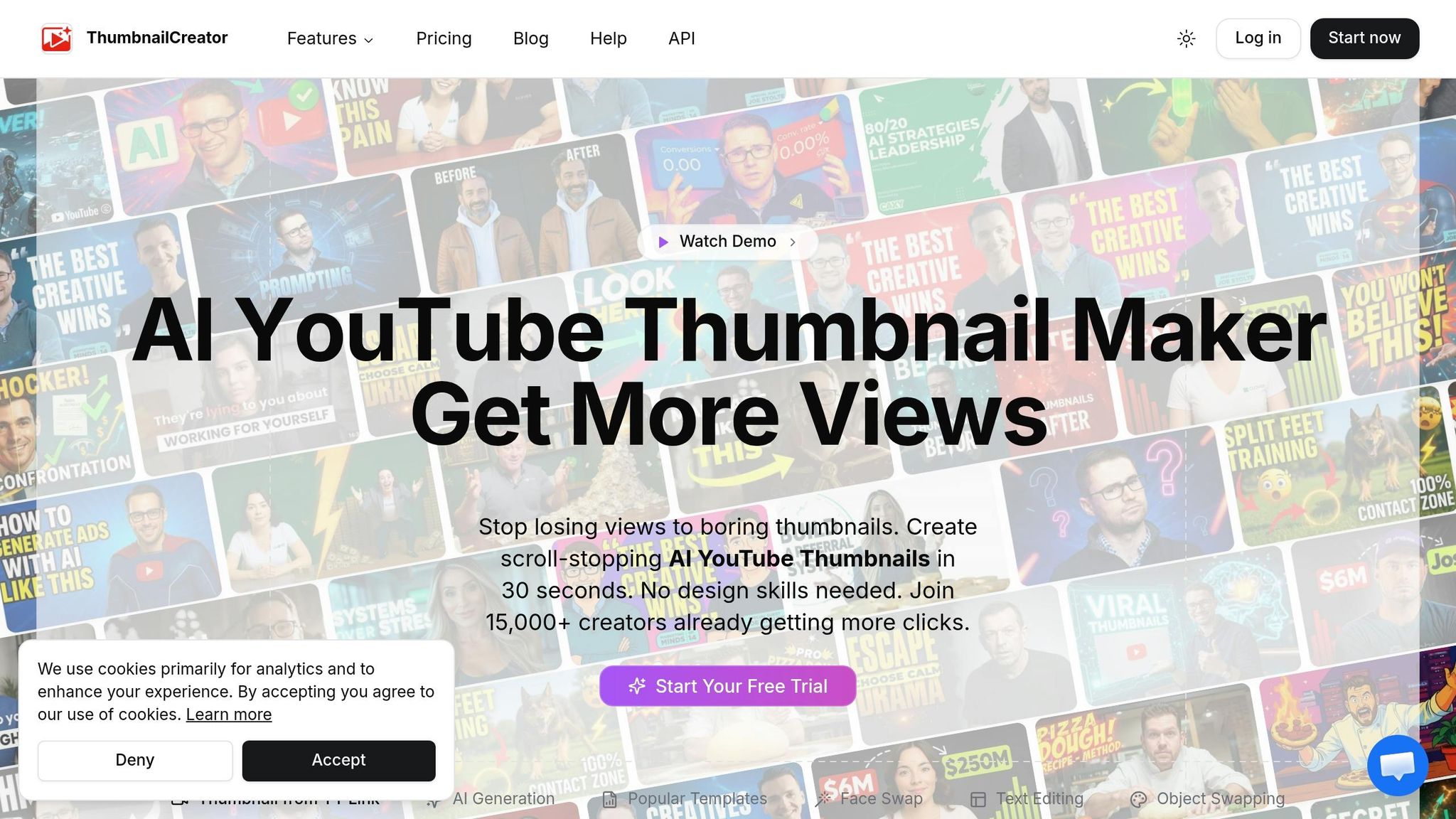
reviewraccoon faced several challenges, including manual prompting, inconsistent branding, and difficulty ensuring thumbnails looked good on mobile screens. Enter ThumbnailCreator - a tool that addressed all these issues.
Four key features made it a standout choice. First, the YouTube URL to Thumbnail tool simplified the process by analyzing a video's title and content to generate 3–10 thumbnail variations automatically, eliminating the need for manual input. Second, Face Model Training ensured consistent branding. By uploading around 20 reference photos, reviewraccoon’s face appeared with uniform lighting and expressions in every thumbnail. Third, the Variation Generator made decision-making easier by providing multiple compositions side-by-side for comparison. Finally, the Auto-Optimize tool solved the mobile visibility problem. Since YouTube thumbnails can appear as small as 120px wide on mobile devices, this feature adjusted contrast and element sizing with a single click for better readability.
"Sometimes the best feature isn't adding more - it's removing friction. We didn't make the AI smarter. We made the user experience simpler." - Aleric Heck, Founder of ThumbnailCreator.com
With these features, reviewraccoon transitioned smoothly to an AI-assisted workflow.
The New AI-Assisted Workflow, Step by Step
The updated process was simple and efficient. After editing and uploading a video as unlisted, reviewraccoon pasted the video URL into ThumbnailCreator. The tool analyzed the video’s title and content, generating multiple thumbnail options in less than 30 seconds. Thanks to the pre-trained Face Model, reviewraccoon’s face appeared consistently across all variations without extra adjustments.
To ensure mobile readability, they used the squint test - viewing the thumbnails at about 120px wide. After identifying the strongest option, they fine-tuned it with one-click tools to adjust text, swap objects, or tweak colors. Finally, the Auto-Optimize feature ensured the thumbnail was ready for mobile screens. The completed design was then exported at YouTube's standard resolution of 1280×720.
Before vs. After: Workflow Comparison
| Step | Manual Workflow | AI-Assisted Workflow |
|---|---|---|
| Design tool | Traditional design tools | ThumbnailCreator |
| Time per thumbnail | 45 min – 2 hours | Under 30 seconds |
| Design input | High (manual layout, colors, text) | Minimal (paste video URL) |
| Branding consistency | Inconsistent, manually handled | Automated with Face Model Training |
| Variations generated | One finalized design | 3–10 variations per session |
| Mobile optimization | Often overlooked | One-click Auto-Optimize |
| Pre-publish confidence | Low | High (compare multiple options) |
The real game-changer wasn’t just the time saved. It was the ability to confidently choose the best thumbnail design before publishing, instead of settling for a single, manually created option.
Create AI Thumbnails That Actually Get High CTR [Here's My Prompt System]
sbb-itb-b59debf
How AI Tools Changed Channel Performance
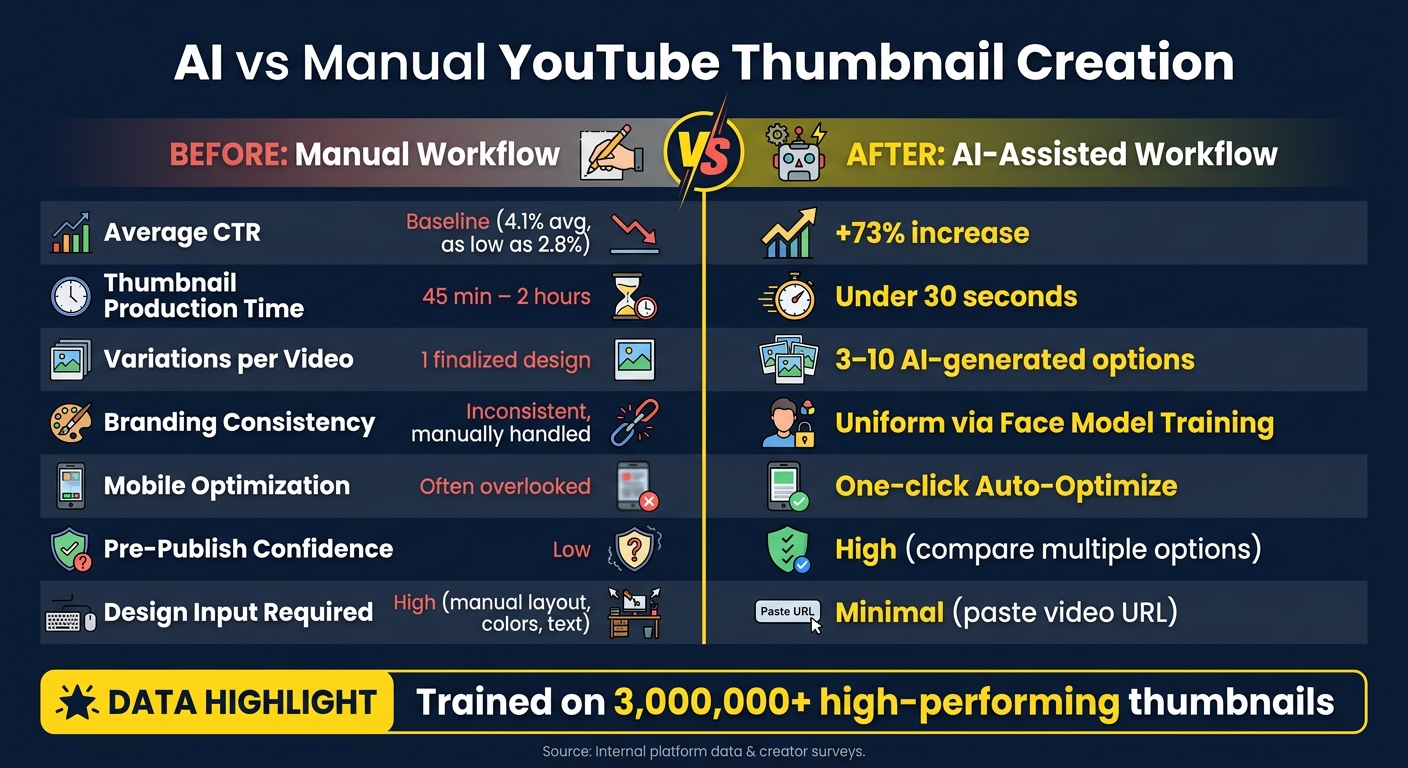
AI vs Manual YouTube Thumbnail Creation: Key Metrics Compared
By the Numbers: Performance Results
Switching to AI-generated thumbnails had a noticeable impact on YouTube analytics. According to ThumbnailCreator's data, channels saw an average 73% boost in click-through rates (CTR) after adopting this new workflow. For mid-sized creators, this kind of improvement can be a game changer, turning videos that might have plateaued at a few thousand views into ones that gain momentum through YouTube's recommendation system.
The AI behind ThumbnailCreator has been trained on a massive library of over 3,000,000 high-performing thumbnails. This means it uses strategies that work - like bold color contrasts, well-placed text, and compelling facial expressions - to create thumbnails that grab attention.
But the benefits go beyond just the numbers.
Non-Numerical Benefits
One of the biggest changes for creators is something you can’t easily measure: creative confidence. Before using ThumbnailCreator, creators had to commit to one thumbnail design without a simple way to test alternatives. Now, the tool generates 3–10 variations for every video, giving creators better options to choose from.
It also streamlines the process by automatically incorporating the creator’s likeness into every thumbnail, ensuring a consistent, on-brand look without requiring tedious manual edits.
"ThumbnailCreator is the AI thumbnail maker built specifically for YouTube creators who want to spend less time designing and more time creating content." - ThumbnailCreator
Performance Metrics: Before and After
The table below highlights the measurable differences this AI tool brought to the workflow:
| Metric | Before ThumbnailCreator | After ThumbnailCreator |
|---|---|---|
| Average CTR | Baseline | +73% average increase |
| Thumbnail Production Time | 45 min – 2 hours | Under 30 seconds |
| Variations per Video | 1 finalized design | 3–10 AI-generated options |
| Branding Consistency | Inconsistent across uploads | Uniform via Face Model Training |
These changes highlight the difference AI can make: faster production times, more choices for testing, and a significant improvement in the metric that drives YouTube success - getting viewers to click.
Key Takeaways and Best Practices
What This Case Study Teaches Us
The standout lesson here is simple but powerful: eliminate friction instead of piling on features. ThumbnailCreator's shift from manual prompts to a streamlined "YouTube URL to Thumbnail" system - where the AI directly analyzes the video - led to an incredible 246% MRR growth in just one month. This change wasn't about adding complexity but simplifying the process for users.
Consistency also plays a huge role. Using Face Model Training (uploading about 20 images of yourself) ensures a unified look across all uploads without needing manual adjustments. Plus, offering multiple design variations gives creators the chance to test and select what resonates most with their audience. As the ThumbnailCreator Help Center explains:
"The best-performing YouTube thumbnails are rarely the first version. Creating multiple variations lets you compare different approaches and pick the one most likely to earn clicks." - ThumbnailCreator Help Center
These insights lay the groundwork for practical tips to refine your thumbnail strategy.
Tips for Getting the Most Out of ThumbnailCreator
- Leverage the YouTube URL feature: Instead of crafting manual prompts, paste your video link, and let the AI handle the context. This approach not only saves time but also ensures your thumbnails are relevant and engaging.
- Use the "squint test": Shrink your thumbnail to about 120px wide (how it appears on mobile screens) and check if the text and visuals remain clear. Text should be readable within 2 seconds, so stick to 3–5 bold words with high-contrast colors. For instance, red and yellow combinations have been shown to boost CTR by 41%.
- Save and reuse top designs: Once you've identified a winning thumbnail, save it as a style reference. This keeps your channel's branding consistent while reducing the time spent on future designs.
What This Means for AI in Content Creation
AI tools like ThumbnailCreator are transforming how creators approach their work. Rather than replacing human creativity, these tools amplify it. ThumbnailCreator, for example, taps into a database of over 3,000,000 high-performing thumbnails, offering creators insights they wouldn't spot on their own.
"Sometimes the best feature isn't adding more - it's removing friction." - Aleric Heck, Founder & CEO of AdOutreach
For those still on the fence, ThumbnailCreator offers the first 10 thumbnails free. It's a no-risk way to test the platform, experiment for 30 days, and see the impact for yourself.
FAQs
Will a higher CTR always increase my views?
While having a higher click-through rate (CTR) might seem like the ultimate goal, it’s not the only factor YouTube considers. Watch time plays a much bigger role in determining how your video performs. If your high CTR results in viewers clicking but quickly leaving, it can actually hurt your reach. To build consistent growth, focus on creating thumbnails that genuinely represent your content. This way, you attract viewers who are likely to stick around and watch. Tools like ThumbnailCreator can help you design thumbnails that match what your audience expects to see.
How many photos do I need for Face Model Training?
To get started with Face Model Training, you'll need to upload 20 images of your face. After completing this step, your personalized face model will be ready. This means you can use it for all your future thumbnails, making your workflow smoother and saving you valuable time.
How can I tell if a thumbnail works on mobile?
Creating a mobile-friendly thumbnail is all about simplicity and clarity. Stick to 3–5 words and ensure there's a clear focal point that grabs attention. To check its effectiveness, scale the thumbnail down to 10% of its original size - this helps you see how it will appear on smaller screens.
Use high color contrast to make text and images pop. Also, avoid placing important elements like text or faces in the bottom-right corner. This area is often obscured by YouTube's timestamp, which can make key details hard to see.
If you need help perfecting your design, tools like ThumbnailCreator are handy for optimizing thumbnails specifically for mobile users.