

How AI Simplifies Thumbnail Organization
If your thumbnail files are a mess, AI can help - but only if your folders, file names, and tags make sense first.
I’d boil the whole article down to this: use one clear folder system, one file naming rule, fixed status tags, and let AI handle jobs like duplicate checks, tag suggestions, and batch sorting. That matters because creators can lose 10–30 minutes per video just trying to find old thumbnail files or remake missing exports.
Here’s the short version:
- I’d keep thumbnails under one main path, such as
YouTube/Thumbnails/2026/Series/VideoTitle/ - I’d split files into Brand Assets, Working Thumbnails, and Published Thumbnails
- I’d use a simple naming rule like
20260820-topic-v1.png - I’d keep tags fixed, such as draft, review, approved, and archived
- I’d let AI suggest tags, renames, moves, and duplicate matches
- I’d review high-risk actions before anything changes
- I’d keep drafts inside one tool and export only approved files to my main library
One stat stood out to me: in one case study, 85% of AI-generated tags were accepted as-is. That tells me AI is best used for the repeat tasks, while I still make the final call on file moves and naming.
The main idea is simple: AI does not fix chaos on its own. A clean system comes first, then AI makes that system easier to run.
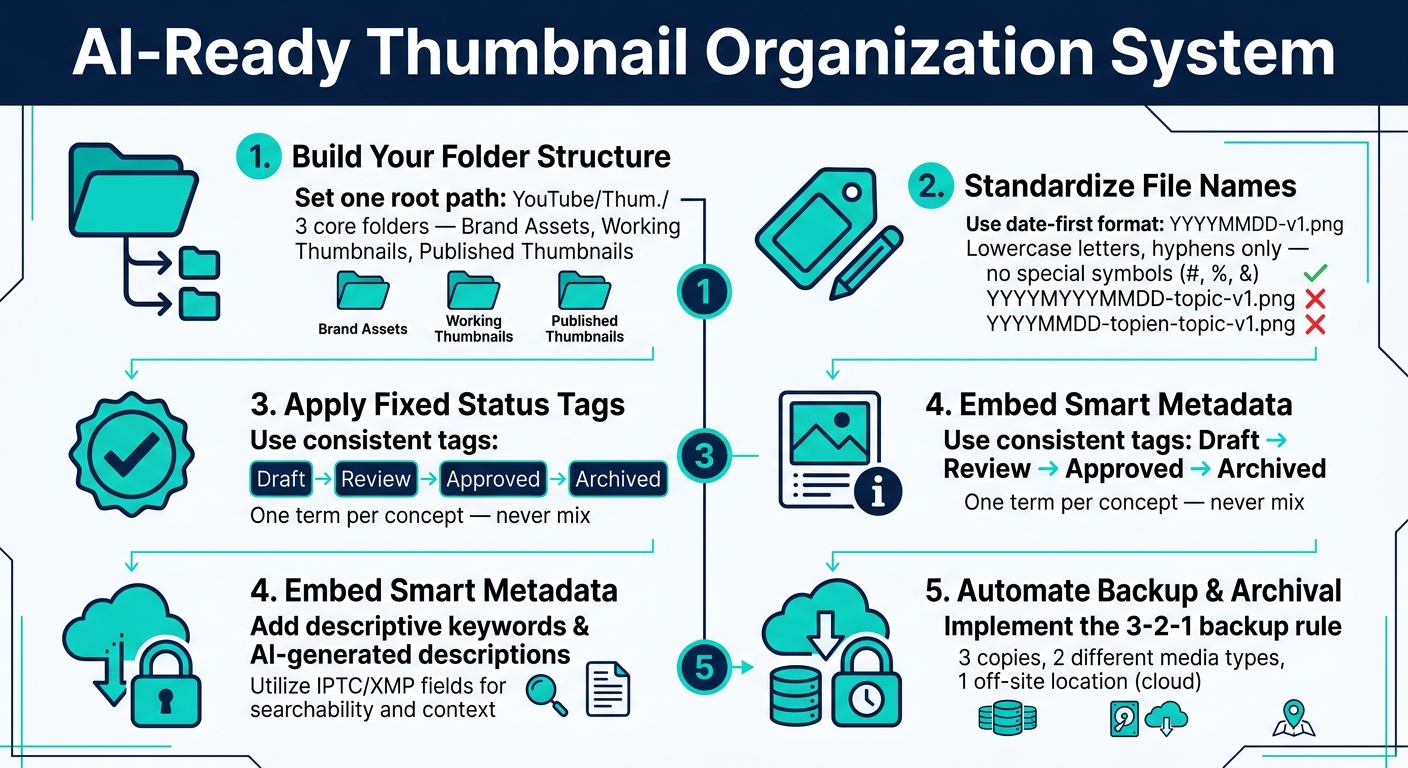
AI-Ready Thumbnail Organization System: 5-Step Setup Guide
Build a Folder System AI Can Work With
When files are all over the place, the next step is setting up a folder system AI can read without getting lost. If you want AI to sort files well, the structure needs clear categories and a consistent home for each type of file.
Use a clear root folder and project structure
A path like /YouTube/Thumbnails/2026/Productivity/NotionSetup/ tells AI exactly what it’s looking at: year, series, and title. That kind of structure removes guesswork. For active projects, use /YouTube/Thumbnails/2026/Series/VideoTitle/Working Thumbnails/ so current files stay easy to spot and easy to use.
Use three root folders: Brand Assets, Working Thumbnails, and Published Thumbnails. Keep working files separate from final exports. That split helps AI read file purpose with less confusion and lowers the odds of a finished thumbnail ending up in the same pile as drafts.
Once those main folders are in place, the next move is simple for those starting to create thumbnails: separate the pieces you reuse again and again.
Store reusable design elements in their own folders
Inside Brand Assets, keep reusable pieces away from project-specific files. Put those repeat-use items into subfolders like backgrounds, logos, overlays, face cutouts, and templates, such as /Brand Assets/Backgrounds/, /Brand Assets/Face Cutouts/, and /Brand Assets/Templates/.
When branded elements live in one place, AI can find the right files faster and with less back-and-forth.
sbb-itb-b59debf
Standardize File Names and Metadata for Faster Search
Once your folders are set up, file names and tags become the next layer AI can sort in seconds.
Create a naming format that stays readable
Use a date-first format like 20260820-youtube-growth-thumbnail-v1.png. In plain terms, stick with YYYYMMDD-topic-v1.png so files sort by date and versions are easy to spot at a glance.
Avoid two common problems: vague names and special symbols like #, %, and &. A file named final_final2.png falls apart the minute your library gets big. And symbols can mess with syncing or behave differently across tools. A safer bet is lowercase letters and hyphens between words. It's cleaner, works better across operating systems, and gives AI a simpler pattern to read.
Add tags that match your content workflow
File names help with sorting. Metadata helps with filtering.
Use tags for things like series, topic, status, and style. The big rule here is simple: keep your tag list fixed. If one thumbnail uses tutorial and another uses how-to, AI may read those as two separate groups. Pick one term and use it every time.
Status tags like draft, review, approved, and archived make sorting and cleanup much easier as your library grows.
Comparison table: naming patterns for thumbnail files
| Naming Pattern | Strengths | Weaknesses | AI-Readability |
|---|---|---|---|
Date-First (e.g., 20260820-topic-v1.png) |
Sorts chronologically; clean for archives; easy version tracking | Less intuitive for browsing by topic without search | High |
Series-First (e.g., growth-seo-tips-ep12.png) |
Groups related content together; useful for recurring video series | Chronological order is lost; series names can drift over time | High |
Generic/Vague (e.g., thumb1.png, DSC00124.png) |
Fast to save in the moment | Requires manual previewing at scale | Low |
If you're just starting out, you can use free thumbnail tools to build your library before automating your workflow.
Use date-first naming for most libraries.
When naming and tags follow a set pattern, AI can sort, label, and archive files with far less manual cleanup.
Use AI to Automate Sorting, Tagging, and Cleanup
Once your folders and file names follow a clear pattern, AI can handle the repetitive stuff that eats up time. The key is simple: let AI do the sorting, but keep the final call for yourself.
Start with the highest-impact automation tasks
Start with duplicate detection and auto-tagging.
Duplicate detection helps spot near-identical thumbnail versions, even when the file names don’t match. That alone can cut a lot of clutter. Then comes auto-tagging. AI can look at the thumbnail image along with the video title or description and suggest tags like topic, series, guest, style, or color.
That can save a surprising amount of time. In one case study, about 85% of auto-generated tags were accepted without edits, which gave back hours of manual tagging each week.
After that, add metadata generation and batch file actions. AI can suggest category labels, short descriptions, and keywords based on the image and title data. That makes your library much easier to search later.
Batch actions take it a step further. They can:
- move files into the right series or season folders
- rename files that don’t follow your naming rules
- archive old versions in bulk so only approved files stay in the main library
Review AI output with simple guardrails
AI should suggest changes first. You should approve renames and file moves before anything goes live.
One practical setup is to use confidence thresholds. For example, high-confidence tags at 85% or above can apply on their own, while anything below that goes to a review queue. For higher-risk actions like renaming or moving files, set the bar at 90% and require a second matching check before the change goes through.
A simple staging folder like _AI_suggestions can keep the process tidy. AI can place its proposed tags, renames, and file destinations there first. Then you can review the batch each week, approve the easy wins, fix anything that looks off, and apply the changes you trust.
As a rule of thumb, AI can usually auto-apply broad visual tags without much risk. File names and other higher-risk labels should still get a human review first.
Comparison table: AI tasks for thumbnail organization
| AI Task | What It Does | Benefit for Creators | Review Needed |
|---|---|---|---|
| Auto-Tagging | Scans images and video titles/descriptions to generate tags, labels, and short descriptions | Makes large libraries searchable without manual labeling | Low–Medium (verify niche-specific terms) |
| Duplicate Detection | Flags visually similar or near-identical thumbnails by comparing image similarity | Clears version clutter and keeps one final version per video | Medium (confirm which version to keep) |
| Face & Object Recognition | Identifies recurring hosts, guests, logos, and props | Makes it easier to find reusable thumbnails by person or visual element | Medium (check accuracy in stylized or low-contrast images) |
| Batch File Actions | Renames, moves, and archives files in bulk based on detected tags | Saves hours of manual sorting and cleanup | High (verify destination folders before executing) |
These rules work best in a tool that keeps templates, drafts, and approved exports in one place.
Organize Creation and Storage with ThumbnailCreator
After AI sorting, keep creation and export in one workspace.
A lot of thumbnail mess starts before export. Once you bounce between a bunch of tools, half-done files can end up all over the place in random folders. ThumbnailCreator brings generation, editing, testing, and export into one workspace, which means fewer chances for things to get messy.
Use templates and AI generation to keep assets consistent
Stick with 2–3 approved templates so each thumbnail family keeps the same look.
You can use face, object, and style swaps to reuse one template instead of building it again from scratch. That helps keep related drafts grouped inside the same setup.
Store your brand colors, logo, and face assets in ThumbnailCreator through a Brand Kit. Then link those assets to your design rules so each AI generation applies them on its own.
Export only approved versions into your main library
Once editing is done, move only the selected version into your main library.
Leave drafts inside ThumbnailCreator and export only final files to your main library. Collections make this easier by letting you sort work by status. Labels like "Needs Review", "A/B Tests," and "Ready to Upload" separate drafts and test versions from finished files.
When a thumbnail is ready, export it at the standard 1280×720 resolution and save it in the matching project folder using the naming format you set earlier, such as YouTube/Thumbnails/2026/Series/VideoTitle/. You can also use Bulk Actions to export approved thumbnails in one batch, which cuts down on mix-ups between draft and final versions.
Comparison table: ThumbnailCreator plans and organization use cases
| Plan | Price | Best Fit | Organization Benefit |
|---|---|---|---|
| Free | $0/month | New creators testing AI thumbnails | Basic templates and AI generation keep early testing in one place for a small set of videos. |
| Pro | $19–$29/month | Solo creators and small channels publishing often | Full template access and advanced AI tools like face and object swapping keep thumbnail work in one place and reduce file clutter outside the app. |
| Agency | $49–$90/month | Agencies or teams managing multiple channels | Shared brand profiles and team collaboration keep templates, drafts, approvals, and exports organized across channels. |
Conclusion: Build a Simple AI-Ready Thumbnail System
You don’t need a fancy setup to make AI-generated thumbnails easier for AI to sort. A root folder, a few steady status folders, and a naming pattern like topic_v02_approved give AI a clean structure to read.
After your folder names stay the same, tags give you another layer of control. Use the same tags for style, format, and status so AI can filter assets and reuse them with less friction.
It also helps to keep creation in one place instead of letting files drift across different tools. ThumbnailCreator keeps creation and export in one workspace, so drafts do not scatter across tools.
Over time, that simple setup saves work. It cuts duplicate files, cleanup, and retrieval time - and gives that time back to content.
Start with one folder structure and one naming rule. Then stick with them.
FAQs
How do I start organizing old thumbnail files?
In ThumbnailCreator, start by setting up Collections in a way that fits how you work, whether that’s by video series, campaign, or project.
Open Collections in the sidebar, click Create Collection, give it a name, and then add your existing thumbnails from the gallery or while editing.
Got a lot of files? You can select multiple thumbnails at once and move them in bulk to the right collection. Later, if you need to track down something fast, search inside each collection to find specific thumbnails without digging through everything.
What should AI automate first?
AI should automate thumbnail organization first with collections.
Create collections for each series, campaign, or project. Then let AI send new thumbnails to the right collection and help you bulk move, copy, and manage variations.
That keeps your library tidy and easy to search, even when it grows to thousands of assets.
When should I review AI changes manually?
Review AI-made thumbnails by hand at three points: before generation, right after generation, and again before export.
Start by checking the top 1–3 prompts. Make sure the concept, claims, and tone match the video.
Then run a fast 10–30 second triage to weed out weak options. After that, spend 1–2 minutes giving the best thumbnails a closer look.
Focus on a few things:
- Natural edits: faces, hands, lighting, shadows, and cutouts should look normal
- Readable text: words should be clear at small sizes and not feel cramped
- Visual accuracy: the image should match the topic and avoid misleading details
- Technical specs: confirm size, crop, file quality, and platform fit
- Brand consistency: colors, style, and tone should line up with the channel
- Ethical standards: avoid false claims, harmful stereotypes, or images that push things too far
This review doesn't need to take long. But it should be deliberate. A thumbnail can look fine at first glance and still have small problems that hurt clicks, trust, or both.