

AI Workflow Automation for Thumbnails
If you publish a lot on YouTube, the best thumbnail workflow is usually AI for drafts, people for final picks. That setup cuts thumbnail work from 30–90 minutes down to about 5–15 minutes for review and edits, while keeping room for judgment on accuracy, brand fit, and mobile readability.
Here’s the short version:
- I’d use structured inputs first, so every video starts with a clear brief.
- Then I’d let AI turn that brief into thumbnail prompt ideas.
- After that, I’d generate several versions at once instead of making one image by hand.
- Last, I’d review the top picks, export the winner, and use CTR, watch time, and YouTube test data to improve the next batch.
A few numbers stand out:
- YouTube can test up to 3 thumbnails for up to 2 weeks
- Manual thumbnail design often takes 15 minutes to 3 hours
- AI-assisted review can cut that to about 5–15 minutes
- One data point in the article showed 3.2% CTR for pure AI thumbnails vs. 7.8% CTR for AI plus manual edits
Bottom line: full automation is rarely the best choice. I’d use a templated, batch-based system with human review before export, then keep tuning it based on performance.
Build a YouTube Thumbnail Generator with n8n (No Design Skills Needed!)
sbb-itb-b59debf
Quick Comparison
| Workflow stage | What it does | Best use |
|---|---|---|
| Inputs and queue setup | Organizes titles, summaries, dates, and brand assets | Keeps jobs clean and repeatable |
| Prompt generation | Turns video info into visual ideas | Speeds up concept work |
| Batch generation | Produces many thumbnail options at once | Saves the most time at scale |
| Export and review | Prepares final files and checks them | Cuts upload and formatting work |
| Feedback loop | Uses CTR benchmarks and watch time to improve future thumbnails | Helps future batches perform better |
If I had to sum up the article in one line, it would be this: use real photos or AI-generated images for production work, and use people to make the final call.
1. ThumbnailCreator
ThumbnailCreator is an AI-powered thumbnail tool made for YouTube creators. It handles the process from idea to export, even if you don't have design skills. You can paste a YouTube URL or type a short description, and the AI reviews the video's content and transcript to produce thumbnail drafts in under 30 seconds.
Automation Depth
ThumbnailCreator speeds up the jump from concept to first draft with AI generation, templates, face and object swapping, smart text placement, and batch output. If your team wants tighter control, Style Cloning can mirror the look of an existing thumbnail across new designs. There's also an API, so teams can trigger generation by code when a video is marked ready.
Time Saved
Manual thumbnail design often takes 30–90 minutes per thumbnail. ThumbnailCreator brings that down to about 5–15 minutes for review and light editing. For channels that upload every day, that can save 2–5 hours a week.
That time savings only helps if the thumbnails still feel like your channel.
Brand Consistency
Reusable templates keep logo placement, fonts, and colors in place, so each draft starts from the same visual base. Style Cloning carries that look across a series, and Brand Kits keep channel assets separate for agencies handling more than one channel.
Automation gives you a strong starting point. Human review catches the odd mismatch before export.
Human Review Needed
Creators should check that AI-written text matches the video's actual content. If a thumbnail says one thing and the video delivers another, you risk creating harmful clickbait that drops retention and causes policy problems. Face swaps and object swaps also need a quick look, since heavier edits can sometimes appear unnatural or misrepresent the people shown.
The best thumbnails line up with the video's promise, title, audience, niche, and channel style. In most cases, a 3–5 minute review per thumbnail is enough. Focus on three things:
- Text accuracy
- Image realism
- Mobile legibility
That makes workflow inputs and queue setup faster and easier to repeat.
2. Workflow Inputs and Queue Setup
Structured inputs keep thumbnail automation fast and steady. The simplest way to do this is with a master spreadsheet or content board where each row stands for one video. Include fields for the video title, a one- or two-sentence summary, primary keyword, target audience, publish date, and brand assets. Think of each row as a thumbnail brief. Once that information is clean, you can turn it into prompt-ready thumbnail concepts.
Automation Depth
How far you automate this step should match how much you publish. If a channel posts fewer than 50 videos per month, light automation usually does the job. That means entering video details by hand while using pre-filled templates for brand colors, fonts, and logo placement.
Mid-size channels can go a step further. They can pull titles, descriptions, and publish dates from the YouTube API, then apply simple rules to build thumbnail briefs on their own. For example, if a title contains vs., the system can assign a split-screen layout.
At enterprise scale, inputs come from several systems, such as a CMS, analytics platform, or CRM. Workflow tools then queue jobs on their own, while people define the rules that guide the process.
Those rules then feed straight into prompt generation.
Time Saved
Automated inputs turn each job into a fast review instead of a full manual handoff.
Brand Consistency
Build hex codes, fonts, logo placement, and layout patterns into the template so every queued job starts on-brand. Saved brand templates help each job inherit the same defaults without extra setup.
Human Review Needed
Set aside manual review for title mismatches, sensitive topics, and high-impact videos before generation.
3. AI Prompt Generation for Thumbnail Concepts
Once your queue is set, the next step is turning each brief into a short visual prompt. A good thumbnail prompt tells the AI what to show, how it should feel, what colors to use, how the image should be framed, and what text should appear. In practice, the title, hook, audience, and brand rules shape the subject, mood, layout, and on-image text.
For example, a U.S. creator might enter: "Title: How I Saved $5,000 in One Month | Hook: simple budgeting system | Audience: young professionals" and get a prompt like: "Surprised young professional with receipt and cash, bold 'Saved $5,000,' green-and-white palette, clean modern style."
Automation Depth
Prompt generation can work at three levels.
- At the assistive level, the AI gives you 3–5 prompt ideas per video based on your inputs, and you choose the best one.
- At the semi-automated level, ThumbnailCreator reviews a YouTube link, pulls out the main context, and suggests thumbnail concepts that match it, along with reusable templates, color schemes, and focal objects that fit the channel's niche.
- At the fully automated level, brand rules and past performance data drive prompt creation with little manual input. Those prompts can then move straight into batch rendering, where one brief turns into several thumbnail variations.
A handy framework for strong prompts includes five parts: subject and action, composition and framing, lighting and color, mood and energy, and style references. When you build that structure into reusable templates, such as reaction + number or before/after transformation, the AI can apply the same pattern to each new video topic without starting from scratch.
Time Saved
After templates are set up, prompt generation shifts from a blank-page job to a quick review task. Writing prompts by hand usually takes 10–20 minutes per video. Automation cuts that to about 2–5 minutes.
For a channel publishing 30 videos per month, that adds up to about 4–8 hours saved. If you're publishing 100+ videos a month, the time savings can go past 20 hours. That's time you can put into A/B testing or metadata work instead.
Brand Consistency
Build brand rules into every prompt template from the start: hex codes, font style, layout preferences, and tone cues like bold and energetic or clean and minimal. ThumbnailCreator helps by tying prompts to reusable templates, so face swaps, text styles, and color schemes stay aligned across every video in the queue.
For mobile viewers, it helps to prompt for high-contrast text and one clear focal point. The goal is simple: the idea should read in under 3 seconds. That keeps the queue aligned and ready for batch output.
Human Review Needed
AI prompts still need a fast human check before generation starts. Review the top 1–3 prompts for each video. Make sure the concept matches the video's actual content, that any numbers or claims line up with what the video delivers, and that the emotional tone fits the audience.
A prompt like "Turn $100 into $10,000 Fast" may sound punchy, but it needs to be revised if the video is actually a cautious budgeting guide. When the thumbnail promise and the video don't match, trust starts to slip.
4. Batch Thumbnail Generation and Variation Output
Once your prompts are locked in, batch rendering turns them into thumbnail options at scale. Instead of making thumbnails one by one, you can send a queue of briefs through the system and get dozens, or even hundreds, of candidates in a single run.
Automation Depth
In a fully automated setup, each video in your queue can get 5–10 thumbnail variants generated on its own, using the prompt templates and brand rules you set earlier. ThumbnailCreator does this by applying your saved brand templates across every item in the batch at the same time. The AI takes care of layout, background, and text placement, and your job becomes review instead of hands-on design.
Time Saved
Manual thumbnail design usually takes 30–60 minutes per video. For a small channel publishing 3–5 videos per week, AI batch generation can cut design time by about 60–80%, bringing it down to roughly 5–15 minutes of setup and 10–20 minutes of review. For bigger teams putting out 30–100 videos per week, that adds up to 15–30 hours saved each week. In plain English, batch generation moves the slow part from making thumbnails to choosing the best one.
Brand Consistency
As output volume goes up, so does the chance of visual drift. One batch looks sharp, the next starts to wander. The fix is simple: lock your brand rules before the batch starts. That means hex codes, font families, logo placement margins, and composition patterns.
When you save those as named templates in ThumbnailCreator, every generated variant starts from the same brand-safe base, even if the topic changes a lot from one video to the next.
A good backup habit is to keep a style library with 15–20 reference thumbnails from your top-performing videos. That gives the AI a visual anchor to follow. It also helps to review templates once a month so small shifts don't snowball across hundreds of outputs.
Human Review Needed
After generation, move fast at first, then slow down for the best options. A two-step review works well:
- Start with a quick 10–30 second triage to toss weak designs by avoiding common thumbnail mistakes like cluttered layouts, off-brand colors, or text that's hard to read.
- Then do a closer 1–2 minute review of the top 2–3 candidates per video.
That second pass should check a few simple things: whether the image matches the video's topic, whether the text stays readable at small sizes, and whether face swaps and object swaps look natural and accurate. Only the strongest options should move on to testing and performance feedback. This ensures your workflow transitions smoothly into advanced thumbnail optimization to maximize your channel's growth.
The performance gap here is hard to ignore: pure AI thumbnails averaged 3.2% CTR, while AI plus manual optimization averaged 7.8%.
5. Export, Review, and Performance Feedback Loop
After batch generation, the workflow shifts from making thumbnails to getting them out the door, checking them, and feeding results back into the next round.
Automation Depth
ThumbnailCreator exports thumbnails in YouTube-ready 3840×2160 JPEGs under 2 MB, which lets creators skip manual resizing and format conversion. After that, automation takes care of file output and maps variants to specific videos, while human approval is kept for sponsored content and major launches. In a fully automated setup, export, versioning, testing, metrics, and prompt updates all connect together, with people stepping in only for exceptions.
Time Saved
Once the files are exported, the biggest time savings come from cutting out manual upload and organization work. Manual export, upload, and analytics review usually takes 30–60 minutes per video. AI-driven workflows cut that to about 10–15 minutes, which means 50–70% less time spent per video. For a creator publishing 5–7 videos a week, that adds up to several hours back. The biggest gains come from removing resizing, file naming, and manual analytics pulls.
Human Review Needed
Human judgment still matters most when picking the live thumbnail and reading performance in context. A low CTR might point to a weak thumbnail. Or it might mean the topic simply doesn't match what the market wants. Automation can't sort that out on its own.
YouTube Studio separates impressions from impressions click-through rate, which makes it easier to see whether a thumbnail isn't being shown enough or isn't getting clicks when it is. Track impressions and CTR for 24 to 72 hours after upload. A +10–20% CTR lift at similar impression counts, with no drop in watch time, is a solid sign that you have a winner.
Brand Consistency
Log the patterns that keep winning - like close-up faces, bold text, and high contrast - and use them to tune future prompts. Those logs then feed the tradeoff analysis that follows.
Stage-by-Stage Tradeoffs: Pros, Cons, and Best-Fit Use Cases
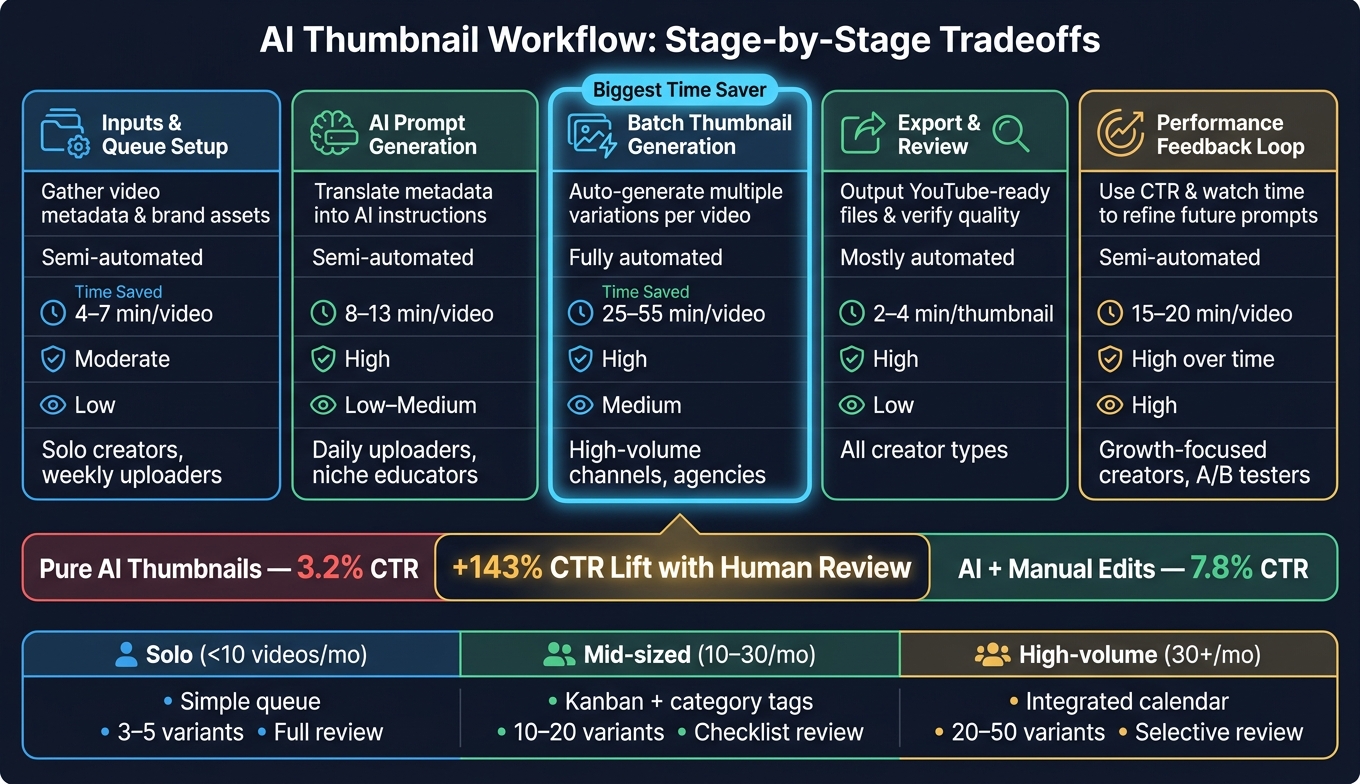
AI Thumbnail Workflow: Time Savings & CTR by Creator Type
Every stage gives you a different mix of speed and control. The five workflow stages below - inputs, prompts, batch output, export, and feedback - show where automation saves time, where human review still matters, and who gets the most from each step.
| Stage | Purpose | Automation Level | Time Saved | Consistency Impact | Review Load | Best-Fit Creator |
|---|---|---|---|---|---|---|
| Inputs & Queue Setup | Gather video metadata, brand assets, and images into a structured queue | Semi-automated | 4–7 min per video | Moderate - cleaner inputs mean more consistent outputs | Low - quick check for missing or noisy data | Solo creators, weekly uploaders |
| AI Prompt Generation | Translate video metadata into clear AI instructions | Semi-automated | 8–13 min per video | High - reusable templates enforce brand tone | Low-medium - scan prompts for accuracy and honesty | Daily uploaders, niche educators |
| Batch Thumbnail Generation | Auto-generate multiple variations per video using AI | Fully automated | 25–55 min per video | High - uniform style across dozens of videos | Medium - scan for readability, face quality, and brand fit | High-volume channels, agency-managed accounts |
| Export & Review | Output YouTube-ready files and verify quality | Mostly automated | 2–4 min per thumbnail | High - consistent specs eliminate formatting errors | Low - visual spot-check for policy and clarity issues | All creator types |
| Performance Feedback Loop | Use CTR and watch time data to refine future prompts | Semi-automated | 15–20 min per video | High over time - data-driven prompts improve iteratively | High - human interpretation needed to avoid chasing clickbait | Growth-focused creators, channels comparing A/B testing vs gut feeling variants |
The time ranges above reflect typical manual-versus-automated workflow savings for each stage.
The biggest time win usually comes from batch thumbnail generation. For high-volume creators, this requires thumbnail testing at scale to maintain quality. If you're pushing a lot of videos, that stage can save the most effort by far. But there’s a catch: the more images you produce, the more you need a tight review process so weak options don’t slip through.
Consistency is useful, but there’s a point where it starts to work against you. A clean, repeatable look can help people spot your videos fast. At the same time, if every thumbnail looks too similar, a feed can start to feel flat. That tends to matter more for vlog and entertainment channels, where variety helps keep things fresh. In education, finance, and other expert-led niches, a steadier visual style often works better because trust and familiarity help drive subscriptions.
So the job changes. Automation handles more of the production work, while the human side moves toward choosing, checking, and trimming. You spend less time making each asset from scratch and more time asking, Does this one read fast? Does it fit the brand? Would I click it?
The performance feedback loop is where that shift becomes most clear. Once you know what hurts CTR, you can turn that lesson into a rule and apply it across future batches at scale. Too much text hurts clicks; keep thumbnails to one short phrase and minimal on-image copy.
These tradeoffs set up the next step: figuring out which workflow gives you the best overall result.
Which Thumbnail Automation Setup Delivers the Best Output?
The tradeoffs lead to one clear rule: the more videos you publish, the more the generation step should run on autopilot, and the more human review should focus on the final picks. The best setup comes down to upload volume and how much review time you have. For most channels, the strongest output comes from a templated workflow with human approval at the end.
Solo creators publishing fewer than 10 videos per month usually do best with a lean setup built around control. Use a simple queue, generate 3–5 variants, and review every option yourself. At this stage, the main goal is building a style people can spot right away, not pushing out more thumbnails.
Mid-sized channels in the 10–30 videos per month range tend to get the best results from prompt templates tied to content categories. Keep batch output to 10–20 variations and use a checklist for review. A thumbnail specialist or editor can make the final call, looking for brand fit and the right emotional tone instead of reworking each design from the ground up. If a layout works, use it again across similar videos.
High-volume channels publishing more than 30 videos per month need a two-level system. Batch generation does most of the heavy lifting, while human review is saved for top-priority uploads like sponsored videos, series launches, and flagship content. Routine uploads can rely on pre-approved templates plus automated checks for contrast, cropping, and safety. At that point, the feedback loop matters most: test variants, track CTR, and update templates based on what wins.
Across all three setups, human review before export is non-negotiable. AI does a good job with composition, contrast, text placement, and face enhancement. But it still struggles with the calls that need judgment. Can the thumbnail honestly represent the video? Does the emotional tone match the audience? Has the design drifted away from the brand? Those are human calls. Every final option should be checked at mobile size against recent thumbnails in your niche.
Put simply, solo creators need control, mid-sized channels need balance, and high-volume channels need tiered automation.
| Creator Type | Queue Setup | Batch Size | Final Review |
|---|---|---|---|
| Solo (< 10 videos/month) | Simple spreadsheet | 3–5 variations | Full review, every thumbnail |
| Mid-sized (10–30 videos/month) | Kanban with category tags | 10–20 variations | Checklist review by editor |
| High-volume (30+ videos/month) | Integrated content calendar | 20–50 variations (tiered) | Selective review, priority uploads |
For most creators, the best output comes from templated batch generation with selective human approval, not full automation.
FAQs
How much thumbnail work can AI realistically save?
AI-powered automation can cut 80% to 99% of the time usually spent on manual thumbnail design. Work that often takes 45 minutes to 3 hours can drop to under 60 seconds for the first set of variations.
A lot of creators now use a hybrid workflow: let AI handle the first draft, then step in to polish the final look. That brings total production time to about 10–15 minutes per thumbnail.
What should I review before publishing an AI thumbnail?
Before you publish an AI-generated thumbnail, give it one last pass for technical, visual, and ethical quality.
Make sure the file is a JPG or PNG, sized at 1,280 × 720 pixels with a 16:9 aspect ratio, and kept under 2 MB. Then check the layout: text and main focal points shouldn’t get covered by the YouTube timestamp, and the design should still be easy to read when it shrinks down to 120–180 pixels wide.
After that, look closely for common AI issues. Watch for artifacts, odd skin tones, and distorted eyes or hands. Last, make sure the thumbnail lines up with the video itself and fits your channel’s branding.
When does thumbnail automation make the most sense?
Thumbnail automation makes the most sense when you need to scale content production, keep branding consistent, or cut down the time spent on manual design. It’s especially useful for high-volume uploads, where you can generate multiple high-quality options in under 60 seconds.
With ThumbnailCreator, that means you can save time, keep your branding consistent, and improve performance by automating the repetitive parts of thumbnail creation.