

AI Heatmaps for Thumbnail Optimization
I use AI heatmaps to check where a thumbnail may draw attention - not to predict clicks. My first check: does the main subject stand out, and can I read the text at 120–168 pixels wide?
Here’s my workflow:
- Check the focus. Look for competing details or key text that gets little predicted attention.
- Make one edit. Adjust size, placement, or contrast, then rerun the map.
- Prepare the test. Check upload privacy, export at 1,280 × 720 pixels or higher, and log each version.
- Test with viewers. Compare up to three thumbnail options in YouTube Studio, then review exposure, CTR, and watch time.
My rule: <u>predicted attention is not viewer behavior</u>. A hotspot doesn’t prove readability, viewing order, or interest. I use it to guide an edit - and let viewer results guide the next one.
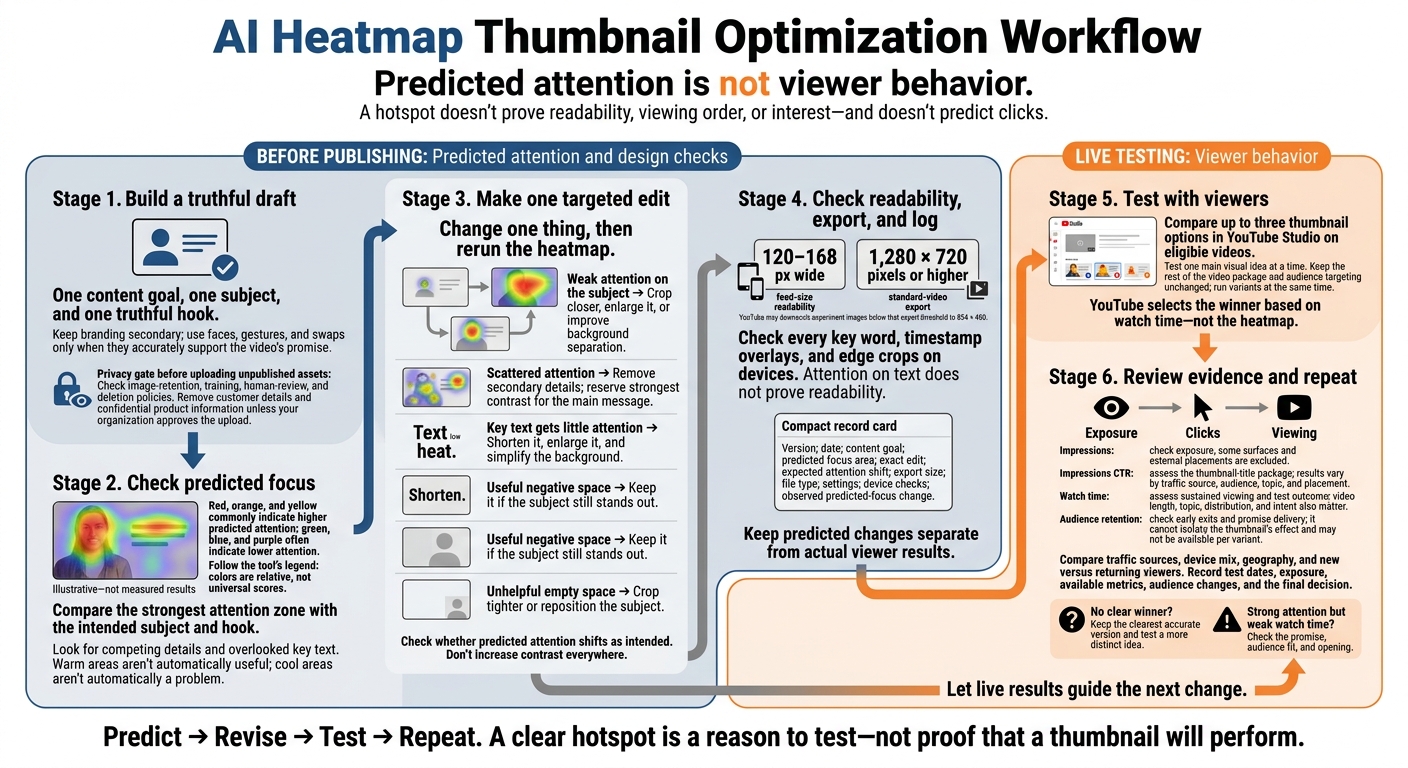
AI Heatmap Thumbnail Optimization Workflow
Read Heatmaps to Spot Design Problems
Sum up the thumbnail’s message in one sentence. Then compare that message with the area getting the most predicted attention. Does the main element support the title and the video’s promise?
Find Focal Points and Overlooked Details
Start with the legend. Red, orange, and yellow commonly mean higher predicted attention. Green, blue, and purple often mean lower attention. These colors show relative attention - not a universal score. Warm areas aren’t automatically useful, and cool areas aren’t automatically a problem.
Find the strongest attention zone, then check whether decorative elements pull focus from the intended subject. Look in cooler areas for key words, numbers, labels, or product details. Preview the thumbnail at 120–168 px wide on mobile; details that look clear at full size may disappear in the feed.
Turn Heatmap Signals Into Design Changes
Use the map to identify common thumbnail mistakes before making an edit. Don’t increase contrast everywhere: that can give secondary elements as much visual weight as the main subject.
| Heatmap signal | Possible problem | Design response |
|---|---|---|
| Weak attention on the subject | The subject is too small or blends into the background | Crop closer, enlarge it, or separate it more clearly from the background |
| Scattered attention | Several elements compete equally | Remove secondary details and save the strongest contrast for the main message |
| Key text receives little attention | The copy is too long, too small, or low-contrast | Shorten it, enlarge it, and simplify the background |
| Large cool area around the subject | Intentional negative space helps keep the design clear | Keep it if the subject still stands out |
| Large cool area adds nothing | Empty space leaves important elements too small | Crop tighter or reposition the subject |
Change one thing, then rerun the heatmap to check whether predicted attention shifts as intended.
Attention on text doesn’t prove people can read it. Check every key word at small size; predictions vary by audience, device, and familiarity with the topic. Make one or two targeted edits, then check them against audience feedback and YouTube metrics - not the heatmap alone.
sbb-itb-b59debf
Create and Revise Thumbnails With Heatmaps
Build a Draft With ThumbnailCreator
Start with one content goal, one subject, and one truthful hook. Use ThumbnailCreator’s templates, text, and swaps to build a draft for testing. Only use swaps that accurately represent the presenter or product.
Hypothetical small-business tutorial: For “Track Sales in 10 Minutes,” choose a clean template, make the sales dashboard the main subject, and add “10-MINUTE SALES TRACKER.” Highlight the “Total Sales” field rather than inventing revenue figures.
Then check the heatmap to see whether the hook and subject compete for attention or work together.
Check and Adjust the Visual Hierarchy
Compare the heatmap’s predicted focus area with your intended subject and hook. Adjust scale, text placement, spacing, or contrast where needed. Keep branding secondary, and use faces or gestures only when they support the hook.
Before uploading unpublished assets, check the tool’s image-retention, training, human-review, and deletion policies. Remove customer details and confidential product information unless your organization approves the upload.
Once the hierarchy is clear, check that the thumbnail remains easy to read at feed size.
Check Small-Size Readability and Log Changes
With the visual hierarchy set, check the final export and record your edits. Include timestamp overlays and edge crops in device checks. Export standard-video test candidates at 1,280 × 720 pixels or higher. YouTube may downscale experiment images below that threshold to 854 × 480.
Save each candidate alongside its heatmap. Record the version, date, content goal, predicted focus area, exact edit, and expected attention shift. Also log the export size, file type, settings, and device checks.
After reanalysis, note whether the predicted focus area moved as intended - even if it didn’t. Keep predicted changes separate from actual viewer results.
Test Heatmap Predictions With YouTube Data
After logging each thumbnail version, test it against live viewer data. Use the heatmap to check the design before publishing. Use YouTube data to judge how it performs once it’s live.
Run Controlled Thumbnail Tests
Use YouTube Studio’s thumbnail test on eligible videos. It supports up to three variations and selects the winner based on watch time.
Keep the rest of the video package and audience targeting unchanged. Test one main visual idea at a time, such as subject size. Changing size, text, and background together makes it harder to tell what drove the result. Run variants at the same time to reduce noise from audience differences and seasonal changes.
Then compare your prediction with what viewers actually did.
Compare Predictions With Viewer Metrics
Read results in this order: exposure, clicks, then viewing. Check the test report for each variant’s outcome.
| Signal or metric | What it indicates | When to use it | Main limitation |
|---|---|---|---|
| Predicted hotspot | Where the model expects attention to concentrate | Before publishing, to check visual hierarchy | Live metrics test the design idea, not the attention pattern itself |
| Impressions | Thumbnail impressions on YouTube | Check exposure | Some surfaces and external placements are excluded. |
| Impressions CTR | Percentage of registered impressions that led to a view | Assess the appeal of the thumbnail-title package | Varies by traffic source, audience, topic, and placement. |
| Watch time | Total watch time generated | Assess sustained viewing and the test outcome | Also depends on video length, topic, distribution, and viewer intent. |
| Audience retention | Where viewers drop off | Check early exits and whether the content meets expectations | Cannot isolate the thumbnail’s effect; not every metric is reported per variant |
Compare traffic sources, device mix, geography, and new versus returning viewers with your usual audience. A shift from Search to Home can change CTR without proving the design improved.
Don’t name a winner when the gap is small or unclear. Alongside the original prediction, record test dates, exposure, available metrics, audience changes, and the final decision. Treat the result as evidence for that audience.
Conclusion: Review, Test, and Repeat
Use heatmaps to check attention, design judgment to assess the video’s promise, and live tests to measure response. Bring all three into a predict, revise, test, repeat workflow. A clear hotspot is a reason to test - not proof that a thumbnail will perform. Review the thumbnail before publishing, then revisit it once results come in.
Use a Before-and-After Publishing Checklist
Before publishing: check for one clear focal point, text that’s readable at feed size, strong separation between the subject and background, an accurate video promise, and few competing elements. Review the heatmap, then save your predicted focal point and any overlooked details with that thumbnail version.
After publishing: check CTR, watch time, and traffic sources in YouTube Analytics. Save your review alongside the thumbnail versions so you can tie results to specific changes.
Choose Your Next Change Based on Results
Let live results guide your next decision.
Subject missed? Make it larger or change its position. Reduce competing elements, improve contrast, and point visual cues toward the intended focal point.
Key text overlooked? Check hierarchy, contrast, size, spacing, and placement. Shorten the wording if needed. View the revised thumbnail at a small size before testing again.
Strong attention, weak watch time? Check whether the promise is accurate, the video fits the audience, and the opening delivers.
No clear test winner? Keep the clearest accurate version and test a more distinct thumbnail idea next. Record the result before moving to the next test.
FAQs
How accurate are AI heatmaps for different audiences?
AI heatmaps reflect niche norms and general viewing patterns - not how each person watches. Some tools report 84%–96% accuracy against live eye-tracking studies when predicting where viewers look in the first few seconds.
Use them to check visual hierarchy and focal point clarity, not audience sentiment or intent to click. Compare their predictions with top-performing videos in your niche.
How long should I run a thumbnail test?
Run your thumbnail A/B test for at least 7–14 days. This gives you time to account for weekday and weekend viewing habits and smooth out traffic swings.
If your channel gets fewer than 10,000 impressions per week, consider testing for a full month to get more reliable results. Aim for at least 1,000 impressions per variant to help separate clear patterns from random fluctuations.
What if my best-performing thumbnail has a weaker heatmap?
A heatmap checks visual hierarchy, not click potential. Your thumbnail may still make a strong promise. Make sure the thumbnail and title support that same promise. If CTR meets your targets, the design may be working. A sharp drop in early retention, though, could point to overpromising.
Use the heatmap as a visual check. When adjusting the layout, change one variable at a time and run an A/B test.