

Top 5 Heatmap Tools for Thumbnails
If I had to cut this list down to one line, it’s this: use a thumbnail heatmap tool to see where eyes go first, then pick the version that puts the most attention on the face, text, or main object.
I looked at five tools that help with that job: ThumbnailCreator, Attention Insight, VisualEyes, CreatorML, and PhotoSalience. Some are better for fast checks, some give deeper attention scores, and one leans harder into CTR estimates. That matters because even thumbnail design trends can affect clicks, and one stat in the article stands out: thumbnails with a human face averaged 6.8% CTR vs. 4.1% without a face.
Here’s the short version:
- ThumbnailCreator: best for making and cleaning up thumbnail ideas before A/B testing
- Attention Insight: best for focused pre-publish heatmap checks
- VisualEyes: best for clutter and clarity checks
- CreatorML: best when I want heatmap data plus CTR estimates
- PhotoSalience: best free option for simple attention checks
What I’d look at first:
- Where attention lands first
- Whether text gets seen
- Whether the image feels scattered
- How easy it is to compare 2–3 versions
- Monthly cost, from free to about $99/month
This Tool Predicts Which YouTube Thumbnail Will Perform Better (TubeBuddy Thumbnail Analyzer)
sbb-itb-b59debf
Quick Comparison
| Tool | Best For | Main Output | Starting Price |
|---|---|---|---|
| ThumbnailCreator | Idea generation + A/B testing vs gut feeling scoring | Heatmap + 7-part score | $24–$29/month |
| Attention Insight | Pre-launch attention testing | Heatmap + focus data | $24/month |
| VisualEyes | Clarity and clutter checks | Heatmap + clarity score | $17–$29/month |
| CreatorML | CTR-focused screening | Heatmap + predicted CTR | $99/month |
| PhotoSalience | Free attention checks | Heatmap + scanpath | Free |
So if I were choosing fast: PhotoSalience for free checks, Attention Insight for tighter scoring, and CreatorML for CTR-first calls. ThumbnailCreator fits best at the start of the workflow, where I need thumbnail testing at scale.
How Thumbnail Heatmaps Work
A thumbnail heatmap is a color-coded overlay placed on top of your thumbnail to predict where a viewer’s eyes will go on first glance. Warm colors - red, orange, and yellow - show areas with high predicted attention. Cool colors like blue and green point to parts people are more likely to skip.
The idea is pretty simple: you want to check whether the parts that matter most are the ones people notice first.
What a thumbnail heatmap shows
Heatmaps show which areas naturally pull the eye. Faces tend to grab attention fast, especially close-up images with clear emotion. Bold, high-contrast text also stands out because our visual system notices sharp edges and strong color differences almost right away. The same goes for high-contrast objects, like a bright product against a dark background.
In a strong thumbnail, you’ll usually see one concentrated hot zone around the face and headline text, while the background stays cooler. If the heatmap lights up in several unrelated places, that’s one of many thumbnail mistakes to avoid. It usually means the design is pulling attention in too many directions and weakening the main message.
Key metrics creators can use
These metrics help you compare thumbnail versions and figure out which one has the best shot at winning the click.
| Metric | What It Tells You |
|---|---|
| Attention share | The percentage of predicted gaze on each region, such as face vs. background |
| Focus score | How concentrated attention is on key elements vs. scattered across the image |
| Text visibility | How likely viewers are to notice and read your thumbnail text |
| Area-of-interest (AOI) attention | Predicted attention percentage for a specific area you define, like a face or headline |
Most tools also include scores that help you turn the heatmap into clear next steps. In most cases, you want most of the attention landing on the face and main headline. If your text visibility score is low for the main promise line, that’s a strong signal to make the font bigger, increase contrast, or move the text to a better spot.
Predictive AI vs. live eye-tracking tests
Most modern heatmap tools rely on AI models trained on millions of real eye-tracking data points. Attention Insight, for example, says its algorithm is trained on more than 5.5 million fixations and 550 million gaze points, with 90–96% accuracy when matched against live eye-tracking studies. AI heatmaps can produce results in seconds, without equipment or test participants.
For thumbnail testing, speed and clear feedback usually matter more than lab-style setup. Old-school eye-tracking studies need participants and special hardware. AI heatmaps skip that process and give you fast, practical feedback you can use right away.
Use these signals to judge which tool gives the clearest, most actionable thumbnail feedback.
What to Look for in a Thumbnail Heatmap Tool
Pick tools that make thumbnail reviews fast and repeatable. The goal is simple: turn a gut-feel choice into a process you can use every time. These four checks help narrow the field before you look at the top five.
Fast image upload and analysis
The best tools let you upload an image and see results in seconds. That matters because thumbnail testing often happens right before publish time, when every extra step feels like a chore. If the workflow is slow, people skip it.
A light, browser-based setup makes a big difference. It lowers the friction enough that heatmap checks can become part of your routine instead of a one-time test.
Attention data for faces, text, and focal objects
A simple overlay doesn’t tell you much. You want region-level attention data for the face, headline text, and main object. That gives you a better read on what people notice first.
Once the tool shows where attention lands, the next step is just as important: how clearly does it score the result? If the output is vague, it’s hard to act on.
Metrics that support CTR decisions
Put more weight on tools that turn attention into clear, comparable scores. If a tool shows that attention lands on your headline text, that’s far more useful than a faint color wash over the words.
At the same time, don’t treat those scores like promises. Thumbnail performance also depends on topic demand, thumbnail and title synergy, and how familiar the audience is with the subject. The better tools also let you compare thumbnail versions instead of scoring only one image at a time.
Support for testing multiple thumbnail versions
Choose tools that can compare 2–3 versions side by side. That makes it much easier to see which idea has the clearest visual hierarchy before you publish.
Side-by-side testing also makes the choice feel less subjective. Instead of saying, “I think this one pops,” you can look at the results and make a cleaner call.
1. ThumbnailCreator
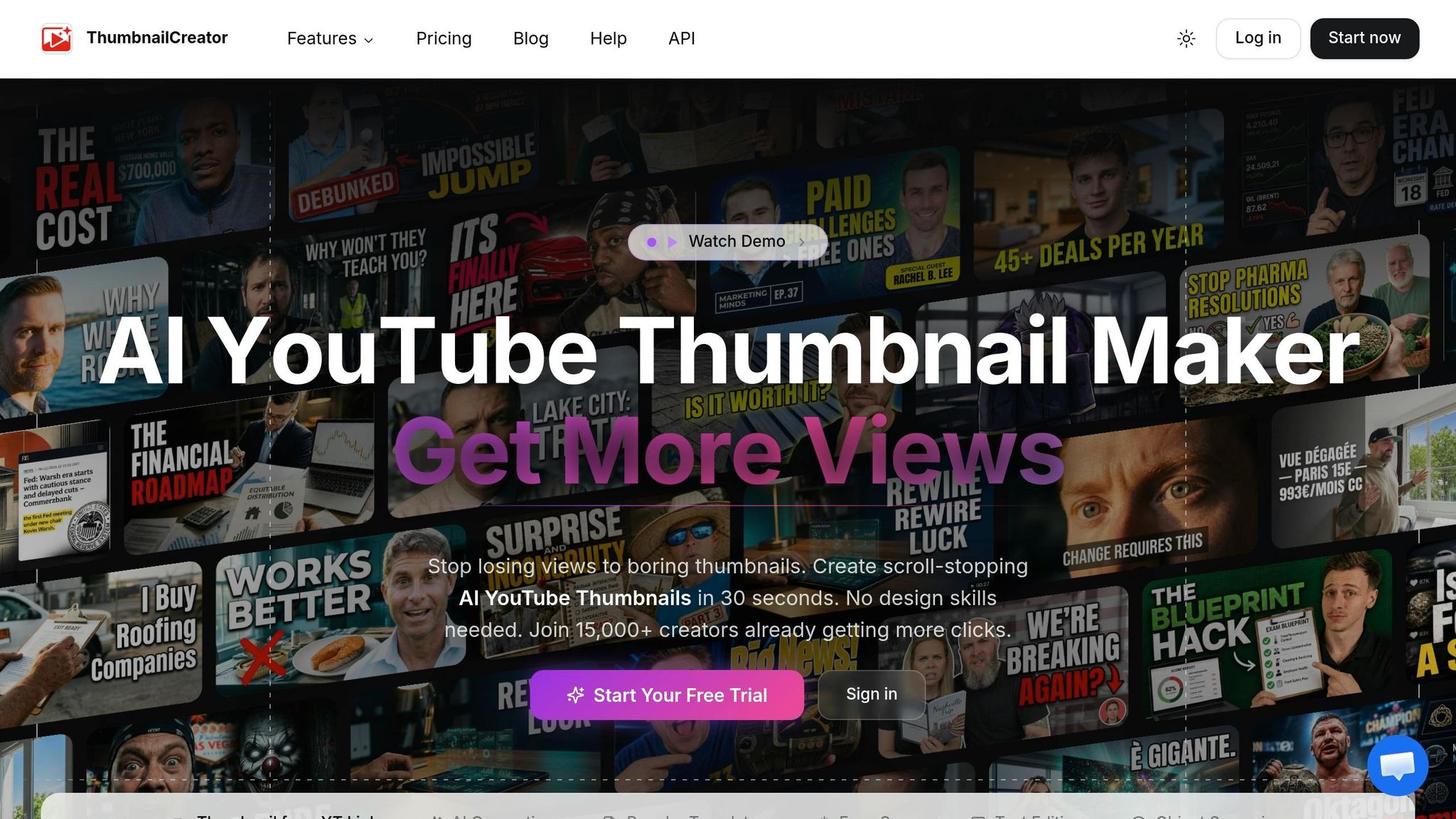
ThumbnailCreator is an AI thumbnail tool built for fast concept generation and cleanup. It helps creators come up with ideas and polish them fast with AI generation, templates, face swapping, text editing, object swapping, and predictive attention cues.
The tool doesn't stop at making thumbnails. Its AI Thumbnail Analyzer gives each thumbnail a score from 1 to 100 and breaks that score into seven dimensions: contrast, composition, text readability, face visibility, color appeal, click potential, and emotional impact. It also creates an attention heatmap overlay that predicts where viewers are most likely to look first.
That makes it handy for quick tests. You can try bigger faces, shorter headlines, or stronger separation between the main subject and the background in just a few minutes. The analyzer can also adjust its feedback to your niche, such as educational content, which helps you judge whether a thumbnail lines up with the patterns that tend to work in that content category.
Once you've cleaned up a concept, you can preview it in YouTube-style placements. The YouTube Preview Tool shows how each thumbnail looks in common YouTube placements and lets you add the title for a more realistic mockup. It's free to use and doesn't require credits.
Use ThumbnailCreator to shape and refine concepts first, then check the best version with more focused attention testing when needed.
Pricing starts with a 7-day free trial that includes 10 credits. After that, paid plans begin at about $24-$29 per month. That makes ThumbnailCreator a solid first-pass option before comparing the other tools in the table below.
2. Attention Insight

Attention Insight is made for fast thumbnail checks when you want a clean first-glance read before you publish. It also helps to ensure your layout meets standard thumbnail dimensions so no key elements are cut off. It creates predictive heatmaps in seconds using AI trained on eye-tracking data, showing where viewers are likely to look in the first 3 to 5 seconds after seeing a design.
For thumbnails, that gives you a fast pre-publish look at where attention goes first.
You can use AOIs to measure attention on a face, title, or main object. Then check focus, clarity, and contrast scores to spot clutter or a weak visual pecking order.
Attention Insight reports 90% to 96% accuracy when compared with live eye-tracking and works best as a pre-publish check. It can help you catch weak facial focus, crowded text, and background noise before you test a thumbnail live.
Public pricing starts at about $24/month billed annually or about $31/month billed monthly for the Basic plan, with Pro and Hero tiers for larger teams. If you're already using ThumbnailCreator to build and refine concepts, Attention Insight makes sense as the next step: make a few options first, then run the best ones through predictive heatmaps to see which version deserves final polish. Use it to narrow down your top thumbnail before moving to advanced thumbnail optimization strategies.
3. VisualEyes
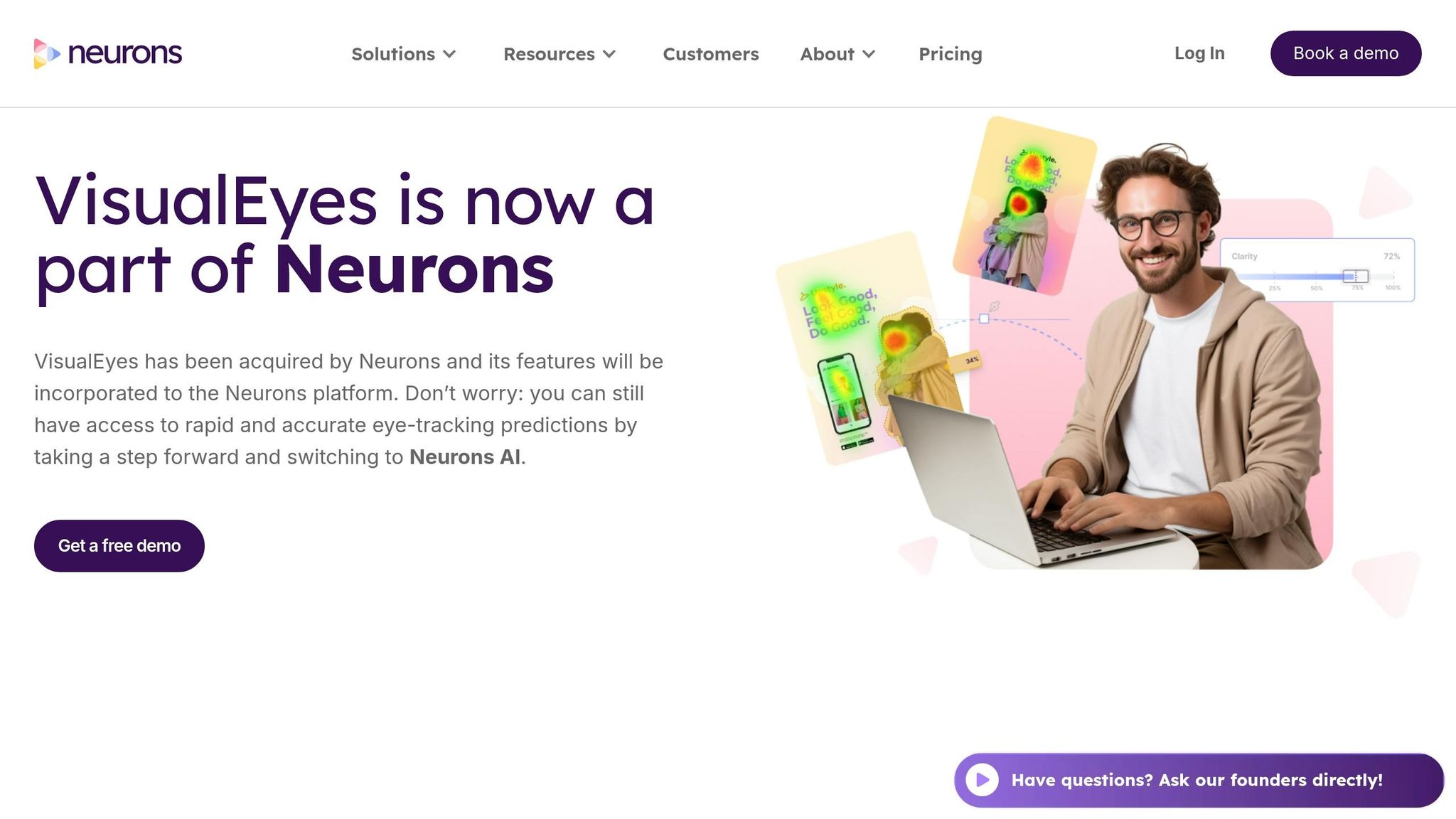
If you want more than a basic heatmap laid over an image, VisualEyes gives you a deeper read with Clarity Score and AOI breakdowns. It uses predictive heatmaps to show where people are likely to look first on a thumbnail. The models are trained on more than 20,000 eye-tracking images, and reported accuracy falls between 84% and 93% when compared with actual eye-tracking data.
The core outputs are Attention Maps, Clarity Score, and Areas of Interest (AOI) metrics. The attention map shows hot and cool zones across the image. The Clarity Score points out visual clutter that can hurt a thumbnail. AOIs show how much attention lands on specific parts of the design, such as a face, a text block, or a key object, so you can make direct choices about face placement, text size, and background noise.
VisualEyes is built for fast testing. You upload a thumbnail, get heatmaps in seconds, then tweak the layout, text, or focal point before testing again. It also works with Figma, Sketch, and Adobe XD, which makes it easy to review thumbnail ideas inside your current design flow. That helps when you're putting multiple thumbnail versions side by side before publishing.
Pricing is usually shown as a subscription. Some plans start at about $17/month for unlimited screen tests, while other listings put entry pricing closer to $29/month. A free tier may also be available if you only need light use, or you can explore other free thumbnail tools for your designs. Use it to check your best concepts after creating thumbnails with AI in ThumbnailCreator.
4. CreatorML
If you want a heatmap plus a read on likely performance, CreatorML adds that extra layer. It doesn't just show where people may look first. It also ties predicted attention to an estimated click-through rate. Upload a thumbnail, and the tool estimates both attention and click potential using computer vision and text models trained on millions of YouTube videos.
The heatmap shows where attention clusters. The CTR score then turns that attention signal into a performance estimate. That makes CreatorML handy when you're comparing thumbnail versions before you publish.
A simple way to use it:
- Create a few drafts in ThumbnailCreator
- Run them through CreatorML
- Check the heatmaps and CTR scores
- Narrow down the strongest concept
The Ranker feature goes a step further. It lets you compare multiple thumbnail and title combinations to see which pairing is predicted to do best.
CreatorML also includes an accuracy report that compares predicted CTR with your actual YouTube Studio data. That gives you a built-in way to check how close the model is to your results. Not many thumbnail tools offer that kind of feedback loop, and it helps you judge how much trust to place in the scores. CreatorML's models closely track actual CTR.
Use it when you want attention data and CTR prediction in one place. Use that CTR focus as the basis for the side-by-side comparison below.
5. PhotoSalience
PhotoSalience is a free, browser-based tool that creates predictive attention heatmaps and scanpaths for any thumbnail you upload. It shows first-fixation points across the frame, and its scanpath view adds gaze paths instead of only hotspot overlays. So if you want a clean read on where people are likely to look first, it does the job without a lot of extra clutter.
If attention mapping is all you need, PhotoSalience keeps things simple. It does not come with YouTube-specific options like CTR scoring or YouTube preview mockups.
Its attention model is trained on human attention data. Scores range from 0 to 1, with hotter areas closer to 1. In plain English, that makes side-by-side checks easy. You can see whether attention lands more on a face, a text block, or the main object in the frame without digging through dense analytics.
A simple way to use it: export a few drafts from ThumbnailCreator, run them through PhotoSalience, and compare where attention goes. If the eye lands on the face or key text right away, you're probably on the right track to creating trending YouTube thumbnails. If not, you know what to tweak before looking at the YouTube thumbnail styles comparison below.
How ThumbnailCreator Fits into a Heatmap-Driven Workflow
ThumbnailCreator gets your thumbnails ready for heatmap testing. It helps you make and polish test-ready concepts fast, before you send them to an analysis tool. In plain English: it works as the prep stage before heatmap analysis.
Create multiple thumbnail concepts quickly
You can create 3–5 thumbnail versions in a single session. Templates and AI generation make it easy to try different layouts, faces, and headlines without building each one from zero.
The templates start with high contrast, limited text, and clear subject placement. That gives each version a cleaner look and makes it easier to read at a glance.
Adjust faces, text, and objects before testing
Once you have a few concepts, tighten them up before testing. Fine-tune the subject, headline, and spacing so the main focal point stands out right away.
ThumbnailCreator lets you use face swapping, text edits, and object swapping to make that happen. Bigger expressions, shorter copy, and cleaner spacing usually lead to clearer results. Small tweaks can make a big difference here.
Use ThumbnailCreator with external heatmap tools
After the drafts look clean, move them into your heatmap tool. A simple flow works well:
- Generate a few versions
- Refine the strongest one
- Export it and test it in your heatmap tool
From there, choose the version with the clearest focus on the main subject and key text.
Comparing the Top Thumbnail Heatmap Tools
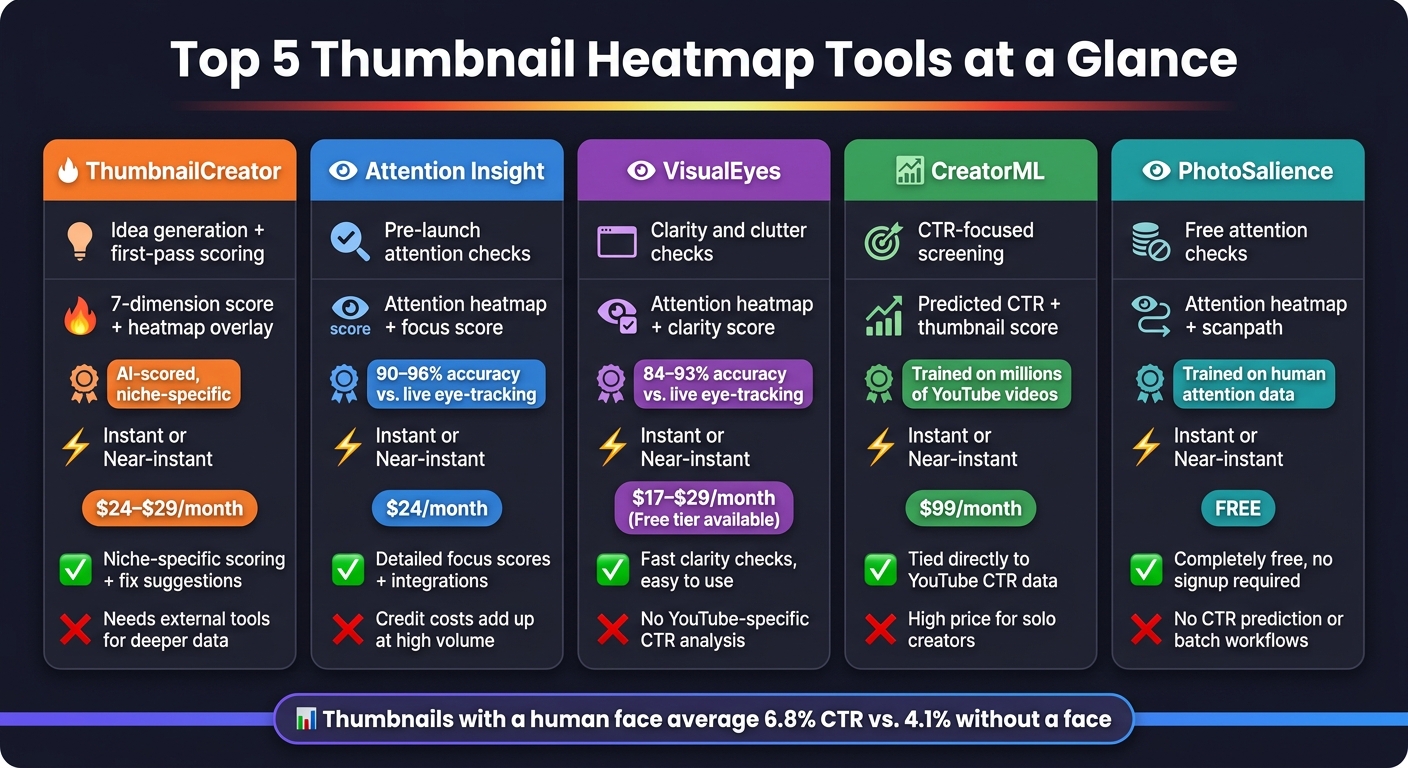
Top 5 Thumbnail Heatmap Tools Compared: Features, Metrics & Pricing
Once you've used ThumbnailCreator to generate and refine a few thumbnail concepts, the next step is picking the tool that gives you the feedback you need. The tables below make the tradeoffs easy to scan.
Feature and pricing comparison table
| Tool | Analysis Type | Best Thumbnail Use Case | Key Metrics | Speed | Pricing |
|---|---|---|---|---|---|
| ThumbnailCreator | AI thumbnail creation and scoring | Creating and refining test-ready concepts | 7-dimension score + heatmap overlay | Instant | Free plan; paid plans from ~$24–$29/month |
| Attention Insight | Predictive eye-tracking AI | Pre-launch attention checks on static thumbnails | Attention heatmap, focus score | Near-instant | From ~$24/month (annual) or ~$31/month (monthly) |
| VisualEyes | Simulated eye-tracking tests | Clarity checks for cluttered thumbnails | Attention heatmap, clarity score | Instant | Free tier available; paid plans from ~$17–$29/month |
| CreatorML | CTR prediction for YouTube thumbnails | Scoring thumbnails against YouTube performance data | Predicted CTR, thumbnail score | Fast | Free trial; paid plans from ~$99/month |
| PhotoSalience | Attention heatmaps and scanpaths | Free focal point checks | Attention heatmap, scanpath | Instant | Free |
The pros and cons table below helps turn those differences into faster decisions.
Pros and cons table
| Tool | Pros | Cons |
|---|---|---|
| ThumbnailCreator | Niche-specific scoring; actionable fix suggestions; free YouTube preview tool | Needs pairing with external tools for deeper attention data |
| Attention Insight | Detailed focus scores; AI recommendations; Figma and Adobe XD integrations | Credit costs add up for high-volume creators |
| VisualEyes | Fast clarity checks; easy to use | Not built for YouTube-specific CTR analysis |
| CreatorML | Tied directly to YouTube CTR; custom channel predictors; title optimization | Higher tiers price out many solo creators |
| PhotoSalience | Completely free; scanpath shows gaze sequence; no signup required | No CTR prediction; limited for batch workflows |
Which tools are best for speed, scoring, or CTR decisions
For a fast visual check, go with ThumbnailCreator or VisualEyes. They’re good when you want a quick read on how a thumbnail looks before spending more time on it.
For deeper attention scoring, Attention Insight is the best fit. It gives you more detailed focus data, which helps when you want more than a simple pass/fail view.
For CTR prediction, CreatorML is the best fit when click-through rate matters most. It’s the most CTR-focused option in this list.
For a quick free check, PhotoSalience works well if you just want a no-commitment look at focal points and scanpaths.
Use these differences to match a tool to your workflow in the next section.
Best Use Cases by Creator Type
Pick the tool based on the call you need to make: a fast check, a deeper attention read, or CTR-focused screening. The same filters from the comparison above still apply here: speed, depth, or CTR.
Best for solo creators who need a fast check
If you want a quick look before you hit publish, ThumbnailCreator is the fastest choice. It works well as a pre-publish sanity check when you just want to catch obvious issues without slowing down your workflow.
Best for creators who want a clearer attention read
If you need more than a gut check, ThumbnailCreator gives you a scored heatmap view so you can see what's pulling attention first. That makes it easier to tell whether your face, text, or main object is doing the heavy lifting.
Best for teams testing multiple concepts at once
For teams running several thumbnail ideas side by side, ThumbnailCreator makes it easy to generate and score multiple concepts fast. That helps you compare options without getting stuck in long review cycles.
Best for channels focused on CTR improvement
If CTR is the main target, ThumbnailCreator is a strong fit for screening weak ideas early. You can spot low-performing concepts fast and fix the issues the score points out before they cost you clicks.
Conclusion
Final takeaway
After comparing speed, depth, and CTR scoring, the choice comes down to how you test. The best tool is the one that helps you make the decision in front of you.
In practice, stick to the same loop: create variants, compare attention, and publish the clearest option. Then check CTR in YouTube Studio (a key thumbnail metric) and use what you learn to shape the next thumbnail. That matters because attention is limited, and thumbnail clarity drives the click. An analysis of 1,000 thumbnails found that thumbnails with a human face averaged 6.8% CTR, compared with 4.1% for those without a face.
Think of thumbnail testing as a repeatable cycle tied to the metrics that matter most for your channel: speed, attention detail, and CTR value. Pick the clearest option, publish it, and let YouTube Studio point you toward the next test.
FAQs
How accurate are thumbnail heatmaps?
Thumbnail heatmaps show where a viewer’s eye is likely to go in the first two seconds. They use AI models trained on large datasets to estimate attention patterns.
That makes them handy for spotting visual hierarchy problems. For example, you can check whether the main subject, headline text, or background is getting the focus you meant it to get.
Use them as a sanity check for design clarity, not as a promise of future click-through rates.
What should I fix if attention is scattered?
Scattered attention usually means your design is fighting itself. The result is clutter, and that clutter pulls power away from your main subject.
Cut back the text. Remove extra elements that don't support the message. Then run another heatmap analysis and check what changed.
Your goal is simple: see whether the focal point - like a face, product, or bold visual detail - now pulls concentrated attention.
Can heatmaps really improve YouTube CTR?
Yes. Heatmaps can help improve your YouTube click-through rate by showing where viewers focus in the first 50 milliseconds after seeing your thumbnail.
That gives you a fast way to see whether faces or key text land in high-attention spots. From there, you can tweak composition, contrast, and visual hierarchy so your thumbnail gets the point across more clearly and earns more clicks.