

AI Thumbnail Design: Lessons From Top Creators
I use AI to draft thumbnails - not to decide what a video can promise. My starting point: one claim the footage supports, one clear subject, and 3–5 words of text if needed.
My checklist keeps the process simple:
- Draft different concepts. Use ThumbnailCreator’s generation and editing tools to try layouts, not just new colors.
- Check every edit. Keep faces, products, and results true to the video. Get permission for face swaps, check phone readability, and follow YouTube’s rules and upload specs.
- Test the right thing. Eligible channels can compare up to three options in YouTube Studio. I test thumbnails alone to compare visuals; changing titles too tests the whole package.
- Learn from viewing, not just clicks. Tests can take up to two weeks. I use YouTube’s watch-time results, note inconclusive outcomes, and save the setup for my next test.
My rule: <u>the thumbnail must match what viewers actually get</u>.
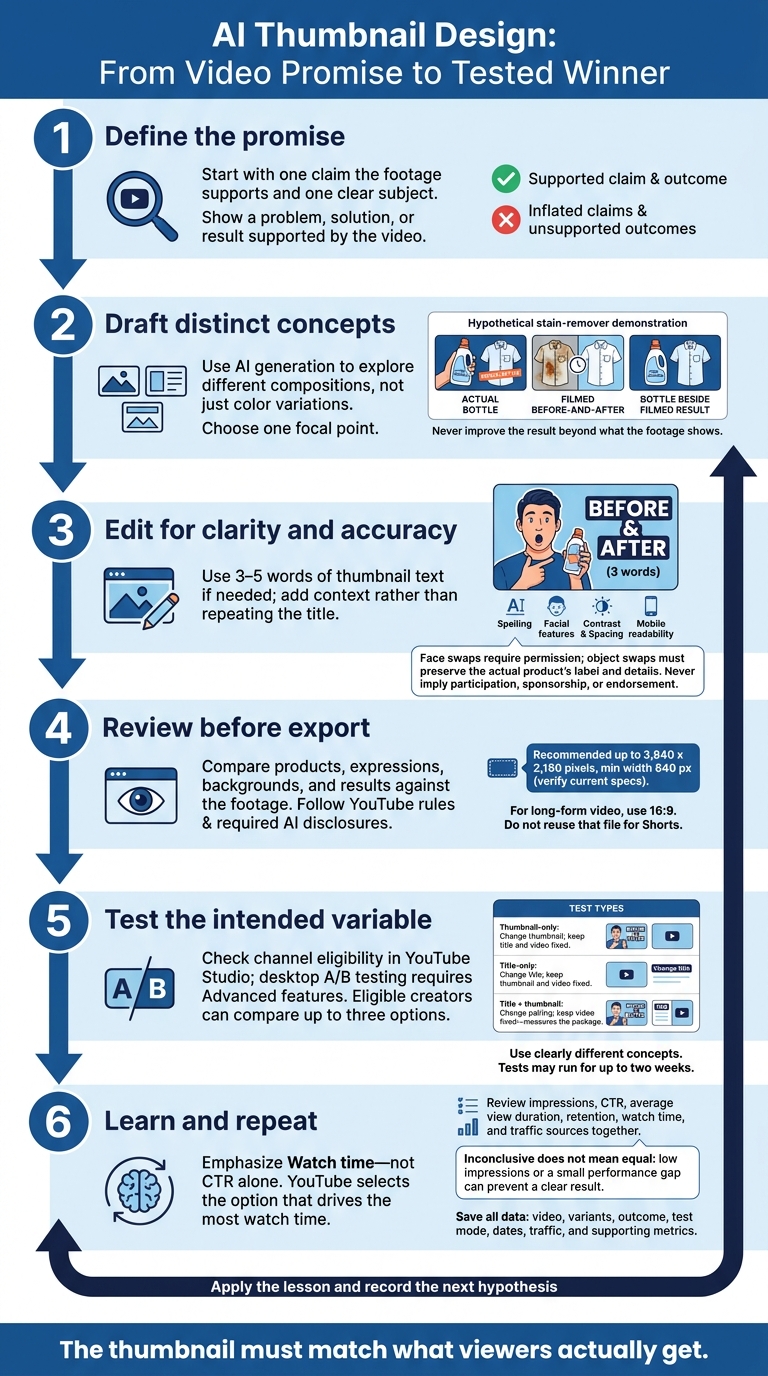
AI Thumbnail Design: From Video Promise to Tested Winner
How Top YouTubers Create EPIC AI Thumbnails | David Altizer
sbb-itb-b59debf
Creator Lessons for AI Thumbnail Design
Check every AI thumbnail draft before editing or testing it.
Define the Video Promise Before Using AI
Give AI the video’s actual promise, not an inflated claim. The thumbnail should show a problem, solution, or result the video supports. Reject concepts that suggest outcomes the video doesn’t back up to avoid misleading clickbait.
Review Faces, Text, and Layout
Start with three to five words for thumbnail text. Check spelling and facial features, and make sure the text doesn’t block the subject.
Check Edited Images Against the Video
Use the footage as your final reference. Compare edited product details, expressions, and backgrounds with what appears in the video. Even a good-looking edit shouldn’t suggest a reaction or event that never happened. YouTube’s thumbnail and misleading-metadata policies prohibit misleading representations, but they don’t automatically ban edited imagery.
Apply the Lessons With ThumbnailCreator
Turn one video promise into thumbnail drafts using the rules above. ThumbnailCreator offers AI generation, templates, text editing, face swapping, and object swapping. Here’s how to put those tools to work.
Build Concepts From the Video Promise
Write a clear promise and name the reaction you want: curiosity, surprise, or confidence. Use that brief to generate different compositions, not just color variations. Treat templates as starting layouts, then pick one focal point that makes the promise clear.
Hypothetical small-business demonstration: For a video showing a stain remover removing coffee from a white shirt, build three concepts: the actual bottle, the filmed before-and-after result, and the bottle beside that result. Aim for confidence in the demonstration. Use only the product and cleaning result shown in the video - not unrelated attention-grabbing imagery or a cleaner-looking outcome than the footage supports.
Choose the strongest concept, then refine it for clarity, accuracy, and mobile readability.
Edit and Check the Final Thumbnail
Use text to add context - not repeat the title. Adjust the layout so the product or person stays dominant. Use face swapping only with permission, and check that object swaps preserve the actual product’s label and details. Never use swaps to imply participation, sponsorship, or endorsement. Before exporting, check contrast, spacing, and small-screen readability.
Check current upload specs in YouTube Studio or YouTube Help before publishing. Export a 16:9 thumbnail for long-form video; don’t reuse that file for Shorts. YouTube’s guidance recommends up to 3,840 × 2,160 pixels and a minimum width of 640 pixels, though device limits can vary. Save the final concept and its main visual hook for later test results.
Test Titles and Thumbnails on YouTube
Choose What to Test
After editing your thumbnail, test the strongest versions in YouTube Studio for a final check using a thumbnail A/B testing guide. Desktop A/B testing requires Advanced features. Eligible creators can test up to three titles, thumbnails, or title-and-thumbnail combinations, depending on the test type.
Studio A/B testing supports eligible public long-form videos, live-stream archives, and podcast episodes. It excludes Shorts, private videos, Made for Kids content, mature-audience videos, and in-progress Premieres. Check channel and video eligibility in Studio before preparing your variants.
Match the test to what you want to measure: visuals, wording, or the full package. Editorial review helps you choose the clearest concept; YouTube testing measures performance. Changing the title and thumbnail together tests the package - not the thumbnail’s contribution alone.
| Method | What changes | What stays the same | Test question |
|---|---|---|---|
| Editorial review | Concepts considered by the creator | Video promise and brand constraints | Which concept looks clearest before audience testing? |
| Thumbnail-only test | Thumbnail | Title and video | Which visual direction produces better watch-time results? |
| Title-only test | Title | Thumbnail and video | Which wording performs better with the same image? |
| Title + thumbnail test | Title-thumbnail pairing | Video | Which package performs best, without separating either element’s contribution? |
Compare Concepts and Review Results
Test clearly different concepts rather than small color or font changes. Keep the subject, canvas size, and image quality the same across variants. Choose any eligible video with enough traffic to support a meaningful test. Record recent performance for context, but don’t treat it as a controlled comparison.
Tests may run for up to two weeks. YouTube selects the option that drives the most watch time - not the highest click-through rate (CTR). More clicks don’t always lead to more viewing. If the title and thumbnail promise more than the video delivers, viewers may leave.
Review impressions, CTR, average view duration, retention, watch time, and traffic sources together. Keep video-level analytics separate from variant-level results: overall retention cannot tell you which thumbnail kept viewers watching.
Low impressions or a small performance gap can leave a test inconclusive. That doesn’t prove the options perform equally. Record the video, variants, and YouTube’s reported outcome. Label supporting metrics with their source and timeframe, and document the winning variant, test mode, dates, and traffic conditions. Save the winner and setup notes for the final review.
Conclusion: Use AI, Keep Human Review
Let AI draft options, but keep the final call with the creator. You still control the promise, audience fit, and final version. Check for one clear visual, text that’s readable on mobile, and faces and objects that match the video to avoid common thumbnail mistakes. Review YouTube’s thumbnail rules and any required AI disclosures. Disclosure doesn’t excuse misleading imagery or clickbait vs authentic thumbnails concerns.
After review and testing, apply the strongest lesson to your next thumbnail. Save the original, the revision, and your hypothesis, then test the change. Judge results by watch time, not CTR alone, so AI remains useful while you stay in control.
FAQs
How can I keep AI thumbnails consistent with my brand?
Keep a consistent design brief that lists your hex color codes, typography styles, and logo placement rules. In ThumbnailCreator, save these settings as custom styles in the Styles tab. Use Face Model Training to keep your appearance recognizable.
Before publishing, check each thumbnail manually. Use a checklist to confirm that its colors, fonts, and overall style match your brand’s visual identity.
What should I try after an inconclusive thumbnail test?
Don’t assume every variant performs the same. Try bolder changes to contrast or composition so the differences stand out. Keep the clearest, most accurate version as your baseline. Once you have more data, run another test, changing just one variable.
ThumbnailCreator can help you quickly generate bold, high-contrast alternatives so your test gives you clearer guidance on what works.
When do AI thumbnail edits require disclosure?
YouTube does not require formal disclosure labels for AI-generated thumbnails, including those made with ThumbnailCreator. But your thumbnail must accurately represent your video’s content.
You must also have the legal rights to use any faces or assets in the image. It must not suggest endorsements or events that never happened. Keeping your design accurate, transparent, and based on permission helps protect audience trust and supports long-term channel growth.