

Ultimate Guide to Trending Thumbnails
I start with one viewer question, one main subject, and a promise the video can keep. I design at 1,280 × 720 pixels, check the thumbnail on a phone, and verify facts before uploading.
Here’s my process:
- Check the trend: Compare U.S. search interest over 7 days, 90 days, and 5 years, then review channel data.
- Plan the image: Match the subject and supporting cue to the topic, title, and video.
- Build and review: Use ThumbnailCreator for a draft, then check AI details, image permissions, and YouTube upload rules.
- Test and update: Compare up to three thumbnails in YouTube Studio. Review watch time alongside clicks, and replace outdated details.
My rule: <u>accuracy comes before clicks</u>. A thumbnail should help you choose a video - not sell you an answer it doesn’t deliver.
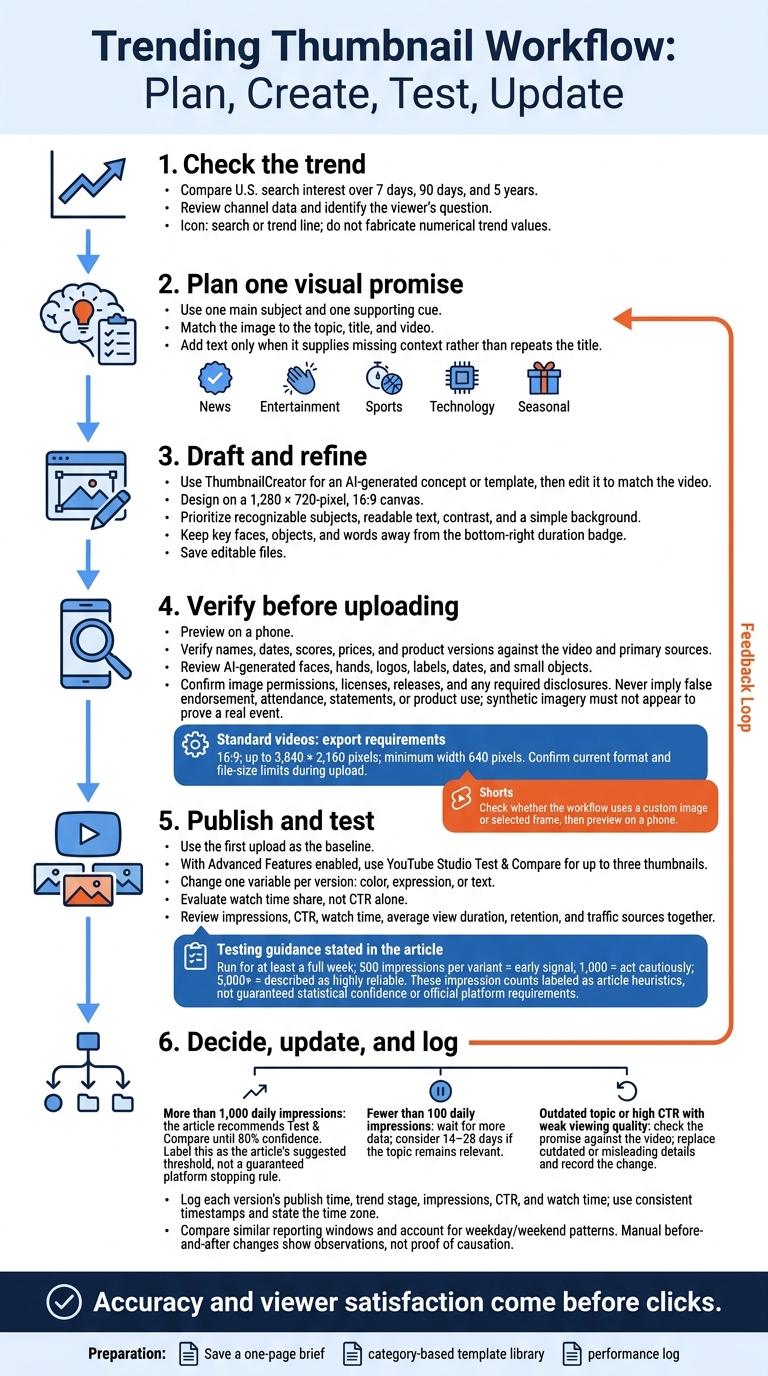
Trending Thumbnail Workflow: Plan, Create, Test, Update
How To Make The Best Thumbnails in 2026
sbb-itb-b59debf
Plan the Thumbnail Concept
Build your thumbnail around one visual promise: the change, question, result, or discovery the video delivers. Add text only when it fills a gap in context - not when it repeats the title.
Choose the Main Subject and Layout
Pick one dominant subject - a face, product, object, or location - and one supporting cue. Give the subject the most space and strongest contrast. A tight crop, simple background, or controlled lighting helps it stand out. Keep reactions in line with the video’s tone rather than exaggerating the drama.
Design on a 1,280 × 720-pixel, 16:9 canvas. Then check the thumbnail at mobile size. Viewers should still recognize the subject without relying on smaller details. Choose an easy-to-read font, and keep key faces, objects, and words away from the bottom-right duration badge.
Match Visuals to the Content Category
Choose visuals that viewers recognize as evidence for your content category. Use the table to decide what deserves attention - not to pack the frame.
| Category | Main subject | Emotional or informational angle | Text treatment | Background treatment |
|---|---|---|---|---|
| News | Verified person, location, document, or event | What changed or why it matters | Short date, place, or confirmed development | Relevant scene or map, simplified around the subject |
| Entertainment | Performer, character, or genuine reaction | Anticipation, surprise, or review perspective | Brief reaction or confirmed release date | Relevant stage, scene, or genre cue |
| Sports | Athlete, decisive play, or verified score | Stakes, turning point, or confirmed result | Score, matchup, or game status | Relevant field, court, or lightly blurred action |
| Technology | Product close-up, interface, or feature | Practical benefit, problem, or demonstrated performance | Feature name or supported comparison | Clean backdrop or readable interface crop |
| Seasonal | Holiday object, destination, or seasonal product | Preparation, timing, or celebration | Useful date, deadline, or holiday name | Restrained seasonal colors, weather, or décor |
Include category cues only when they add proof, timing, or context. YouTube prohibits thumbnails that mislead viewers about what they’ll watch by balancing curiosity and authenticity.
Create Thumbnails With ThumbnailCreator
Once you’ve settled on a concept, use ThumbnailCreator to build a first draft fast. Start with an AI-generated concept or template, then edit the text, faces, and objects to match the video’s topic. Speed helps, but accuracy and readability determine whether the thumbnail works.
Draft and Revise the Thumbnail
Write one clear idea for the viewer, then build the thumbnail around it. As you revise, focus on recognizable subjects, text hierarchy, contrast, and a layout that guides the eye. Save editable files so you can update the design as the trend changes.
Trending topics move fast, but every swap still needs to be accurate. Swap faces and objects only with permission. Never falsely imply endorsement, attendance, statements, or product use. Check faces, hands, logos, labels, dates, and small objects for errors, and keep licenses and releases on file.
Check YouTube Upload Requirements
Once you approve the draft, check the export settings. For standard videos, use a 16:9 thumbnail at up to 3,840 × 2,160 pixels, with a minimum width of 640 pixels. Keep a high-resolution master file, and confirm the format and file-size limits during upload.
Handle Shorts separately. Check whether your workflow uses a custom image or a selected frame, then preview it on a phone.
Review Mobile Readability and Accuracy
Preview the thumbnail on a phone to check that the text, subject, and overlays remain clear. Before exporting, verify names, dates, scores, prices, and product versions against the video and primary sources.
Synthetic imagery should not look like proof of a real event. Add any required disclosures, then check whether a new viewer understands what the video promises.
After these checks, move to upload and performance testing. Consider A/B testing your thumbnails to see which version drives the highest CTR.
Publish and Measure Thumbnail Performance
Once your thumbnail is accurate and easy to read, use the first upload as your baseline.
Test Thumbnail Variants in YouTube Studio
With Advanced Features enabled, use Test & Compare to test up to three thumbnails at once. Change just one variable per version: color, expression, or text. Aim for a thumbnail that earns clicks without promising more than the video delivers.
Judge results by watch time share, not CTR alone. Run the test for at least a full week to include weekday and weekend viewing patterns. Treat 500 impressions per variant as an early signal, 1,000 as enough to act cautiously, and 5,000+ as highly reliable.
Choose Whether to Test, Replace, or Wait
A single CTR number doesn’t tell the whole story. Review impressions, CTR, watch time, average view duration, retention, and traffic sources together. If CTR climbs while retention drops, the thumbnail is promising more than the video delivers. Check for shifts in audience interest or traffic sources, too. A trend’s lifecycle can change results even when the thumbnail stays the same.
| Situation | Recommended action | What it means |
|---|---|---|
| More than 1,000 daily impressions | Run Test & Compare until the result reaches 80% confidence. | Use this confidence threshold to guide when you choose a winner. |
| Fewer than 100 daily impressions | Wait for more data; consider 14–28 days if the topic is still relevant. | Low-volume results may be noise, and the trend could fade before you get a clear result. |
| The topic changes or the thumbnail becomes outdated | Replace it manually and record the change. | Before-and-after results can’t separate the thumbnail’s effect from shifts in interest. |
| High CTR with weak viewing quality | Compare the thumbnail’s promise with the video, and replace it if it’s misleading. | CTR alone doesn’t establish success when retention drops. |
Don’t swap thumbnails after every small CTR movement. For manual changes, compare similar reporting windows and account for weekday and weekend patterns. Treat any improvement as an observation - not proof that the thumbnail caused it.
Update Thumbnails as Topics Change
Your thumbnail doesn’t have to stay fixed as the trend shifts. Update outdated dates or results promptly. Log each version’s publish time, trend stage, impressions, CTR, and watch time. Use consistent timestamps and state the time zone so you can connect later performance changes to the correct version.
Conclusion: Trending Thumbnail Checklist
Use this checklist before you upload.
- Confirm the trend and the viewer’s question. Build one clear visual promise with one main subject and one supporting cue.
- Make sure the thumbnail is readable on mobile. Verify names, dates, and claims, and check YouTube’s technical and policy rules. Track performance through impressions, CTR, views, and watch time.
- Save three assets for your next trending video: a one-page brief, a category-based template library, and a performance log.
- Check every AI-generated detail. ThumbnailCreator can draft concepts and edit text or objects, but each output needs review. Accuracy and viewer satisfaction come before clicks.
FAQs
How do I spot trends worth making videos about?
Start with U.S. events like back-to-school season, major holidays, and the Super Bowl. Connect each one to your niche, then use data-driven tools to track competitors and spot new thumbnail colors, layouts, and text styles.
In Google Trends, select YouTube Search and look for breakout queries with growth above 5,000%. Check your channel data to see what viewers respond to, and use ThumbnailCreator to track trending designs by niche and region.
How can I keep trending thumbnails on-brand?
Keep your thumbnails visually consistent as trends change. Stick with 2–3 brand colors, a consistent font style, and familiar layouts. In ThumbnailCreator, use these elements in new designs and upload your top-performing thumbnails to train the AI on your preferred style.
Keep recognizable details, like facial expressions or logo placement, consistent. Change only the trending elements so viewers can still recognize your thumbnails.
When do AI-generated thumbnails need disclosures?
The provided search results don’t state when AI-generated YouTube thumbnails require disclosure. Still, fully AI-generated thumbnails may make viewers skeptical and hurt performance.
Use AI to test design ideas quickly, but keep the final thumbnail true to your video. An honest preview - not misleading or overhyped imagery - helps maintain viewer trust and supports long-term channel growth.