

Common Thumbnail Mistakes Hurting Retention
Your video thumbnail is the first thing viewers notice, and it can make or break their decision to click. Here’s the issue: many creators unknowingly make design mistakes that reduce both clicks and viewer retention. In 2026, YouTube’s algorithm doesn’t just reward high click-through rates (CTR); it prioritizes videos that keep viewers engaged. A mismatch between your thumbnail and content can hurt your reach.
Here are the most common thumbnail mistakes and how to fix them:
- Repeating Your Video Title: Instead of mirroring your title, use text that sparks curiosity. Keep it short - 3-5 bold words - and readable on mobile.
- Ignoring Mobile Optimization: Thumbnails shrink to 280×157 pixels on mobile, where 70-75% of views happen. Always preview thumbnails at small sizes.
- Cluttered Design: Too many elements overwhelm viewers. Stick to one main face, one concise text element, and use negative space for clarity.
- Low-Quality Images: Blurry or dull images look unprofessional. Use sharp, high-contrast visuals that stand out, especially on mobile.
- Placing Key Elements in the Bottom-Right Corner: YouTube’s timestamp covers this area. Shift important text and visuals to the top-left or center.
Pro Tip: Test your thumbnail at mobile size (10%-25% zoom) to ensure it’s clear and attention-grabbing. Tools like ThumbnailCreator can simplify the process by sharpening images, optimizing layouts, and maintaining consistent branding.
To grow your channel, focus on thumbnails that deliver on their promise - grab attention, stay clear on mobile, and match the content’s value. Even small changes, like simplifying text or improving image quality, can significantly boost your CTR and retention.
16 YouTube Thumbnail Mistakes That Kill CTR
sbb-itb-b59debf
5 Thumbnail Mistakes That Reduce Viewer Retention
Even seasoned creators sometimes make design choices that unintentionally hurt their video's performance. These five common thumbnail mistakes can undermine your content's potential - but the good news is, they’re often simple to fix.
Copying Your Video Title in the Thumbnail
Using your video title as thumbnail text is a missed opportunity. It wastes valuable space and doesn’t create intrigue. For example, if your title is "How to Bake a Cake", and your thumbnail repeats the same words, you’re not giving viewers a reason to click.
Instead, let your title explain the topic and use your thumbnail to evoke curiosity or highlight the outcome. A personal finance creator saw their click-through rate (CTR) jump from 4.1% to 7.8% by switching from generic text like "Tax Savings Tips" to something more specific and enticing, like "I Cut $8,400 Off My Taxes". This approach creates a Curiosity Gap vs Direct Value strategy, making viewers eager to learn more.
Another issue is readability. Video titles are often long, and when crammed into a thumbnail, they become hard to read - especially on mobile, where 70–75% of YouTube views occur. High-performing thumbnails typically use 3–5 bold words in large fonts (100–200px), which can increase CTR by 44%.
Designing Only for Desktop Screens
Over 70% of YouTube traffic comes from mobile devices, yet many creators design thumbnails on large desktop screens. The problem? On mobile, thumbnails shrink to 280×157 pixels, making small details and text nearly impossible to see.
And mobile users make decisions fast - 68% decide whether to click within just one second. For beginner creators, illegible text on mobile is a frequent frustration, with 52% citing it as their biggest design challenge. Mobile-optimized thumbnails, however, can dramatically improve CTR, sometimes even doubling it.
"Most creators are designing for a billboard when they should be designing for a postage stamp."
To ensure your thumbnail works on mobile, always preview it at 150px width before uploading. If the main subject or text isn’t immediately clear, it won’t grab attention. Top-performing thumbnails often place text in the top-left corner - 87% of high-CTR thumbnails follow this layout. This placement ensures your message stands out and supports higher viewer retention.
Overloading Thumbnails with Too Many Elements
Packing too many faces, props, or text blocks into a thumbnail overwhelms viewers, especially since they process thumbnails in just 0.3 seconds. Cluttered designs dilute your message and can confuse potential viewers, particularly on mobile, where elements are even smaller.
"If the design makes people think too hard, they'll just keep scrolling."
One creator simplified their thumbnail by reducing multiple faces and props to a single focal point, which boosted their CTR from 1.1% to 3.2%. Another cut their text from 12 words to just 3, leading to a CTR jump from 3.2% to 7.8% overnight.
To avoid clutter, stick to the Rule of 3: one main face or subject, one concise text element, and one supporting graphic. Use negative space to make your design feel clean and focused. Limiting text to 3–5 words also helps keep your message clear and clickable.
Using Poor Quality or Raw Images
Low-resolution or unedited images can make your thumbnail look amateurish. Screenshots with poor lighting, messy backgrounds, or dull colors won’t stand out in a crowded feed. Since thumbnails influence 90% of click decisions, a blurry or lifeless image can cost you views.
To grab attention, use high-contrast color combinations - like neon yellow on red or green on black - that pop on mobile OLED screens. Make sure your images are sharp, well-lit, and that the main subject remains clear even at smaller sizes like 280×157 pixels. A polished thumbnail not only attracts clicks but also signals professionalism, encouraging viewers to stick around.
Placing Key Elements in the Bottom-Right Corner
YouTube’s timestamp badge covers the bottom-right corner of every thumbnail. If you place faces, logos, or important text in this area, they’ll be obscured. This is a common issue, with 62% of complaints about thumbnails coming from mobile users who lose key details behind the timestamp badge.
To avoid this, shift crucial elements - like faces or text - to the top-left or center of your design. This adjustment ensures your message stays visible, helping your thumbnail communicate effectively and keep viewers engaged.
How to Fix These Mistakes
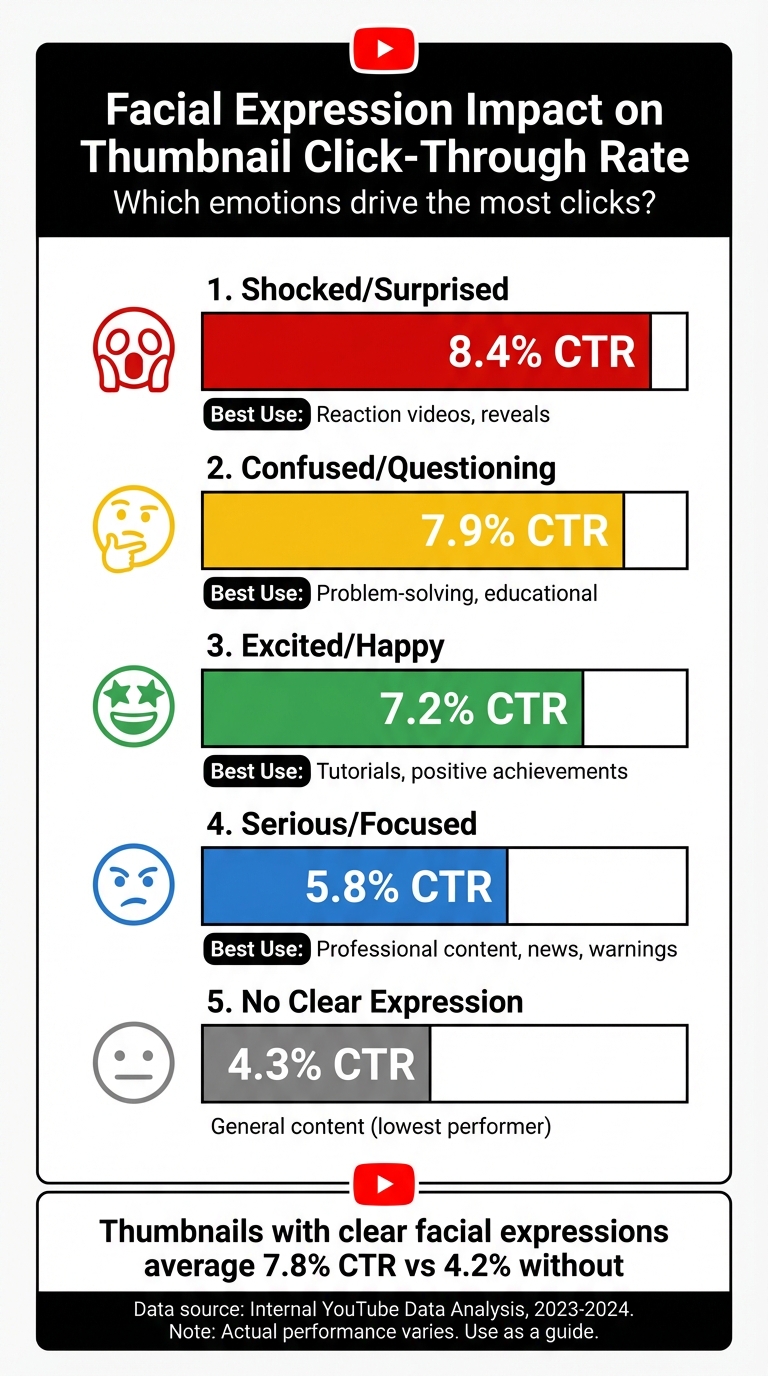
Facial Expression Impact on YouTube Thumbnail CTR Performance
Now that you know what's holding your thumbnails back, let’s dive into practical ways to improve them and start grabbing more clicks.
Use Emotion-Driven Text and Images
Instead of repeating your video title, spark curiosity with visuals and text that evoke emotion. Expressive faces work wonders - thumbnails with clear facial expressions average a 7.8% CTR, while those without drop to 4.2%.
Certain expressions perform even better. Shocked or surprised faces lead the pack with an 8.4% CTR, while confused or questioning expressions hit 7.9% CTR. These expressions tap into the "Curiosity Gap", making viewers eager to find out what caused the reaction. To maximize impact, ensure the face takes up 30–40% of the thumbnail so it’s visible even on smaller screens.
When it comes to text, keep it short and punchy. Swap long phrases for impactful keywords. For example, instead of "How I Made My First $1000 Online", go with "FIRST $1000". Keeping text to 3–5 words can increase CTR by 44%. Also, align colors with the emotion you want to convey - use red for urgency, yellow for warnings, and green for financial topics.
| Expression Type | Average CTR | Best Use Case |
|---|---|---|
| Shocked/Surprised | 8.4% | Reaction videos, reveals |
| Confused/Questioning | 7.9% | Problem-solving, educational |
| Excited/Happy | 7.2% | Tutorials, positive achievements |
| Serious/Focused | 5.8% | Professional content, news, warnings |
| No Clear Expression | 4.3% | General content (lowest performer) |
Test Thumbnails at Mobile Size
Your thumbnail needs to work at a glance, especially on mobile. Design with the postage stamp size in mind - 280×157 pixels. Mobile users make click decisions in just 0.3 to 1 second, so your text and visuals must stand out instantly.
Run a Stamp Test: zoom out to 10%-25% of the actual size. If your text or subject isn’t clear, simplify the design. Another trick is converting your thumbnail to grayscale to check if the contrast holds up without color.
"If you can't understand the image or read the text at [10% zoom], a mobile user won't click it." - Alex Rivera, YouTube Thumbnail Expert
Use high-contrast color combinations like neon yellow on red or green on black - these colors pop on OLED screens. Position text in the top-left corner, where 87% of top-performing thumbnails place it, ensuring it’s the first thing viewers notice.
Apply the Rule of 3
Keep your thumbnail simple by focusing on three main elements: one expressive face, one focal object, and one short text phrase. You can also compare centered vs rule of thirds layouts to see which placement gets more clicks.. Overloading the design forces viewers to process too much information, which can hurt clicks.
Use negative space to keep your design clean. Solid or lightly colored backgrounds help your subject stand out without competing with busy patterns. And stick to text under six words to ensure readability at smaller sizes like 280×157 pixels.
Improve Image Quality with AI Tools
While simplicity is key, blurry or dark images can ruin your thumbnail's effectiveness. Tools like ThumbnailCreator can sharpen images, enhance brightness, and boost contrast without requiring advanced design skills. These tools can also isolate subjects, remove distractions, and optimize your thumbnail for mobile visibility in seconds.
High-quality images with bright, vibrant colors and clear subjects are essential for standing out in crowded feeds. If you’re using screenshots, clean them up first - raw footage often looks unpolished and won’t attract clicks. Ensure your main subject stays sharp, even when the thumbnail shrinks on mobile.
Keep Important Elements Away from the Bottom-Right
Avoid placing critical elements like faces, text, or logos in the bottom-right corner. YouTube’s timestamp overlay can obscure these details, making them invisible to 62% of mobile viewers.
"Don't put important text or faces in the bottom-right corner. YouTube's time overlay covers this area on mobile apps. Big difference. Keep your most important elements in the top-left or center to ensure 100% visibility across all devices." - Alex Rivera
To ensure your thumbnail communicates effectively, position key elements in the top-left or center. This way, your design remains clear and engaging across all devices.
How ThumbnailCreator Simplifies Thumbnail Design
Creating effective thumbnails can be tricky, but ThumbnailCreator makes it simple by addressing common mistakes and providing tools to craft optimized designs. This tool not only boosts click-through rates (CTR) but also keeps viewers engaged - exactly where ThumbnailCreator shines.
AI-Generated Thumbnails in Seconds
ThumbnailCreator uses AI to generate professional 1280×720 (16:9) thumbnails in seconds, perfectly optimized for mobile to avoid scaling issues that lead to blurry images. Unlike generic tools, it incorporates the Rule of Three and can replicate successful styles from reference images.
The AI streamlines designs by focusing on a single image, one line of text, and a logo, ensuring clarity even at smaller sizes. You can also upload a high-performing thumbnail as a reference, and the AI will analyze its layout and contrast to create a similar structure with your content. This style cloning feature means you can replicate proven designs without starting from scratch.
These AI-driven defaults provide a strong starting point, but the platform also offers plenty of ways to customize your thumbnails.
Templates and Editing Tools
ThumbnailCreator goes beyond automation with tools like face swapping, text editing, and object swapping, making it easy to tweak thumbnails to fit your needs. Features such as Magic Expand, which extends backgrounds, and Magic Grab, which repositions subjects, transform low-quality images into polished visuals. The AI even removes messy backgrounds from selfies and adjusts lighting to match the tone of your video, so you don’t need professional photography.
For more advanced users, the platform includes safe zone management to ensure key elements like text and faces stay visible, avoiding issues with YouTube timestamps or cropping on various devices. It also adheres to YouTube’s 2MB file size limit and maintains a 4.5:1 contrast ratio for text readability, especially on small screens.
Maintain Consistent Branding
With Brand Kits, you can save logos, color palettes, and fonts to maintain a cohesive look across all your thumbnails. This helps build instant recognition among your audience. You can even generate multiple variations of a thumbnail to test different emotional tones and find the one that drives the highest CTR. Consistent branding ensures your content stands out in crowded feeds, making it easy for viewers to spot your videos at a glance.
Conclusion
Thumbnail mistakes can seriously hold back your channel's growth. Repeating your video title, designing solely for desktop, cluttering your thumbnail with too many elements, using low-quality images, or placing key visuals in the bottom-right corner can all hurt your chances of grabbing viewers' attention. With most people watching on mobile and making split-second decisions, these missteps could cost you thousands of views.
To fix this, focus on designing for mobile and crafting thumbnails with a clear, outcome-driven message. For instance, in November 2025, a personal finance creator shifted from a generic "Tax Savings Tips" thumbnail to a more specific, results-oriented design reading, "I Cut $8,400 Off My Taxes." This small tweak led to a jump in their click-through rate from 4.1% to 7.8%, adding 150,000 extra views and earning an additional $1,200 to $2,000 in revenue. Remember, your thumbnail needs to deliver on its promise - when it doesn’t, viewers leave, and the algorithm takes notice.
That’s where ThumbnailCreator steps in. This tool automates mobile-friendly designs, applies the Rule of Three, and ensures critical elements stay clear of areas like on-screen timestamps. Features like face swapping and built-in branding kits make it easy to maintain a consistent channel identity. By managing the technical aspects, ThumbnailCreator lets you focus on creating content.
From ensuring the right 16:9 aspect ratio to delivering sharp 1280×720 resolution, ThumbnailCreator helps every creator produce thumbnails that attract clicks and boost retention. Avoiding common thumbnail errors is a key step toward increasing engagement and growing your channel.
FAQs
How do I know if my thumbnail matches my video?
To make sure your thumbnail aligns with your video, ensure it clearly represents the video's content and emotional tone. A good thumbnail should have a clear focal point, use relevant visuals, and stay free of unnecessary clutter. It needs to match the theme of the video without being misleading - misleading thumbnails can negatively impact performance. Keeping your thumbnail consistent with the video helps boost both viewer retention and click-through rates.
What’s the fastest way to mobile-test a thumbnail?
The fastest way to test a thumbnail for mobile is by using YouTube Studio's "Test & Compare" feature. This handy tool allows you to upload different thumbnail versions, conduct A/B tests, and analyze metrics like click-through rate (CTR) and watch time. It helps pinpoint the top-performing thumbnail for all devices, including mobile, without the hassle of manually checking it on various screens.
Should I change my thumbnail after publishing?
If your thumbnail isn't performing well, it might be time to give it a makeover. Issues like low resolution, cluttered visuals, or misleading elements can negatively impact your click-through rates (CTR) and even viewer retention.
One way to tackle this is by experimenting with different designs. A/B testing, for example, lets you compare thumbnails to see which one grabs more attention. Even after publishing, swapping out your thumbnail can be a smart move to boost visibility and engagement. Small changes can make a big difference!