

Common Thumbnail Mistakes AI Can Fix
I use AI to fix cluttered thumbnails - not to skip the final check. My first step: preview the image at 10%–25% size. If you can’t recognize the subject or read the words, simplify it before adding more effects.
Here’s what I check:
- Layout and text: Give one subject the lead, cut wording to 3–5 words, and use strong contrast.
- Image accuracy: Keep faces, products, and logos recognizable. Make sure the image matches the video.
- Rights and rules: Check image permissions, YouTube policies, and any required AI disclosures.
- Export and testing: Check dimensions, format, and file size, then test up to 3 thumbnails with YouTube’s Test & Compare if eligible.
My rule: <u>make the message clear before making the image look polished</u>. AI tools can help with edits, but I still review the exported file and judge test results by watch time - not clicks alone.
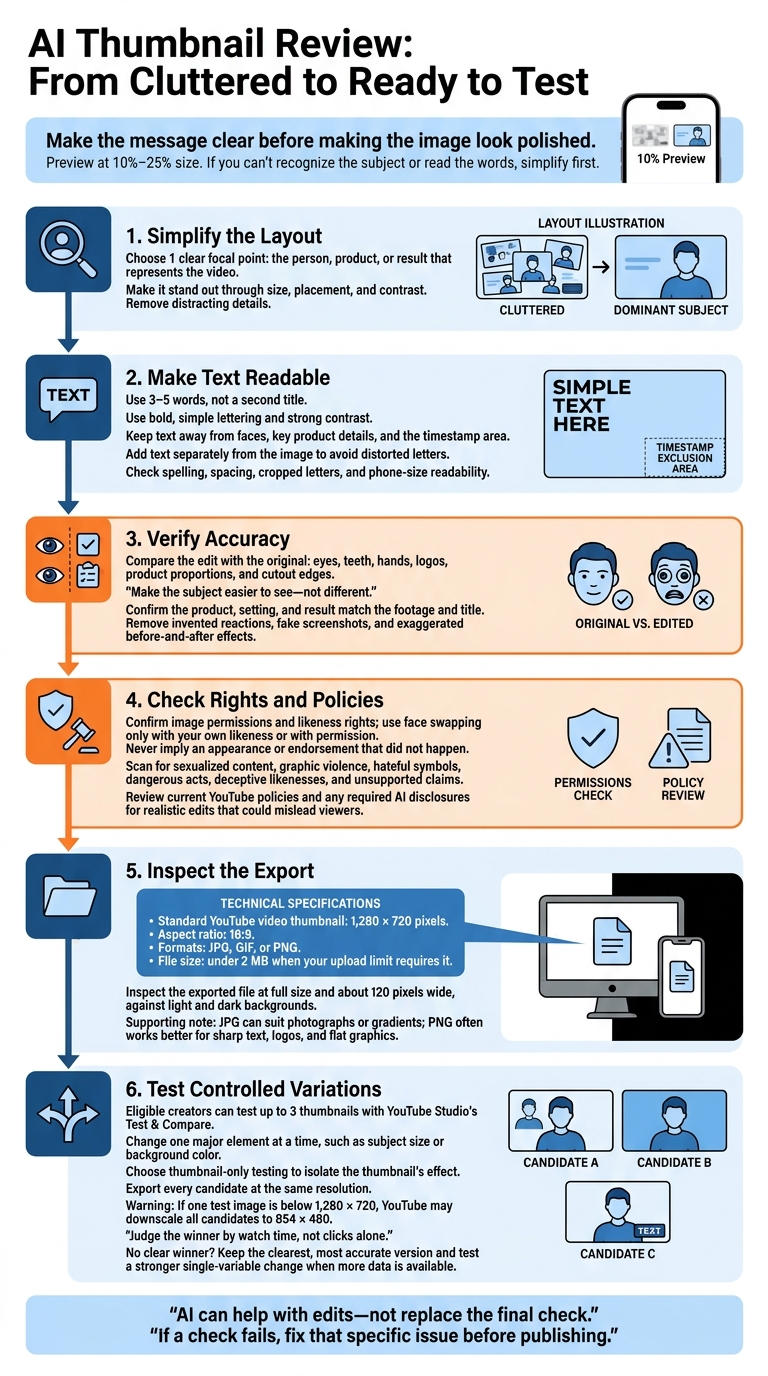
AI Thumbnail Review: From Cluttered to Ready to Test
Fix Your AI Thumbnails With These Prompt Tips
sbb-itb-b59debf
Simplify Layouts and Make Text Readable
Crowded thumbnails bury the main idea. Cut anything that doesn’t support the video’s promise. AI can help simplify the layout and separate the subject from distracting details. YouTube recommends avoiding overly complex designs and choosing readable fonts.
Choose 1 Clear Focal Point
Pick one subject to carry the thumbnail: the person, product, or result that best represents the video. Make it stand out through size, placement, and contrast, not arrows or effects. Give every element a job.
ThumbnailCreator offers AI generation, templates, and object swapping to help you build a cleaner layout faster. Start with the subject, then add text. Keep key product shapes and facial expressions intact, and check that viewers can still recognize the subject at phone size.
The message should be just as easy to scan as the subject.
Use Short Text With Clear Contrast
Use 3–5 words, not a second title. Choose words that add a payoff the title doesn’t already cover. Use bold, simple lettering that contrasts with the background. If the background is mixed, add a solid text block, outline, shadow, or translucent overlay.
Use ThumbnailCreator’s text editing to trim wording, adjust line breaks, and place text in empty space. Keep it away from faces, key product details, and the timestamp area. Add text separately from the image so AI doesn’t distort the letters.
Before checking image accuracy, review spelling, spacing, cropped letters, and readability at phone size.
Keep Subjects Clear and Images Accurate
Once the layout is clean, check that the subject still looks real.
Make Faces and Products Easy to Recognize
Start with a sharp source image. Crop it or remove the background without changing identity details. Compare the edit with the original, checking eyes, teeth, hands, logos, product proportions, and cutout edges. Make the subject easier to see - not different.
Keep brand colors, fonts, and subject placement consistent so viewers can recognize your channel fast. Create a reusable template, but adjust the crop for each video.
Use ThumbnailCreator’s face swapping only with your own likeness or with permission. Confirm rights to both source images and likenesses. Never suggest an appearance or endorsement that didn’t happen. YouTube prohibits deceptive impersonation.
Once the subject is recognizable, check that the thumbnail matches the footage.
Match the Thumbnail to the Video
Write the video’s actual promise first. Then compare each proposed image with the footage and title. Check that it shows the right product, setting, and result.
Remove invented reactions, fake screenshots, and exaggerated before-and-after effects. YouTube prohibits thumbnails that promise content absent from the video.
Next, scan the image for policy violations.
Check AI Images for Compliance Risks
Check the entire image for sexualized content, graphic violence, hateful symbols, dangerous acts, deceptive likenesses, and unsupported claims. AI can polish an image, but it can’t make a misleading thumbnail acceptable.
Review YouTube’s current thumbnail policy and Community Guidelines before publishing. Also check disclosure rules if a realistic edit could mislead viewers about a person, place, or event.
Check Export Settings and Test Variations
Before publishing, inspect the exported file and test your final versions.
Check Dimensions, Format, and File Size
AI-generated thumbnails still need an export check. For standard YouTube video thumbnails, use 1,280 × 720 pixels, a 16:9 aspect ratio, and JPG, GIF, or PNG format. Keep the file under 2 MB when your upload limit requires it.
If the file is too large, try JPG for photographs or gradients, then lower the export quality a little at a time. PNG often works better for sharp text, logos, and flat graphics. Check the exported file - not just the editor preview - at full size and about 120 pixels wide. Make sure it’s readable against both light and dark backgrounds.
Once the export looks right, test a few controlled variations.
Test Up to 3 Thumbnail Variations
AI can make alternatives, but it can’t prove which one works best. For a final check, eligible creators can use YouTube Studio’s Test & Compare to test up to 3 thumbnails. Change one major element at a time, such as subject size or background color. Choose thumbnail-only testing to isolate the thumbnail’s effect.
Export every candidate at the same resolution. If one test image is below 1,280 × 720, YouTube may downscale all candidates to 854 × 480, reducing visible detail. Judge the winner by watch time, not clicks alone.
A test may produce no clear winner if the sample is small or the designs look too similar. That doesn’t mean all options perform equally. Keep the clearest, most accurate version, then test a stronger single-variable change when more data is available.
Conclusion: Review Before Publishing
Use AI to fix thumbnails faster - not to skip the final review. ThumbnailCreator can help with the work, but it can’t guarantee performance.
Before uploading, check the layout, readability, accuracy, compliance, and export settings one last time. Reviewing these thumbnail terms ensures your final check is thorough.
Use a Final Thumbnail Checklist
Run through these checks before you publish:
- Clear layout: One subject leads, and the image is easy to read at phone size.
- Readable wording: Keep text short and legible at phone size.
- Accurate visuals: The image matches the video, with no distortions or misleading edits.
- Rights and policies: You have the appropriate permissions for all assets used, and the thumbnail follows YouTube’s policies.
- Ready to publish: Export settings are correct, and you have one clearly different alternate version ready for A/B testing vs gut feeling checks.
If a check fails, fix that specific issue before publishing - even if the thumbnail already looks polished.
FAQs
How can I tell if my thumbnail needs text?
Start by checking whether your image tells the story on its own. If it takes a paragraph to explain the video, simplify the visual layout instead of adding more text.
Then shrink your thumbnail to 120–160 pixels wide. Can you still identify the subject and read the text? If not, simplify the design. Keep any text to 3–5 words so it stays readable on mobile devices.
Which thumbnail mistake should I fix first?
If your thumbnail looks cluttered, simplify it first. Choose one clear subject - a face, product, or main object - and keep the design to no more than three visual elements.
Use the rule of thirds to balance your layout. Tone down or desaturate the background to help your subject stand out. ThumbnailCreator can help you quickly fine-tune composition, contrast, and element placement.
Why might more clicks not increase watch time?
More clicks don’t always mean more watch time. If a thumbnail misleads viewers or doesn’t match the video’s content, viewers may leave within the first 30 seconds.
A high click-through rate paired with low retention sends a negative signal to YouTube’s algorithm. That could limit your channel’s reach and reduce future recommendations.