

AI Tools for Recipe Thumbnails
If you want the short answer: ThumbnailCreator is the best fit for most recipe channels, Canva is the easiest low-cost start, and Adobe Express is the best pick when brand control matters most.
A recipe thumbnail can have a big effect on clicks. The article points to CTR lifts up to 154% for custom thumbnails, and it notes that thumbnails with a human face average 6.8% CTR vs. 4.1% without one. So if you post cooking videos, your thumbnail job is simple: show the dish clearly, keep text easy to read on a phone, follow the standard thumbnail size requirements, and test more than one version.
This article compares AI and manual design tools based on the things that matter most for food content:
- ThumbnailCreator: best for AI-first thumbnail production
- Canva: best for low-cost, template-based editing
- Adobe Express: best for brand-focused layouts
- Picsart: best for stylized edits and cleanup
- Fotor: best for fixing and polishing food photos you already have
What I like about this lineup is that each tool solves a different problem. Some are better when you need a thumbnail in under a minute. Others work better when you want tighter layout control, cleaner series styling, or lower monthly cost.
I Made the Same Thumbnail in Every AI Thumbnail Maker
sbb-itb-b59debf
Quick Comparison
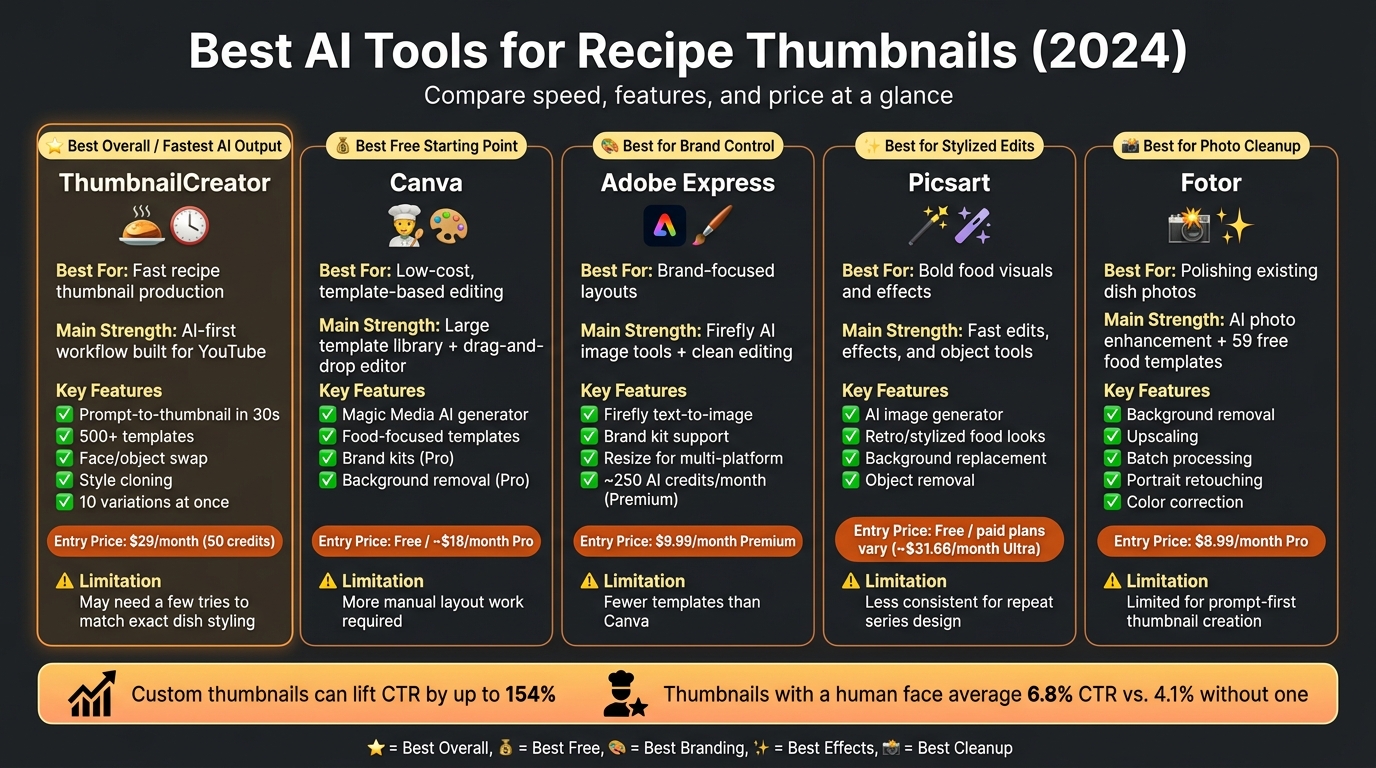
Best AI Tools for Recipe Thumbnails: Side-by-Side Comparison
| Tool | Best For | Main Strength | Main Limitation | Entry Price |
|---|---|---|---|---|
| ThumbnailCreator | Fast recipe thumbnail output | AI-first workflow built for YouTube | Can take a few tries to match exact dish styling | $29/month |
| Canva | Low-cost starting point | Large template library and hands-on editor | More manual work for layout | $0 free plan / about $18/month Pro |
| Adobe Express | Brand control | Firefly image tools plus clean editing | Fewer template options than Canva | $9.99/month |
| Picsart | Stylized food visuals | Fast edits, effects, and object tools | Less steady for repeat series design | Free / paid plans vary |
| Fotor | Food photo cleanup | Good for upgrading existing dish photos | More limited for prompt-first thumbnail work | $8.99/month |
So in plain English:
- Use ThumbnailCreator if you want the fastest path from idea to thumbnail.
- Use Canva if you want to start cheap and build by hand.
- Use Adobe Express if your channel has a fixed visual style.
- Use Picsart if you want bold edits and visual effects.
- Use Fotor if you already have food photos and just need them cleaned up. This choice often depends on whether you prefer real photos vs AI-generated thumbnails for your food content.
That’s the whole article in one view. The rest of the piece breaks down how each tool handles food images, recipe templates, editing, and monthly cost.
1. ThumbnailCreator
ThumbnailCreator is made for YouTube thumbnails, plain and simple. You describe the video, and it can generate recipe thumbnails in under 30 seconds. For recipe channels, that matters. You want to turn a dish idea into a thumbnail fast, then tweak it without bouncing between extra design tools.
Food-Image Generation
ThumbnailCreator leans into warm color grading, dish-first compositions, and optional effects like steam, flame, or chef reactions. You can start with a YouTube video URL, a text prompt, or a reference thumbnail.
For food videos, it works best when the prompt is clear and visual. Think: an appetizing, nicely plated dish, warm lighting, and clean recipe title text. You can also generate up to 10 variations at once, which makes side-by-side comparison much easier before you lock in the final image.
Template Fit for Recipes
The platform has a dedicated Cooking category inside its library of 500+ templates. That gives recipe creators a head start instead of making every thumbnail from scratch.
The template set includes:
- Ingredient showcases
- Step-by-step previews
- Transformation layouts that compare raw ingredients with the finished dish
Editing Control
ThumbnailCreator also gives you a fair amount of control after the first draft. Face and person swap can help when the host's reaction is part of what sells the video. Style Cloning lets you mirror the look of a reference thumbnail, and smart text placement helps keep recipe titles off the food itself.
Price-to-Output Value
Pricing is a big deal for recipe channels because one upload often needs a few thumbnail versions before you pick a winner. ThumbnailCreator uses a credit system, offers a 7-day free trial with 10 credits, and starts at about $29 per month.
| Plan | Price/Month | Credits | Best For |
|---|---|---|---|
| Starter | About $29 | About 50 | Creators posting 1–2 videos per week |
| Mid-tier | About $49 | About 100 | Creators posting 3–5 videos per week |
| Agency | About $99 | About 250 | Multi-channel teams or daily uploads |
2. Canva
Canva is a good fit for recipe thumbnails if you want a template-first, drag-and-drop setup with hands-on control. In plain terms: it works best when you want to build from a polished layout, not generate the whole thumbnail from scratch.
Food-Image Generation
Canva includes an AI image generator called Magic Media that can create custom food visuals right inside the thumbnail canvas. The better your prompt, the better the output tends to be. After that, you can fine-tune the image with filters, color changes, and overlays so it lines up with the style of your recipe.
Once your image is ready, Canva’s template library makes it simple to build the rest of the thumbnail around the dish.
Template Fit for Recipes
Canva has dedicated YouTube thumbnail templates with food-focused layouts, including plated-dish photography, high-contrast text areas, and clean compositions that suit recipe content. If you search terms like food, recipe, or YouTube thumbnail food, you’ll find the most relevant options fast. From there, you can swap in your own photo, change fonts, and add details like Serves 4, Under $10, or oven temperatures in °F.
Editing Control
The drag-and-drop editor gives you direct control over crops, brightness, saturation, text overlays, and layout. If you use Canva Pro, background removal helps when you need to pull a dish out of a busy kitchen shot. Typography tools include font pairing suggestions, text shadows, and outline effects, which help recipe titles stay readable at thumbnail size.
Canva also includes grids, frames, and alignment guides to help you balance the hero dish, any face or garnish, and key text in one layout. That kind of manual control matters most when you need the dish, title, and focal point to stay clear on mobile.
Price-to-Output Value
Canva's Free plan costs $0 with no time limit and includes the core editor plus about 200 Standard AI uses per month. Canva Pro costs about $18/month billed monthly or about $12/month billed annually. Pro adds premium templates, background removal, Magic Resize, brand kits, and up to 2,000 Standard AI uses per month.
For recipe creators who post often, Pro helps keep thumbnail work in one place instead of bouncing between tools.
| Plan | Price | AI Allowance | Best For |
|---|---|---|---|
| Free | $0 | About 200 Standard AI uses/month | Occasional uploads, basic customization |
| Pro | About $18/month billed monthly or about $12/month billed annually | Up to 2,000 Standard AI uses/month | Weekly uploads, brand consistency, advanced editing |
3. Adobe Express
Adobe Express gives recipe creators a nice middle ground. You get Firefly image generation and fast thumbnail editing, but without the weight of the full Adobe suite. It works best if you want AI-made food visuals and quick layout control in the same place.
Food-Image Generation
Adobe Express uses generative AI powered by Adobe Firefly to create custom food images from text prompts. The Free plan includes about 25 generative AI credits per month, while Premium and Teams plans usually include around 250 or more credits per month. For a small channel posting thumbnails on a regular schedule, that’s often enough to keep things moving.
Template Fit for Recipes
Adobe Express comes with ready-made YouTube recipe thumbnail templates built for fast edits. Many of them use food-friendly color contrast and clear focal areas that help the main dish stand out. If you want to reuse the same design on other platforms, the Resize feature makes that pretty painless for Instagram or Pinterest.
Once the layout is in place, the editor is built for that last bit of thumbnail cleanup.
Editing Control
Adobe Express includes the controls that matter most for recipe thumbnails: crop, color adjustments, text layers, background removal, and readability tools like drop shadows and outlines that help titles stay clear at small sizes. It handles the kind of edits most creators need for thumbnails, even if it doesn’t go as deep as a full compositing tool.
Price-to-Output Value
| Plan | Price | AI Credits | Key Features |
|---|---|---|---|
| Free | $0.00/month | ~25 generative credits/month | Basic templates, limited stock assets, no brand kit |
| Premium | $9.99/month or $99.99/year | ~250 generative credits/month | Full template library, brand kit, 100 GB storage, Adobe Stock |
4. Picsart
Picsart works well for recipe thumbnails when you need fast AI food visuals and a bit of cleanup in the same editor. For this kind of work, the big question is simple: can it turn a dish idea into a thumbnail people will click, without slowing you down? That’s where Picsart fits best. If you already know what dish you want to show, it can help you build the visual fast.
Food-Image Generation
Picsart’s AI Image Generator can turn a text prompt into a food image when you don’t have a finished dish photo. For example, a prompt describing crispy fried chicken with golden breading on a rustic wooden table can produce a usable main image. It also supports stylized looks, including retro and pixel-art food images, which can suit channels that want a set visual style. Just make sure the generated dish matches the recipe, so the thumbnail doesn’t give viewers the wrong idea.
Template Fit for Recipes
Picsart includes YouTube thumbnail templates built around layouts with a clear main subject, bold text, and high contrast up front. That setup works well for recipe content, where you usually want the food to do most of the talking. If your original photo feels flat or messy, the AI Background tool can place the dish in a cleaner, more appetizing scene.
Editing Control
The editor covers the main thumbnail edits you’re likely to need: background removal, brightness and contrast changes, 16:9 cropping, text layers, and object-level tools like Remove Object and AI Replace. In plain terms, it gives you enough control to fix small issues without jumping into another app. The text tools also make it easy to add hooks like Under $10 Dinner or Ready in 20 Minutes.
Price-to-Output Value
Picsart uses a freemium model with AI credits. The free tier comes with 5 AI credits per week, which can work for occasional use, but it’s a tight limit if you’re making food images on a regular basis. It makes the most sense for creators who want occasional AI generation and basic edits, not nonstop thumbnail production.
| Plan | Price | AI Credits | Best For |
|---|---|---|---|
| Free | $0.00/month | About 5 credits/week | Occasional use |
| Plus | Mid-teen/month range | 200 credits/month | Hobby channels |
| Pro | Mid-teen/month range | 500 credits/month | Active channels |
| Ultra | About $31.66/month billed annually | 1,500 credits/month | High-volume teams |
That leaves Picsart in a pretty clear spot: it’s strongest for quick polish and fast visual builds, not deeper thumbnail planning.
5. Fotor
Fotor fits the same fast-build use case, but it does more when it comes to photo cleanup and batch work. It brings AI image generation, photo editing, and templates into one browser-based editor. For recipe creators who need a thumbnail fast, that setup makes a lot of sense.
Food-Image Generation
Fotor's AI food image generator can take either a dish prompt or an existing photo and turn it into a usable food image. That's handy when you don't have polished food photography for a recipe.
A simple example: you can upload a low-quality dish photo, have Fotor make a cleaner version, crop it to 16:9, and layer on bold text. Because AI image generation uses credits on paid plans, it helps to plan prompts around your upload schedule. After that, the template library handles most of the layout.
Template Fit for Recipes
Fotor comes with 59 free Food YouTube Thumbnail templates. Most follow the layouts you see again and again in cooking content: big food visuals, easy-to-read title text, and room for a creator face or logo.
That means you can put together a usable thumbnail in minutes. The trade-off is simple: these templates work well for standard recipe content, but if you want heavy brand styling, the preset looks can feel a little generic.
Editing Control
The editor covers the main cleanup jobs:
- Background removal
- Portrait retouching
- Object removal
- Image upscaling
- Color correction
- Text placement
All of those tools are useful for recipe thumbnails. A common workflow would be to import a cooking still, remove the background around the plated dish, sharpen the image with upscaling, drop it into a template, and add bold text.
Paid plans also include batch processing, which is useful if you're making a series like "7 Breakfast Ideas in 7 Days" and want the same look across several thumbnails. The free plan adds watermarks, so it's best used for drafts only. That matters most when you're trying to produce multiple thumbnails in one style.
Price-to-Output Value
| Plan | Monthly Price | Annual Price | AI Credits | Best For |
|---|---|---|---|---|
| Free | $0 | $0 | Limited AI access (1 concurrent generation) | Drafts and experimentation |
| Pro | $8.99/month | $39.99/year | ~100 credits/month | Casual uploaders |
| Pro+ | $19.99/month | $89.99/year | ~300 credits/month | Frequent uploaders (3–5 videos/week) |
Pro+ is the best fit for creators who publish recipe thumbnails every week.
How Each Tool Performs for Recipe Thumbnails
These five tools separate themselves on three things: speed, control, and how well they handle recipe-focused visuals. For recipe thumbnails, the big factors are simple: how good the food looks, how well the layout fits a cooking channel, how much editing you can do, and how much each finished thumbnail costs. Beyond cost, creators must also track thumbnail CTR benchmarks to ensure their designs actually convert viewers.
Food-Image Generation
The food shot does most of the heavy lifting in a recipe thumbnail, so AI thumbnail generation comes first.
ThumbnailCreator is the fastest option for going from prompt to thumbnail. It can generate variations from a text prompt or a YouTube URL, and it has face and object swapping built in. Canva works best when you want clean text on top of food images. Adobe Express is a strong pick for polished, branded dish visuals. Picsart is better for improving uploaded food photos with filters, contrast, and color controls. Fotor works well when the goal is refining dish photos you already have.
| Tool | Food-Image Generation Approach | Recipe-Specific Strength |
|---|---|---|
| ThumbnailCreator | AI from prompt or YouTube URL; face/object swapping | Fast prompt-to-thumbnail output for clickable main dish images |
| Canva | AI image generation + templates | Clean text overlays on food images |
| Adobe Express | AI image tools + branded templates | Polished, branded dish visuals |
| Picsart | Filters, effects, and generative image tools | Enhanced uploads with contrast and color control |
| Fotor | AI image generation + photo enhancement | Refinement of existing dish photos |
Template Fit for Recipes
Once the food image looks right, template fit decides how fast a creator can build a repeatable series.
ThumbnailCreator includes thumbnail-focused templates and style ideas based on trending YouTube thumbnails. That makes it easier to keep logo placement and text styling steady across a recipe series. Canva has a large recipe and food template library, but getting a channel-wide look still takes some manual work. Adobe Express supports brand kits for repeatable layouts. Picsart and Fotor both have usable templates, though keeping a series visually aligned takes more hands-on effort.
| Tool | Recipe/Cooking Templates | Series Branding Support | Title Overlay Flexibility |
|---|---|---|---|
| ThumbnailCreator | Thumbnail-oriented templates and style inspiration | Strong consistency for repeated uploads | Thumbnail-focused text editor and placement control |
| Canva | Large recipe and food template library | Brand kits and easy reuse | Flexible fonts, colors, and layouts |
| Adobe Express | Professional templates | Brand kit support | Clean typography tools |
| Picsart | Usable templates | More manual consistency | Creative text styles |
| Fotor | Basic templates | Simple repeatable layouts | Standard text tools |
Editing Control
After the layout is in place, editing control shapes how polished the final thumbnail feels.
ThumbnailCreator stands out here because its editing is built for thumbnails, not just general image work. It includes face swap, expression morphing, and object swap, plus text controls that help keep headlines readable without covering the food. The other tools handle background removal, text layers, and photo cleanup well enough. The big difference is workflow: ThumbnailCreator keeps those edits inside the thumbnail process, while the others often need more manual steps.
| Tool | Background Cleanup Quality | Face/Object Swap Features | Text Refinement for Recipe Thumbnails |
|---|---|---|---|
| ThumbnailCreator | Thumbnail-focused cleanup | Face swap, expression morphing, and object swap | Thumbnail-focused text placement and readability |
| Canva | Easy background removal and layout tools | No dedicated thumbnail face/object swap | Flexible text tools |
| Adobe Express | Strong background and layer tools | No native face-swap focus | Professional typography controls |
| Picsart | Powerful cutout and object-edit tools | Limited thumbnail-specific swap tools | Creative text effects |
| Fotor | Solid background removal and retouching | Basic editing only | Standard text tools |
Price-to-Output Value
Once image quality and editing are sorted, price starts to matter a lot, especially if a channel publishes often.
ThumbnailCreator uses 1 credit per AI thumbnail, which makes output easy to measure. Its pricing starts at $29/month for 50 credits, $49/month for 100 credits, and $99/month for 250 credits. Higher tiers include advanced face features, person swap, expression morphing, batch variations, and API access.
Canva starts at $12.99/month for Pro, Adobe Express starts at $9.99/month for Premium, Picsart runs around $30–$40/month, and Fotor starts at $8.99/month for Pro. So if you're doing lots of AI-first thumbnail work, ThumbnailCreator gives you a clear per-result model. If you're leaning more on templates or light editing, the lower-cost tools may be enough.
| Tool | Entry Paid Plan (USD) | Best Fit |
|---|---|---|
| ThumbnailCreator | $29/mo (50 credits) | AI-first recipe creators who need quick thumbnail creation |
| Canva | $12.99/mo (Pro) | Template-heavy workflows and lighter AI use |
| Adobe Express | $9.99/mo (Premium) | Clean, branded thumbnails with Adobe ecosystem tools |
| Picsart | $30–$40/mo | Creators who want bold stylization and effects |
| Fotor | $8.99/mo (Pro) | Budget-friendly photo cleanup and enhancement |
Pros and Cons of Each Tool
Each tool shines in a different part of the recipe-thumbnail process. For food creators, the big things are pretty simple: How fast can you get something usable? Will the text stay easy to read? Can you keep the same look across a series? And how much cleanup will you need after the first draft?
Here’s how the main options stack up:
| Tool | Pros | Cons |
|---|---|---|
| ThumbnailCreator | Fast recipe-thumbnail output with built-in face and object swap | AI output may still need a few iterations to match exact plating or a very specific branded style; focused on YouTube thumbnails |
| Canva | Strong series consistency with brand kits; large food template library | Templates can look generic without heavy customization; requires more manual layout work than AI-first tools |
| Adobe Express | Clean, professional food visuals; strong brand kit support | Smaller template selection than Canva; more manual work per thumbnail; premium features sit behind a paid plan |
| Picsart | Flexible editing for stylized food visuals | Less structured for series consistency; more time spent editing than generating |
| Fotor | Quick polish for existing dish photos | Less suited to prompt-first thumbnail creation; text and layout still require manual adjustment |
The tradeoff comes down to workflow. If you want speed, AI-first tools can get you there fast. If you care more about keeping every thumbnail in a series lined up with the same look, tools with brand-kit support may be a better fit. And if you like to tweak every detail by hand, editing-heavy options give you more room to do that.
For recipe thumbnails, fast, clear food imagery and readable text matter more than a long feature list.
Which Tool Should You Use for Recipe Thumbnails?
Pick the tool that fits how you work. Here’s the fastest way to decide.
| Your Priority | Best Fit | Why |
|---|---|---|
| Fastest production | ThumbnailCreator | AI generation and built-in thumbnail edits keep production fast. |
| Most precise brand control | Adobe Express | Strong manual control for brand-specific layouts. |
| Lowest-cost start | Canva (free plan) | Free plan covers basic thumbnail creation. |
| Best overall for recipe thumbnails | ThumbnailCreator | Built for YouTube thumbnails, with recipe-specific templates and fast AI output. |
The right pick comes down to what matters most to you: speed, control, or cost.
If you post several recipe videos each week and need thumbnails done fast, ThumbnailCreator cuts down a lot of the manual work. You can use it to turn recipe footage into a thumbnail fast and keep your publishing pace on track.
Use Adobe Express if each thumbnail needs to stick to a fixed brand style. It gives you more hands-on control over layout and design choices.
Use Canva if you want the lowest-cost way to get started with clean, simple thumbnails. The free plan is a good way to test a clear, easy-to-read style.
FAQs
How many thumbnail versions should I test per recipe video?
Test 3–5 thumbnail options for each recipe video, then pick the top performer.
Change one thing at a time - like the text, color, or which food item stands out most. Then use YouTube Studio’s Test & Compare to upload up to three versions and see which one wins.
Should I use my face in recipe thumbnails?
Use your face only if it fits your niche and your thumbnail layout. A face can lift CTR, but that’s not always the case. On some food channels, for example, the dish does better when it stays the clear star of the image.
If you do use a face, make it big enough to work on mobile - about 30%–50% of the thumbnail is a good range. Put it on the left or center instead of the lower-right, and make sure the eyes and gaze are easy to see. Then test both versions. Don’t just guess.
What makes a recipe thumbnail readable on mobile?
Center the shot on the dish so it still looks tasty even at a small size. Keep text short, easy to read, and out of the way so it doesn’t sit on top of the food.
ThumbnailCreator can help fine-tune the layout, color grading, and composition so the main visual elements stay clear on smaller screens.