

Top 7 AI Thumbnail Features for ROI
AI thumbnail tools earn their cost by saving work or improving viewer response - not by generating more images. Track minutes and cost per approved thumbnail, then measure clicks alongside watch time. A higher click-through rate alone doesn’t prove a better result.
These seven features serve different jobs:
- AI-assisted templates: Cut repeated layout work.
- AI text editing: Update the hook without rebuilding the image.
- AI face swapping: Test expressions without a reshoot, with permission.
- AI object swapping: Replace a featured product or prop while keeping the layout.
- AI image generation: Build scenes or concepts when source images aren’t available.
- AI thumbnail ratings: Screen for design problems - not proven audience appeal.
- AI variants and live A/B testing: Compare viewer response to controlled changes.
Quick Comparison
| Feature | Best use | What to track |
|---|---|---|
| Templates | Recurring video formats | Time per approved thumbnail |
| Text editing | Wording and style changes | Editing and review time |
| Face swapping | Face-led thumbnails | Retouching time and avoided reshoots |
| Object swapping | Product- or prop-led thumbnails | Time per usable version |
| Image generation | New visual concepts | Cost per usable concept |
| Ratings | Early design checks | Review time saved |
| Live A/B testing | Choosing among final options | Watch-time results and testing costs |
Start with the feature that addresses the biggest source of wasted time. For audience testing, compare up to three thumbnails, keep other changes steady, and accept an inconclusive result when the data doesn’t support a winner.
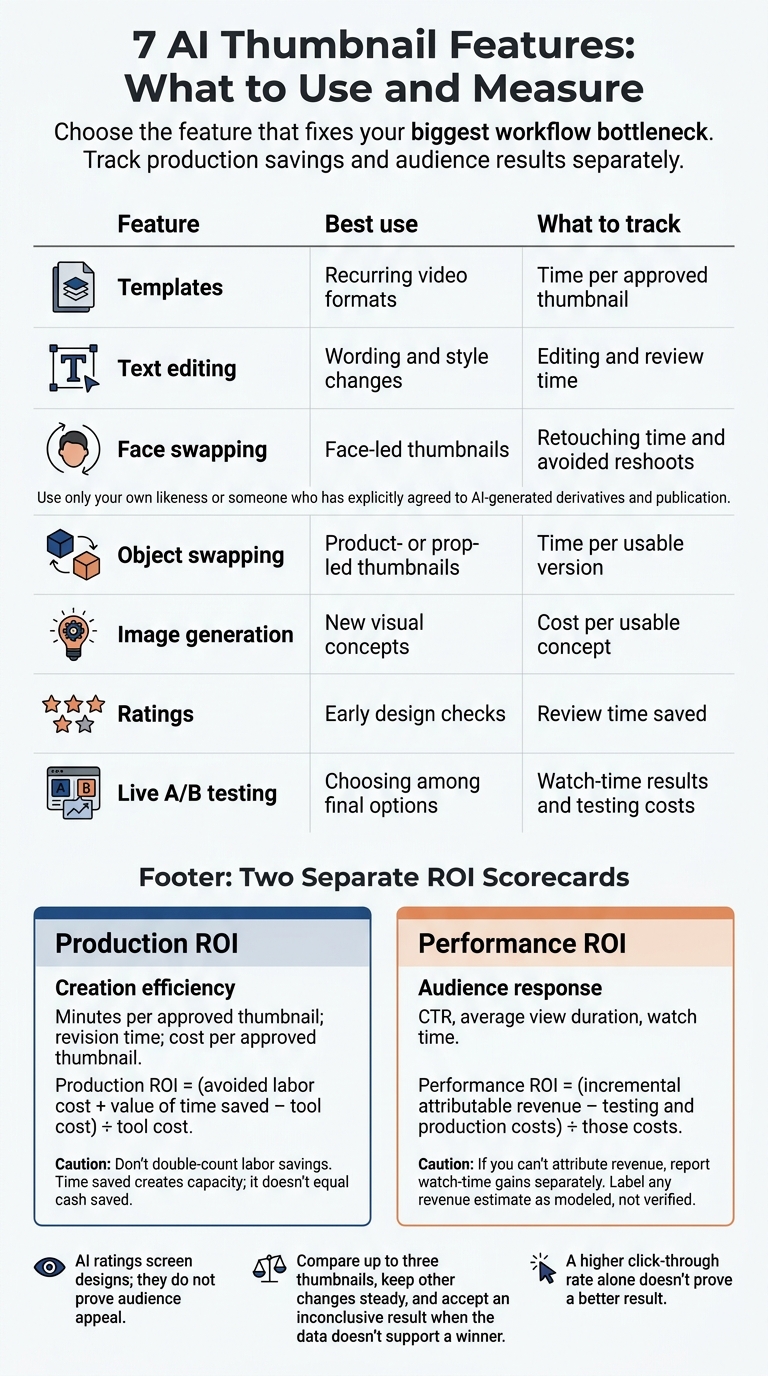
7 AI Thumbnail Features: What to Use and Measure
Production ROI vs. Performance ROI
Use two scorecards: production ROI measures creation efficiency, while performance ROI measures audience response. Together, they help you judge the seven features below by costs saved and response gained.
Production ROI = (avoided labor cost + value of time saved − tool cost) ÷ tool cost. Don’t double-count labor savings. Time saved creates capacity; it doesn’t equal cash saved.
| Measure | What to track | Main limit |
|---|---|---|
| Production efficiency | Minutes per approved thumbnail, revision time, cost per approved thumbnail | Fast generation can hide time spent fixing output |
| Usable concepts | Thumbnails approved for publication or testing ÷ thumbnails generated | More variations don’t always mean more useful choices |
| Viewer response | CTR, average view duration, watch time | Topic, title, audience, and traffic source affect results |
| Financial return | Incremental attributable revenue minus production and testing costs | You can’t attribute all video revenue to the thumbnail |
| AI predictions | Prepublication ratings | A score isn’t evidence of audience response |
Performance ROI = (incremental attributable revenue − testing and production costs) ÷ those costs. Use tagged links, promo codes, or platform conversion data to connect revenue to the thumbnail. If you can’t attribute revenue, report watch-time gains separately. Label any revenue estimate as modeled, not verified.
A thumbnail that overpromises may increase CTR while lowering average view duration. YouTube notes that this pattern can also weaken expected impressions.
Compare at least four weeks of pre-tool data with four weeks of post-tool data, accounting for seasonal changes and publishing volume. Back performance claims with controlled tests. Log the test window, impressions, traffic sources, title version, audience context, and any changes made at the same time. Use AI ratings to screen concepts - not to declare a winner.
The features below show where AI helps most: speed, testing, or audience response.
sbb-itb-b59debf
1. AI-Assisted Templates
ThumbnailCreator offers reusable templates that help you make thumbnails fast and keep them consistent. They work well for recurring series, high-output channels, and creators without design skills: the subject, headline, and branding already have a place. Judge templates by time saved and approval rate, not how new they look. They deliver the most production ROI when your format repeats.
Workflow
Start with the video’s main promise, then choose 2–3 layouts to reuse across the series. Swap in the main image and headline, and apply your brand colors and fonts. Keep further edits focused on the layout and core image. Look for flexible image and text areas so longer headlines or larger product shots don’t force awkward crops.
| Factor | AI-assisted templates vs. AI-generated images | | --- | --- | --- | | Best fit | Recurring episodes and repeatable formats | Unusual scenes and one-off concepts | | Setup | Adjust an existing layout | Prompt and refine a new composition | | Main trade-off | Less layout work; risk of repetition | More freedom over the design; potentially more cleanup |
Time and Cost Savings
Templates cut repeated layout decisions. But track revisions and export time - not just the first draft. Extra fixes can wipe out the time you saved.
Quality Checks
The subject should stand out immediately on a mobile screen, with a readable two- to four-word hook. Check contrast, spelling, cropping, and image details for errors or misleading content.
Keep fonts, colors, and logo placement consistent while changing the image and hook. YouTube recommends readable fonts, branding, short, readable text, and designs that work across devices.
Metrics
Track minutes per approved thumbnail, revision frequency, and usable output rate: approved thumbnails ÷ total concepts produced. For high-volume teams, advanced thumbnail optimization helps refine these workflows further. Compare template families over the same time window to see which needs less cleanup.
Treat any CTR change as a separate testing question - not proof that the template caused it. Once the layout is stable, faster text changes are the next way to save time.
2. AI Text Editing
When the layout works but the message needs an update, edit the text instead of rebuilding the image.
Text editing lets you change wording and styling while keeping the image intact. It suits tutorials, listicles, search-driven videos, and news or commentary updates where the visual still fits. Have a person review accuracy, grammar, tone, and claims.
Workflow
Start with the video’s main visual. Use text editing or layer adjustments to change the wording, font treatment, color, placement, and emphasis. Once the layout is set, hold the image steady as you refine the message.
Let the title explain the topic. Use the overlay to add a hook - not repeat the title. Try different wording when audience intent changes, or compare thumbnail tools to see which features best support rapid text iteration.
| Factor | Text editing | Rebuilding the thumbnail |
|---|---|---|
| Speed | Faster for copy and style revisions | Slower when only wording needs to change |
| Control | High control over wording, font, size, color, and placement | Less predictable; subject, lighting, or layout may change |
| Visual consistency | Keeps the existing image and branding | Can introduce visual differences between versions |
Time and Cost Savings
Edit the text when the image works. Rebuild when the concept or composition is wrong.
Compare total editing time, including review and export, with rebuilding time. Estimate the value of the time saved as (regen time − edit time) × hourly labor cost. This measures production savings more clearly than generation speed alone.
Quality Checks
Keep the overlay to one short idea. Use strong contrast, clean line breaks, and enough padding. Check the character count and preview at phone size to make sure the text doesn’t crowd faces, key objects, or the timestamp.
For news and commentary, verify names, numbers, dates, and claims before publishing.
Metrics
Track turnaround time after a story or title changes. Compare wording variants while keeping the image and styling the same to see how the message affects performance. For those managing large catalogs, implementing thumbnail testing at scale can automate these comparisons across hundreds of videos.
Review CTR alongside watch time and retention. Clicks alone don’t help if the text sets the wrong expectation.
3. AI Face Swapping
When the layout already works, face swapping lets you change a thumbnail’s emotional pull without rebuilding it.
Use face swapping when the creator’s face carries the hook. ThumbnailCreator can place your likeness into reactions, challenges, emotional stories, transformations, and before-and-after concepts. That lets you test stronger expressions without a reshoot and may lower testing costs. The scene and emotion still need to match what the video delivers.
Workflow
Use face swapping when you want to test expression, not composition. Start with the video’s core promise, then choose a background or scene that appears in the video. Prepare sharp, well-lit reference photos from slightly different angles. Skip sunglasses, heavy shadows, extreme filters, motion blur, and partially covered faces.
Use only your own likeness or someone who has explicitly agreed to AI-generated derivatives and publication. A public photo does not give you permission to edit or publish someone’s likeness.
Upload the reference image and apply the swap through the Face tab. Adjust the crop, scale, lighting, and placement so the face supports the main subject. Then check that it remains clear at mobile size.
Time and Cost Savings
Face swapping can cut reshoots when only the creator’s expression needs to change. Track time spent preparing source photos, generating images, retouching, and handling revision rounds. Record avoided reshoot costs in U.S. dollars.
Quality Checks
Keep facial structure, skin tone, hairstyle, and wardrobe consistent. At both full size and mobile size, inspect the eyes, teeth, hairline, ears, jaw, skin texture, and face-to-neck blend. Check that the expression looks natural and fits the lighting.
Do not fabricate tears, reactions, or transformation results that the video cannot support. Then test whether a stronger expression improves clicks without hurting retention.
Metrics
Test three versions: the original, a stronger swap, and a subtler swap. Keep the background, text, and layout the same across all three. YouTube’s testing feature supports comparing up to three thumbnail options.
Review test duration, impressions, retouching time, avoided reshoots, and retention to assess whether the swap saves work and improves watch-time share.
4. AI Object Swapping
When the object drives the click, swap it - not the face. Use object swapping when the product or prop is the hook, not the layout. This works for reviews, gaming, DIY, and comparisons. It changes what viewers notice first while keeping the emotional framing intact. You'll save the most time when the layout already works and only the featured item needs to change.
Workflow
Duplicate the original thumbnail, select the object, and supply a clear replacement reference from a similar viewing angle. Use only real test products or documented results.
Time and Cost Savings
Track total edit minutes per usable variant, including prep, generation, fixes, and review. Record rejected versions, along with any photography, prop, or design costs avoided, in U.S. dollars. Count savings only if the result is ready to publish without major repairs.
Quality Checks
Match the exact model, color, condition, and accessories to the footage. Check scale, perspective, lighting, reflections, and contact shadows. Reject distorted logos or incorrect details, and make sure viewers can still recognize the object on a phone.
Metrics
Create two or three variants, changing only the object. Log usable variants, edit time, impressions, CTR, and watch time. Check whether the swap improves clicks without hurting retention or misrepresenting what the video delivers.
5. AI Image Generation
Use generation when you need a new visual - not a version of an existing one. It fills gaps that templates, edits, and swaps can’t. Custom scenes, backgrounds, props, and concepts can support abstract explainers, documentaries, and storytelling videos when suitable source images aren’t available. ThumbnailCreator offers AI generation to help creators build thumbnail concepts quickly.
Use original photography or verified source material when factual evidence or exact details matter. Generation produces candidates, ratings screen them, and audience tests show which performs best.
Workflow
Start with the video’s central promise, then generate a few concepts you could use in a published thumbnail. Specify the subject, setting, mood, angle, lighting, contrast, focal point, and space for text in a 16:9 layout. Generate backgrounds or props separately if you need more control, then add final lettering in an editor.
Time and Cost Savings
Measure cost per usable concept = (tool fees + labor cost) ÷ usable concepts. Count rejected attempts and cleanup time, too. Compare the entire workflow with your usual photography or compositing process. Fast generation doesn’t save time or money if repairs take hours.
Quality Checks
Check faces, eyes, hands, logos, signs, and text before approval. Don’t present invented scenes as factual evidence. Export in 16:9 and check the YouTube thumbnail size limits. Check readability at phone size - not just at full resolution.
Metrics
Track production efficiency first: generation attempts, usable concepts, approval rate, total minutes, and cost per usable concept. Then compare CTR and watch time across comparable traffic periods. This helps you see whether generated concepts improve viewer response without adding cleanup time.
A strong image helps only if it increases CTR without hurting watch time. Next, compare how AI ratings, controlled variants, and live tests each answer a different question.
6. AI Thumbnail Ratings
Use ratings to screen concepts before production, especially if you publish often. They can save time, but they don’t predict CTR or watch time.
Workflow
Run 2–5 concepts through the same checks: clarity, contrast, layout, text prominence, and click potential. Log the warnings, fix flagged issues, and send the best 2–3 options for human review.
Preview each option at mobile size, in YouTube search results, and beside competing videos. Check that YouTube’s timestamp and UI overlays don’t hide important details.
Time and Cost Savings
Cut unreadable or crowded designs before spending time polishing them. Track all review and revision time, including time spent using the tool.
Net production savings = labor cost avoided − rating-tool cost.
Ratings earn their place only if they reduce total review effort.
Limits
| Advantage | Limit |
|---|---|
| Fast screening for contrast and legibility | A high score doesn’t prove higher CTR and doesn't account for clickbait vs authentic thumbnail balance. |
| Consistent early feedback | May miss niche expectations and title context |
| Earlier detection of avoidable revisions | Cannot reliably predict watch time or viewer satisfaction |
Metrics
Log each rating, version, publish date, impressions, CTR, average view duration, and watch time. YouTube recommends checking Home and Suggested CTR during the first 24 hours, especially for videos with above-average impressions.
Compare similar topics, formats, and traffic sources across several uploads - not just one result.
7. AI Variants and Live A/B Testing
Ratings help narrow the field. Live tests show which thumbnail viewers actually choose.
Set a Baseline
Best fit: videos with enough traffic for a meaningful test. Save the current thumbnail and record its performance over a fixed period. Use this step when you need proof, not just faster production.
Track impressions, CTR, watch time, and retention. Record the title, traffic sources, publishing date, topic, and major promotions, too. This baseline gives you a comparison point for later variants. It doesn’t prove that the thumbnail alone caused any change in results.
Create Controlled Alternatives
Use AI to create 2–3 controlled variants from the baseline. Change one variable at a time: text length, facial expression, crop, high-contrast vs. low-contrast backgrounds, or featured object. This helps isolate what improves ROI. Keep the title, video, dimensions, and overall visual style consistent.
Check each option at mobile size. Reject anything unreadable, inaccurate, misleading, or out of step with the video’s emotional tone.
Let YouTube Evaluate
Once the variants are ready, let platform testing decide. YouTube’s Test & Compare feature can compare up to three thumbnail or title options and judges results by watch time, not CTR alone. Submit the baseline and two approved alternatives. Let the test finish, and accept an inconclusive result when the data is weak.
Log the video, date range, baseline, variants, changed variable, CTR, watch time, retention, result, and confidence level. You won’t get every metric separately for each variant; overall analytics may combine traffic from multiple variants.
Include the added design and review time when deciding whether testing earns its cost. Treat the winning pattern as a reusable rule, not a one-off result.
AI Ratings vs. Controlled Variants vs. Live Tests
Each method answers a different question: ratings help screen concepts, controlled variants isolate one change, and live tests help compare A/B testing vs gut feeling to choose a winner.
| Approach | What it reveals | Best use | Main limits |
|---|---|---|---|
| AI ratings | An early signal of clarity and click appeal | Screening concepts before production | Scores aren't audience evidence or proof of higher watch time |
| Controlled variants | The single change being tested | Setting up a focused comparison | Having alternatives doesn't prove improvement |
| YouTube live tests | Actual viewer behavior and watch time | Choosing among final candidates | Low impressions, uneven audiences, small differences, or changing traffic sources can leave results inconclusive |
Think of these methods as a funnel: screen, isolate, then test. Use the cheapest method that answers your remaining question.
If the result is unclear, treat it as inconclusive and keep the current thumbnail.
Conclusion: Choose Features That Fit Your Workflow
Start with the bottleneck that costs you the most: speed, concept creation, or validation. Templates and text editing help you work faster. Generation and object swapping fill gaps in your visuals, while face swapping supports face-led thumbnails - with proper permission. Use ratings to filter out weak ideas, browse thumbnail ideas for inspiration, then use controlled variants and live tests to check what your audience prefers. ThumbnailCreator combines these features, making it useful when your workflow calls for more than one.
After producing a small batch of thumbnails, review a scorecard covering hours saved, labor value, usable concepts, avoided costs, tool cost, and repeatability. Track production savings and audience results separately. Keep the features that consistently save time or improve results, and drop the rest.
FAQs
Which AI thumbnail feature should I invest in first?
Invest in templates first. They give your thumbnails a professional layout, keep your branding consistent, and save you time compared to starting from scratch.
A proven template in ThumbnailCreator lets you focus on face swapping, text editing, and object placement to improve click-through rates. You can create versions for testing without advanced design skills - and build a repeatable workflow that helps you get the most from your investment.
How can I measure thumbnail ROI on a small channel?
Use your channel’s past 28 days of data as your baseline. Then run thumbnail A/B tests with YouTube Studio’s Test & Compare feature. Give each variant 48–72 hours and at least 1,000 impressions before making a decision.
Log impressions, CTR, and 30-second retention in a spreadsheet. Compare watch time per impression - not just CTR to find thumbnail styles that beat your 28-day channel average by 20% or more.
What should I do if CTR rises but watch time falls?
When click-through rate (CTR) climbs but watch time drops, your thumbnail and title may promise more than the video delivers. That mismatch can cause viewers to leave early.
Start by adjusting the thumbnail to match the video’s content and support long-term engagement. Use ThumbnailCreator to fine-tune your hook, layout, or text so viewers get what they expect when they click.