

Best Practices for Thumbnails in YouTube Studio
I design thumbnails outside YouTube Studio, then use Studio to upload, check, and test them. My first check: shrink the image to about 200 pixels wide. If the subject and text aren’t clear, I simplify before uploading.
Here’s my seven-point checklist:
- File requirements: Check the current size, dimensions, and file limits.
- Focal image: Use one main subject that’s easy to spot.
- Text: Aim for 3–5 words that add to - not repeat - the title.
- Layout: Leave space and keep key details clear of overlays.
- Accuracy: Show only what the video delivers and follow YouTube’s policies.
- Format: Plan the crop for standard videos, Shorts, or podcast playlists.
- Final check: Upload, save, confirm the live image, and test versions when enough data is available.
My rule: <u>make the promise clear, then make sure the video keeps it.</u>
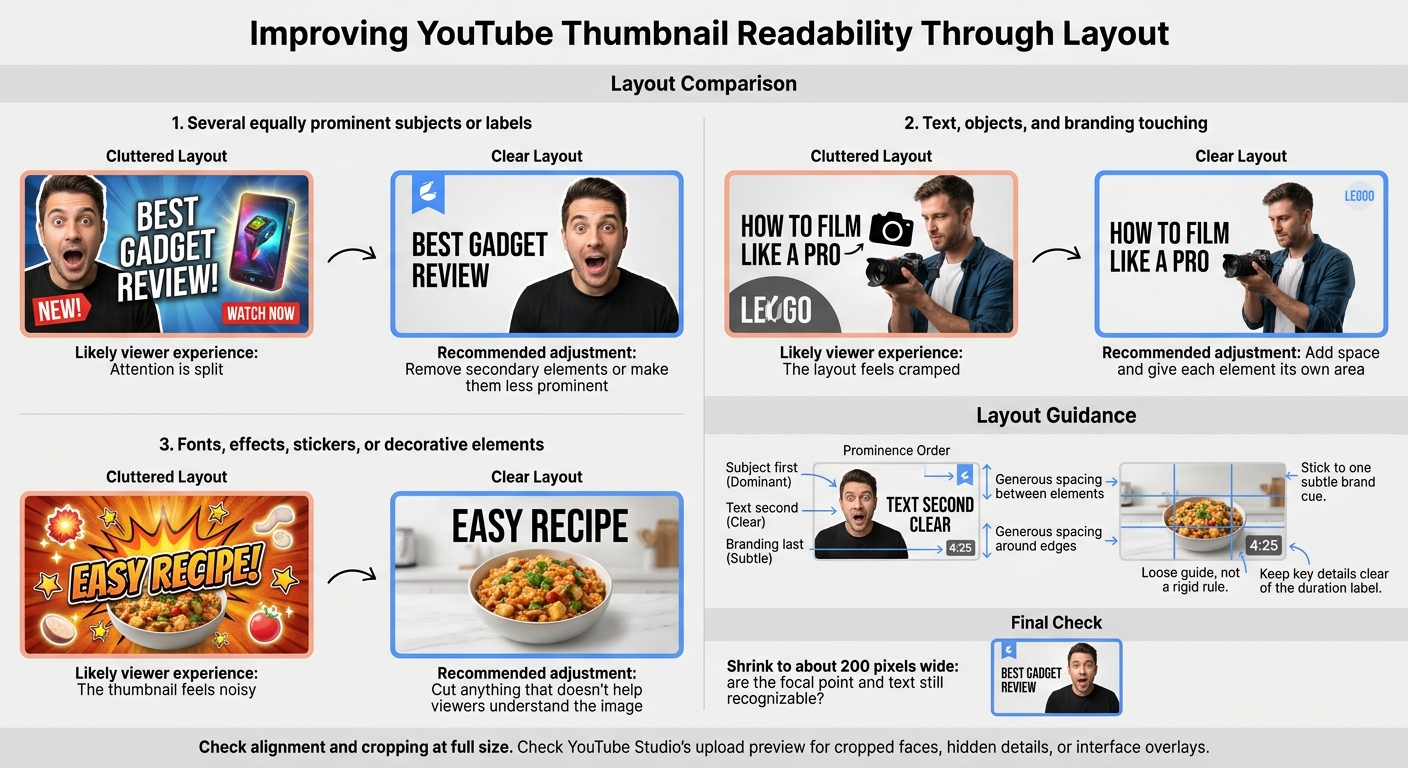
YouTube Thumbnail Layout: Cluttered vs. Clear
1. Check Thumbnail File Requirements
Check the file specs before opening Studio. For standard videos, use a 16:9 JPG, PNG, or GIF at 1280 × 720 or larger, under 2 MB.
If Studio rejects your file, read the error message. Then check the file’s size, format, and dimensions against YouTube Help.
Once your file meets Studio’s limits, choose the image you’ll use for the thumbnail. If you're just starting out, follow our YouTube thumbnail beginners guide to ensure your visuals stand out.
sbb-itb-b59debf
2. Choose One Clear Focal Image
Once your file meets Studio’s requirements, build the thumbnail around one subject - a face, product, result, or action - that conveys the video’s promise. Choose a face to show emotion, a product to show detail, or a result to show the outcome.
Crop tightly enough that viewers can recognize the subject on a phone. Remove or blur competing objects and background details. Keep only the context that supports the main image.
Separate the subject from the background with contrast and color psychology: light on dark or dark on light. Add a subtle outline or stronger lighting only if needed.
Check the thumbnail in YouTube Studio, then view it at phone size. If the subject looks unclear, simplify the background or tighten the crop.
3. Keep Text Short and Readable
With one focal image in place, add text only if it makes the thumbnail clearer. Aim for 3–5 words that add a new hook rather than repeat the title. Try a short promise, result, or question that shows the video’s main value. For more on maximizing impact, see our guide on advanced thumbnail optimization. Include numbers only if they make the hook stronger.
Choose a bold sans-serif font, not thin type or script fonts. Keep text away from busy areas, and use a solid background shape, stroke, or shadow to help it stand out.
Check the upload preview at mobile size to spot text that’s hard to read. If it’s still unclear, shorten or enlarge it instead of adding more effects. Keep the rest of the layout simple so it doesn’t compete with the text.
4. Keep the Layout Consistent and Uncluttered
Once your image and text are set, keep their positions consistent across the series, with adjustments for each image. Use the rule of thirds vs. centered layouts as a loose guide. Give the subject first priority, text second, and branding last.
Leave space between elements and around the edges. Keep key details out of the lower-right corner so the duration label won’t cover them. Stick to one subtle brand cue.
Check alignment and cropping at full size. Then shrink the thumbnail to about 200 pixels wide to make sure the focal point and text are still recognizable. Check YouTube Studio’s upload preview for cropped faces, hidden details, or interface overlays.
| Layout characteristic | Likely viewer experience | Recommended adjustment |
|---|---|---|
| Several equally prominent subjects or labels | Attention is split | Remove secondary elements or make them less prominent |
| Text, objects, and branding touching | The layout feels cramped | Add space and give each element its own area |
| Fonts, effects, stickers, or decorative elements | The thumbnail feels noisy | Cut anything that doesn’t help viewers understand the image |
ThumbnailCreator offers templates, text editing, face swapping, and object swapping to help you build a starting layout. Before uploading, fine-tune the spacing and the order in which elements draw attention.
Next, check that the thumbnail still matches the video.
5. Represent the Video Accurately
Once the layout is set, check accuracy: the thumbnail should promise only what the video delivers, avoiding the pitfalls of clickbait vs authentic thumbnails. Use visuals that match actual footage or verified outcomes - not fake emergencies, unrelated celebrities, or inflated before-and-after claims.
Check the final cut, not the draft concept. In YouTube Studio, compare the thumbnail with the title and the video’s opening, middle, and ending. Remove any visual that no longer fits.
Before uploading or updating older videos, review YouTube’s current Thumbnail Policy and Community Guidelines. Avoid graphic, sexualized, hateful, violent, or dangerous imagery.
A thumbnail can still trigger strikes or custom-thumbnail restrictions after upload.
6. Design for Each Video Format
Once the thumbnail matches your video, size it for the format viewers will see. Use 16:9 for standard videos, 9:16 for Shorts, and 1:1 for podcast playlists. YouTube recommends up to 3,840 × 2,160 pixels for standard videos, 2,160 × 3,840 pixels for Shorts, and 1,280 × 1,280 pixels for podcast thumbnails. Individual episode videos can still use landscape thumbnails.
Reframe each version for its crop so the main subject stays prominent. Use less text in narrow layouts, and keep faces, logos, and key text away from areas covered by format-specific overlays.
For Shorts, check the mobile app’s frame-selection and editing controls. Studio offers different options.
Check Studio previews, then view the thumbnail on a phone and in the places viewers will find it: search results, channel pages, and podcast surfaces. If the crop hides the subject or cuts off text, resize or reposition those elements before uploading.
7. Upload, Save, and Check the Thumbnail
Once the thumbnail passes your design checks, upload it in YouTube Studio. On desktop, go to Content, open the video, select Thumbnail, upload the file, and click Save. Before saving, make sure it’s clear at mobile size, matches the video, and meets YouTube’s policies.
On mobile, follow Content → video → Edit → Edit thumbnail → Custom thumbnail → Select → Save. Mobile video thumbnail uploads have a 2 MB limit. If the upload option is missing, verify your account and enable advanced features. Thumbnail testing also requires advanced features and is available through YouTube Studio on computers.
After saving, reopen the video to confirm the thumbnail stayed in place. Check the watch page or embedded preview, too. Keep the old thumbnail and record the replacement date so you can compare performance.
If the live thumbnail underperforms after it gets enough impressions to show a trend, use Studio’s testing tools to compare versions. Change one major element at a time. On desktop, Test and compare lets you test up to three thumbnails. Review the results alongside watch time and traffic sources. Treat them as guidance - not a promise of higher click-through rates. (See CTR benchmarks for your niche.)
Conclusion
After uploading, check YouTube’s current specs for format, dimensions, aspect ratio, and file size. Match the crop to the format: landscape, portrait, or square. Use one subject, short text, strong contrast, and enough space to keep the thumbnail readable on mobile.
Accuracy comes first: your thumbnail must match the video and follow YouTube policy. A strong thumbnail can help, but clicks also depend on the topic, title, audience, timing, and video quality. Keep that balance in mind when working in YouTube Studio.
FAQs
How do I know when my thumbnail needs updating?
If your click-through rate falls below the 2%–5% range, consider updating your thumbnail. High clicks don’t always mean it’s working: a high click-through rate paired with low average view duration may suggest your thumbnail misleads viewers, which could hurt your channel’s performance.
Use ThumbnailCreator to make professional, click-worthy variations. After the redesign, track results for 24–72 hours and use YouTube’s Test and Compare feature to find the designs your audience responds to best.
Why is my thumbnail getting clicks but little watch time?
Your thumbnail may promise something your video doesn’t deliver. That mismatch can make viewers leave early, hurting retention.
Make sure your thumbnail matches your video. Use YouTube Studio's Test and Compare feature to compare designs based on watch time share - not just click-through rate. ThumbnailCreator can help fine-tune focal points, text, and composition so viewers know what to expect.
How many impressions do I need before testing thumbnails?
Aim for at least 1,000 impressions per thumbnail variation to get dependable test results. That’s the baseline. Reaching 2,000 to 5,000 impressions gives you more confidence and helps separate meaningful engagement from random variation.
If your video averages fewer than 10,000 impressions per week, you may need to run the test for up to a month to hit those targets.