

Checklist for Thumbnail-Content Alignment
I don’t approve a thumbnail until the finished video delivers what the image and title promise. Before you publish, check the subject, promise, tone, and takeaway - not just whether the image gets attention.
Here’s my final review:
- Match the footage: Check that the people, setting, result, and mood fit the video.
- Check the text: Keep it to 2–5 words that support the title without overstating the outcome.
- Preview on mobile: Make sure the subject and words stay clear, including cropped views.
- Review the export: Check file specs and dimensions, image errors, and YouTube policies.
- Record approval: Resolve edits, save the version and review notes, and check again after any change - including AI edits.
My rule: <u>publish only when every required check passes</u>. After publishing, I look beyond clicks to watch time and viewer retention for signs that the video met expectations.
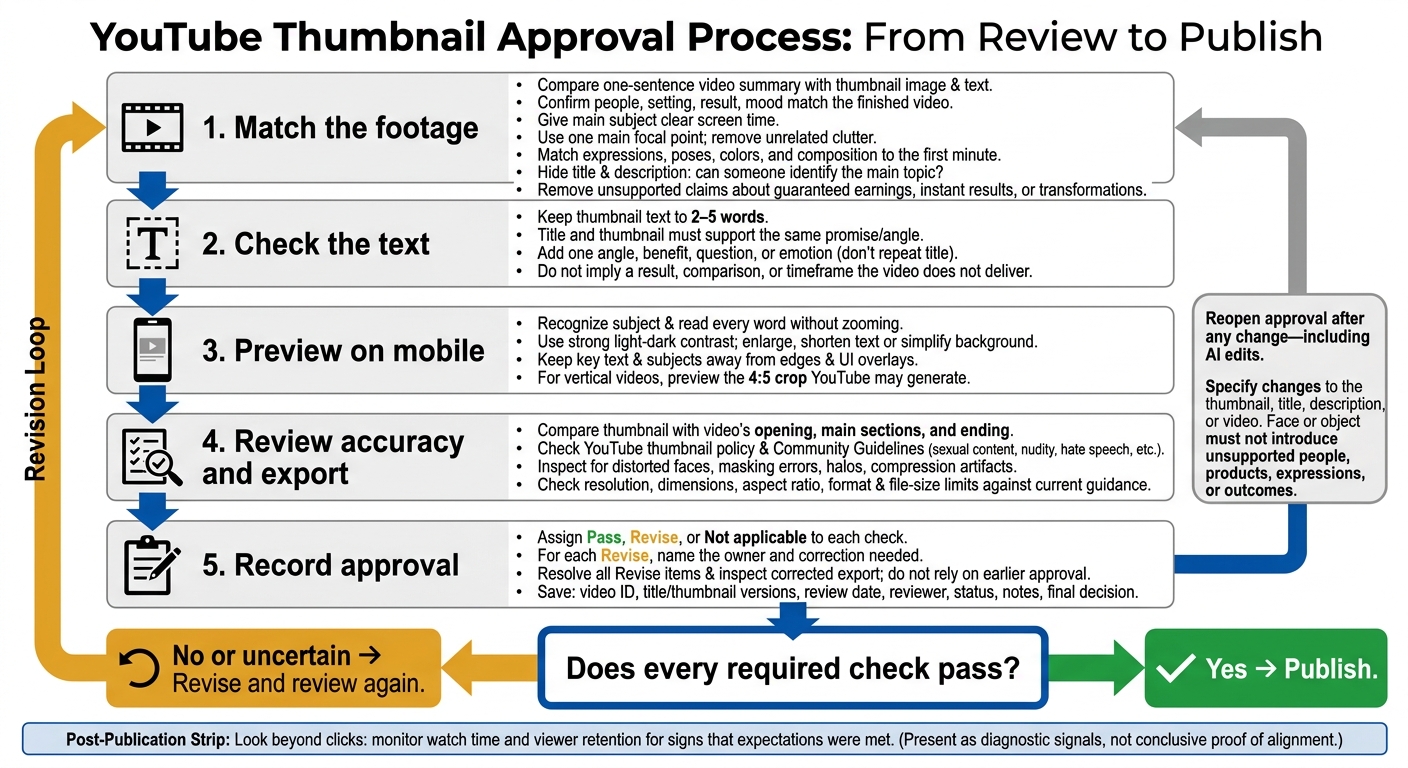
Thumbnail-Content Alignment: Pre-Publish Checklist
How I make my YouTube thumbnails for the 2026 algorithm
sbb-itb-b59debf
Checklist: Match the Video’s Promise and Visuals
Use this checklist to make sure the thumbnail matches the finished video, not just the idea behind it.
Check That the Video Delivers the Promise
- Summarize the video in one sentence. Compare that sentence with the thumbnail’s main image and text. Remove claims about guaranteed earnings, instant results, or transformations the video doesn’t show to maintain a balance between clickbait and authentic thumbnails.
- Give the thumbnail’s main subject clear screen time in the video. If the footage doesn’t support it, change the thumbnail.
- Hide the title and description. Can someone still identify the main topic? If not, replace filler images with the actual subject, result, or setting.
Match the Subject, Setting, and Tone
- Use one main focal point. Keep products, people, and locations consistent with the video, and remove unrelated faces and background clutter. YouTube lists unrelated celebrity images and misleading genre or event cues as examples of misleading metadata.
- Match expressions, poses, colors, and composition to the video’s first minute. Remove shock cues from calm instruction, and keep supporting objects secondary.
With the visuals matched, check whether the text is still easy to read on mobile. For more specific techniques, see our mobile thumbnail optimization guide.
Checklist: Review Text and Mobile Readability
Use Text That Complements the Title
Read the title and thumbnail together. Both should support the same promise and angle. Don’t suggest a result, comparison, or timeframe the video doesn’t deliver.
Keep thumbnail text to 2–5 words. Add one angle, benefit, question, or emotion rather than repeating the title. Cut words that add nothing, and tone down any claim that promises more than the video shows.
Check Mobile Readability and File Specs
Next, preview the thumbnail at mobile-feed size, not full resolution. Can you recognize the subject and read every word without zooming? If not, make the lettering larger, shorten the text, or simplify the background. Use strong light-dark contrast, adding an outline or text panel only when contrast is weak.
Keep key details away from the edges, where YouTube UI, cropping, and placement can hide text or subjects. For vertical videos, preview the 4:5 crop YouTube may generate, and keep key text and subjects clear of the edges.
Then check the thumbnail against YouTube’s export specs. For Shorts, confirm the current mobile file limit in YouTube Studio before exporting.
| Specification | Standard YouTube video | YouTube Short |
|---|---|---|
| Recommended resolution | 3,840 × 2,160 px | 2,160 × 3,840 px |
| Minimum dimension | Width: 640 px | Height: 640 px |
| Aspect ratio | 16:9 | 9:16 |
| Formats | JPG or PNG | JPG or PNG |
| Maximum file size | Mobile: 2 MB; desktop: 50 MB | Desktop: 50 MB; verify current mobile limit in YouTube Studio |
Specs: YouTube help guidance.
Checklist: Check Accuracy and Approve Edits
After checking readability, review accuracy and policy compliance one last time before export.
Review Accuracy and YouTube Policies
Compare the thumbnail’s promise with the video’s opening, main sections, and ending. Make sure the video includes the subject, setting, result, and tone shown in the thumbnail. Mark Revise if the image hides an important condition, overstates a transformation, or suggests a result the video never delivers.
Check YouTube’s thumbnail policy and Community Guidelines for sexual content, nudity, hate speech, graphic violence, vulgar language, and harmful or dangerous content. Clickbait vs authentic thumbnails are a key distinction, as misleading thumbnails violate policy. If a sensitive frame isn’t needed, choose the least graphic image that still makes the point.
Inspect the final export at full size and in preview. Look for distorted faces, masking errors, halos, and compression artifacts. If the thumbnail needs edits, confirm that it matches the video before making changes.
Optional: Edit With ThumbnailCreator
Use ThumbnailCreator to refine a confirmed video theme. Compare each changed element with the footage. Face or object swaps must not add a person, product, expression, or outcome that the video doesn’t support.
Repeat the review after any AI edit or any change to the thumbnail, title, description, or video. Once the final review passes, log the decision and version details.
Record the Publishing Decision
Record Pass, Revise, or Not applicable for each check. For every Revise item, name the owner and the correction needed. Resolve all Revise items before publishing, then inspect the corrected export. Don’t rely on the earlier approval.
Save the video ID, title version, thumbnail version, review date, reviewer name, item statuses, revision notes, and final decision. Sign off only after checking the opening, main sections, outcome, policy compliance, readability, and exported file.
Conclusion: Publish When All Checks Pass
Publish only when every required check passes: the promise is accurate, the subject and tone match, the text complements the title, the thumbnail is readable on mobile, the file specs are correct, and it complies with YouTube policies. If anything is uncertain, review it again.
Reopen approval whenever the thumbnail, title, or video changes.
For the final fit check, use watch time - not clicks. Clicks alone don’t prove alignment; watch time shows whether the thumbnail matched the video’s promise.
FAQs
Can I exaggerate visuals without misleading viewers?
Yes, but accuracy comes first. Exaggerated facial expressions can work better than subtle ones, but the emotion and visual claims need to match the video.
If your thumbnail promises a result, transformation, or event that the video doesn’t deliver, viewers will likely leave early. That can hurt retention and your channel’s reach over time. Keep the thumbnail honest to protect viewer trust and support your channel’s performance.
How can I test whether my thumbnail sets accurate expectations?
Before exporting, check that every scene, product, or location in the thumbnail appears in the video. Make sure any stats or claims in the thumbnail text have support.
Test the thumbnail without the title. Show it to someone who hasn’t seen the video title and ask them to guess the topic. If they get it wrong, the thumbnail may send the wrong message.
After publishing, watch audience retention during the first 30 to 60 seconds for signs that the video doesn’t match what the thumbnail led viewers to expect.
What retention patterns suggest my thumbnail is misleading?
A rising click-through rate (CTR) paired with falling audience retention in the first 30 seconds can signal a misleading thumbnail. Viewers click expecting one thing, but leave quickly when the video doesn’t deliver.
Match your thumbnail to the video’s core value, emotional tone, and key moments. Use ThumbnailCreator to make more accurate variations, then test them with YouTube’s Test & Compare tool.