

Best Tools for Scaling Thumbnail Templates
Creating thumbnails for multiple YouTube videos can be time-consuming. Scaling thumbnail templates saves time by using reusable designs that keep your branding consistent. Tools like ThumbnailCreator use AI to cut thumbnail creation time from hours to minutes. Here’s what you need to know:
- Why it matters: Custom thumbnails boost video click-through rates (CTR) by over 30%. Consistent designs prevent "brand drift" and help viewers recognize your content.
- Key features to look for:
- Reusable templates with saved styles.
- AI tools for fast editing (e.g., face swapping, text editing).
- Batch generation for multiple thumbnails at once.
- Collaboration tools for teams.
- Top tool: ThumbnailCreator generates thumbnails in under 30 seconds using AI trained on millions of designs. Plans start at $29/month.
Scaling templates ensures your thumbnails are quick to make, visually consistent, and optimized for YouTube’s requirements. Tools like ThumbnailCreator simplify the process for creators and teams alike.
How to Make A YouTube Thumbnail in Just 3 Minutes | Thumbnail Template
sbb-itb-b59debf
Key Features to Look for in Thumbnail Scaling Tools
When dealing with high-volume uploads, it's important to focus on tools that streamline workflows, maintain brand consistency, and support team collaboration.
Template Reusability and Customization
A reusable master template can be a game-changer for saving time. By creating a library of 10–20 master templates for your most common video formats, complete with saved style presets and locked-in color palettes, you can significantly cut down on production time. What typically takes 20–30 minutes per thumbnail can be reduced to just a few minutes per upload. Additionally, tools with AI-driven features can further enhance efficiency.
AI-Assisted Editing and Automation
AI capabilities set advanced scaling tools apart from traditional design software. Some standout features include face swapping, which allows you to insert your likeness into AI-generated scenes without needing a new photo shoot, and object replacement, which swaps out background elements or props to align with your video's theme.
"AI thumbnail makers eliminate the design bottleneck. Instead of 20–30 minutes per thumbnail, you can generate professional, click-optimized thumbnails in under 60 seconds." - PostEverywhere
For example, ThumbnailCreator integrates AI generation, face swapping, text editing, and object swapping in one platform, making it ideal for creators who need speed without compromising quality.
Collaboration and Workflow Support
For teams or agencies managing multiple channels, shared template libraries and role-based access are crucial. Without these features, inconsistencies in thumbnail design can dilute your brand's identity. Tools like ThumbnailCreator's Teams Plan offer collaboration features and API access, which are especially helpful for automating or delegating tasks in high-volume operations.
YouTube-Optimized Export Options
A reliable tool should adhere to YouTube's standard specifications, including 1280×720 pixels, a 16:9 aspect ratio, and a file size under 2MB. For graphics-heavy thumbnails, PNG is the preferred format to avoid compression artifacts, while JPG works better for photo-based designs.
| Specification | YouTube Requirement |
|---|---|
| Resolution | 1280 × 720 pixels (minimum) |
| Aspect Ratio | 16:9 |
| File Size | Under 2MB |
| Recommended Format | PNG (for graphics); JPG (for photos) |
One tip: steer clear of heavy red gradients, as YouTube's 4:2:0 chroma subsampling tends to degrade them more than blue or green gradients.
ThumbnailCreator for Scaled Thumbnail Workflows
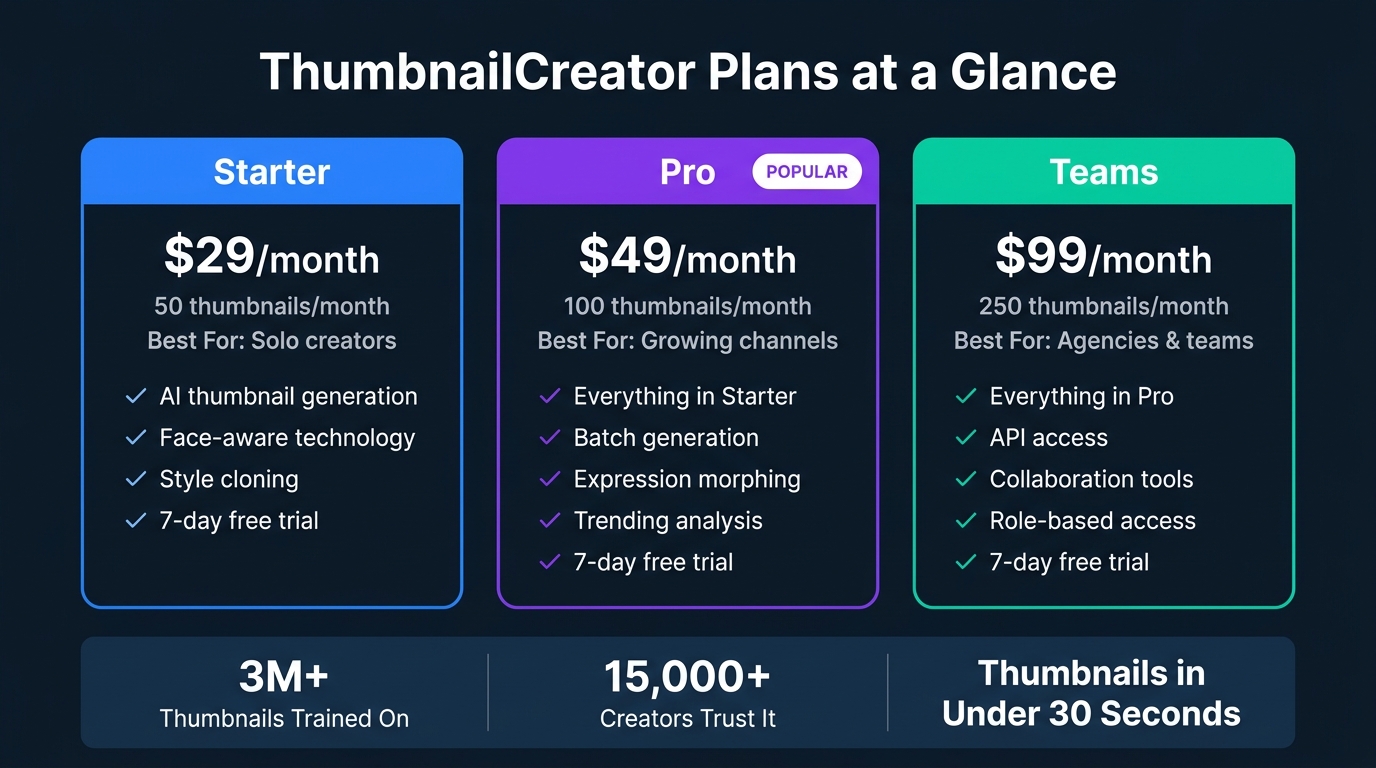
ThumbnailCreator Pricing Plans: Features & Volume Compared
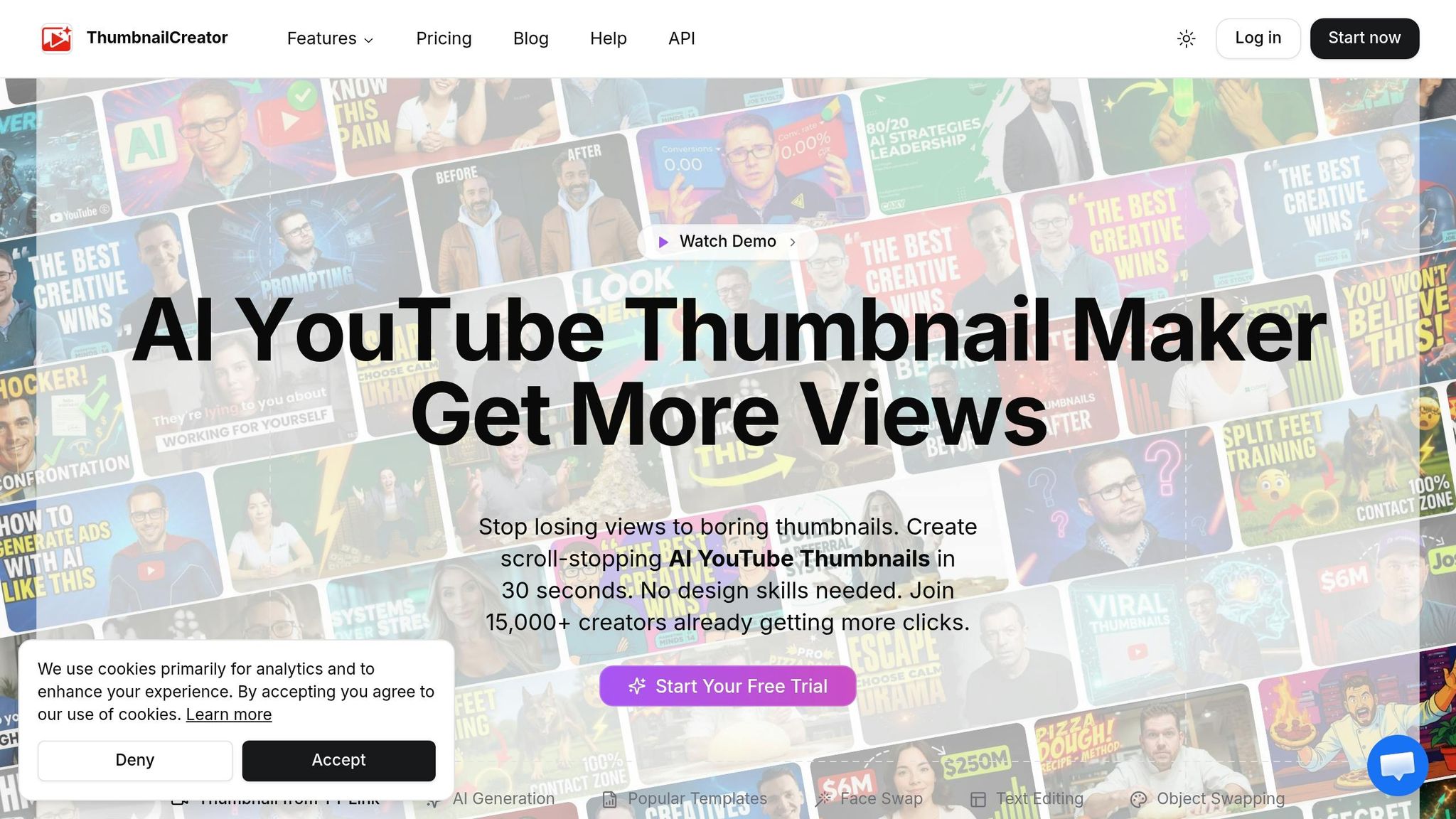
ThumbnailCreator simplifies the process of creating and scaling thumbnails for YouTube creators by using AI-driven design. With an AI trained on over 3 million successful thumbnails, it helps optimize designs to boost click-through rates.
AI-Powered Thumbnail Creation
In just 30 seconds, you can generate a ready-to-use thumbnail by entering a text description or pasting a YouTube link. The Style Cloning feature allows you to upload a reference thumbnail, and the AI will replicate its color palette, layout, and overall style. This ensures your channel maintains a cohesive and professional look.
Scaling Features for High-Volume Creators
For creators juggling multiple videos weekly, ThumbnailCreator offers tools like face-aware generation, expression morphing, and batch generation to streamline workflows.
- Face-Aware Generation: Upload a photo, and the AI will naturally integrate your face into the design - no manual masking required.
- Expression Morphing: Make subtle changes to facial expressions without the need for new photoshoots.
- Batch Generation: Generate thumbnails for multiple videos in one go, saving time and effort.
Agencies and teams can take advantage of API access available in the Teams plan, which automates thumbnail creation for larger-scale operations.
Plans and Pricing for Scaling Needs
ThumbnailCreator uses a credit-based pricing model, with one credit equaling one thumbnail. New users can explore the platform with a 7-day free trial.
Here’s a breakdown of the available plans:
| Plan | Price | Monthly Volume | Best For | Key Features |
|---|---|---|---|---|
| Starter | $29/mo | 50 thumbnails | Solo creators | AI generation, face-aware technology, style cloning |
| Pro | $49/mo | 100 thumbnails | Growing channels | Includes Starter features, plus batch generation, expression morphing, and trending analysis |
| Teams | $99/mo | 250 thumbnails | Agencies & teams | Pro features, with added API access and collaboration tools |
Whether you’re an individual creator or part of a larger team, there’s a plan tailored to fit your production needs.
Best Practices for Using Scaling Tools
Creating and Reusing Master Templates
A master template is essentially a design you create once and reuse for every video in a series. The trick is to set up clear, editable areas for elements like the background, face, and headline. This makes it easy to swap them out quickly. Make sure text boxes and image frames are adaptable enough to handle longer titles or different photos without messing up the layout.
When you’re setting up your template, use clear, descriptive layer names such as "HEADLINE TEXT," "FACE PHOTO," and "BACKGROUND IMAGE." This makes it much easier to locate and update specific elements when needed.
"A template that's too rigid suffocates variation... A template that's too loose defeats the purpose; you end up redesigning each thumbnail anyway." - Julianne Youngberg, Bannerbear
To keep things visually interesting while staying consistent with your brand, aim for 3–5 distinct template variations for each content type, whether it’s tutorials, vlogs, or reviews. A solid master template also speeds up batch editing, making it easier to update multiple thumbnails at once.
Batch Editing and Automation
Reusable templates make batch editing a breeze. This process allows you to update text, swap images, or adjust colors across multiple designs in one go. For instance, tools like ThumbnailCreator offer batch generation features, letting you create thumbnails for several videos in a single session.
If you’re working with large-scale projects, design at resolutions like 1920×1080 or 2560×1440 pixels. YouTube’s downscaling ensures sharp images on mobile devices, which account for about 70% of watch time. After generating your batch, preview thumbnails at 150×90 pixels to check for common readability mistakes.
Organizing Template Libraries
To streamline your workflow, organize your template library by content categories such as tutorials, vlogs, or series. This helps you find what you need quickly. Lock in your core branding elements - like fonts, colors, and logos - to ensure every thumbnail stays consistent. Having a centralized brand guide with exact hex color codes and font names can also save time by cutting down on revisions and inconsistencies.
Measuring Success and Optimizing Templates
Fine-tuning thumbnail templates is crucial for maintaining consistent growth and maximizing the potential of scaling tools.
Tracking Key Metrics
Once your template library is set up and your batch workflow is running smoothly, the next step is to figure out what’s actually working. The first metric to focus on is Click-Through Rate (CTR) - it shows how often viewers click your thumbnail after seeing it. Even a small improvement in CTR, like a 2% increase, can double your recommended impressions.
However, CTR alone doesn’t tell the whole story. Pair it with watch time and retention for a more complete picture. A thumbnail that gets clicks but leads to viewers dropping off early signals a disconnect between the thumbnail’s promise and the video’s content. Over time, this misalignment can hurt performance. By combining CTR with watch time and retention, you can better understand how well your content resonates with your audience.
Using consistent templates across your videos simplifies this analysis. When your designs follow the same structure, it becomes easier to compare performance across videos. You can pinpoint which elements - like a specific color, a close-up face, or a short text overlay - consistently drive better results. These insights help refine your design strategy.
Iterating on High-Performing Templates
Once you’ve identified what works, use those insights to improve your templates further. If a variation outperforms your baseline, incorporate its successful elements into your master template. This approach allows you to build on small wins over time.
To ensure accurate results, perform thumbnail A/B testing by testing one element at a time, such as changing the background color, tweaking facial expressions, or shortening the text. Avoid making multiple changes at once, as it becomes harder to identify what caused the improvement. Run each test for at least 48 hours to account for variations in viewer behavior, and aim for at least 1,000 impressions per variation before drawing conclusions [24, 26].
"A thumbnail with slightly lower CTR but higher retention may still 'win' because it sets better expectations." - ThumbnailCreator
Don’t overlook older videos either. If a video has high impressions but a CTR below your channel average, updating its thumbnail with a proven template variation can breathe new life into its performance.
Using a Performance Table to Compare Template Results
Organizing your tests in a table helps you track progress and spot trends over time. Here’s an example format you can use:
| Template ID | Variation Description | CTR (%) | Avg. View Duration | Impressions | Result/Action |
|---|---|---|---|---|---|
| T-01-A | Master: Face + Blue BG | 4.2% | 5:10 | 12,500 | Baseline |
| T-01-B | Variant: Face + Yellow BG | 6.1% | 5:08 | 13,200 | Winner - Adopt Yellow |
| T-02-A | Master: Text Heavy | 3.1% | 4:45 | 8,000 | Low Performance |
| T-02-B | Variant: Minimal Text | 5.5% | 5:15 | 9,500 | Winner - Scale Minimal |
Over time, this table becomes a valuable resource, serving as a playbook for future thumbnail decisions.
Conclusion
The strategies and data shared here provide a clear roadmap for growing your YouTube channel. If you're just starting out, check out our YouTube thumbnail beginners guide. By scaling thumbnail templates, you can create a repeatable system that consistently drives clicks. This process includes setting up reusable master templates, running batch workflows, and monitoring click-through rates to refine your designs.
Here’s a compelling fact: 90% of top-performing YouTube videos feature custom thumbnails, and well-designed thumbnails can increase click-through rates by over 30%. As your content library grows, this effect multiplies, fueling even greater channel performance.
Tools like ThumbnailCreator, powered by AI trained on more than 3 million successful thumbnails, make this process even easier. With features like batch generation and style cloning, it’s no wonder over 15,000 YouTube creators rely on it. Plus, you can try ThumbnailCreator for free for 7 days - no credit card required. Let AI thumbnails vs manual design to simplify your creation and help your channel grow.
FAQs
How many master thumbnail templates should I create to start?
Start with 10 distinct master thumbnail templates. These templates provide a solid base for maintaining a consistent look across your content while still offering flexibility. Once you’ve got them set, tools like ThumbnailCreator let you tweak them effortlessly - swap out faces, adjust text, or add your brand colors. With ten templates, you’ll have enough variety to experiment with what your audience responds to, all without overcomplicating your process.
How can I batch-generate thumbnails while keeping brand consistency?
When batch-generating thumbnails, maintaining a consistent brand look is crucial. With ThumbnailCreator’s Design Rules, you can automatically integrate your brand guidelines into every thumbnail. Use Style Cloning to replicate designs that have worked well in the past. Plus, the batch generation feature allows you to produce multiple thumbnails simultaneously, helping you save time while ensuring your content maintains a unified visual style.
What should I track besides CTR to know if my thumbnails are working?
CTR is important, but it doesn’t tell the whole story. Keep an eye on watch time to measure how engaged viewers are with your content. To evaluate ad revenue potential, track both CPM (cost per thousand impressions) and RPM (revenue per thousand views). Tools like engagement heatmaps and retention curves can help you see how well your content meets viewer expectations. Finally, check view velocity to gauge how your thumbnail performs in driving early video distribution.