

Consistent Thumbnails Across Series: Checklist
I keep thumbnails consistent by fixing the channel basics - not copying the same design. My starting rule: use the same fonts, core colors, and logo placement, then give each series one clear marker, such as a badge or short label.
Here’s what I check:
- Brand rules: Define what stays fixed, what each series can change, and who approves exceptions.
- Design: Use a 16:9 canvas, keep text to 3–5 words, and preview at 120–160 pixels wide.
- Templates and review: Start with an approved master, compare recent episodes, and save the exact published file.
- Testing: Change one variable at a time and update templates only when repeated results support it.
My final check: <u>Can viewers recognize the channel, identify the series, and understand the video’s promise?</u> If not, I fix the failed item - not the whole design. Consistency leaves room for each episode to look different.
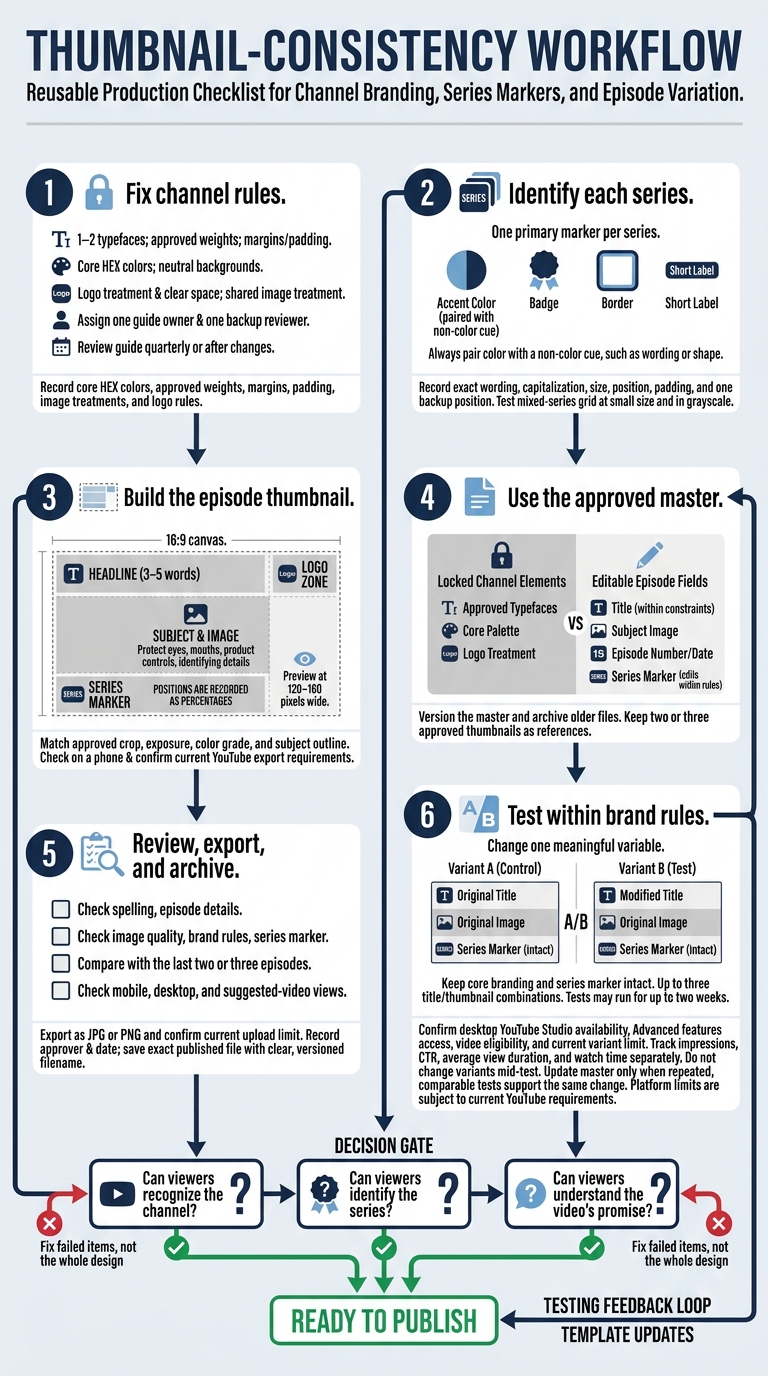
Consistent YouTube Thumbnails: Design and Review Workflow
Brand Checklist: Channel Rules and Series Markers
Set Channel-Wide Design Rules
Create a short thumbnail branding guide with measurable instructions for each rule.
- [ ] Colors, type, and spacing: Record core HEX colors, 1–2 typefaces, allowed weights, headline capitalization, default text region, alignment, margins, and padding. Keep important faces and objects clear.
- [ ] Logo treatment: Specify approved artwork, position, minimum size, and clear space. Don’t allow stretching or recoloring.
- [ ] Images and effects: Set rules for cropping, color treatment, cutouts, and approved effects.
- [ ] Variations to avoid: List unapproved fonts, unrelated colors, heavy effects, crowded layouts, and inconsistent logo use.
- [ ] Shared assets: Keep the guide, editable templates, logos, font information, swatches, and approved thumbnails together. Use clear filenames and version dates.
Choose a Marker for Each Series
Once the channel rules are set, choose one primary marker per series. It should identify the series without overshadowing the video’s main subject or message.
- [ ] Assign an accent color, badge, border, or short label. Always pair color with a non-color cue, such as wording or shape.
- [ ] Record the exact wording, capitalization, size, position, and padding in a series register.
- [ ] Set one approved backup position for cases when the subject blocks the usual spot.
- [ ] Check a mixed-series grid at a small size and in grayscale. Group episodes by label or shape - not color alone.
Separate Channel Rules From Series Choices
Make clear what stays fixed and what can vary across series. Spell out what can change without approval to prevent accidental redesigns and keep each series recognizable.
| Channel-wide elements | Series-specific elements |
|---|---|
| Approved typography and weights | Series label and capitalization |
| Core palette and neutral backgrounds | Assigned accent color |
| Logo treatment and clear space | Series badge, border, or icon |
| Default text region and spacing | Permitted layout variation |
| Shared image treatment | Approved subject or framing variation |
Document layout exceptions with clear limits: which element may move, where it may go, and which rules stay fixed.
Assign one guide owner and one backup reviewer. Record approvals, archive replaced assets, and review the guide quarterly or after any logo, color, or type change.
sbb-itb-b59debf
How To Create Great Branded YouTube Thumbnail Designs to get more subscribers
Design Checklist: Layout, Text, and Images
Apply the brand rules to the thumbnail file, then check the layout, text, and image treatment.
Set Canvas Size and Element Placement
Check the canvas and export settings. Use a consistent 16:9 canvas. Before publishing, confirm YouTube’s current thumbnail export requirements.
Check placement against the template. Keep subjects, headlines, logos, and the series marker in their assigned zones. Record positions as percentages so templates scale cleanly. Preview feed, search, and suggested-video layouts to check for obstructions.
Once placement is set, test the text at mobile size.
Check Text at Small Sizes
- [ ] Keep the message brief. Use 3–5 words to state the episode’s promise. Shorten the copy rather than shrink the type.
- [ ] Test readability. Preview at roughly 120–160 pixels wide, then check on a phone. Watch for common thumbnail mistakes like thin strokes that disappear, crowded letters, and weak contrast. Add an approved outline, shadow, or solid backing where needed. Someone unfamiliar with the episode should be able to spot its topic at a glance.
After checking readability, compare the images with the approved series look.
Use Consistent Image Treatments
Match the series reference. Compare the crop, exposure, color grade, and subject outline side by side with approved thumbnails. One episode shouldn’t look darker or more edited unless that’s intentional.
Protect the episode’s main subject. Keep labels and decoration away from eyes, mouths, product controls, and identifying details. The image should show the subject or outcome even without the headline. Remove extra overlays so the main subject stays clear.
Workflow Checklist: Templates, Review, and Testing
Once the thumbnail design is locked, follow this workflow to approve, test, and archive it.
Create and Update Series Templates
Use master files to keep thumbnails consistent across each series.
Keep one approved master per series. Lock channel-wide elements, but leave editable fields for the title, subject image, episode number, date, and series marker. Add placement guides where supported. Keep two or three approved thumbnails nearby as references, version the master, and archive older files.
Log recurring fixes. Record the date, episode, version, change, reviewer, decision, and follow-up. Use repeat errors to guide template corrections. If you use ThumbnailCreator for concepts or text editing, paste its output into the approved template. Check AI-generated images and face or object swaps for accuracy, permissions, and visual consistency.
Start with the master file, then follow the same approval process each time.
Review Before Publishing
Run the same approval check every time. Verify spelling, episode details, image quality, brand rules, and the series marker. Make sure the final file matches the approved layout, text, and image treatment.
Compare it with the last two or three episodes, then check mobile, desktop, and suggested-video views. Export as JPG or PNG and confirm the current upload limit. Record the approver and date. Save the exact published file with a clear, versioned filename.
Test changes only after the thumbnail passes approval, moving from gut feeling to A/B testing.
Test Changes Within Brand Rules
- [ ] Check eligibility before testing variants. Confirm availability in desktop YouTube Studio, access to Advanced features, video eligibility, and the current variant limit - up to three title/thumbnail combinations. Change one meaningful variable while keeping core branding and the series marker intact. Record the hypothesis, variant filenames, and start date.
- [ ] Wait for enough data. Tests may run for up to two weeks. Record impressions, CTR, average view duration, and watch time separately. Avoid changing variants mid-test, and keep brand markers fixed. Update the master only when repeated, comparable tests support the same change - not after one inconclusive result.
Final Consistency Checklist
Run this final check before export and upload.
- [ ] Channel branding matches. Check logo treatment, colors, fonts, spacing, and image style against an approved thumbnail from a different series.
- [ ] The series marker is clear. Confirm its position, size, and style match the approved version without overpowering the episode subject.
- [ ] Text reads at phone size. Shorten or enlarge any text that’s hard to read on a phone.
- [ ] The thumbnail promise matches the video. Images, wording, and expressions reflect what the video delivers - not an exaggerated version.
- [ ] The workflow is complete. Use the approved template and rerun the final checks.
Fix failed items, not the whole design. Change rules only when repeated series-level results support the change. Record the evidence, the exact rule changed, and one approved example.
FAQs
How can I tell if my thumbnails look too similar?
Review 6–12 recent thumbnails in a grid. Keep your brand colors, fonts, logo size and position, and framing consistent. But give each episode its own composition and topic elements. If the thumbnails look copy-pasted, use a small set of category templates with different compositions and accents.
Then shrink them to about 160 × 90 pixels and squint. Do they blend together? Is the focal point or text hard to make out? If so, adjust your template rules.
Should I update older thumbnails to match new branding?
Yes. Updating older thumbnails to match your current branding gives your channel a consistent look that encourages binge-watching. It’s also worth doing when view counts have dropped sharply or a thumbnail no longer accurately reflects the video’s content.
ThumbnailCreator’s Channel Makeover feature lets you redesign thumbnails for multiple videos in one batch. This can help bring attention back to older content and make those videos easier to find.
How can I test whether viewers recognize my series?
Place your thumbnail beside other videos and check whether you can spot your brand in under one second. Then shrink it to mobile size - 160 × 90 to 180 × 101 pixels - to make sure the subject and focal point stay clear.
For formal testing, use YouTube Studio’s Test and Compare feature with real viewers, or track performance over 2–3 months. Most viewers typically need to see 10–15 consistent thumbnails before they recognize a brand.