

Creative Commons Attribution: Best Practices for YouTubers
If you use CC BY media on YouTube, you can use it and monetize it - but only if you give credit the right way. Miss that step, and you may lose permission to use the asset, face copyright complaints, and put your channel at risk. On YouTube, 3 copyright strikes within 90 days can lead to channel termination.
Here’s the short version:
- I need to save 5 details for every CC BY asset:
- Title
- Author
- Source URL
- License name
- License URL
- I should use TASL as the credit format:
- Title
- Author
- Source
- License
- If I edited the asset, I need to say what I changed
- I should put:
- short credit in the video
- full credit in the description
- I should keep one record for every asset before I start editing
- I should avoid weak credit like:
- “Image from Pixabay”
- missing license links
- missing edit notes
- lumping many sources into one vague line
A simple workflow works best: log the asset when I find it, add visible credit in the video, especially when using AI-generated thumbnails that require attribution, paste full attribution in the description, and check every source before I publish. That turns attribution into a routine instead of a last-minute fix.
Bottom line: if a viewer can trace the asset to the creator, source, license, and edits, I’m in good shape.
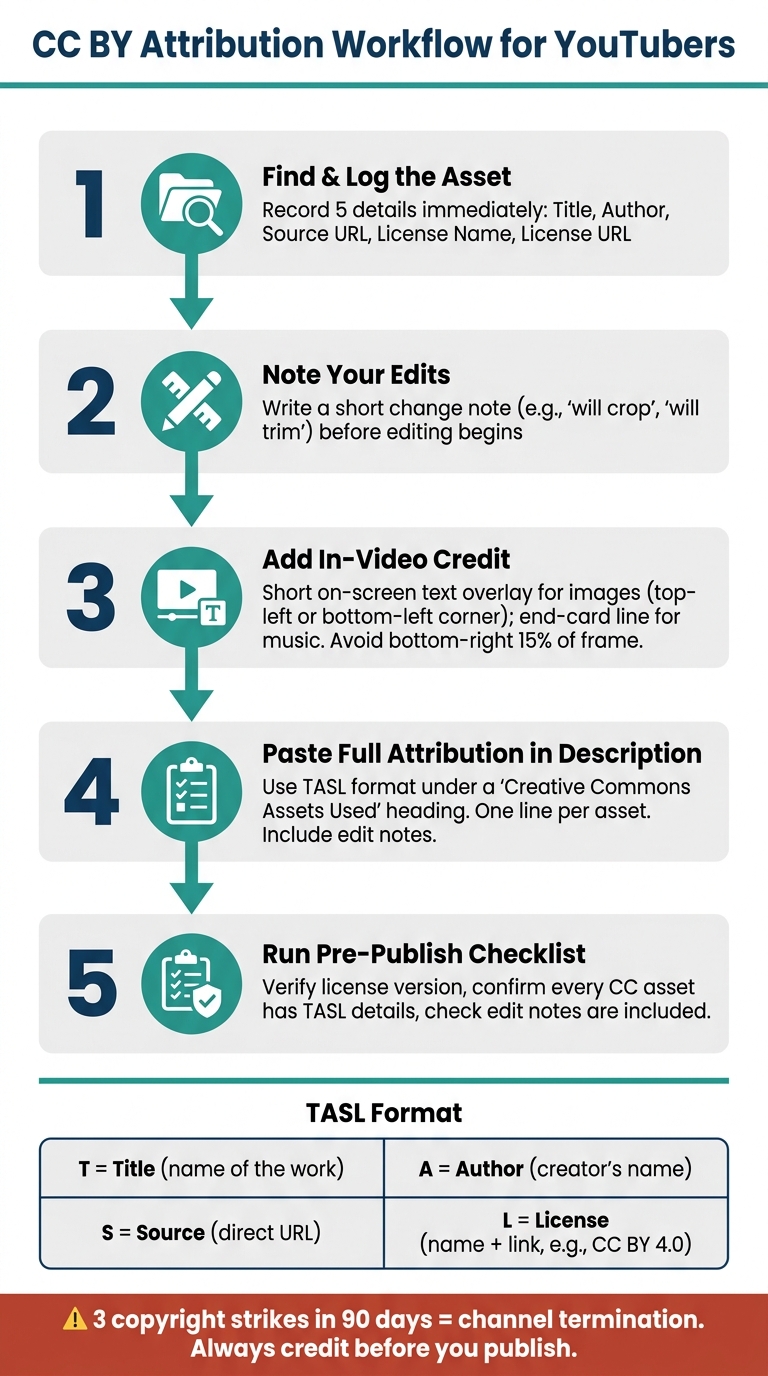
CC BY Attribution Workflow for YouTubers: TASL Step-by-Step
How To Give Attribution To Creative Commons Video 2023
sbb-itb-b59debf
Understand the Core Rule for CC BY Attribution
Start with the main rule behind TASL. CC BY has ONE rule: you must give credit. If you use CC BY material, you need a simple way to do that every time. A complete CC BY attribution includes the required credit details and any change you made to the work.
The TASL Framework for YouTube Creators
TASL gives YouTube creators a fast, repeatable way to record credit details. Here’s how it works:
| TASL Element | What It Means | Example |
|---|---|---|
| Title | The name of the work | The title shown on the source page |
| Author | The creator's name or username | The creator listed with the asset |
| Source | A direct URL to the original work | The original page for the asset |
| License | The license name plus a link to its full text | CC BY 4.0 with a link to the license |
If you made a remix, add one more line that states the changes made.
What Counts as Proper Credit
On-screen credit needs to stay easy to read on phones, since that’s where most viewers will watch. Keep the text readable on mobile. Also, avoid the bottom-right 15% of the frame, where YouTube’s timestamp can cover the credit.
Collect Attribution Details Before You Publish
Use TASL as your credit format, then grab the source details before editing begins. TASL tells you how to credit the asset. This step is about saving the exact info you'll need later.
The Five Details to Save for Every Creative Commons Asset
For every CC asset you plan to use - music, images, footage, or graphics - save these five items the moment you decide to use it:
| Detail | What to Record | Example |
|---|---|---|
| Asset Title | The exact name shown on the source page | "Sunset Over Brooklyn Bridge" |
| Creator Name | The person or organization credited | John Smith |
| Source URL | Direct link to the original asset page | https://example-photo-site.com/sunset-brooklyn-bridge |
| License Name | The full, specific license version | Creative Commons Attribution 4.0 International (CC BY 4.0) |
| License URL | Link to the official CC license deed | https://creativecommons.org/licenses/by/4.0/ |
Record internally only - Access Date: When you confirmed the license, in U.S. format (07/11/2026). Keep the access date in your notes only; it shows when you verified the license.
Also check whether the creator has asked for a specific credit line on their page, and save that exact text with the rest of your notes.
This saves a lot of hassle later. While you're organizing your assets, make sure you also avoid common thumbnail mistakes that can hurt your video's performance. When it's time to write the final credit, you're not hunting through tabs or trying to remember where an image came from. You just copy, paste, and move on.
How to Keep Attribution Records Organized
Keep every asset in one shared record so the final upload step goes smoothly. A simple spreadsheet or notes app is enough for most creators. Use one row per asset, then add columns for the details above plus a Where Used field that notes the video title and the timestamp where the asset appears. That makes pulling the right credits much easier when you write the description.
If you work alone, a notes app can do the job just fine as long as you use the same copy-paste template for each asset. For small teams and business channels, a shared cloud sheet helps editors, producers, and channel managers stay on the same page. It also helps to assign one person - often the researcher or producer - to log attribution details when assets are sourced.
Place Attribution in the Video and Description
Use the video for quick credit and the description for the full attribution. Start with a short on-screen note, then add the full entry in the description.
Where to Show Credit Inside the Video
In-video credit should name the creator while people are watching. For images and graphics, a short text overlay works well - for example, "Photo: Jane Doe (CC BY 4.0)" in the top-left or bottom-left corner. Avoid the bottom-right 15% of the screen, because YouTube's timestamp overlay can cover text there.
For background music, an end-screen credit card is a good fit. List the track, artist, and a short license label there, then point viewers to the description for the full attribution. If your video uses many CC assets from different sources, a single end-credits screen that groups contributors by name and license can keep things neat.
Use bold sans-serif text that's easy to read on mobile. White or yellow text on a semi-transparent dark background usually stays readable over almost any backdrop.
Use the on-screen credit to point viewers to the full description.
How to Format Full Attribution in the Description
Put the full attribution in the description. This is where the extra details go: full links, full license names, and full titles. Group all CC credits under a clear heading like "Creative Commons Assets Used" so viewers and rights holders can spot them fast.
Keep it simple:
- Use one line per asset
- Keep the same format in every video
- Place this section above lower-priority items like social links
Use on-screen credit for quick identification, end-screen credits for grouped sources, and the description for full license details.
A Sample Attribution Line
Here’s what a clear attribution line looks like in a YouTube description:
Example attribution: Image: "City Skyline at Dusk" by Alex Rivera, used under Creative Commons Attribution 4.0 International (CC BY 4.0). Source: examplephotosite.com/city-skyline-dusk – License: creativecommons.org/licenses/by/4.0/
You can use this same pattern for any asset type. Just swap "Image:" with "Music:", "Footage:", or "Illustration:" and keep the rest of the structure the same.
If your video includes edits or pulls from multiple sources, keep this format and add change notes below.
Handle Edits, Multiple Sources, and a Repeatable Attribution Workflow
Once your credit format is set, use the same setup for edits and multi-source projects too. That keeps attribution simple, traceable, and easy to repeat.
How to Credit Edited or Remixed Creative Commons Works
If you edit a CC BY asset, attribution still applies. You also need to note that you changed the work. In plain terms, modified assets still use TASL plus a short change note.
Add that note right after the TASL line.
For a cropped and recolored image, your description line might read: "Image: 'Sunset Over City' by Jane Doe, licensed under CC BY 4.0. Cropped and color graded for this video."
When a project uses more than one CC asset, a one-line credit usually isn't enough. Instead, credit each source on its own line so people can trace each piece back to where it came from.
A description block for a montage might look like this:
Montage clips sourced from:
- 'Downtown Traffic' by VideoLens (CC BY 4.0), slowed.
- 'Crowd Walking' by CityLife (CC BY 3.0), tinted.
- 'Sunset Over Bridge' by FrameWorks (CC BY 4.0), cropped.
List each source separately so each credit stays traceable.
Common Attribution Mistakes to Avoid
A good self-check is simple: can a viewer trace the asset to its creator, source, license, and any edits?
| Mistake | Why It Falls Short |
|---|---|
| Crediting only the platform ("Image from Pixabay") | Leaves out the creator's name and the exact license |
| Omitting the license name or link | Stops viewers from checking the reuse terms |
| Not mentioning that the work was edited | Suggests the work is unchanged; CC 4.0 requires indicating modifications |
| Combining several sources into one vague credit block | Makes it hard to trace each asset back to its origin |
| Mixing CC BY with non-CC or incompatible licenses without checking restrictions | Can lead to license conflicts |
| Forgetting to retain attribution when re-exporting or re-uploading a video | Clips, highlights, and Shorts still need the original CC credits |
A Simple Pre-Publish Attribution Checklist
Use this before every publish so your attribution stays consistent.
- Verify the license. Check that it's CC BY and note the version, such as 3.0 or 4.0, along with any extra conditions from the creator.
- Copy TASL details into your upload notes before editing starts. Save the Title, Author, Source URL, and License in a spreadsheet or note app while the asset is still open.
- Note your edits. Add a short line like "will crop" or "will trim" so you remember to mention those changes in the description.
- Add visible credit inside the video. Use a short on-screen credit for images and an end-card line for music.
- Paste full attribution into the description under a clear Creative Commons Attribution heading, including edit notes.
- Confirm every CC asset appears once, with TASL details and change notes.
Run this check when you finalize the thumbnail, description, and upload details.
Conclusion: Make Attribution Part of Your Standard Upload Process
Good attribution gets a lot easier when you make it part of your normal upload routine. Follow CC BY rules, log TASL details early, add credit in the video and description, and note any edits. If more than one person touches the project, a shared TASL template helps keep credits straight. It also makes Shorts and repurposed cuts much easier to ship.
That kind of consistency matters. Missing credit creates risk you don't need. The biggest mistake is waiting until the end to deal with attribution. It's better to treat attribution like basic risk control: clear TASL records help prevent missed credit and make claims easier to sort out.
Taken together, TASL, visible credit, and a checklist turn attribution into a habit instead of a last-minute scramble. Use the pre-publish checklist as your final pass before every upload.
FAQs
Does CC BY let me monetize my YouTube videos?
Yes. The CC BY license allows commercial use, so you can monetize YouTube videos that include CC BY content.
The main catch is attribution. You need to credit the original creator properly, including their name or username and the title of the work.
What if I can’t find the creator’s name or license link?
If you can’t find the creator’s name or the exact license link, skip the content. Proper attribution needs the creator’s name or username, plus the title of the work.
If you can’t verify the licensing details, using that media can put your channel at legal risk. If you’d rather use original, polished visuals, ThumbnailCreator can help you make high-quality thumbnails with AI tools.
Do I need to credit CC BY assets in YouTube Shorts too?
Yes. CC BY assets used in YouTube Shorts still need attribution. In most cases, Creative Commons licenses require it, with CC0 being the main exception.
To stay compliant, add the title, author, source, and license - TASL - to your video description, just like you would for a standard long-form video.