

How to Use Watermarks for YouTube Branding
YouTube watermarks are a simple tool to boost your channel branding and drive more subscriptions. These small, clickable graphics appear in the bottom-right corner of your videos and act as a constant subscribe button, making it easier for viewers to join your community. Here's what you need to know:
- What They Do: Watermarks encourage subscriptions, protect your content, and reinforce your brand identity.
- How to Design: Use free design tools to create a simple, high-contrast design (150x150 PNG with transparency). A “Subscribe” button-style watermark often performs better than a logo.
- Setup in YouTube Studio: Upload your watermark in the Branding section and choose when it appears - during the last 15 seconds, at a custom start time, or throughout the video.
- Best Practices: Keep your watermark consistent with your channel’s branding, ensure it doesn’t block key visuals, and monitor its performance in YouTube Analytics. For more growth strategies, check out our YouTube thumbnail guides.
Start by designing a clear watermark that aligns with your brand, upload it in YouTube Studio, and track its impact on your subscriber growth. Even small tweaks, like using a subscribe button design, can significantly increase results.
Creating a Watermark for Your Channel
How to Design a Clean Watermark
Watermarks are small by nature, so keeping the design simple is key. Opt for a compact logo or a subscribe-style graphic instead of a detailed wordmark.
Contrast is crucial. If your brand colors are on the lighter side, consider adding a dark outline or a drop shadow to ensure your watermark stands out against bright or busy video scenes. As ThumbnailCreator advises: "Contrast is king - always use an outline or shadow to make text readable against any background.". Test your design at a size of 50×50 pixels - if it looks unclear, simplify it further. This ensures your branding doesn't negatively impact your thumbnail CTR benchmarks by cluttering the viewer's first impression.
If you’re including text, stick to 1–2 bold words like "SUBSCRIBE." Fonts such as Impact, Arial Black, or Oswald work well because they maintain clarity even at small sizes. Use no more than 2–3 brand colors to keep the design sharp and recognizable.
Tools to Help You Build Your Watermark
ThumbnailCreator is a popular tool among over 15,000 YouTube creators. It offers a Brand Kit feature that automatically syncs your brand colors and logo from your website, making it easy to create a watermark that matches your overall channel branding.
The platform also includes AI-powered tools, enabling you to generate a custom branded icon from a simple text prompt. For text overlays, it provides presets like "Bold White" (white text with a black outline) and "Yellow Impact" - both designed for maximum visibility on busy backgrounds. You can also adjust stroke widths and shadow offsets to perfect the contrast. If you’re unsure, ThumbnailCreator offers a 7-day free trial to test its features.
How to Export Your Watermark File
YouTube has specific requirements for watermark files. Meeting these specs ensures a smooth upload process:
| Specification | Requirement |
|---|---|
| Minimum dimensions | 150 × 150 pixels |
| Aspect ratio | 1:1 (square) |
| Maximum file size | Under 1 MB |
| Recommended format | PNG (with transparency) |
| Also accepted | JPG, BMP, GIF (static) |
Make sure to export your watermark as a PNG with a transparent background to avoid awkward borders. Keeping the file size under 1 MB is straightforward when working with a simple design at 150×150 pixels.
Once your watermark file is ready, you can easily upload it in YouTube Studio.
sbb-itb-b59debf
How to Add a Custom YouTube Watermark Subscribe Button to Videos!
Adding Your Watermark in YouTube Studio
How to Add a YouTube Watermark: Step-by-Step Setup Guide
How to Find the Branding Section
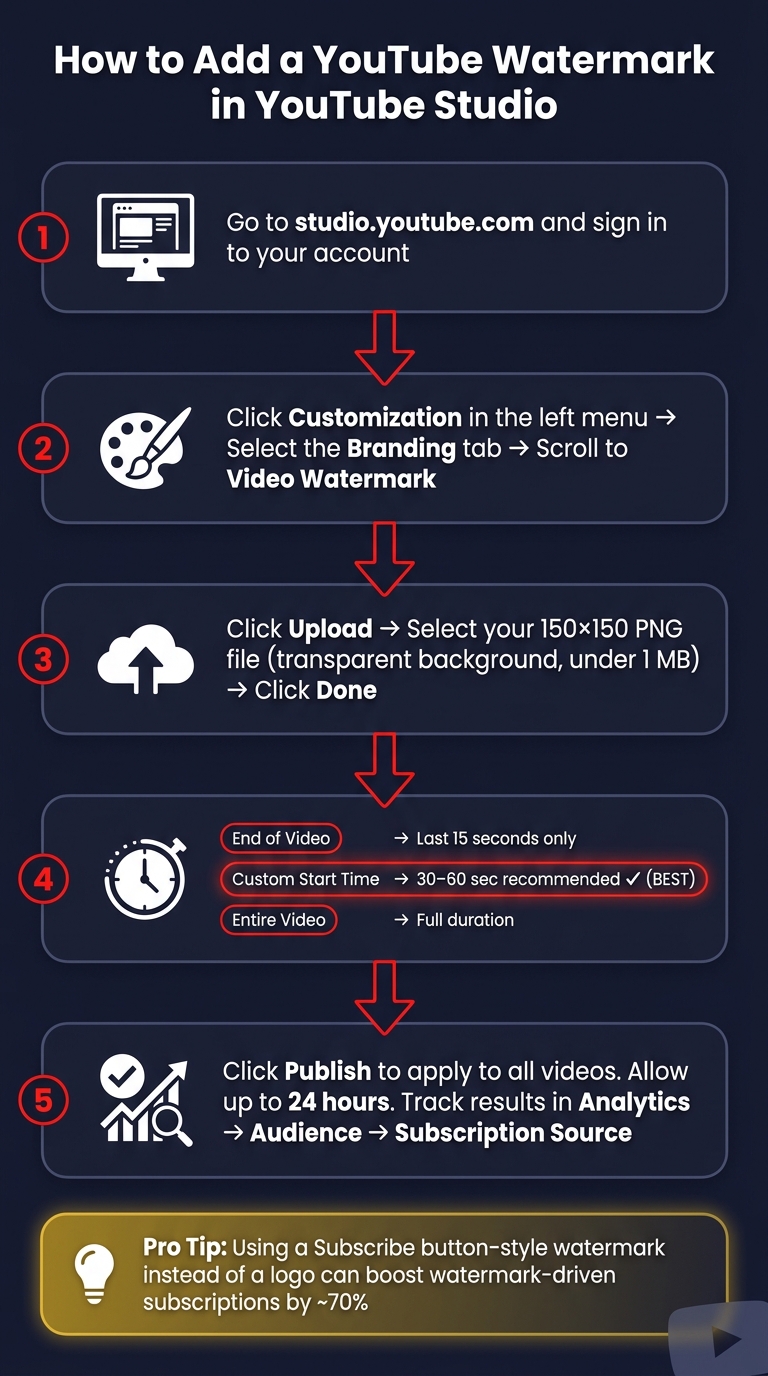
Once your watermark file is ready, you can add it to your videos through YouTube Studio. Start by signing in to YouTube Studio. On the left-hand menu, click Customization, then navigate to the Branding tab. Scroll down to find the Video watermark section.
How to Upload and Position Your Watermark
Click Upload, select your PNG file, and adjust the preview as needed. Once you're satisfied, click Done. Keep in mind that the watermark's position is fixed in the bottom-right corner, so ensure this area of your videos is free of any important visuals or text to avoid conflicts. After uploading, click Publish to apply the watermark to all your current and future videos. Note that it may take up to 24 hours for the watermark to appear.
Now, decide when your watermark will show up during video playback.
Choosing When Your Watermark Appears
YouTube gives you three options for deciding when your watermark will display:
| Display Option | When It Appears | Best For |
|---|---|---|
| End of video | Last 15 seconds only | Videos with high viewer retention where the audience is already engaged. |
| Custom start time | From a specific timestamp to the end | Ideal for most creators - setting it at 30–60 seconds avoids cluttering the intro. |
| Entire video | From the first second to the end | Great for YouTube Shorts or short videos (under 5 minutes) or when you want maximum visibility. |
For most creators, the Custom start time option works best. Setting it to 30–60 seconds allows your video’s intro to grab attention without distractions, while still giving your watermark plenty of screen time.
"If your #1 goal with your watermark is to get more subscribers, go with a watermark that resembles a YouTube subscribe button." - VidIQ
Keep in mind that watermarks won’t appear on videos marked as "Made for Kids." On desktop, viewers can click the watermark (hovering over it prompts a subscribe option), but on mobile devices, it remains non-clickable. You can monitor its performance in YouTube Studio under Analytics > Audience > Subscribers > Subscription Source, where it will appear as "Branding watermark."
Best Practices for Using Watermarks
Keeping Your Branding Consistent
Your watermark should align seamlessly with your channel's overall design. Stick to your brand's colors - those used in your thumbnails, banners, and other graphics. Consistency matters: channels with uniform branding across all assets experience 2–3x higher thumbnail click-through rates, and viewers are 80% more likely to subscribe. Keeping things simple and clear is key.
Limit your watermark to two brand colors and steer clear of YouTube's signature red (#FF0000) to ensure it stands out against the platform's interface. Opt for bold shapes and thicker strokes to maintain visibility, even when the watermark appears at smaller sizes.
"Branding is recognition, not decoration. The goal is to make your channel instantly identifiable in a viewer's feed." - ThumbMentor
Equally important, make sure your watermark doesn’t obstruct any essential video elements.
Keeping Your Watermark Out of the Way
The trick is to make your watermark noticeable without being distracting. Always use a PNG file with a transparent background. Avoid JPEGs, as they create an unappealing solid white or black box around your image—one of many common thumbnail mistakes that can look unprofessional.
Run a shrink test to confirm your watermark remains legible at smaller sizes. During filming and editing, leave the bottom-right corner of your frame clear of faces, text, or other key visuals, as this is where the watermark will always appear.
When to Update Your Watermark
Consistency is essential, but so is keeping your branding current. Update your watermark whenever you rebrand or change your logo. Using an outdated logo in your watermark can create a jarring inconsistency that undermines viewer trust.
"I've seen channels with a three-generations-old logo still sitting in the watermark slot. It's a jarring brand inconsistency. Audit once a quarter." - Daniel Whitmore, YouTube Growth Strategist, YTShark
Check YouTube Studio analytics regularly to monitor your watermark's effectiveness. Navigate to YouTube Studio → Analytics → Audience → Subscription Source every quarter. If your watermark isn’t driving subscriptions, consider switching to a subscribe button-style design. You can even A/B test different designs to see which version converts best. This small tweak can boost watermark-driven subscribers by about 70%. However, avoid frequent changes. Brand recognition grows through repeated exposure, typically over three to six months, so constant updates can disrupt that progress.
Conclusion and Key Takeaways
What Watermarks Do for Your Channel
Watermarks serve a dual purpose: they protect your content while reinforcing your brand identity. Adding a watermark helps assert ownership, encourages subscriptions, and strengthens your overall branding efforts. Channels that use watermarks not only see increased brand visibility but also benefit from practical advantages. For example, watermarks can reduce content theft by up to 45%, and channels with clear ownership marks recover 62% more stolen videos, as they make DMCA takedowns much easier to process.
This combination of benefits makes watermarks a simple yet impactful tool for creators.
Next Steps for Creators
Start by designing a 150×150 PNG with transparency and two high-contrast colors. If your main goal is to grow your subscriber base, consider using a subscribe button–style design instead of your logo. This small change can boost watermark-driven subscriptions by roughly 70%.
Once your design is ready, upload it in YouTube Studio's Branding section and set it to appear 30–60 seconds into your video - right after your intro hook. To measure its effectiveness, review your Subscription Source report quarterly. Regularly analyzing and refining your approach ensures your watermark continues to build recognition and drive results.
"The YouTube branding watermark isn't going to turn a struggling channel into a viral sensation overnight. What it will do is quietly add a few extra subscribers to every viewing session, every day."
- Daniel Whitmore, Growth Strategist, YTShark.com
FAQs
Will a watermark hurt my watch time?
A YouTube branding watermark, when strategically placed, doesn't negatively affect your watch time. In fact, it doubles as a subtle, clickable subscribe button, allowing viewers to join your channel without disrupting their viewing experience. Its effectiveness largely hinges on audience engagement - viewers who leave your video wouldn't be influenced by its presence anyway. By using YouTube's official watermark feature, you ensure it looks polished, stays unobtrusive, and serves as a tool for both branding and protecting your content.
Can I use different watermarks for each video?
YouTube's branding watermark is a universal feature that applies the same image across all videos on your channel automatically. If you want unique watermarks for individual videos, you'll need to add them manually during the editing phase before uploading. For creating thumbnails, tools like ThumbnailCreator can help you keep a consistent brand look while allowing for custom designs tailored to each video.
Why isn’t my watermark clickable on mobile?
YouTube's clickable channel watermarks are not supported on mobile devices. These watermarks are functional only on desktop browsers, meaning they won’t show up as clickable links when viewers watch your videos on smartphones or tablets.