

How AI Improves Skin Retouching for Thumbnails
AI cuts thumbnail skin retouching from 10–20 minutes to a few clicks while keeping faces clear and consistent. If I publish often, that matters fast. The main win is simple: I can clean up blemishes, even out tone, and keep expressions easy to read without spending 20–45 minutes on manual portrait work.
Here’s the short version:
- Manual retouching is slow. A single thumbnail can take 10–20 minutes, and detailed portrait edits can take 20–45 minutes.
- Manual edits often go too far, leading to common thumbnail mistakes. Too much blur can make skin look waxy and flat.
- AI keeps edits more steady. It can apply the same face, tone, brightness, and skin cleanup style across a series.
- The best result is subtle. I should clean temporary blemishes, keep pores and facial texture, and avoid face-shape edits.
- ThumbnailCreator fits this workflow. It combines AI image edits, face tools, templates, text edits, and object edits in one place.
If I want better thumbnails without getting stuck in manual retouching, the answer is not heavier editing. It’s small, repeatable AI edits that keep the face looking like me. This approach helps maintain the balance between clickbait and authentic thumbnails.
A few points stand out right away:
- Clarity beats perfection
- Consistency helps channel branding
- Skin texture should stay visible
- Eyes and lips matter more than heavy smoothing
- Permanent facial features should stay in place
| Area | Manual editing | AI-assisted editing |
|---|---|---|
| Time per thumbnail | 10–20 minutes | Often seconds to a few clicks |
| Skill needed | Medium to high | Low to medium |
| Texture control | Easy to over-blur | Better at targeted cleanup |
| Series consistency | Can shift from image to image | More even across uploads |
| Risk | Waxy skin, uneven tone | Overdoing presets if not checked |
Bottom line: I’d use AI to save time, keep my thumbnails aligned, and make faces easier to read at small size - not to change how the person looks.
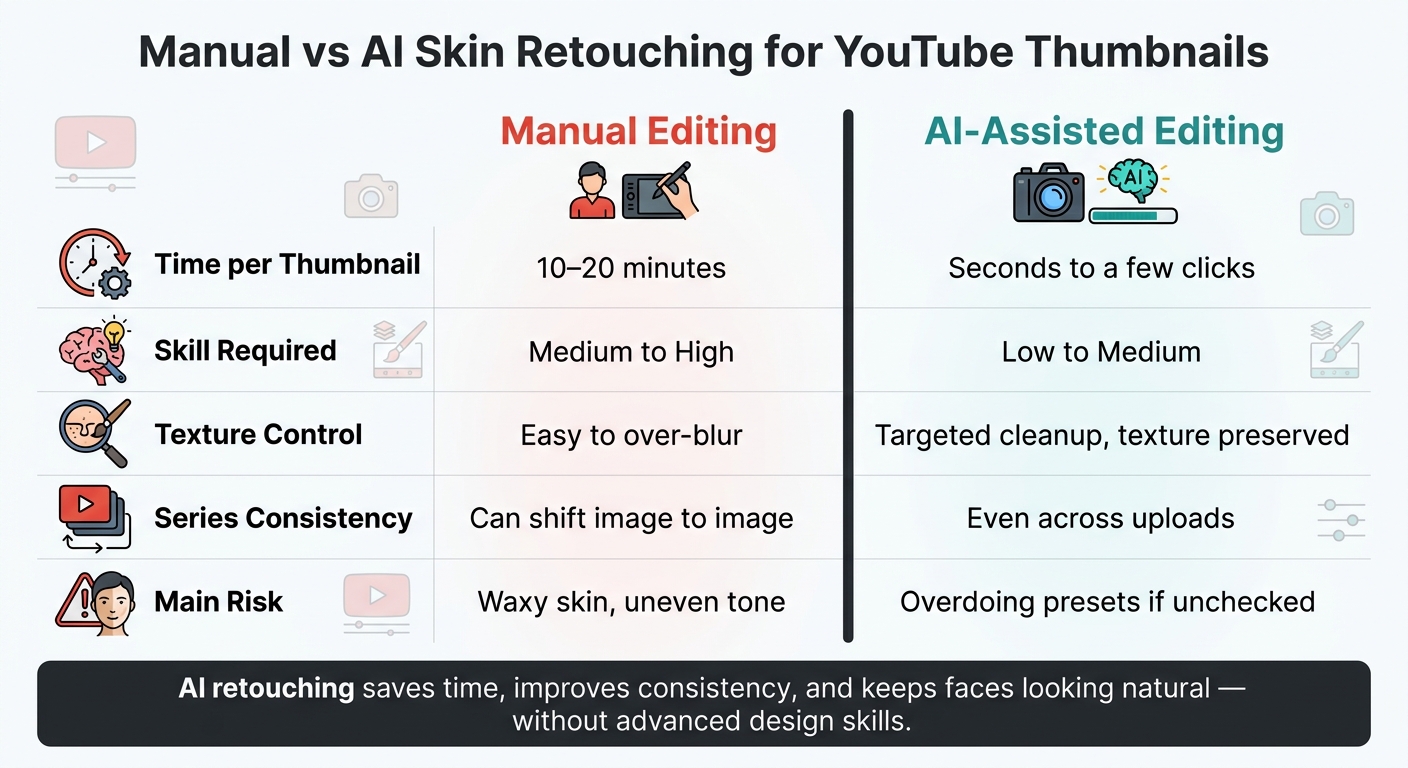
Manual vs AI Skin Retouching for YouTube Thumbnails
Why Manual Skin Retouching Slows Creators Down
Time and Skill Costs Add Up Fast
The big drag isn't just the edit. It's all the little steps it takes to make skin look natural.
Manual cleanup sounds simple on paper. In practice, it can turn into a long chain of blurring, masking, layer work, and tiny fixes. At 10–20 minutes per thumbnail, that time adds up fast. Hours that could go to scripting, filming, or packaging videos end up stuck in retouching instead.
The skill gap makes this even tougher. Techniques like frequency separation and dodge and burn aren't beginner-friendly. They bring extra layers, masks, and a lot of trial and error. A detailed frequency separation workflow alone can take 20–45 minutes per portrait if you want good results, and that doesn't even include color grading or global adjustments.
If you're a creator first and a retoucher second, that's a hard trade-off to make.
Manual Edits Often Look Unnatural or Inconsistent
Even after all that time, the final image can still miss the mark.
The most common problem is skin that looks too smooth. When blurring gets pushed too far, pores and fine texture disappear. The face starts to look flat, waxy, and processed instead of clean.
Color can drift too. Different lighting setups and different cameras give each thumbnail a different starting point. Without a set correction process, skin tone can swing from one upload to the next. The same creator might look warm and soft in one thumbnail, then cool and over-processed in the next.
That leaves creators with slower edits, more texture loss, and less steady skin tone across thumbnails. That's where AI retouching helps: it cuts down the manual work while keeping thumbnails more consistent.
sbb-itb-b59debf
This A.I. Does High-End Skin Retouching with 1-Click! - Photoshop Plugin Review

How AI Improves Skin Retouching for Thumbnails
That’s where AI changes the process: it works on skin without flattening the whole face. It can detect the face and identify the skin area, so it fixes blemishes, tone, and exposure without softening the eyes or blurring the hairline - even at thumbnail size.
Faster Retouching Without Advanced Design Skills
For creators who post often, this cuts out one of the slowest parts of thumbnail prep. AI removes the need for manual masking and blending. Instead, creators can make targeted skin edits in seconds, even if they don’t have advanced editing skills. If you’re publishing multiple videos each week, that time adds up fast across every editing session.
More Consistent Results Across Videos and Series
One of the less obvious upsides of AI retouching is repeatability. Manual editing can shift from one image to the next based on the editor’s judgment, the time available, and the way each photo was lit. AI applies the same type of adjustments each time, which helps keep skin tone, brightness, and facial clarity aligned across a full series. That kind of consistency gives a channel a more polished look from upload to upload.
The next step is making sure that consistency stays subtle enough to look real. You can also A/B test thumbnails to see which retouching style performs best.
Skin Smoothing That Keeps Texture Intact
Speed and consistency only matter if the final result still looks natural. The main risk with any skin retouching tool is pushing it too far. When smoothing goes past a natural limit, skin starts to look overprocessed - pores fade away, shadows flatten, and the face loses the small details that make it feel human. Good AI retouching cuts shine, redness, and uneven tone while keeping pores and fine detail visible. The goal is a clear, expressive face that still looks like the creator viewers expect.
Using ThumbnailCreator for AI-Powered Face and Skin Editing

Here’s how AI retouching works inside ThumbnailCreator. The tool turns skin retouching into a fast, face-focused workflow for YouTube thumbnails. It brings AI thumbnail generation, templates, face swapping, text editing, and object swapping into one place, which makes the process easier to repeat from one upload to the next. Its face tools also help keep skin tone and expression consistent across videos.
How ThumbnailCreator Fits Into a More Repeatable Thumbnail Workflow
Start with a clear face shot. ThumbnailCreator can adjust exposure, contrast, and background in a few guided steps. That helps keep skin tone, brightness, and framing lined up across a series.
Creators can also describe edits in plain English. So instead of tweaking sliders for ages or painting masks by hand, they can type prompts like "brighten the face area" or "match skin tones naturally" and let the tool handle the edit. If you publish several videos a week, that can save a lot of time on one of the slowest parts of thumbnail production.
Features That Support Better Facial Presentation
These features help most when the goal is simple: keep the face clear and the skin looking natural.
| Feature | Skin Retouching Impact | Benefit for YouTube Thumbnails |
|---|---|---|
| AI Generation | Uses skin-tone optimized lighting and soft color grading to make faces look more polished with less manual retouching. | Produces polished thumbnails fast and helps faces pop in the feed. |
| Face Swapping | Replaces faces with trained models that preserve the original lighting, composition, and skin tone. | Improves emotional impact and recognizability without reshoots. |
| Batch Consistency | Applies the same face model, skin tone, and color grading across multiple thumbnails. | Builds a recognizable brand look and saves time across a series. |
Precision inpainting gives creators a way to fix a blemish or tweak an expression without blurring or smoothing the rest of the face. That’s a big deal, because broad skin smoothing can make a thumbnail look fake fast.
The goal is subtle editing, so the face still looks real.
How to Keep AI Retouching Natural and Trustworthy
The goal is simple: keep the edit subtle enough that the face still looks like the same person.
Use Subtle Settings That Improve Clarity, Not Identity
Stick with mid-level smoothing to clean up blemishes and small texture issues without wiping out pores, freckles, or smile lines. Those details are part of what makes a face feel human, and they help you get fast edits that still look like you.
Around the eyes and lips, a little sharpening can help a lot. Clear eyelashes and sharper lip edges make expressions easier to read, even at thumbnail size. But skip auto face-slimming, eye-enlarging, or nose-reshaping tools. Those settings change the markers people use to recognize a face, which can leave you with a thumbnail that doesn't match what viewers see on screen.
Here's a simple gut check: zoom out and look at the image at actual thumbnail size. Does the face still look like you, just cleaner? If not, pull the settings back.
Once the face looks clearer, the next step is making sure skin tone still feels believable.
Keep Skin Tone and Texture Realistic to Protect Brand Trust
Accurate skin tone helps protect trust. Light retouching keeps texture and identity in place. Heavy retouching can flatten features, chip away at trust, and make thumbnails feel off from one video to the next.
Use neutral edits, like small brightness or contrast changes, to fix lighting rather than change skin tone.
Permanent features matter more than people think, especially across dozens of thumbnails. A mole, a patch of freckles, or a certain beard shape helps viewers recognize you at a glance. Use spot cleanup tools lightly for temporary issues, like a single blemish, and leave permanent features alone.
After speed and consistency, this is the final test: does the thumbnail still feel natural?
Conclusion: AI Makes Skin Retouching Faster, More Consistent, and More Practical
AI can handle masking, smoothing, and sharpening faster than manual editing, and you don't need advanced design skills to use it.
For YouTube creators who publish on a regular schedule, ThumbnailCreator makes this process easier to repeat. It brings AI generation, face editing, and steady templates into one workflow, which helps keep skin tone, brightness, and facial clarity aligned from one video to the next. The strongest results usually come from conservative settings saved as reusable presets, so each new thumbnail starts from a clean, on-brand base.
Subtle AI retouching can improve clicks without changing how the creator looks. Clear eyes, balanced exposure, and natural skin tone are often enough. People click on faces they know and trust.
FAQs
How much retouching is too much?
Too much skin retouching can make a photo look waxy or over-processed instead of natural. Once small details like skin pores start to vanish, the skin can look fake fast.
To keep things balanced, check your edits at 100% zoom or higher. If the skin looks too smooth, use detail-recovery sliders to bring some texture back.
Can AI retouching keep my face natural?
Yes. ThumbnailCreator is built to keep your face looking natural. It softens harsh shadows while keeping depth in place, so the result doesn’t end up looking overprocessed or plastic.
With tools like Face Swap and the AI editor, it can also match lighting and color tone. You can fine-tune skin tones or expressions too, which helps keep texture and small facial details intact.
What should I fix in a thumbnail face first?
Fix the facial expression first. People read faces FAST, and if the expression feels a little off, they may scroll past before they even read the title.
With ThumbnailCreator, you can refine expressions, adjust eye direction, and dial up the emotion. A clear, high-quality, expressive face can make a big difference in click-through rate.