

How AI Simplifies Thumbnail Layering
Creating YouTube thumbnails used to take hours, requiring multiple tools and design skills. Now, AI tools like ThumbnailCreator can do the job in minutes. By analyzing millions of successful thumbnails, these tools automate tasks like background removal, text placement, and color selection. They follow proven design principles - like the 3-Element Rule and Rule of Thirds - to create visually appealing, high-performing thumbnails.
Key benefits include:
- Time-saving: AI reduces thumbnail creation time by up to 95%.
- Improved click-through rates (CTR): AI-optimized thumbnails can boost CTR by 35–45%.
- Cost-effective: Spend less on designers or software.
With options to upload videos, use URLs, or input descriptions, tools like ThumbnailCreator make it easy to produce professional thumbnails without design expertise. Paid plans start at $29/month, offering features like face swapping and text optimization for creators of all levels.
Thumbnail Layering Basics
Core Principles of Thumbnail Design
Great thumbnail design follows a few tried-and-true rules. One of the simplest is the 3-Element Rule: stick to a face, a main object, and a short piece of text. This keeps the thumbnail clean and avoids overwhelming the viewer.
Next is the Rule of Thirds, which divides the frame into a 3x3 grid. Placing key elements - like faces or focal objects - along these grid lines or at their intersections creates visually pleasing and balanced compositions. Thumbnails that use a triadic color scheme tend to perform better, with an 18% higher click-through rate (CTR) compared to those with chaotic or monochromatic designs.
Visual hierarchy is another critical factor. Viewers decide whether to click in just 3 seconds. A clear focal point ensures their attention goes straight to the key subject of your video. High contrast between the foreground and background helps elements stand out - like brightly lit subjects against darker backgrounds or bold text on vivid colors. Thoughtful use of space, both positive and negative, ensures the thumbnail doesn’t feel overcrowded, which is crucial for readability on smaller screens .
When it comes to text, less is more. Stick to 3 words max, with an absolute limit of 5 words. Use bold, high-contrast fonts to ensure clarity . As creator Thomas Frank explains:
"Thumbnail design is 80% marketing psychology, and only 20% design skill".
Custom thumbnails are a game-changer. 90% of top-performing YouTube videos use them , and they can boost CTR by up to 30% compared to auto-generated ones. These principles form the backbone of effective thumbnail design, and AI tools make applying them faster and easier.
How AI Improves Layering
AI tools take these design principles and apply them instantly to create eye-catching thumbnails. By analyzing eye-tracking data and millions of successful thumbnails, AI automates tasks like positioning elements, adjusting contrast, and selecting the best video frames. It can instantly remove backgrounds, suggest optimal text placement, and recommend color palettes.
For example, ThumbnailCreator uses the 3-Element Rule and visual hierarchy to streamline layering. Its face and object-swapping features let you tweak character expressions or replace subjects without needing advanced masking skills. It also follows popular design trends, ensuring your thumbnails stay relevant. For text, AI applies high-contrast effects and gradients to maximize readability, especially on mobile devices .
The results speak for themselves: AI-driven thumbnails can boost CTR by 35–45%. Plus, they save time and money, cutting production time by up to 95% and reducing costs by 90–97% compared to traditional methods.
Unbelievable Thumbnails with AI & Editing Tools | 2024 Tutorial
How to Create Thumbnails with AI
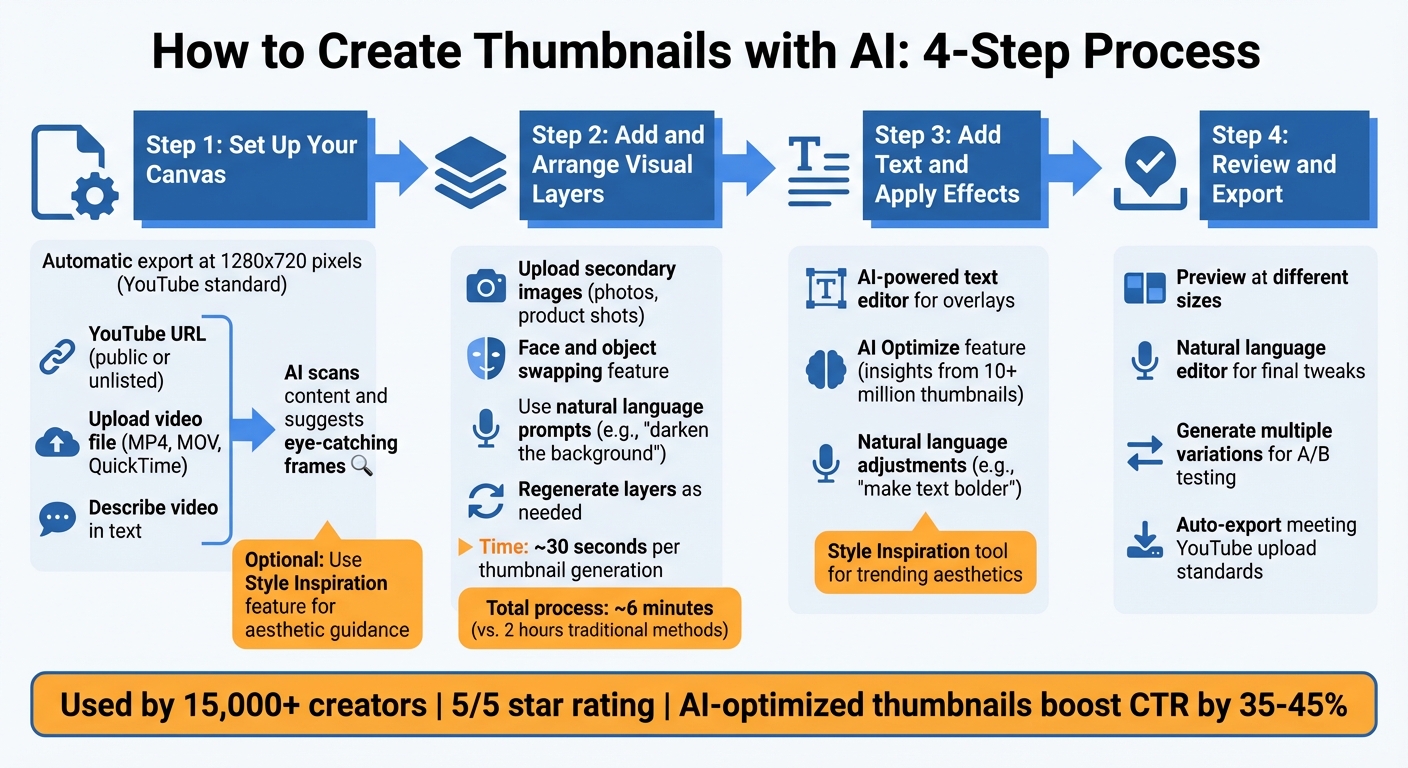
4-Step AI Thumbnail Creation Process with ThumbnailCreator
Step 1: Set Up Your Canvas
ThumbnailCreator simplifies the process by automatically exporting designs at 1280x720 pixels, the standard resolution for YouTube. No need to manually adjust dimensions - this is handled for you.
To start, choose one of three input options: paste a YouTube URL (public or unlisted), upload a video file (supports MP4, MOV, or QuickTime formats), or describe your video in text. If you provide a URL or video file, the AI scans your content and suggests the most eye-catching frames as a starting point. Using an unlisted URL allows the AI to pull in extra metadata for even better frame recommendations.
Before diving in, gather any high-resolution PNG or JPEG images of faces or objects you want to include. You can also use the Style Inspiration feature to pick an aesthetic or layout inspired by successful thumbnails in your niche. If you'd like to follow a proven design trend, select "Reference Thumbnails" from trending videos to guide your color schemes and layouts.
Once your materials are ready, begin enhancing your canvas with visual elements.
Step 2: Add and Arrange Visual Layers
AI tools make it easy to upload and integrate secondary images, such as personal photos or product shots, into your design. With ThumbnailCreator's face and object swapping feature, you can replace specific elements in your thumbnail using either your uploaded images or AI-generated options. You can even tweak facial expressions to align with the mood you want to convey.
Instead of manually adjusting layers, you can use natural language prompts to make changes. For instance, you could type "darken the background" or "change the expression to surprised", and the AI will handle it for you. If something doesn't look quite right, simply regenerate the layer until you're satisfied. The AI creates thumbnails in about 30 seconds, and the entire process typically takes around 6 minutes - a huge time-saver compared to the 2 hours often spent using traditional design tools.
Step 3: Add Text and Apply Effects
Once your visual layers are in place, use the AI-powered text editor to add or refine text overlays. The editor ensures your text is both readable and visually engaging. With the AI Optimize feature, you can enhance your design based on insights from over 10 million high-performing thumbnails. This feature suggests changes to improve click-through rates, making your thumbnail more effective. You can also prompt adjustments like "make the text bolder" or "add a yellow outline" to refine the style.
The Style Inspiration tool remains available here, helping you align your design with trending aesthetics in your YouTube niche.
Step 4: Review and Export Your Thumbnail
Before finalizing, preview your thumbnail to see how it looks at different sizes and ensure key elements stand out. Use the natural language editor for any last-minute tweaks to text or visual layers.
The AI generates multiple variations quickly, so you can download different options to A/B test in YouTube Studio and determine which version performs best. ThumbnailCreator automatically exports your design to meet YouTube’s upload standards, so it’s ready to go.
YouTube creator Maria Reyes shared her experience with the platform:
"The AI not only generates beautiful thumbnails, but it also understands what style works best for different types of videos".
With over 15,000 creators using ThumbnailCreator and a 5/5 star rating from users, this tool has become a go-to for producing professional-quality thumbnails - no design skills required.
sbb-itb-b59debf
ThumbnailCreator Plans and Pricing
Free, Pro, and Agency Plans Compared
Once you've crafted your perfect thumbnail, the next step is selecting a plan that aligns with your publishing goals. Picking the right option ensures you can consistently use AI-powered layering to enhance your channel's visual impact.
ThumbnailCreator operates on a credit-based system, where 1 credit equals 1 AI-generated thumbnail. There are four pricing tiers to choose from, starting with the Free plan, which provides 10 credits upfront. This is a great way to explore the platform's AI tools before committing to a paid subscription. Here's a breakdown of the available plans:
- Starter Plan: At $29/month, this plan offers 50 credits and is tailored for creators posting 1–2 videos weekly. It provides essential features like basic face tools and simple variations.
- Creator Plan: The most popular choice at $49/month, offering 100 credits. This plan includes advanced tools like Face Training, Person Swap, and Expression Morphing, making it perfect for those uploading 3–5 videos per week.
- Teams Plan: Designed for agencies and large-scale creators, this $99/month plan provides 250 credits. It includes premium features such as Unlimited Person Swaps, Multiple Face Training, Batch Variations, and API Access. It also comes with 24/7 Priority Support.
Every paid plan includes a 7-day free trial and a 7-day money-back guarantee, so you can explore the advanced tools without any risk. Check out the table below for a quick comparison:
| Plan | Price | Credits/Month | Ideal For | Key AI Layering Features |
|---|---|---|---|---|
| Free | $0 | 10 total | Testing the platform | Basic AI generation access |
| Starter | $29 | 50 | 1–2 videos/week | Basic face features, basic variations, basic optimization |
| Creator | $49 | 100 | 3–5 videos/week | Advanced Face Training, Person Swap, Expression Morphing |
| Teams | $99 | 250 | Agencies & networks | Unlimited Person Swaps, Multiple Face Training, Batch Variations, API Access, 24/7 Priority Support |
Whether you're just starting out or managing multiple channels, there's a plan to fit your needs and help you elevate your thumbnails.
Conclusion
Creating professional YouTube thumbnails no longer requires advanced design skills or expensive software. AI tools like ThumbnailCreator have turned what was once a complex, time-consuming task into a straightforward process that anyone can handle in just a few minutes. This shift allows creators to make quick, meaningful improvements to their content's visual appeal.
AI-powered thumbnail tools are about 20 times faster than traditional manual design methods. They also leverage insights from millions of successful thumbnails, offering a level of expertise that would take years to develop on your own.
Considering that 90% of top-performing videos use custom thumbnails, and AI-optimized designs can boost click-through rates (CTR) by anywhere from 30% to 300%, using these tools can directly impact your video's success. Features like automated background removal, smart text placement, and style cloning remove the technical hurdles, making it easy to create visually engaging thumbnails.
Whether you're uploading a single video each week or managing several channels, the ability to quickly produce multiple variations and test them with A/B tools gives you a clear advantage. With ThumbnailCreator's flexible plans, both beginners and experienced creators can take full advantage of these capabilities.
In a space where poor thumbnails can cut your views by 50-70%, AI-powered tools help you save time, maintain a consistent brand image, and give every video the best chance to stand out. With ThumbnailCreator, you can turn this potential into reality.
FAQs
How does AI help create better YouTube thumbnails?
AI tools simplify the process of creating eye-catching YouTube thumbnails that can boost your click-through rates. By automating tasks like face swapping, object highlighting, and text optimization, these tools help you design professional and attention-grabbing visuals effortlessly.
Even if you're not a design expert, AI makes it easy to create thumbnails that stand out and draw more viewers to your content.
How do AI tools make it easier to design attention-grabbing thumbnails?
AI tools like ThumbnailCreator make thumbnail design easier by applying key design principles to help your videos grab attention. For instance, they use the rule of thirds to arrange elements in a way that naturally guides the viewer's focus while maintaining visual harmony. They also emphasize high contrast between text and background, ensuring thumbnails remain clear and easy to read - even on smaller screens like smartphones.
Beyond layout, AI taps into the psychology of visual attention by using bold imagery and keeping text minimal. This approach quickly conveys the video's message and piques curiosity. Together, these techniques create polished, attention-grabbing thumbnails that enhance visibility and engagement, all without requiring expert design skills.
What are the pricing plans for ThumbnailCreator?
ThumbnailCreator provides pricing options tailored to various needs. Here’s what they offer:
- Free Plan: Includes limited credits, perfect for trying out the service.
- Starter Plan: Priced at $29/month, it offers 50 credits.
- Creator Plan: At $49/month, you get 100 credits.
- Team Plan: For $99/month, this plan includes 250 credits.
If you prefer a one-time purchase, the lifetime plan is available for $49.99. This plan gives you unlimited thumbnail generation and full access to all features.