

How Curiosity Drives Thumbnail Clicks
My rule for thumbnail clicks: show the topic, leave one question unanswered, and make sure your video answers it. I use one main subject and one clue - not a mystery viewers can’t understand.
Here’s how I put that into practice:
- Choose the question: Let the title explain the context and the thumbnail show what’s missing.
- Keep it honest: Match every image detail to your footage. I check designs at 25% size (320 × 180 pixels) so small-screen viewers can read them.
- Test one change: Compare 2–3 thumbnails, changing only the crop, reaction, or text.
- Check more than clicks: I judge tests by watch time, using CTR and retention for context. Tests may take up to two weeks.
The goal isn’t more mystery. It’s <u>clicks from viewers who stay for the answer</u>.
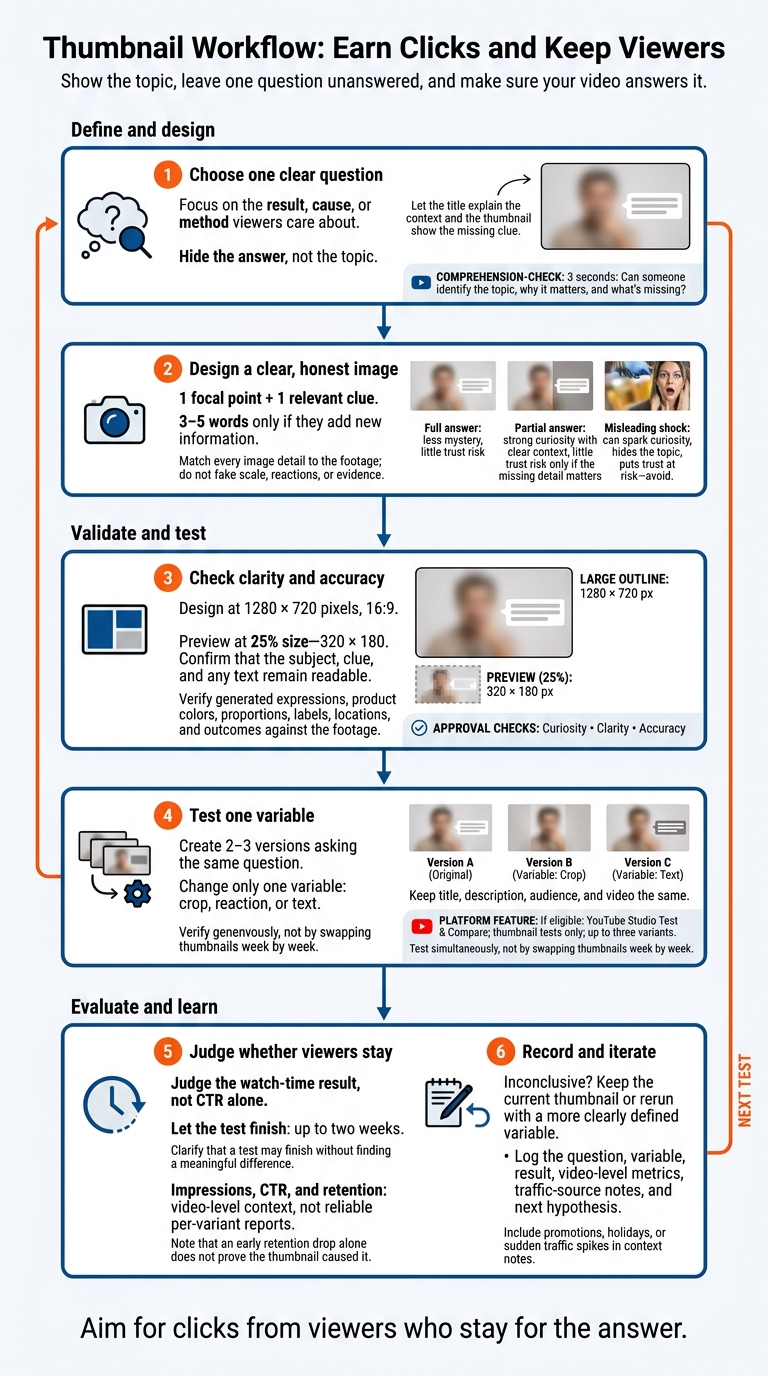
Thumbnail Workflow: Earn Clicks and Keep Viewers
YouTube Thumbnail Tips That Get Clicks (15 Design Secrets Backed by Science)
sbb-itb-b59debf
Step 1: Choose Your Thumbnail's Question
Turn the video’s promise into one unanswered question. Focus on what viewers care about most: the result, the cause, or the method. Keep only questions that help them decide or act. The thumbnail should make the question clear without giving away the answer.
Create an Information Gap, Not Confusion
George Loewenstein’s information-gap theory explains curiosity as the gap between what people know and what they want to know. Show the subject and what’s at stake. Hide the answer, not the topic.
Test the concept by showing it to someone unfamiliar with the video for 3 seconds. Then ask them what the topic is, why it matters, and what’s missing.
Let the Title Explain and the Thumbnail Show
Once the gap is clear, use the title to explain the topic and context. Let the thumbnail show the missing clue. The title, opening scene, and ending should all address the same question.
Don’t set up a mystery the video can’t solve. Misleading promises can reduce retention and discoverability. Build the thumbnail around the answer you’re holding back.
Step 2: Design a Clear, Honest Thumbnail
Use 1 Focal Point and 1 Relevant Clue
Now that you know the question, build an image that holds back the answer. Use one main subject and one relevant clue: a reaction, conflict, result, or piece of evidence.
Cut competing faces, arrows, and extra text. Add 3–5 words only if they tell viewers something new.
Choose a layout your footage can support. A before-and-after needs a documented transformation. A hidden-object layout needs an object that’s actually there. Unexpected scale must match the footage, and the video must resolve any result left unanswered in the thumbnail. Don’t fake scale or reactions.
Compare Full, Partial, and Misleading Reveals
Each reveal type strikes a different balance between curiosity and trust.
- Full answer: Shows the subject clearly, leaves less mystery, and carries little risk to trust. Use it when the result itself adds value.
- Partial answer: Builds strong curiosity while keeping the context clear, with little risk to trust - but only if the missing detail matters.
- Misleading shock: Can spark curiosity, but hides the topic and puts trust at risk. Avoid unrelated imagery.
More mystery isn’t always better. YouTube prohibits thumbnails that lead viewers to expect content the video doesn’t contain. Address the pictured test, conflict, or result early in the opening rather than making viewers sit through unrelated material.
Create and Check Versions in ThumbnailCreator
Try several versions of the same idea before publishing. Use ThumbnailCreator to generate, edit, and test thumbnails at 1280 × 720 pixels, 16:9. Keep the composition consistent as you compare a full reveal, partial evidence, and an unresolved result. Swap faces or objects only when doing so adds relevance without inventing a reaction, product, or piece of evidence.
Before exporting, preview each design at 25% size - 320 × 180 pixels. Can you still make out the subject, clue, and text? Simplify anything that gets lost. Check generated details against the footage, including expressions, product colors, proportions, labels, locations, and outcomes. Use only the version that passes all three checks: curiosity, clarity, and accuracy.
Step 3: Test Whether Viewers Click and Stay
Once your thumbnail is clear, honest, and sparks curiosity, test which version gets viewers to click and keep watching.
Test 1 Design Variable at a Time
Create 2–3 versions that ask the same thumbnail question, changing only one variable: crop, reaction, or text. Keep the title, description, audience, and video the same so you can isolate which visual change affected performance.
If your account and video qualify, use Test & Compare in YouTube Studio. Select thumbnail tests only and upload up to three variants. Test them at the same time rather than swapping thumbnails week by week. This reduces differences caused by timing and traffic sources. Note any promotion, holiday, or sudden traffic spike that might affect the result.
Review Watch Time and Log Results
A click only pays off if viewers stick around. Judge the watch-time result, not CTR alone. Let the test finish. It may run for up to two weeks without finding a meaningful difference. If the result is inconclusive, keep your current thumbnail or rerun the test with a more clearly defined variable.
Use impressions, CTR, and retention for video-level context - not as reliable reports for each variant. If retention falls sharply early on, check whether the opening answers the thumbnail’s question soon enough to hold attention - or answers it at all. That drop alone doesn’t prove the thumbnail caused it.
Log the question, variable, and result, along with video-level metrics and traffic-source notes for context. End each entry with your next hypothesis so each test builds on what you learned.
Conclusion: Ask a Clear Question and Deliver the Answer
Curiosity works when the thumbnail asks one clear question and the video answers it. Show the situation, hide only the answer, and let the title complete the thought.
Before testing at scale, preview the thumbnail on a small screen. Make key elements larger, remove distracting details, and check every generated detail against your footage. If the footage doesn't support it, leave it out.
Aim for clicks from viewers who stay for the answer. A strong thumbnail earns attention; a truthful video keeps it.
FAQs
How do I choose a curiosity gap for my audience?
Lead with the mystery, scenario, or transformation your video covers - but leave out the “how” or final reveal. Give viewers a question the video will answer. Make sure that question matches your content so you build trust without promising more than you deliver.
Use ThumbnailCreator to test combinations of text and visual clues. Show just enough to make viewers want to know more.
Can curiosity-driven thumbnails work for tutorials?
Yes - curiosity-driven thumbnails can work for tutorials, as long as the video answers the question they spark. Show the “what,” not the “how.” Give viewers a glimpse of the outcome or a key element, then use images and text to hint at what’s left unexplained. That gives them a reason to click for the full answer.
Don’t promise more than the tutorial delivers. If the thumbnail sets expectations the video doesn’t meet, watch time and retention can suffer.
What if clicks increase but watch time drops?
Your thumbnail might promise more than your video delivers. If the curiosity gap misleads viewers, they may leave early - and that can hurt your video’s long-term performance in the algorithm.
Build curiosity without misleading viewers. Your video should answer the question your thumbnail puts in their heads. Use ThumbnailCreator to generate and test designs that balance curiosity with accuracy.