

How Urgency Cues Lift Thumbnail CTR
Urgency cues can increase thumbnail CTR - but only when the deadline is real and the video earns the click. Use a short date or accurate countdown, keep it readable on mobile, and replace it when time runs out.
To check whether urgency helps:
- Choose one accurate cue: Use a fixed date, current countdown, or valid limited-time claim that matches the video.
- Test three versions: Compare a control with two urgency variants, changing only the cue.
- Look beyond clicks: YouTube’s Test & Compare tool judges watch-time performance, not CTR alone. Review retention, impressions, and traffic sources before drawing conclusions.
For context, a hypothetical CTR increase from 4.0% to 4.8% equals 0.8 percentage points, or 20% relative lift. That calculation requires comparable CTR data; a watch-time winner alone does not prove a CTR gain.
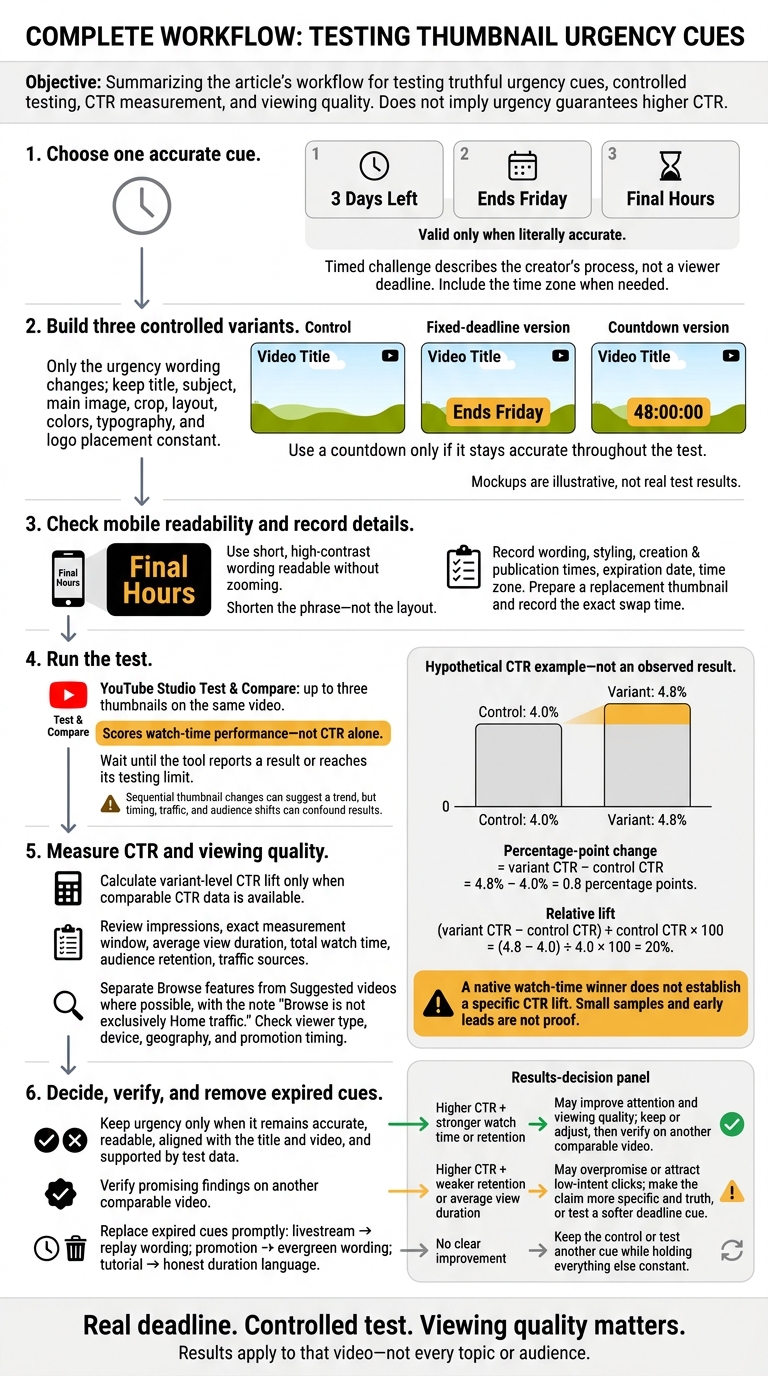
How to Test Urgency Cues for Thumbnail CTR
1. Choose an Accurate Urgency Cue
Once you’ve confirmed the deadline is real, choose one urgency cue that states it clearly and briefly.
Use Dates for Fixed Deadlines
Use a calendar date for launches, livestreams, seasonal events, and real promotions. For U.S. viewers, use month-day-year format. Include the time zone if your audience may be spread across the country.
Dates work best for deadlines that won’t change. Countdowns work only while the timing stays current.
Keep Countdown Claims Accurate
Use 3 Days Left only when three days remain, Ends Friday only when Friday is the real deadline, and Final Hours only during the actual closing period.
Check countdown wording before publishing. If the deadline moves or ends, update the thumbnail to match.
A timed challenge is different: its length describes your process, not a deadline for viewers.
Replace Expired Cues
Prepare a replacement thumbnail before publishing, and record the exact time to swap it. Urgency cues only work while the deadline is current.
Follow a thumbnail update strategy as soon as the deadline passes. Switch livestreams to replay wording, promotions to evergreen wording, and tutorials to honest duration language.
With the cue accurate, test which wording lifts CTR.
sbb-itb-b59debf
2. Create Controlled Thumbnail Variants
Once you’ve chosen the cue, test three near-identical thumbnails to isolate its effect.
Create a Control and Two Urgency Variants
Create a control, a fixed-deadline version, and a countdown version. Use a countdown only if it stays accurate throughout the test.
Keep the title, subject, main image, crop, layout, colors, typography, and logo placement the same. Change only the urgency text so differences in CTR reflect the cue.
Build Variants With ThumbnailCreator
Create your base design in ThumbnailCreator, then duplicate it and edit only the urgency text. Keep the font size, placement, color, and shadow consistent.
Preview each export at mobile size. The subject and urgency phrase should be readable without zooming. Check that longer text hasn’t forced a smaller font or covered an important object. If a phrase doesn’t fit, shorten it - not the layout.
Record each version’s wording, styling, creation and publication times, and expiration date, including the time zone. This lets you match performance to the exact variant later.
Test the finished variants in YouTube Studio and compare CTR using advanced optimization strategies.
3. Test Urgency and Measure Results
Once your variants are ready, test them in YouTube Studio.
Test Thumbnails in YouTube Studio
Open YouTube Studio’s Test & Compare tool. Test up to three thumbnails on the same video, changing only the urgency cue. YouTube scores the test on watch time - not CTR alone. Wait until the tool reports a result or reaches its testing limit. An early lead doesn’t establish a winner.
Compare Test Methods and Limits
Choose a method based on how well it separates the urgency cue’s effect from other changes.
| Method | What stays controlled | Variable changed | Metric | Key limit |
|---|---|---|---|---|
| Native simultaneous test | Same video, title, audience settings, and test period | Thumbnail cue | Watch-time performance | Availability varies; per-variant CTR may not appear |
| Sequential thumbnail changes | Usually the video and title | Thumbnail cue across periods | CTR and viewing quality | Timing, traffic, and audience shifts can affect results |
Manual changes can suggest a trend, but they don’t prove that urgency caused it.
Calculate CTR Lift From the Control
If Studio provides comparable CTR data, use the control as your baseline. Impressions CTR is the percentage of registered thumbnail impressions that led to a view.
Calculate percentage-point change as variant CTR − control CTR. For relative lift, use (variant CTR − control CTR) ÷ control CTR × 100.
Hypothetical calculation: An increase from 4.0% to 4.8% is 0.8 percentage points, or 20% relative lift: (4.8 − 4.0) ÷ 4.0 × 100. Record the impressions behind each rate and the exact measurement window. Small samples and early leads are not proof. Only calculate variant-level lift when comparable CTR data is available; a native watch-time winner does not establish a specific CTR lift.
Review Viewing Quality and Traffic Sources
Next, check what happened after the click. Review average view duration, total watch time, audience retention, and traffic sources. YouTube’s native test puts watch time ahead of CTR alone.
Separate Browse features from Suggested videos where possible. Browse is not exclusively Home traffic. Also check viewer type, device, geography, and promotion timing. Changes in audience or placement can increase CTR even when urgency has no effect.
| Observed result | Possible interpretation | Next action |
|---|---|---|
| Higher CTR with stronger watch time or retention | The cue may improve attention and viewing quality | Keep or adjust it, then verify on another comparable video |
| Higher CTR with weaker retention or average view duration | The cue may overpromise, attract low-intent clicks, or become inaccurate | Make the claim more specific and truthful; test a softer deadline cue |
| No clear improvement | Urgency may not suit the topic, or the difference may be too small to separate | Keep the control or test another cue while holding everything else constant |
Conclusion: Keep Urgency Accurate and Test Results
Choose the most accurate timing cue you can keep current: a fixed date, a countdown, or a valid limited-time claim. Let test results decide whether it stays on the video. Review CTR alongside viewing quality and avoid thumbnail mistakes that hurt retention. Results apply to that video - not every topic or audience.
Before publishing or keeping a cue, check these points:
- Accuracy and cleanup: Confirm that the deadline is real and current. Remove or replace the cue when it expires.
- Alignment: Make sure the thumbnail, title, and video match.
- Mobile readability: Use short, high-contrast text that’s readable at small sizes.
- Variants and test setup: Keep one control and two urgency variants. Record the cue, dates, and title changes, and avoid unrelated edits.
- Performance: Review CTR alongside impressions, traffic sources, watch time, average view duration, and retention. Keep urgency only if it’s accurate, readable, and backed by test data.
FAQs
Why do urgency cues make viewers click?
Urgency cues encourage clicks through loss aversion: viewers are more motivated to avoid missing out than to pursue a gain. Phrases like “Last Chance” or “Ends Tonight” and countdown timers make an opportunity feel like it’s slipping away, pushing viewers to act now. Visual cues, such as red, can also make a message feel more urgent and put viewers on alert.
How much data do I need to trust a CTR lift?
Give each thumbnail variation enough impressions before judging the results. Aim for 1,000–2,000 impressions for preliminary confidence, 2,000–5,000 for 85%–95% confidence, and 5,000 or more for definitive, high-confidence results.
Run tests for at least 7–14 days to account for weekly traffic patterns. Don’t stop early - that can skew the results. If your channel gets fewer than 10,000 impressions per week, you may need to test for up to a month to get reliable results.
Can repeated urgency cues reduce viewer trust?
Yes. Channels that repeatedly use false urgency - time-sensitive wording when there’s no actual deadline - see a 28% drop in click-through rates over six months as viewers lose trust in the content. Rebuilding that trust after misleading viewers can take 3 to 6 months.
Use urgency cues only when the content has a real time limit. And make sure your video delivers what its thumbnail promises.