

Ultimate Guide to AI Thumbnail Optimization
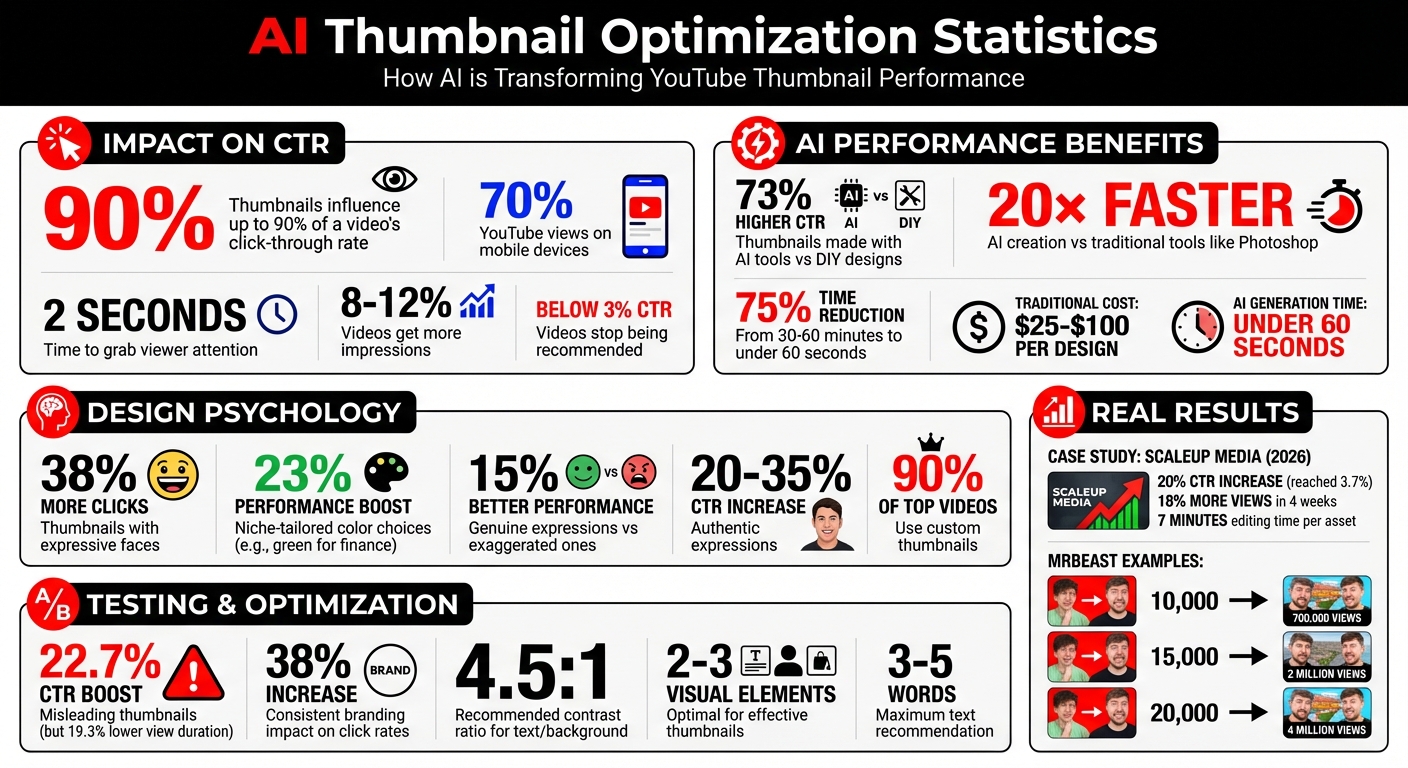
Your video thumbnail is one of the most important factors for driving clicks and views. Thumbnails, alongside titles, influence up to 90% of a video’s click-through rate (CTR). With 70% of YouTube views on mobile devices, you have less than two seconds to grab attention. AI tools are now transforming how thumbnails are created, analyzed, and optimized, making high-quality designs faster and easier than ever. Here’s what you need to know:
- AI saves time: Traditional thumbnail creation takes hours or costs $25–$100 per design. AI tools can generate optimized thumbnails in under 60 seconds.
- Higher CTR means more views: Videos with CTRs of 8–12% get more impressions, while CTRs below 3% cause videos to stop being recommended.
- Psychology matters: Thumbnails with expressive faces get 38% more clicks, and color choices tailored to niches (e.g., green for finance) can boost performance by 23%.
- AI tools do the heavy lifting: Features like text-to-thumbnail generation, CTR prediction, and A/B testing ensure your thumbnails are tailored for maximum impact.
AI thumbnail optimization combines data-driven insights with advanced tools to help creators boost their CTR, save time, and improve video performance. Let’s dive into how you can use these tools effectively.
AI Thumbnail Optimization Statistics and Performance Metrics
How to Make YouTube Thumbnails: New FREE AI Tool with One-Click Fix
sbb-itb-b59debf
Core Features of AI-Powered Thumbnail Tools
AI tools have revolutionized how creators design thumbnails, reducing the process from 30–60 minutes to less than 60 seconds. They achieve this through three main functions: generation, prediction, and customization. By simply describing their vision in plain text, creators can let AI handle the heavy lifting - designing the background, subject, lighting, and text placement. These features make thumbnail creation faster and more effective.
AI Image Generation and Design
The backbone of AI thumbnail creation lies in text-to-thumbnail prompts. For example, typing "shocked face with red background and lightning bolts" prompts the AI to generate a completely original visual. This includes every detail, from composition to style. With style cloning, you can take a high-performing thumbnail, upload it, and have the AI replicate its look instantly.
Using computer vision, the AI scans your video content to find the most engaging frames, detect faces, and recognize key objects for screenshot extraction. It automatically identifies the best frame to use. Tools like inpainting and outpainting give creators precise control over their designs. Inpainting allows you to edit specific areas of an image - like changing a neutral expression to one of surprise - while outpainting expands the canvas, creating extra space for text or other elements.
CTR Prediction and A/B Testing
AI doesn't just help with creation - it also predicts how well your thumbnail will perform. By analyzing millions of high-CTR thumbnails, AI tools can estimate a design's effectiveness before it even goes live. Using Generative Adversarial Networks (GANs) and eye-tracking datasets, these tools accurately predict where viewers' attention will go. Features like visual saliency prediction highlight high-attention zones, helping you position key elements - like your hook - where they’ll grab the most eyes.
AI-powered performance analysis tools, such as "Thumbnail Analyzer", provide scores based on niche-specific data to estimate CTR. Some platforms even automate A/B testing vs. gut feeling decisions, rotating up to three thumbnail variations to measure performance metrics like clicks and watch time. While A/B testing requires two weeks and thousands of impressions for reliable results, these insights are invaluable for improving your channel's performance.
Branding Customization Features
Customization is key to maintaining a consistent brand identity, and AI tools offer plenty of options. Face swap and enhancement technology lets you insert your face into any scene generated by AI. You can also adjust facial features or enhance expressions - like amplifying shock or joy - to make your thumbnails more engaging. With background removal, subjects can be cleanly separated from their backgrounds, allowing you to add bold gradients or unique environments that match your channel's style.
Text overlay optimization ensures that your text is positioned for maximum impact. It suggests the best placement, font sizes for mobile readability (important since over 70% of YouTube views happen on mobile devices), and color palettes with strong contrast. Object swapping lets you replace specific elements in a thumbnail - like switching out a generic product for your own - without needing to redesign the entire image. Tools like ThumbnailCreator combine these features with AI generation, pre-designed templates, and a 7-day free trial, making it easier than ever for creators to align their thumbnails with their brand while optimizing for clicks.
How to Use ThumbnailCreator for AI Thumbnail Optimization
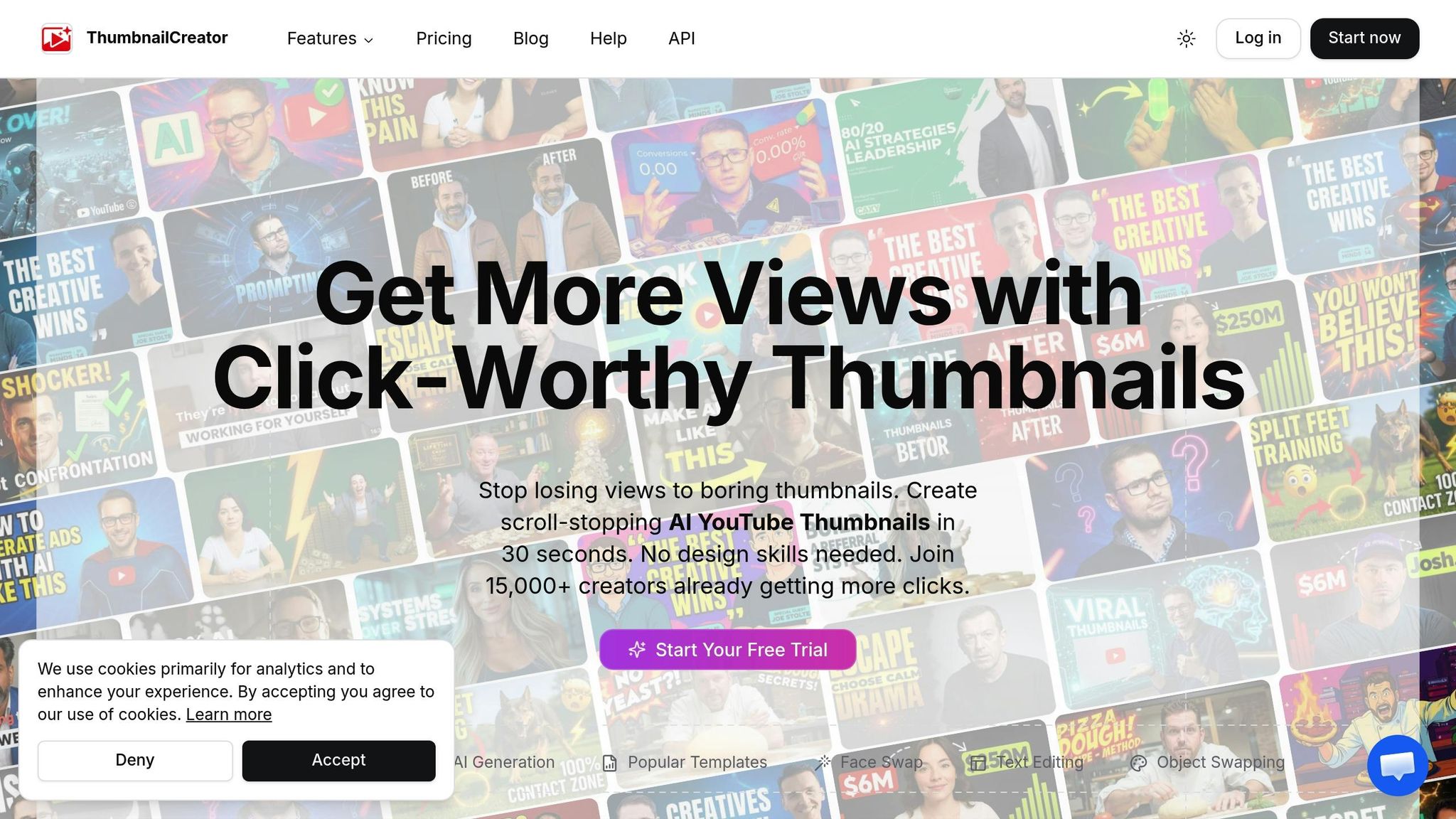
Here's how you can make the most of ThumbnailCreator to design thumbnails quickly and effectively, using its AI-powered tools.
Getting Started with ThumbnailCreator
Start by signing up for the 7-day free trial, which gives you 10 credits to explore the platform without any upfront charges - your card won't be billed until day 8. Once inside, you'll find a user-friendly dashboard designed for quick and efficient creation. The platform’s AI has analyzed over 3 million high-performing thumbnails, so you're working with a tool built on a wealth of data-driven insights.
To kick off a new project, you can either paste an unlisted YouTube video URL or describe your video topic in plain English. For the best results, use the unlisted URL option. This allows the AI to analyze your video’s context, tone, and key moments before generating designs. Within just 30 seconds, ThumbnailCreator will produce several optimized thumbnail options using its advanced AI engine.
Optimizing Thumbnails with AI Features
Once the AI generates your thumbnails, the built-in editor lets you customize them further. Features like Face Swap help you integrate your own image for consistent branding, while Style Cloning enables you to replicate successful designs from your niche.
For quick tweaks, the AI Editing tool allows you to make changes using natural language commands. For example, you can type "enhance text visibility" to adjust the design without navigating through menus. Before finalizing, use the Thumbnail Analyzer to evaluate your design. This tool provides expert feedback on elements like composition, color contrast, and text readability, assigning a score and offering actionable tips. It's especially helpful for ensuring your thumbnail looks great on mobile devices, where over 70% of YouTube views happen.
Thumbnails made with ThumbnailCreator boast a 73% higher click-through rate (CTR) compared to DIY designs and take 20× less time than traditional tools like Photoshop.
YouTube creator Dave S Anderson shares his experience: "ThumbnailCreator has saved me so much time. I used to spend 1-3 hours per thumbnail... Now, my thumbnails are finished within a few mins and they look (and convert) better as well".
These tools and insights ensure your thumbnails are not only visually appealing but also optimized for engagement.
Exporting and Using Your Thumbnails
Once satisfied with your design, you can export it in YouTube's recommended format - 1,280 x 720 pixels (16:9 aspect ratio) with a maximum file size of 2MB - to meet platform guidelines.
You can either use the one-click upload feature to send your thumbnail directly to your YouTube channel or download it and upload manually. For manual uploads, go to YouTube Studio > Content > Select your video > Thumbnail section > Upload Thumbnail > Save. Remember, your YouTube account must be phone-verified to enable custom thumbnails. After uploading, check your channel in an incognito window to ensure the thumbnail displays correctly across all devices. During busy periods, processing may take a few minutes to two hours.
With these steps, your thumbnail will be ready to grab attention and drive clicks.
Best Practices for AI-Enhanced Thumbnails
Design Principles for High-Performing Thumbnails
Thumbnails are the first impression your video makes, so keeping them simple and visually striking is key. Research shows that effective thumbnails use just 2–3 visual elements. Why? Because the human eye can only process so much in the split second it takes to scroll through a feed. Keep text minimal - stick to 3–5 bold sans-serif words - and avoid placing anything important in the bottom-right corner, where YouTube overlays the video duration.
Contrast is everything. Aim for a 4.5:1 contrast ratio between text and background to ensure your thumbnails are easy to read, even at a glance. Use the rule of thirds to create visually appealing compositions - position your main subject at the intersections of an imaginary 3x3 grid rather than dead center.
Thumbnails featuring genuine human expressions outperform exaggerated ones by 15%. In fact, about 90% of top-performing videos use custom thumbnails, and those showcasing authentic expressions can increase click-through rates (CTR) by 20% to 35%.
Here’s a quick test: squint at your thumbnail. If the main subject isn’t immediately clear, simplify the design. Always preview your thumbnail at mobile scale to ensure clarity. Why does this matter? YouTube's algorithm favors videos with CTRs of 8-12% or higher, giving them exponentially more impressions compared to those with lower CTRs.
Take a page from creators like MrBeast, who simplified his thumbnail designs and saw massive results. One thumbnail redesign boosted views from 10,000 to 700,000, another from 15,000 to 2 million, and a third from 20,000 to 4 million.
"The content quality becomes completely irrelevant if your thumbnail fails to generate clicks." - Clippie.ai
These principles set the stage for combining AI tools with your creativity.
Combining AI Tools with Human Creativity
Once you’ve nailed the basics of design, it’s time to bring AI into the mix. AI can handle time-consuming tasks like generating backgrounds, textures, and initial concepts, leaving you with more time to focus on creative refinements. Spend 2–3 minutes making manual tweaks to ensure the final product aligns with your brand and vision. A winning strategy? Use AI to enhance authentic video frames instead of relying on fully synthetic imagery. AI tools can pinpoint "clickable moments" with expressive faces and dramatic lighting.
Set up brand presets in your AI tool to maintain consistency. Include hex color codes, typography styles, and logo placements. Consistent branding can increase click rates by 38%. Upload reference images to guide the AI, ensuring new designs match your established aesthetic.
Tools like ThumbnailCreator make it easy to merge AI efficiency with human oversight. Double-check text placement to ensure readability on mobile screens and avoid the bottom-right corner. Use cleanup tools to remove any distracting artifacts generated by AI. Be cautious, though - misleading thumbnails may boost CTR by 22.7%, but they often reduce average view duration by 19.3% if they don’t accurately represent the content.
"Use AI to enhance authentic content, not to fabricate false promises." - MindStudio
This hybrid approach combines speed with quality, giving you professional results without sacrificing creative control.
Testing and Iteration for Continuous Improvement
Testing is the secret ingredient to mastering thumbnails at scale. Use YouTube's "Test & Compare" feature to upload up to three thumbnail variations at once. YouTube determines the winner based on watch time share, not just CTR, ensuring your thumbnail attracts clicks while retaining viewers.
Focus on testing meaningful variations - try completely different concepts like "face vs. no face" or "bright vs. dark color schemes" rather than making tiny adjustments. Change only one major element at a time to clearly see what drives performance changes. YouTube recommends running tests for at least two weeks or until you’ve gathered thousands of impressions for statistically reliable results. For videos with fewer than 10,000 impressions per week, extend tests to a full month.
AI can help speed up this process by generating 10+ variations in minutes. Pick the top three for testing. Keep a record of results, including screenshots and dates, to track long-term trends in audience preferences. Use the winning thumbnail as your new baseline and test it against a fresh challenger to gradually improve over time.
"Stop guessing which thumbnail works best. Learn to run data-driven tests and let your audience tell you what gets clicks." - ThumbnailCreator
If your test results are inconclusive, try making more dramatic changes to elements like contrast or composition to create a bigger "design distance" between variants. Viewer preferences evolve, so regular testing ensures your thumbnails stay ahead of trends.
Conclusion
AI thumbnail optimization has transformed how YouTube creators promote their videos. Tasks that once required 30–60 minutes of manual effort can now be completed in under 60 seconds using AI, cutting thumbnail creation time by 75%. A great example: in early 2026, ScaleUp Media used ThumbnailCreator to train the AI on their host's face, reducing editing time to just 7 minutes per asset. This change boosted their click-through rate (CTR) by 20%, reaching 3.7%, and increased views by 18% within four weeks. All that time saved means more energy for crafting engaging content.
AI also makes professional design easier than ever. Forget about needing advanced Photoshop skills or hiring expensive designers - AI tools can now generate studio-quality thumbnails. By analyzing millions of successful images, these tools apply proven design principles like using high-contrast colors, expressive faces, and creating curiosity gaps to drive clicks. With 70% of YouTube views happening on mobile devices, optimizing thumbnails for small screens has become a must.
Not only does AI streamline the production process, but it also enhances your creative possibilities. The trick is to find the right balance: let AI handle repetitive tasks - like generating backgrounds, testing variations, and ensuring brand consistency - while you focus on adding your unique touch to keep things authentic and emotionally engaging. The results speak for themselves: improving a CTR from 4% to 9% can multiply total views by 3 to 5 times.
AI thumbnail optimization isn’t about replacing your creativity - it’s about amplifying it. With tools like ThumbnailCreator, you can achieve professional-quality results quickly while staying true to your channel’s style. Keep testing, iterating, and leveraging audience data to create thumbnails that truly stand out.
FAQs
What CTR should I aim for on YouTube?
A good click-through rate (CTR) on YouTube usually sits above 5%, while an average CTR ranges between 2% and 5%. If your CTR climbs above 10%, that’s considered outstanding. However, keep in mind that these benchmarks can shift depending on your niche and the type of content you produce.
To boost your CTR, pay attention to your thumbnails. Eye-catching, well-designed thumbnails can grab attention and encourage viewers to click on your videos.
How can I make my thumbnail easy to read on mobile?
To make sure your thumbnail is clear and easy to read on mobile devices, focus on keeping key elements - like text and faces - within the YouTube thumbnail safe zone. This means centering important visuals in a 900×430 px area and leaving about 15–20% padding around the edges.
Use bold fonts, high-contrast colors, and keep text short - just 3 to 5 words is ideal. Always preview your thumbnail at smaller sizes, such as 120×90 pixels, to check how it looks on mobile screens. This ensures your design stays sharp and effective, even on tiny displays.
How long should I run a thumbnail A/B test?
You should run a thumbnail A/B test for 7 to 14 days to gather enough data for dependable results. This period gives YouTube the time it needs to collect sufficient impressions and engagement metrics, which are crucial for determining which thumbnail resonates better - especially when you're testing multiple variations.