

Ultimate Guide to Beauty Thumbnail Design
I start every beauty thumbnail with one clear promise: show the look, product, or result viewers will see in the video. Give that subject the most space, keep any text to 2–5 words, and check that it reads at roughly 120 pixels wide.
Here’s my approach:
- Choose the layout: a face, product, before-and-after, finished result, or small collage.
- Keep the image honest: preserve skin texture, shade colors, and matching lighting.
- Build and check: make 2–3 drafts, use tools such as ThumbnailCreator if needed, and check generated details against the originals.
- Prepare each format: check YouTube’s current size requirements, export separate video and Shorts layouts, and leave room for overlays.
- Test one change: compare framing, text, or product placement, then review clicks, watch time, and retention.
My rule: <u>make the promise clear, not bigger than the result</u>. Branding and effects come after that.
Check YouTube Thumbnail Requirements
Standard Video and Shorts Specifications
Check YouTube’s current thumbnail specs before you start designing. You need a verified account to upload custom thumbnails.
For beauty thumbnails, sharp detail and accurate color matter. Start with beauty YouTube thumbnail templates that use the right dimensions and file format.
| Requirement | Standard video | YouTube Short |
|---|---|---|
| Dimensions | 3,840 × 2,160 pixels | 2,160 × 3,840 pixels |
| Aspect ratio | 16:9 | 9:16 |
| Minimum | 640 pixels wide | 640 pixels tall |
| Format / workflow | JPG or PNG | Select a frame; eligible accounts may have a Studio upload option |
| Upload limit | 50 MB desktop; 2 MB mobile | Depends on Studio upload availability |
Shorts use a separate workflow - not the standard thumbnail upload process. YouTube says your selected frame appears in search results, hashtag and audio pages, and your channel page. According to YouTube, you can’t change that Shorts frame after upload.
Export Quality and Safe Placement
A thumbnail can look clear on a phone and still fall short because of a poor export or awkward crop.
Keep an editable master, then export a separate JPG or PNG. Check the exported file’s dimensions and size rather than relying on your editor’s settings. If the file exceeds the upload limit, try a compressed JPG and adjust compression a little at a time. Compare it with the original at 100% zoom, checking skin, swatches, and text for lost detail.
Next, preview the crop at feed size. For creators managing multiple channels, testing thumbnails at scale ensures consistency across every upload. Look for blur, cut-off elements, and text that’s too small to read.
Keep key content away from the bottom-right corner of standard-video thumbnails, where the duration overlay appears. For Shorts, leave room for engagement controls on the right and title/channel text below. Create separate 16:9 and 9:16 versions so faces, labels, and text don’t get cropped.
Use those dimensions and crop zones to guide a layout that reads clearly in both formats.
sbb-itb-b59debf
How to Make Great Youtube Thumbnails | Beauty Edition
Choose a Beauty Thumbnail Layout
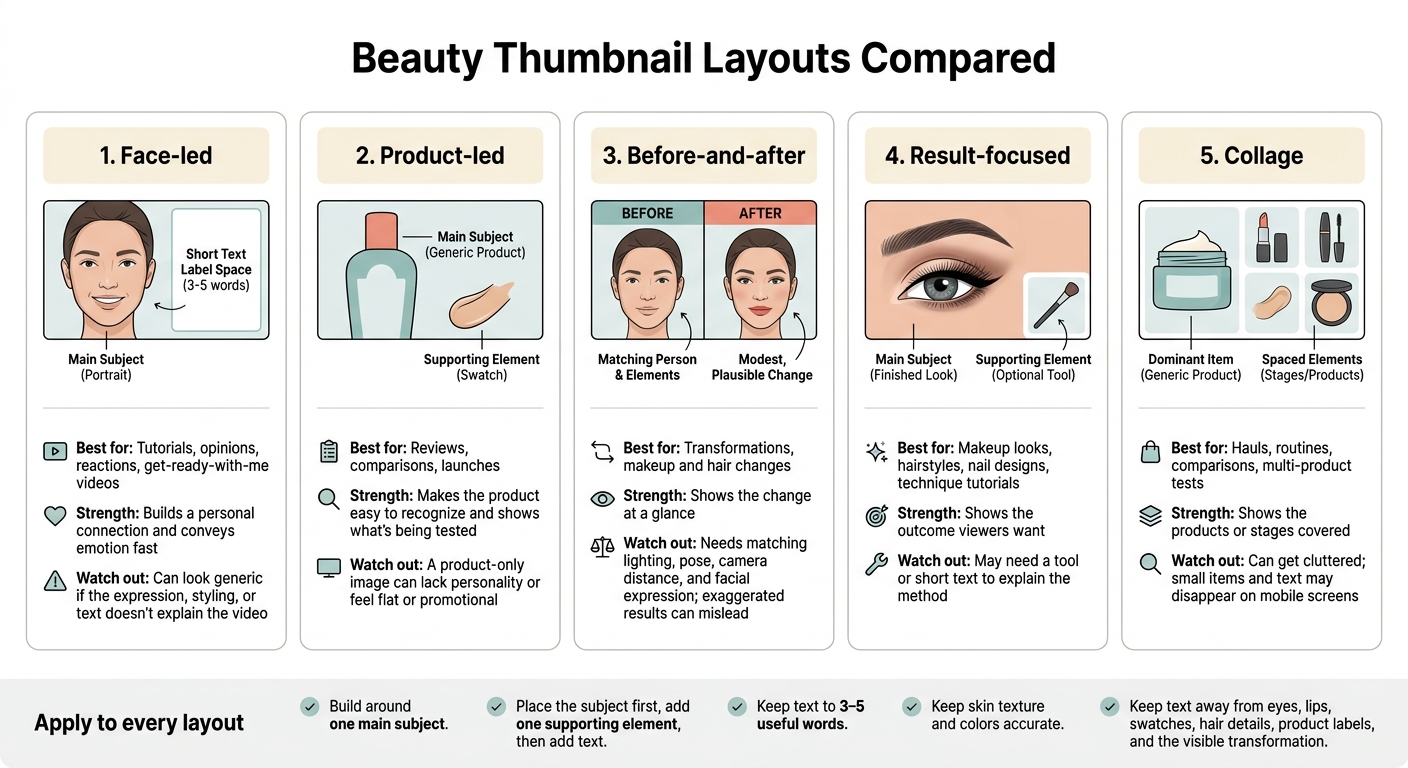
Beauty Thumbnail Layouts Compared
Once you’ve set the promise, choose a layout that gets it across fast. Build around one main subject: a face, product, finished look, or transformation. Make it stand out through size and contrast. Place that subject first, add one supporting element, then add text.
Match the layout to the video’s main payoff.
Compare Beauty Thumbnail Layouts
| Layout | Best video types | Strengths | Limits |
|---|---|---|---|
| Face-led | Tutorials, opinions, reactions, get-ready-with-me videos | Builds a personal connection and conveys emotion fast | Can look generic if the expression, styling, or text doesn’t explain the video |
| Product-led | Reviews, comparisons, launches | Makes the product easy to recognize and shows what’s being tested | A product-only image can lack personality or feel flat or promotional |
| Before-and-after | Transformations, makeup and hair changes | Shows the change at a glance | Needs matching lighting, pose, camera distance, and facial expression; exaggerated results can mislead |
| Result-focused | Makeup looks, hairstyles, nail designs, technique tutorials | Shows the outcome viewers want | May need a tool or short text to explain the method |
| Collage | Hauls, routines, comparisons, multi-product tests | Shows the products or stages covered | Can get cluttered; small items and text may disappear on mobile screens |
Crop close enough to show the key detail. Keep expressions natural and relevant to the video. Direct eye contact can help viewers connect with the person, while looking toward a product guides attention to it.
Leave empty space for text or a product. Use brand or CTR-optimized colors to make the subject stand out, or blur the background instead of adding heavy outlines.
Keep Colors Accurate and Text Readable
Start with consistent lighting and correct white balance before adding effects. Limit saturation boosts to accents, labels, or text blocks. Avoid edits that change skin texture, color, or facial proportions.
Keep text to 3–5 useful words. Add context rather than repeat the title. Choose a bold, simple font with a contrasting background, and leave space around the letters. Put words in the reserved area - not over eyes, lips, swatches, hair details, product labels, or the visible transformation.
Match the Layout to the Video Type
For tutorials, lead with the finished makeup or hair. Add one tool only if it helps explain the technique. For reviews, pair a recognizable product with a swatch or application close-up. Show skincare routines through products or routine order, without unsupported claims about results.
For transformations, match lighting, camera distance, pose, and expression. Keep hauls to one small product group with one dominant item. For get-ready-with-me videos, pair a portrait with one occasion cue.
Occasion cues include a mirror, invitation, or event outfit.
Build and Improve Your Thumbnail
Once you’ve chosen a layout, turn your visual promise into a working brief. Choose sharp source photos that clearly show the creator, product, or result. Then make 2–3 rough drafts and polish the fastest one. Compare them at thumbnail size, refining the crop, spacing, and edges rather than adding more effects.
Wait until your brief and source images are ready before using a drafting tool.
Create Drafts With ThumbnailCreator
Use your brief and approved source images in ThumbnailCreator to draft layouts, edit text, and swap faces or objects. Then refine the strongest draft.
Check faces, hands, hairlines, labels, shade names, packaging, and tools against the originals. Replace inaccurate generated details with real imagery. Reject any edit that suggests beauty results the video doesn’t demonstrate.
Use Consistent Branding and Fix Design Issues
Save one brand preset with your palette, typeface, and text treatment. Keep those cues recognizable, but vary the framing and placement for each video.
Before exporting, check cutout edges and shadows at full size. Use this cleanup pass to fix common issues:
| Issue | Practical fix |
|---|---|
| Clutter | Remove anything that doesn’t support the main promise. |
| Weak subject emphasis | Enlarge the subject and simplify the background. |
| Low contrast | Adjust the background or add a subtle outline or shadow. |
| Unreadable text | Shorten the wording and increase type weight. |
| Hidden products | Keep the product’s silhouette intact and place it near the subject. |
| Overedited skin or shadows | Restore realistic texture and consistent lighting. |
| Mismatched promise | Replace visuals that misrepresent the video’s result. |
Test Framing, Text, and Product Placement
Test one major variable at a time: framing first, text next, then product placement. Keep the title fixed during these tests. If your account supports it, you can also test up to three thumbnail-title pairs at once for up to two weeks. Judge the winner by watch time per impression.
Track CTR, impressions, watch time, and retention. More clicks followed by an early drop in retention can signal that the thumbnail promises too much. Running tests at the same time gives you a cleaner comparison than swapping thumbnails on different days, when the audience mix and distribution may change.
Conclusion: Beauty Thumbnail Publishing Checklist
Publish one clear promise, not the busiest design. Choose a layout that fits the video, keep results realistic, and make the subject easy to see on a phone.
Run Your Final Thumbnail Check
Before you upload, check these three things:
- Specifications and export. Confirm YouTube’s current upload requirements, then export a clean JPG or PNG with the correct aspect ratio.
- Phone preview. View the thumbnail on a phone to check the crop, overlays, and text readability.
- Accuracy and format. Make sure skin tone, shade, and results match the video. The layout should signal the right video type, with branding taking a back seat.
Publish the thumbnail that best matches the video. Save this review as a reusable checklist, then use viewer response to guide one focused change after publishing - not another layer of effects. This helps you avoid common thumbnail mistakes that can hurt your performance.
FAQs
How can I make beauty thumbnails stand out without exaggerating results?
Make the promise clear at a glance with one focal point: a close-up face or a clear before-and-after transformation. Keep the layout simple and limit text to 2–5 words.
Choose high-contrast colors that fit your niche. Use bold sans-serif text with an outline or shadow so it’s easy to read. Shrink the thumbnail to about 120 pixels wide to check readability on mobile. Make sure the thumbnail matches what viewers will actually see in the video.
Do beauty thumbnails need text to perform well?
Beauty thumbnails don’t always need text. Polished close-ups and clear visual results can drive clicks on their own. If you add text, use it as a short supporting hook. Aim for 3 to 5 words so it’s easy to read on mobile.
When the image clearly shows the payoff or transformation, leaving text out can keep the look clean and high-end. Test versions with and without text to see what works for your audience.
How much data do I need before choosing a thumbnail winner?
A meaningful test needs enough impressions, not a fixed amount of data. Run YouTube Studio A/B testing for at least 72 hours, or up to 7 days for lower-traffic videos. Wait until each variant has at least 1,000 impressions before evaluating the results.
Use watch-time share, not just clicks, to judge whether a thumbnail improves results.