

Ultimate Guide to Low-Cost AI Thumbnail Stacks
Start with one thumbnail tool, YouTube Studio, and a spreadsheet - not several paid subscriptions. Set a monthly budget and a time limit per thumbnail, then follow one process: brief, generate, edit, preview, export, and test.
This guide covers three spending levels: $0 during a 7-day trial, up to $25 per month, and up to $75 per month. The paid options use annual billing, which requires payment upfront. The trial is not a permanent free plan.
The goal isn’t just more drafts. It’s fewer wasted credits and a lower cost per usable thumbnail. That means:
- Reusing approved photos, fonts, and brand colors.
- Checking faces, text, and phone-size readability before export.
- Testing thumbnail changes under similar conditions.
- Tracking production time and spending separately from CTR and watch time.
AI does not guarantee more clicks. Use a 30-day review to judge costs, output quality, and audience results - and upgrade only when the data supports it.
Create Thumbnails From Brief to Export
| Stage | Tool or resource | Deliverable | Main failure risk |
|---|---|---|---|
| Brief and concepts | AI Chat Assistant; your video outline | Brief stating the promise, viewer, subject, background, emotion, and text | Showing unrelated drama instead of the video’s task or result |
| Generation | Prompt snippets, templates, and AI generation | Initial 16:9 draft | Spending credits on vague or conflicting instructions |
| Editing | Text overlay, face swapping, and Brand Kit | Branded layout with accurate subject likeness and clear text | Distorted likenesses or copyrighted assets used without permission |
| Review and export | YouTube Preview; official YouTube documentation | Final export-ready file (JPG/PNG) | Unreadable text or a file that fails upload requirements |
Finish each stage’s deliverable before moving on. Make each handoff clear, then address the lowest-cost stage responsible for the most rework. Each AI generation, edit, variation, or face swap costs 1 credit.
Write a Brief and Generate Concepts
Use the same brief to develop 2–3 concept angles before drafting. Keep every angle focused on the video’s core task or result. Start with different thumbnail styles and prompt snippets, then check your prompt before generating. This helps avoid spending credits on drafts you can’t use.
Edit the Layout, Faces, and Text
Reuse existing headshots and brand assets before paying for new base images or needed swaps. Uploads and Brand Kit management don’t use credits.
Stick to one subject and one message, with enough empty space for text. Keep fonts, colors, subject placement, and margins consistent. Check the subject’s likeness after every swap.
Pair tools by function, not subscription count. Use the built-in text tools and YouTube Preview to keep the work in one system.
Check Mobile Readability and Export Files
Check your thumbnail in YouTube Preview at phone size. Make sure the subject stands apart from the background, the text is readable, and the branding stays consistent. Before exporting, confirm YouTube’s current file-size and resolution limits.
When comparing budget tiers, look for the lowest-priced option that removes your main bottleneck.
sbb-itb-b59debf
Choose a Monthly Budget
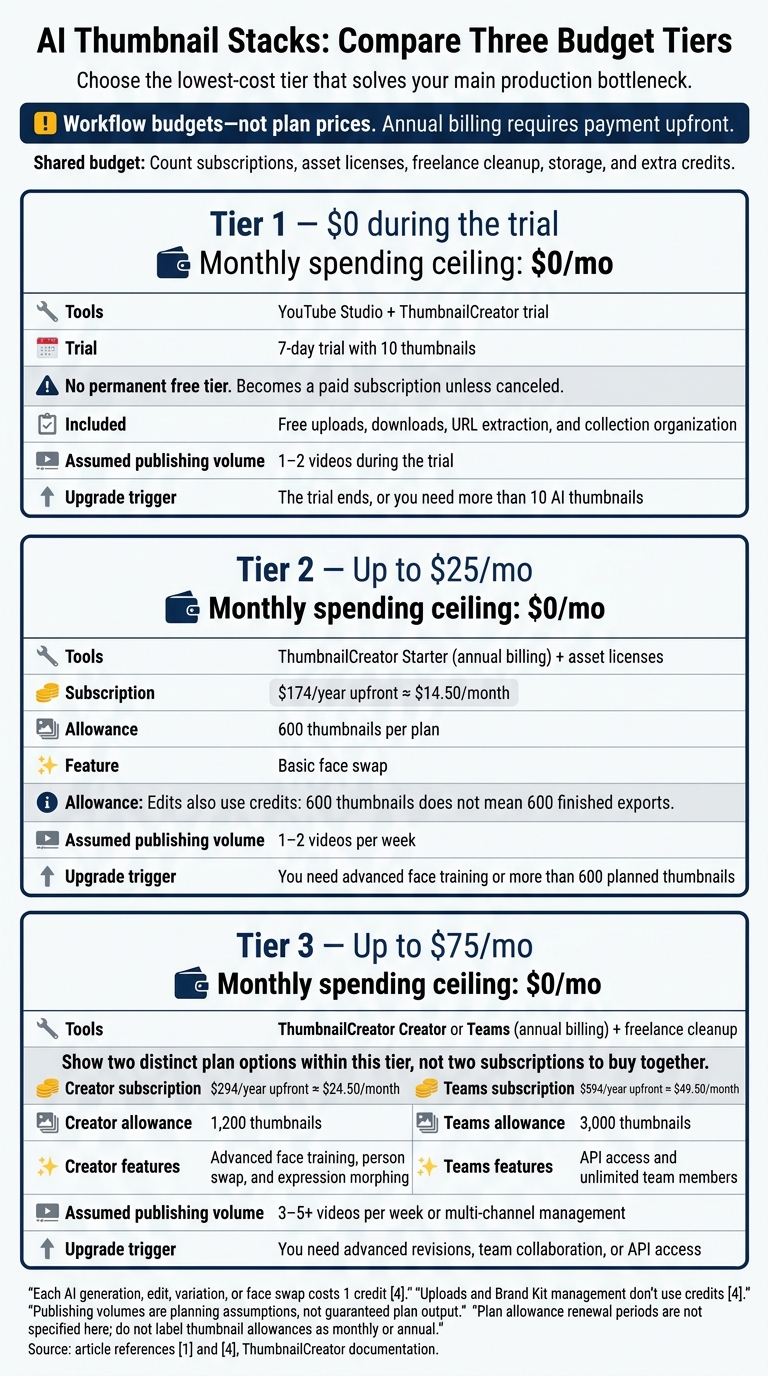
AI Thumbnail Stacks: Compare Three Budget Tiers
Choose the lowest-cost tier that solves your main production bottleneck. Count both subscriptions and variable costs, including asset licenses, freelance cleanup, storage, and extra credits. The ceilings below are workflow budgets - not plan prices. Annual billing costs less per month but requires payment upfront.
| Monthly spending ceiling | Tool pairing | Verified features | Assumed publishing volume | Upgrade trigger |
|---|---|---|---|---|
| $0/mo | YouTube Studio + ThumbnailCreator trial | 7-day trial with 10 thumbnails; becomes a paid subscription unless canceled; free uploads, downloads, URL extraction, and collection organization | 1–2 videos during the trial | The trial ends, or you need more than 10 AI thumbnails |
| Up to $25/mo | ThumbnailCreator Starter (annual billing) + asset licenses | $174/year (about $14.50/month), 600 thumbnails per plan, and basic face swap; edits also use credits, so 600 thumbnails does not mean 600 finished exports | 1–2 videos per week | You need advanced face training or more than 600 planned thumbnails |
| Up to $75/mo | ThumbnailCreator Creator or Teams (annual billing) + freelance cleanup | Creator: $294/year (about $24.50/month), 1,200 thumbnails, advanced face training, person swap, and expression morphing; Teams: $594/year (about $49.50/month), 3,000 thumbnails, API access, and unlimited team members | 3–5+ videos per week or multi-channel management | You need advanced revisions, team collaboration, or API access |
$0 per Month: Use Free Thumbnail Tools
Use the trial to test the process from brief to export before paying for a subscription. ThumbnailCreator has no permanent free tier.
Up to $25 per Month: Fix 1 Production Bottleneck
Choose this tier after the trial if keeping faces consistent is your main production hurdle.
Up to $75 per Month: Support Higher Volume or Teams
Move to this tier when production slows because you need advanced revisions, collaboration, or API access.
Learn From Creator Workflows and Measure Returns
The goal is to check whether the stack saves time, improves testing, or both.
Review Documented Creator Workflows
After choosing a budget tier, use documented workflows to decide what to validate first. Treat them as planning guides, not proof of performance. As of October 2026, no independent hands-on scores or user reviews were found.
| Source | Repeatable workflow | What it suggests | Evidence limits |
|---|---|---|---|
| ThumbnailCreator feature documentation | Extract video context from a YouTube link and generate concepts | Repeatable input for first drafts | Vendor docs only |
| ThumbnailCreator face documentation | Train a likeness from face photos and adjust expressions | Keeps likeness consistent | No independent results reported |
| ThumbnailCreator variation and preview documentation | Generate and preview variations | Helps narrow options | No performance gains established |
Test Thumbnails Under Comparable Conditions
Once you understand the workflow, test one visual change at a time. Keep the title fixed and change a single element, such as the expression or text treatment. Generating variations isn't an audience test. Test every variant in the same preview state before export.
Record the video age, test dates, and traffic sources so you can compare variants under similar conditions. Whenever possible, compare results within the same YouTube test setup. Keep thumbnail performance separate from overall video performance when reviewing the data. This helps in accurately assessing thumbnail CTR benchmarks for your specific niche.
Track Costs, Time Savings, and Video Results
Create one record for each video and one for each thumbnail variant. Assign results to a variant only when the platform reports them separately. Track time and cost apart from audience results, and measure whether the stack cuts cost per usable thumbnail, not just whether it produces more thumbnails.
Use the same record structure for every upload.
| Record level | Fields to capture | Recording rule |
|---|---|---|
| Video identity | Video ID, publish date, title version, test dates | Keep the title unchanged during a thumbnail-only test |
| Video performance | CTR, views, and other platform-reported results | Use the same reporting window and compare like with like |
| Thumbnail variant | Concept, exported filename, test dates, platform-reported variant results | Record only metrics reported for that variant |
| Production and costs | Baseline minutes, actual minutes spent, credits used, prorated subscription cost | Track time and spend separately from audience results |
Use these formulas:
- Hours saved = (baseline minutes − actual minutes spent) ÷ 60.
- Stack cost per published thumbnail = total allocated stack costs ÷ published thumbnails.
Calculate ROI only when the thumbnail change can reasonably explain the lift, and avoid counting any cost twice. Review multiple videos before upgrading. Until the data is stable, keep production savings separate from audience results.
Conclusion: Start Small and Upgrade Based on Results
Use ThumbnailCreator for production, brand assets for consistency, YouTube Studio to track results, and a spreadsheet to log spending and time. Test the workflow for 30 days to check speed, output quality, and cost before spending more.
Use a 30-Day Setup Checklist
Days 1–7: Set a firm monthly spending cap and record how long production takes now. Create one reusable brief that includes the video promise, approved assets, text, and design rules. If you use the 7-day trial, cancel before day 7. With the brief ready, start generating drafts and testing previews.
Days 8–21: Create 2–3 thumbnail options that match the video promise. Check the layout in YouTube Preview, use the preview feedback to make changes, then export and upload the final file. After export, compare your actual production time and spending with your starting time and budget cap.
By day 30: Compare your starting production time, actual time, spending, and Studio results in the spreadsheet. Cut unused expenses and pinpoint the remaining bottleneck and avoid common thumbnail mistakes that hurt performance. Upgrade only when volume, team needs, or time savings justify the cost. For those ready to scale, implementing advanced thumbnail optimization can further boost CTR.
FAQs
How many AI credits should I budget per finished thumbnail?
ThumbnailCreator uses a credit-based system: one credit equals one thumbnail. Budget for every version you plan to generate - not just the thumbnail you end up using. Solo creators might generate 3 to 5 options per video to review, while high-volume channels may generate 20 to 50 variations per batch.
How can I test thumbnails on a low-traffic channel?
Start testing AI-generated thumbnails on older, underperforming videos, not your latest uploads. Change just one element at a time - such as the background color, facial expression, or text length - so you can see what makes a difference.
Give each test time. Aim for 1,000–5,000 impressions per variation over 7–14 days for statistically reliable results, rather than relying on early numbers. Track both click-through rate and audience retention to check that your thumbnail matches what viewers get in the video.
When do time savings justify upgrading my plan?
Upgrade when the time savings justify the cost. If your upload volume makes manual work too time-consuming, batch generation or templated workflows can save hours each week.
For example, ThumbnailCreator can turn 30–90 minutes of manual design into about 5–15 minutes of review and setup. A higher tier can also make sense when you’re ready to use the extra output for more A/B testing.