

How to Avoid Copyright Issues in Thumbnails
A thumbnail is safe to use only if I can prove where every part came from, use it under the right license, and make sure it does not mislead viewers or break YouTube rules.
If I want fewer copyright problems, I need to check five things before upload: source, license, fair use risk, AI issues, and proof records. That means I review each image, font, logo, face, and screenshot one by one, remove anything unclear, and keep receipts, links, prompts, and file dates in case someone files a claim later.
Here’s the article in one quick list:
- I check every asset in the thumbnail, not just the final image
- I sort each item as original, licensed, public domain/CC0, AI-made, or third-party with no clear license
- I confirm the license covers commercial YouTube use
- I remove high-risk items like posters, album art, game art, and brand logos if I do not have permission
- I treat fair use as a legal argument after a dispute, not as automatic approval
- I review AI images by hand for logos, characters, faces, and brand elements
- I keep a rights log with receipts, URLs, dates, emails, prompts, and layered files
- I act fast if I get a takedown or strike, because 3 copyright strikes within 90 days can lead to channel termination
- I also check YouTube policy, because a thumbnail can be legal to use and still get removed for being misleading or graphic
A few facts matter here. Under YouTube’s strike system, 3 strikes in 90 days can end a channel. And in many thumbnail disputes, the issue is not Content ID at all. It often comes down to whether I can show clear proof that I made the image or had the right to use each part.
If I had to boil the whole article down to one rule, it would be this: if I cannot show ownership, permission, or a clear legal basis, I should not publish the thumbnail as-is.
Avoid Copyright Problems: How to Pick Images the Right Way
sbb-itb-b59debf
Checklist: Review Every Thumbnail Element Before You Upload
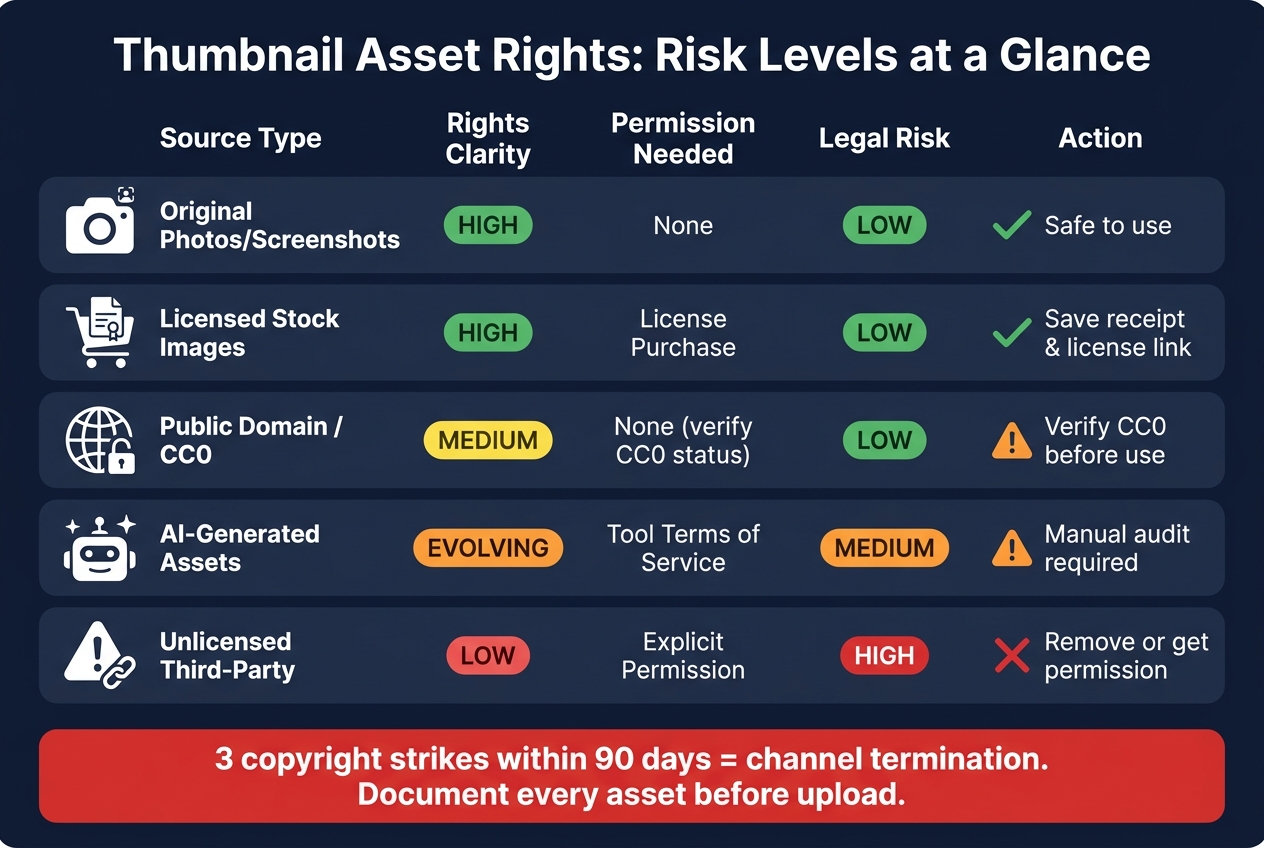
Thumbnail Asset Rights: Risk Levels at a Glance
Before you hit publish, treat your thumbnail like something that needs final approval. Every part of it - backgrounds, video screenshots, faces, third-party logos, text, icons, and fonts - should have a clear rights status. For more help with design elements, see our YouTube thumbnail guides. Start with the source. Then check the license.
Step 1: List Every Asset and Identify Its Source
Go through every visible layer before upload. Write down each thumbnail element and where it came from. A background image, a screenshot from your video, a face, a third-party logo, text, an icon, or a font may look like one design, but each is a separate asset with its own rights.
Use one of these five labels for each item:
- Original - you made it yourself, like a photo you took or a graphic you drew
- Licensed - bought or accessed through a paid subscription
- Public Domain / CC0 - free to use, but check the status first
- AI-Generated - review the tool's terms
- Unlicensed third-party - online images with no clear license, movie or game art, or third-party logos that may need fair use support or permission
Step 2: Check the License Scope and Save Proof
Licenses are not all the same. Check that each licensed image or font allows commercial use on YouTube.
Fonts deserve extra care. The exact font file used in the thumbnail needs to be cleared for commercial graphic design. A lot of “free” fonts are only free for personal use, and that’s where people get tripped up.
After you verify the rights, save proof. Keep receipts, source URLs, license pages, and permission emails in one place, like a spreadsheet or a cloud folder. If a question comes up later, you don’t want to dig through old tabs and inboxes.
| Source Type | Rights Clarity | Permission Needed | Legal Risk |
|---|---|---|---|
| Original Photos/Screenshots | High | None | Low |
| Licensed Stock | High | License Purchase | Low |
| Public Domain / CC0 | Medium | None (Verify CC0 status) | Low |
| AI-Generated Assets | Evolving | Tool Terms of Service | Medium |
| Unlicensed Third-Party | Low | Explicit Permission | High |
Step 3: Remove High-Risk Elements Before Publishing
If an asset falls into the unlicensed third-party bucket and you can’t confirm permission, take it out before uploading. The usual problem items are unlicensed movie posters, album art, game art, and third-party logos.
That last one carries the most risk. A third-party logo needs explicit permission or a fair use basis before it stays in the thumbnail.
If the rights for any asset are still unclear, remove it before upload. And if you still can’t pin down the status, remove it and move on to your fair use and AI checks.
Checklist: Use Fair Use, References, and AI Images Carefully
Two mistakes still trip people up: treating fair use like approval before you publish, and assuming AI images are safe by default.
If You Think Fair Use Applies, Check These Boxes First
Fair use is a defense, not permission. That means you can still get a takedown before any court ever weighs in.
Before you keep a third-party asset in your thumbnail, check the four factors courts look at:
- Purpose and character: Is the thumbnail transformative? Does it add commentary, criticism, or new meaning? Or is it mostly just a copy?
- Nature of the original work: Factual material is often easier to defend than highly artistic work.
- Amount used: Are you using only the part you need, or the most recognizable core of the image?
- Market effect: Could your use cut into the original creator’s ability to make money from the work?
A small, blurred, or heavily edited screenshot is easier to defend in a commentary video. A clean, high-resolution movie poster used as the main background of your thumbnail is a much riskier move. Reposting another creator’s thumbnail or artwork is rarely a strong fair use position.
High-Risk Thumbnail Practices to Avoid
Some habits seem minor, but they can still create problems:
- Using a full movie or game poster as a thumbnail background
- Copying another creator’s thumbnail image or closely mimicking its composition and artwork
- Removing watermarks or copyright notices from images
- Assuming viral social posts or Google Images results are free to use - viral does not mean free
How AI Tools Can Lower Risk Without Replacing Legal Review
AI-assisted workflows can cut down how often you rely on third-party images. ThumbnailCreator works best when you’re building original thumbnails from your own footage, text, and design inputs.
That said, AI-generated does not mean rights-cleared. AI outputs can still include logos, trademarked character designs, or other protected elements people can spot right away. Before you publish any AI-generated thumbnail, do a manual check. Look for anything that resembles a real brand mark, a well-known fictional character, or a design that closely matches a protected logo, character, or brand element.
Save your source links, licenses, and prompts now. The next checklist covers rights logs and claim response.
Checklist: Keep Records and Handle Claims Correctly
Log each thumbnail before you upload it so you can prove your rights fast if there’s ever a problem.
Before Upload: Keep a Thumbnail Rights Log
Use the source records from the last checklist to build a rights log for each thumbnail. A simple spreadsheet works well. For every thumbnail, log:
- asset source
- license type
- purchase date
- cost
- transaction ID
- license link or permission email
- every video URL where the thumbnail appears
- any faces, logos, trademarks, and required releases
Keep your layered design files, original source photos, and AI outputs in a folder sorted by year and month. For example: YouTube/Thumbnails/2026/08.
For AI thumbnails, save the prompt, export timestamp, and the terms in force at the time of export. Back everything up in at least two places: a local drive and a cloud service with version history. Original file timestamps can help show authorship.
If You Receive a Takedown Notice or Strike
If a claim shows up, open your rights log first.
A copyright strike comes from a DMCA removal request, and three strikes within 90 days can lead to termination. That’s not the same as a Content ID claim. A Content ID claim is usually automated and may affect monetization or visibility without giving you a strike. In most cases, thumbnail disputes are handled by hand, not through Content ID.
If you get a notice tied to a thumbnail, move in this order. Screenshot everything first: the notice, your dashboard, and any YouTube email. Then swap the thumbnail for a low-risk version, like plain text or clearly original artwork, while you review the issue.
Next, check your rights log and confirm what assets you used. Then make sure the license covers thumbnail use. Some stock licenses don’t allow thumbnails, or they limit commercial use. If fair use might apply, review the four factors with counsel before you file a counter-notice.
If You Need to Report a Stolen Thumbnail or Dispute a Removal
If another channel copied your original thumbnail, you can submit a copyright complaint through YouTube's process. YouTube lets rights holders report copied thumbnails.
Base your complaint on proof of authorship. The strongest proof usually includes your video’s publish timestamp, original design files with creation dates earlier than the copied use, and unedited source photos or AI outputs used to make the thumbnail.
If a removal was a mistake, you can file a DMCA counter-notification. But don’t treat that like a simple form. It’s a legal statement made under penalty of perjury, and it can trigger the rights holder’s ability to sue in U.S. federal court.
Documented rights: strong proof, lower dispute risk.
Undocumented rights: weak proof, higher dispute risk.
Platform Rules, Ethical Sourcing, and Final Checklist
After you sort out rights and licenses, there's one more filter: YouTube policy. A thumbnail might be fine from a copyright point of view and still get flagged by the platform. So don’t stop at “I have the right to use this.” Also ask: Would YouTube allow this image? If you are just starting out, our YouTube thumbnail guide covers the basics of creation.
Apply YouTube Policy and Ethical Image-Use Standards
A thumbnail can be copyright-safe and still fail YouTube review if it’s misleading or graphic. A licensed image can still be removed if YouTube treats it as misleading, sexual, or graphic.
YouTube allows accurate teaser thumbnails. But it does not allow thumbnails that promise something the video doesn’t deliver. That’s where people get into trouble. If the image hints at drama, a result, or a moment that never shows up in the video, YouTube may treat it as misleading under its content rules.
There’s also a basic line you shouldn’t cross: don’t remove watermarks or copyright notices. If they’re on the image, leave them alone.
And if your thumbnail shows recognizable people or private property, get written permission before using it, especially for sponsored or commercial thumbnails. That extra step can save you a mess later.
Final Pre-Publish Checklist
Use this last pass before upload:
- [ ] Ownership/License: Do I own this asset or have saved license proof?
- [ ] Accuracy: Does the thumbnail match the video?
- [ ] Safety: Is it free of explicit, graphic, or violent content?
- [ ] Permissions: Do I have consent for recognizable people or private property?
- [ ] AI Audit: Have I manually checked AI images for logos, trademarks, or likenesses? ThumbnailCreator can speed creation, but the final review is always on you.
- [ ] Documentation: Is license or source proof saved in my rights log?
- [ ] Integrity: Have I left all watermarks and copyright notices intact?
FAQs
Can I use screenshots in a thumbnail?
Yes. Using screenshots in YouTube thumbnails is allowed, especially when they come from your own videos. They can make your thumbnail feel more natural, help build trust, and show viewers what your content is about.
For educational or tutorial videos, annotated screenshots, charts, or diagrams can also help increase engagement. ThumbnailCreator can make it easier to turn video stills into polished thumbnails.
Are AI-generated thumbnails copyright-safe?
No. AI-generated thumbnails aren’t automatically copyright-safe.
Copyright still applies to the underlying visuals, and fair use depends on four factors, not file size or minor tweaks like cropping, adding text, or using filters.
The risk goes up when an AI image copies central, easy-to-recognize elements, such as celebrity photos, logos, posters, or product art. The safest move is to use original visuals you control or licensed assets that cover your use, along with permission for recognizable people or trademarks.
What proof should I keep for each thumbnail?
Keep a clear record for each thumbnail so you can show you have the legal right to use every asset. Save the asset title, the creator’s name or username, the source, and the exact license.
You should also keep proof of purchase or permission, such as an invoice, order ID, or download log with the date you checked the license. If you changed an asset, write down what you changed.