

Best Tools for Thumbnail Performance Tracking
I’d start with YouTube Studio for tracking and Test & Compare for thumbnail A/B testing of up to 3 variants. Compare matching 7-day or 28-day windows, and check watch time alongside CTR. More clicks don’t always mean more viewing.
Here’s how I’d choose among the six tools:
Quick Comparison
| Tool | What I’d use it for | Main limit |
|---|---|---|
| YouTube Studio | Review impressions, CTR, and viewing data | Log thumbnail changes yourself |
| YouTube APIs | Automate reports and build a historical archive | Requires coding and storage |
| YouTube Test & Compare | Test up to 3 variants using watch-time share | Channel and video eligibility rules apply |
| ThumbnailTest | Rotate thumbnails hourly or daily | Different time slots can skew results |
| TubeBuddy Thumbnail Analyzer | Check designs before publishing | Scores don’t measure viewer response |
| ThumbnailCreator | Make and label test candidates | Doesn’t track performance |
For high-volume creators, managing these tools requires thumbnail testing at scale to maintain consistency across large catalogs.
My rule: <u>keep test results separate from later performance</u>. Save each thumbnail file, change date, and report so you can connect the numbers to the right design. Before paying, check permissions, record retention, exports, plan limits, and current U.S. pricing.
Design feedback helps you choose what to test. Audience data helps you judge what worked.
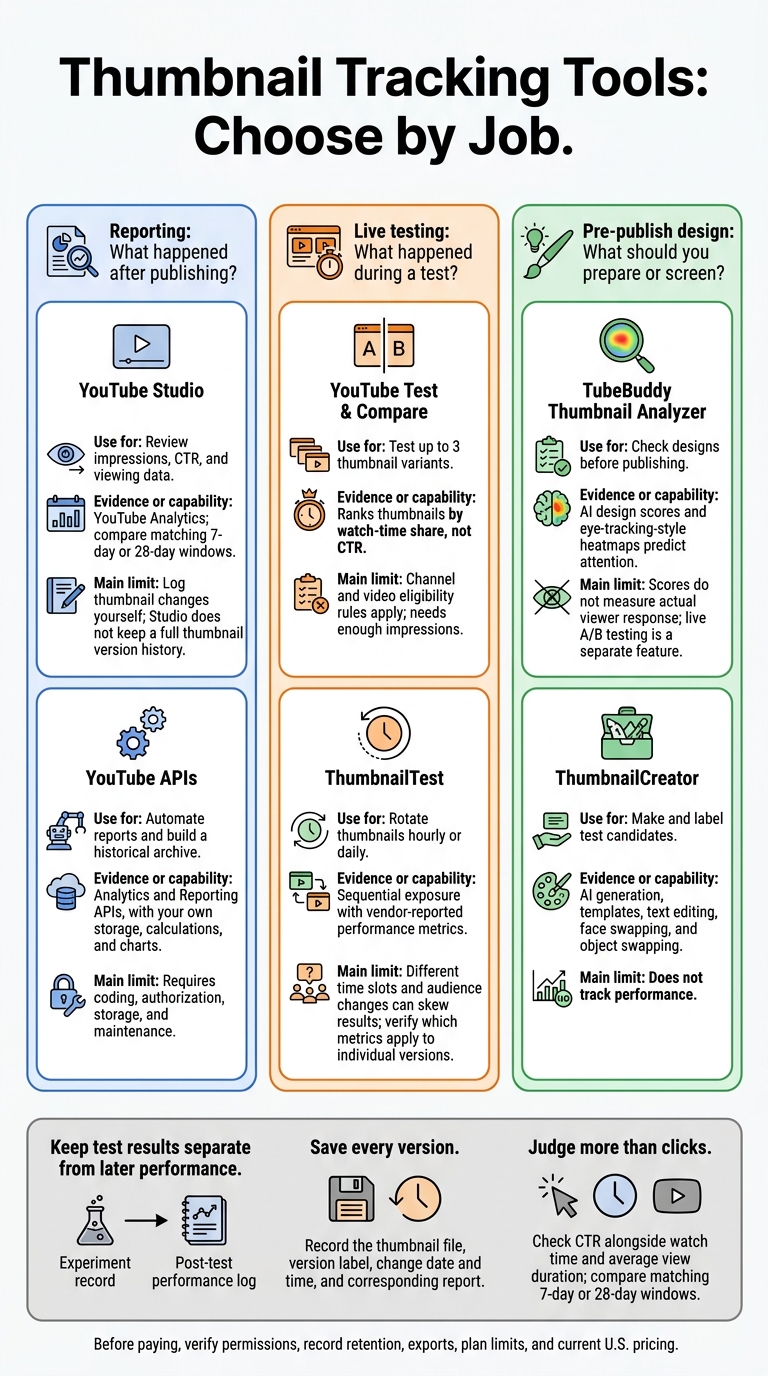
Thumbnail Tracking Tools: Choose by Job
How to Use the YouTube A/B Thumbnail Tool (Test & Compare)
sbb-itb-b59debf
YouTube Studio: Review Channel and Video Performance
Use YouTube Studio as your starting point for tracking thumbnails after publishing. Sign in with the correct channel permissions. Go to Analytics → Content for channel-level trends, or select a video and open Analytics → Reach for thumbnail data. Stick to the same 7-day or 28-day window, then save the data through Advanced Mode or See More → Export current view.
Studio does not keep a full thumbnail version history. Log each replacement’s filename, date, and time separately so reports don’t mix results from different designs. Treat before-and-after changes as correlation, not causation. Use your saved exports as the baseline for later thumbnail changes and reports.
Track Impressions, CTR, and Watch Time
A registered impression requires at least 50% of the thumbnail to be visible for over one second on an eligible YouTube surface. External websites, notifications, and end screens don’t count toward registered impressions. Impressions CTR measures how often those counted impressions led to views. Dividing total views by impressions won’t give you the same number.
Open “Impressions and how they led to watch time” to see views and watch time from registered impressions. Then check average view duration to see whether those clicks kept people watching. Audience retention and subscriber results add context, but neither directly ties results to the thumbnail.
For historical comparisons, match the video’s age - for example, its first 14 days - and use the same filters in every export. Save the reporting dates and note any title changes or promotions alongside the export. Changes in traffic sources can shift CTR even when the thumbnail stays the same. Keep these exports as your benchmark before using automation or live testing.
YouTube APIs: Automate Historical Reporting
When Studio exports no longer meet your needs, APIs let you automate thumbnail tracking. Use the YouTube Analytics API for targeted data pulls and the YouTube Reporting API for recurring exports. Add your own storage, calculations, and charts to track results over time.
To get started, create a Google Cloud project, enable the APIs, and authorize the channel owner with OAuth 2.0. Store the refresh token securely so scheduled jobs can access the data, and budget for quota and infrastructure costs.
Store Video Metrics and Log Thumbnail Changes
The documented Reporting API reach report, channel_reach_basic_a1, includes date, channel_id, video_id, video_thumbnail_impressions, and [video_thumbnail_impressions_ctr](https://www.thumbnailcreator.com/guides/thumbnail-ctr-benchmarks). Check the report type and field names before you build. Store thumbnail IDs and change timestamps in a separate table, then use both tables to compare results over time.
Create a reporting job, then schedule a daily task to list report files, download CSVs, validate dates, and load the data into storage. Record each source report ID and retrieval timestamp to avoid duplicate imports.
Match thumbnail changes to metrics by video and reporting period. Treat the change day separately: daily reports may contain activity from both before and after the swap. Use this archive as your baseline for advanced thumbnail optimization and comparing post-change performance.
Allow a 48-hour buffer for data updates. Display a “data through” date rather than showing zeros for missing days. Save CSVs promptly: standard reports remain available for 60 days, while historical reports remain available for 30 days. New jobs offer only the preceding 30 days of backfill - they can't replace an archive you didn't save.
YouTube Test & Compare: Test Thumbnail Variations
Use YouTube Test & Compare to test thumbnails live in Studio. On desktop, check that Advanced features are enabled under Feature eligibility and that the tool appears in your Studio account.
Before starting, make sure your video qualifies. Public long-form uploads, podcast episodes, and saved live-stream archives are eligible. Shorts, scheduled live streams, active Premieres, private videos, Made for Kids videos, and mature-audience videos aren't. A finished Premiere becomes eligible once it converts to a long-form video.
Open Details > Thumbnail > A/B testing vs gut feeling, select Thumbnail only, and upload up to three versions. Check Studio’s current format, size, and policy limits first. Reviewing common thumbnail mistakes can also help you avoid policy violations or low CTR before you upload. Keep the title fixed and change one major design element so the test stays focused. You can review results on the video’s Details page or under Analytics > Reach. Save your setup details before checking the outcome.
Save Watch-Time Share and Test Results
YouTube ranks thumbnails by watch-time share, not CTR. A version with fewer clicks can still win if viewers watch longer. Record the exact result - Winner, Performed Same, or Inconclusive - rather than treating a narrow margin as a win.
Save the variant files, labels, upload order, test dates, watch-time share, selected thumbnail, and a screenshot of the result panel. CTR applies to the video as a whole, so don't assign it to an individual variant. Upload order matters, too: YouTube may keep the first option when there's no clear winner.
Keep the experiment separate from post-test tracking. Save the result as a baseline for your performance logs, then review the selected thumbnail at 7, 28, and 90 days. Treat that baseline as a starting point, not a final judgment on the thumbnail.
ThumbnailTest: Assess Its Testing Workflow
ThumbnailTest rotates thumbnails in sequence: connect a channel, choose a video, and let it switch between versions while logging performance. Review the Google/YouTube permissions and steps for revoking access before connecting your channel.
The company says it reports CTR, views, and other metrics. Check which numbers apply to each version and which cover the whole video, including impressions and watch time. Before budgeting, confirm the current price, billing interval, channel and seat limits, and cap on thumbnail versions. The tool’s main value is test data you can log - not scoring thumbnails before publication.
Check Version Records and Test Methods
Once a test starts, check how the rotation schedule affects sample size. Rotation is sequential, not simultaneous: each version runs for a set interval before the next takes over. Switching happens hourly or daily at midnight Pacific Time. Hourly rotation can create noisy trends on low-traffic videos. Daily rotation gives each version more exposure but takes longer.
A traffic spike or a change in audience mix can favor whichever version happens to be active. Compare similar weekdays and check traffic-source changes before accepting the reported winner.
ThumbnailTest says it stores uploaded thumbnails, but stored thumbnails aren’t a full test history. Long-term tracking depends on whether test records remain available. Check for version labels, rotation logs, test dates, saved results, archive access, and CSV/API exports. Also confirm whether pausing or restoring a test keeps its history intact. Use those exports to compare tools on record retention, access, and reporting depth.
TubeBuddy Thumbnail Analyzer: Review Designs Before Publishing
TubeBuddy’s Thumbnail Analyzer scores designs before you publish. It uses AI analysis and eye-tracking-style heatmaps to predict attention - not measure actual impressions, CTR, or watch time. Use it to screen designs, separate from TubeBuddy’s live A/B testing. Save your scores, then compare them with performance after publishing.
Limits vary by plan, so check the current pricing page before subscribing. Current listings show up to 5 thumbnails on Free, 10 per video on Pro, and 20 per video on Legend. Also confirm when allowances reset and whether you need to connect your channel and grant permissions.
Upload your designs and save the exact files alongside their scores, evaluation dates, and design notes, or compare them against broader thumbnail design insights. There’s no documented export or automated history workflow, so take screenshots and track scores in a spreadsheet. These records give you a pre-publish baseline for later performance reviews.
Compare Design Scores With Published Results
After publishing, compare analyzer scores with YouTube Studio metrics over the same review window you use for other thumbnail logs. Record the video URL, title, thumbnail filename, publish date, and review date. At the same checkpoint, log impressions, CTR, watch time, average view duration, and retention. Use Advanced Mode for supported exports, and keep analyzer feedback in separate columns from performance data.
A higher score doesn’t guarantee better results. Before drawing conclusions, record traffic source, audience mix, title changes, seasonality, and promotion alongside each score and its published results.
ThumbnailCreator: Prepare Designs for Testing
Use ThumbnailCreator to create and edit thumbnail candidates - not to measure performance. Label each version so you can track its results later. The tool offers AI generation, templates, text editing, face swapping, and object swapping.
Paste a YouTube video URL to generate concepts based on its title, description, and transcript. Before exporting, check that each design is accurate and fits your brand.
Test one variable at a time: text, face, or focal object. Keep the rest of the layout fixed. Watch for unnatural facial features and misleading objects, and check that the thumbnail is readable on mobile. Save each version’s label before testing so you can match results to the right design.
Label Designs and Check Plan Limits
Include the video ID, version number, creation date in YYYY-MM-DD format, and a short change label in each filename. Save the prompt, template, and editing notes alongside it. Use the filename as the key in your test log. Product docs don’t show built-in version history or analytics. Keeping these records also helps you plan around usage limits before creating a test set.
A $0 Free Plan is listed, but check whether its allowances cover the number of versions you want to test. Review generation credits, exports, watermarks, editing access, and reset dates. If the free plan falls short, confirm the paid-tier price and limits before building your test set.
Compare Tracking Tools and Plan Reviews
Choose a tool based on the job: reporting, live testing, or pre-publish design review. Before paying, check its record retention, exports, test methods, and plan limits. Unverified means the supplied sources don’t confirm that feature.
| Tool | Primary use | Data source | Record retention | Testing method | Automation | Exports | Prerequisites | Main limitation |
|---|---|---|---|---|---|---|---|---|
| YouTube Studio | Manual reporting | YouTube Analytics | Selected reports and date ranges; retention varies by report | Native tests where eligible; otherwise, before-and-after review | Limited | Varies by report | Channel access | Requires manual version logging |
| YouTube APIs | Historical reporting | Analytics and Reporting APIs | Supported reports and your own archive | Custom logging only; access to native test results is unverified | Scheduled collection | Structured reports; custom CSV or database output | API project, authorization, and development resources | Metric availability and maintenance |
| YouTube Test & Compare | Native experiments | YouTube experiment data | Test results and Analytics records | Up to three variants; watch-time share | Runs after setup | Results remain in Studio; standalone export is unverified | Eligible channel/video | Needs enough impressions; no long-term version log |
| ThumbnailTest | Sequential testing | Connected YouTube account and vendor records | Check retention, version records, automation, and exports for each plan | Hourly or daily rotation | Plan-dependent | Plan-dependent | Connected account and eligible plan | Sequential exposure can confound results |
| TubeBuddy Thumbnail Analyzer | Pre-publish review | Uploaded thumbnails and analyzer scores | Published-performance records, automation, and exports are unverified | Design feedback; live A/B testing is separate (see our YouTube Thumbnail Guides for design best practices) | - | - | Account and eligible plan | Scores and heatmaps don’t establish audience preference |
Choose Metrics for Thumbnail Reviews
Use the same metrics across tools so your thumbnail comparisons and logs stay consistent over time.
| Metric | Meaning | Diagnostic use |
|---|---|---|
| Impressions | Registered thumbnail displays | Exposure |
| Impressions CTR | Percentage of registered impressions that result in a view | Click response |
| Views from impressions | Views generated from registered impressions | Traffic volume |
| Watch time from impressions | Watch time generated from registered impressions | Viewing after clicks |
| Average view duration | Average time viewers watched | Possible mismatch between packaging and content |
Impressions CTR counts registered impressions only. Don’t calculate it by dividing total views by total impressions.
Compare Results at Consistent Intervals
For each review, record the topic, publish date, thumbnail version, title changes, traffic sources, and audience context. Check results at 48 hours, 7 days, and 28 days.
Compare matching time windows, note seasonal demand and promotions, and allow more observation time when impressions are low.
Separate Test Results From Post-Test Performance
Keep experiment records separate from later performance logs. Each answers a different question: what happened during the test, and what happened after the selected thumbnail went live.
| Evidence type | Experiment-stage record | Post-test record | Interpretation limit |
|---|---|---|---|
| Variants | Exact files and version labels | Final active file | Later changes in performance can’t isolate each design’s effect |
| Test dates | Start, end, pauses, and edits | Date the selected design became active | Changes outside the test window can confound comparisons |
| Selected thumbnails | Control, variants, and selected result | Thumbnail retained afterward | The selected result reflects the tested audience and conditions |
| Observation windows | Test duration and available exposure metrics | Separate 7-day and 28-day windows | Unequal windows aren’t interchangeable |
| Reported outcomes | Result, watch-time share, and confidence/status if provided | Subsequent views and watch time | Later performance doesn’t prove causal lift |
| Later audience metrics | Keep separate from the experiment decision | Traffic sources, average view duration, and returning viewers | Audience and recommendation changes may explain performance changes |
Conclusion: Keep a Thumbnail Performance Log
Stick to a repeatable workflow. After comparing thumbnail tools, choose one workflow for reporting, testing, and design prep. Use third-party testing tools as supporting evidence. Treat predictive design feedback as guidance - not proof that a thumbnail will perform.
Track every version. Save labeled exports and source files for each video and test period. This lets you connect results to the design choices behind them.
Judge thumbnails by watch quality, not clicks alone. Gather a meaningful sample, then weigh CTR alongside watch time, average view duration, and audience context. Before choosing a default design, compare test-period results with later performance across multiple uploads. Look for long-term patterns rather than one-off wins.
FAQs
How many impressions do I need for reliable thumbnail results?
Aim for at least 1,000 impressions per thumbnail variation as a starting point. Reaching 1,500–5,000 impressions per variation can improve statistical confidence and reduce false positives. Some approaches recommend waiting for up to 10,000 impressions per variation to get more reliable data.
Whatever your impression count, let tests run for 7–14 days. This helps smooth out traffic fluctuations and gives you more dependable results.
What should I do if CTR rises but watch time drops?
If your click-through rate (CTR) goes up but watch time falls, your thumbnail may be drawing the wrong viewers - or promising something the video doesn’t deliver. That mismatch can signal clickbait and hurt long-term growth.
Your thumbnail and title should match the video. Test versions that reflect the content more closely instead of chasing a high CTR. When comparing results, give watch time share more weight than raw CTR.
When should I retest a winning thumbnail?
Retest a winning thumbnail when the data points to room for improvement or you want to test a new design idea. A low click-through rate paired with strong average view duration suggests viewers like the content once they click, but the thumbnail isn’t drawing them in. Retesting thumbnails on older, underperforming videos may also spark new interest.
Change one element at a time, such as a facial expression or the text, so you can clearly compare performance.