

Best Practices for Mobile Thumbnail Color Contrast
Your YouTube thumbnail can make or break your video's success. With over 70% of views on mobile devices, creating thumbnails that stand out on small screens is critical. Here's what you need to know:
- High contrast is a must. Thumbnails with bold colors and clear visuals can boost click-through rates (CTR) by 40–60%. Even a 1% CTR increase can significantly grow your views.
- Follow WCAG contrast standards. Use a contrast ratio of at least 4.5:1 for text readability. Tools like WebAIM Contrast Checker can help.
- Complementary colors work best. Pairings like yellow and black or red and white grab attention and improve visibility.
- Keep text readable. Use bold, sans-serif fonts like Arial Black or Impact, limit text to six words, and add overlays or shadows to enhance clarity.
- Test your thumbnails. A/B testing on mobile ensures your design works across different screen sizes and contexts.
The BEST Color Combinations YOU Should USE In Your THUMBNAILS#youtubethumbnail #thumbnail #photoshop
sbb-itb-b59debf
Basic Principles of Mobile Thumbnail Color Contrast
Creating effective mobile thumbnails hinges on three key principles that prioritize accessibility and performance, ensuring clarity even on smaller screens.
WCAG Contrast Ratios Explained
The Web Content Accessibility Guidelines (WCAG) set minimum contrast standards to improve readability. For thumbnail text, a contrast ratio of at least 4.5:1 against the background is required. Larger text (18pt or bigger, or 14pt in bold) can meet a lower threshold of 3:1. This is crucial because about 1 in 12 men and 1 in 200 women experience color blindness, making high-contrast designs essential for inclusivity. Harvard University’s Digital Accessibility Services highlights:
When text contrasts poorly with its background, it makes reading more difficult, especially for people with low vision.
To ensure your designs meet these standards, tools like the Colour Contrast Analyser (CCA) or WebAIM Contrast Checker can help. Simply input your HEX or RGB values to confirm compliance with required ratios.
In addition to meeting contrast guidelines, using complementary colors can further enhance visual clarity and appeal.
Complementary Colors
Complementary colors - those opposite each other on the color wheel - create strong visual contrast. For example, combinations like yellow and violet are highly effective. Yellow stands out particularly well in thumbnails because it activates more receptors in the human eye. Beyond aesthetics, color choices can impact performance metrics: strategic color use can increase brand recognition by 80% and click-through rates by 154%.
Colors also convey emotions. Warm tones like reds and yellows evoke urgency and energy, while cool tones such as blues and purples suggest calmness and stability. Select combinations that not only support your video’s message but also adhere to accessibility standards for maximum clarity.
Separating Foreground from Background
Effective text readability also depends on clear separation between the foreground and background. Techniques like the "floor fade" - a dark gradient overlay - can make white text pop without overpowering the background image. Other options include semi-transparent overlays, radial gradients, blurred backgrounds, and text shadows.
Keep your text concise - six words or fewer - and make sure it occupies no more than 20% of the thumbnail space. Be mindful to avoid placing text in areas like YouTube’s timestamp zone. As Aurora Harley from the Nielsen Norman Group explains:
There is no need to choose between creating a usable design and an aesthetically pleasing design - both can be achieved simultaneously if attention is put toward both goals.
High-Contrast Color Combinations for Mobile Thumbnails
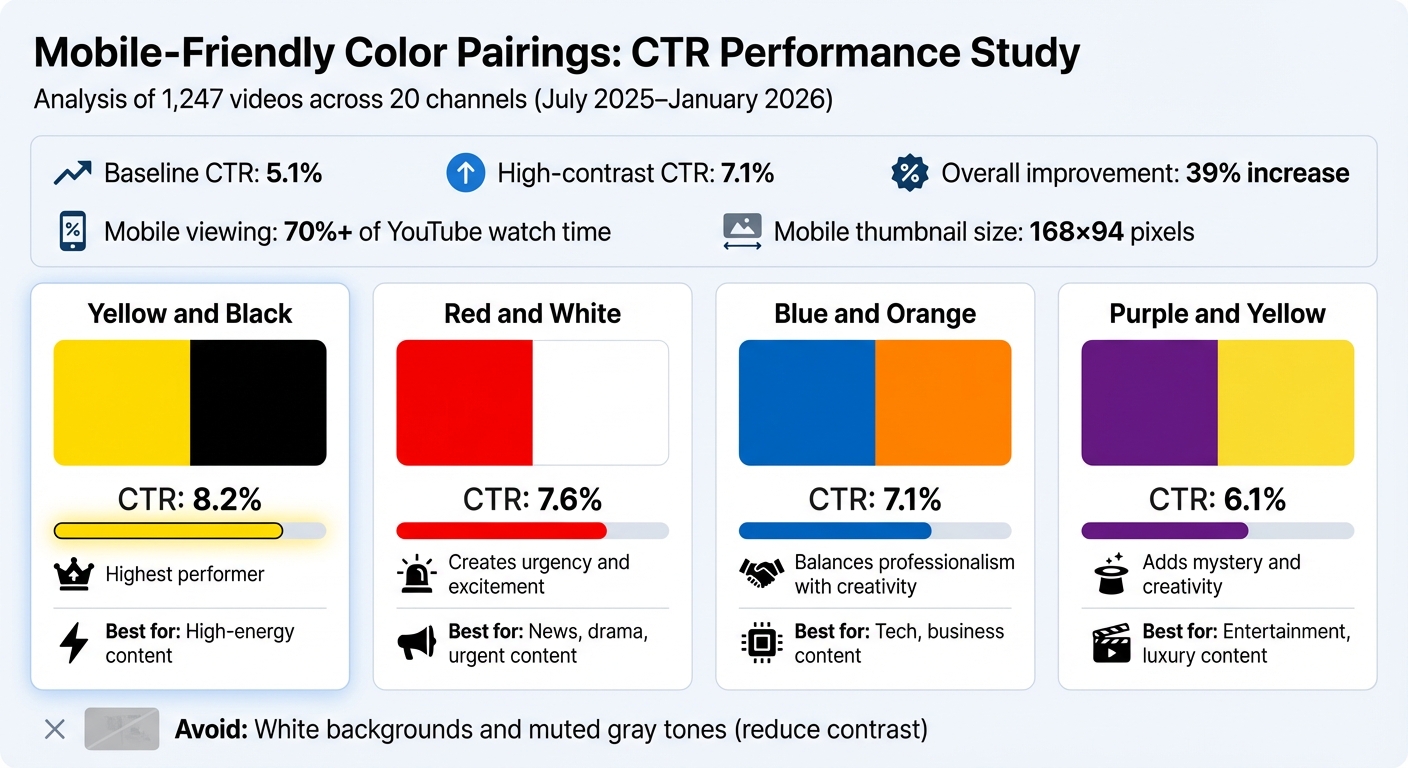
High-Contrast Color Combinations Performance for Mobile YouTube Thumbnails
When it comes to mobile thumbnails, contrast and clarity are key. The right color choices can make a big difference in performance. A study by NoteLM (July 2025–January 2026) analyzed 1,247 videos across 20 channels and found that using high-contrast color combinations increased mobile click-through rates (CTR) from 5.1% to 7.1% - a boost of 39%.
With over 70% of YouTube watch time happening on mobile devices, thumbnails need to stand out even at a small size, like 168×94 pixels. White backgrounds and muted gray tones tend to reduce contrast and should be avoided. Below are four color combinations that are proven to work well for mobile-friendly designs.
4 Mobile-Friendly Color Pairings
- Yellow and Black: This duo achieved an impressive 8.2% average CTR. Yellow's brightness grabs attention, while black provides sharp contrast. It's a great choice for high-energy content.
- Red and White: With a 7.6% CTR, this pairing creates a bold and dynamic look that evokes urgency and excitement. It's ideal for news, drama, or content that calls for immediate action.
- Blue and Orange: This combination reached a 7.1% CTR, blending professionalism with creativity. Blue conveys trust and calm, while orange adds a burst of energy, making it perfect for tech or business-related content.
- Purple and Yellow: Delivering a 6.1% CTR, this pairing works well for entertainment or luxury-focused content. Purple adds a sense of mystery and creativity, while yellow ensures the thumbnail pops in crowded feeds.
Making Text Readable on Mobile Thumbnails
When it comes to mobile thumbnails, text readability is critical. With over 70% of YouTube views happening on phones, your thumbnail text needs to stand out - even at a tiny size of 128×72 pixels. Learning how to add text to thumbnails with the right fonts and visual tweaks can make sure your message is clear and easy to catch as users scroll through their feeds.
Font and Style Selection
To pair with high-contrast colors, bold fonts are your best friend for mobile readability. Stick to sans-serif options like Arial Black, Impact, or Roboto Bold, which are easier to read on smaller screens. These fonts avoid thin strokes and unnecessary details that tend to blur when scaled down.
Font size is just as important as the font itself. Aim for your text to cover 20–40% of the thumbnail height, translating to about 24–48 pixels tall in a 128×72 pixel thumbnail. Smaller text can lose up to 60% of its clarity on high-resolution displays. To ensure maximum visibility, use extra-bold or black weights (800–900 in design terms) and format your text in all caps. Skip italics and overly decorative styles - they can reduce readability by as much as 30–50% on small screens.
Overlays and Shadows for Text
Even the best fonts can get lost against a busy background. This is where overlays and color blocks come in. Use semi-transparent overlays (20–50% opacity in black or white) or solid color blocks (fully opaque and about 1.5–2 times the height of your text) to make your text pop. For instance, a 30% black overlay on a bright image helps the text stand out while maintaining the visual appeal of the background. Similarly, a bold yellow block on a dark image can increase mobile click-through rates by 15–25%.
Adding drop shadows can also make your text more noticeable. A shadow with a 2–4 pixel offset, 50–70% opacity, and a blur radius suited to the text size can improve legibility by up to 40%, especially on high-resolution screens like the iPhone 14. Shadows create depth and help your text stand apart from intricate or colorful backgrounds.
Testing and Accessibility for Mobile Thumbnails
Creating a high-contrast thumbnail is just the beginning - you need to test it to ensure it works well for everyone. Testing confirms that your mobile thumbnail performs effectively in real-world scenarios, accommodating different user needs and mobile viewing conditions.
A/B Testing for Mobile
Want to know which color scheme gets more clicks? Choosing A/B testing vs gut feeling is your answer. This method involves comparing two thumbnail versions with different color combinations to see which one resonates better with viewers. Run each version for 48–72 hours and then review the click-through rate in YouTube Analytics. Even small tweaks to your colors can make a big difference in performance.
When conducting tests, be sure to preview your thumbnails in various mobile contexts. Thumbnails appear differently in the YouTube home feed, search results, and suggested video sidebars, as these platforms display them at varying sizes. Tools like mobile simulators or the YouTube Preview Tool can help you see exactly how your thumbnail will look on a phone screen before you publish. As ThumbnailCreator emphasizes:
Mobile is where most YouTube consumption happens. Confirm your thumbnail works at phone size.
In addition to performance testing, ensure your design aligns with accessibility standards.
Accessibility Testing Tools
High contrast is non-negotiable for accessibility. Your thumbnails should follow the WCAG guidelines outlined earlier. This also applies to icons, which must meet the same standards.
There are several free tools to help you check if your thumbnails meet these requirements:
- Colour Contrast Analyser: This tool (available for Windows and Mac) has an eyedropper feature to pick colors directly from mobile simulators or screenshots, making it great for thumbnail testing.
- WebAIM Contrast Checker: A quick, browser-based option for checking contrast ratios.
- Tanaguru Contrast Finder: If your colors fail the test, this tool suggests alternative combinations that are WCAG-compliant.
To ensure your design is accessible to users with color blindness, use simulators built into tools like Figma. These simulators can replicate conditions such as Protanopia, Deuteranopia, Tritanopia, and Achromatopsia. According to Level Access:
People with color blindness may not distinguish certain hues, but they can still perceive brightness differences... contrast matters more than specific color choices for accessibility.
Lastly, don’t forget to test your thumbnails in both Light and Dark modes. These system settings can alter how colors appear on mobile screens.
How ThumbnailCreator Simplifies High-Contrast Design
Designing high-contrast thumbnails that perform well on mobile doesn’t have to be complicated or require a design degree. ThumbnailCreator, an AI-powered tool, helps YouTube creators craft professional, eye-catching thumbnails with ease. By analyzing mobile-specific constraints, it ensures thumbnails remain visually clear and engaging. This tool builds on established best practices, streamlining the process for creators.
Currently used by over 15,000 YouTube creators, ThumbnailCreator eliminates the guesswork involved in optimizing color contrast. It automates technical adjustments while still allowing for creative input, tackling the challenges of high-contrast design effortlessly.
AI-Powered Contrast Settings
ThumbnailCreator’s AI evaluates your color palettes using WCAG guidelines tailored for mobile screens. It adjusts foreground and background color ratios automatically and suggests complementary color combinations, like black text on yellow backgrounds, to improve readability on smaller displays.
If your upload has low-contrast issues, the AI steps in with overlays to fix them. Creators have reported up to a 30% increase in click-through rates (CTR) on mobile when using these features. For instance, thumbnails enhanced with AI-generated yellow-on-black text showed excellent legibility even when scaled down to a 1-inch preview.
The tool also provides instant device previews (e.g., iPhone 14, Galaxy S23) and offers one-click A/B export for quick mobile testing. By automating settings aligned with WCAG standards, ThumbnailCreator ensures your thumbnails remain effective and accessible across devices.
Templates and Editing Features
ThumbnailCreator doesn’t stop at automation - it also simplifies the design process with a variety of optimized thumbnail styles and editing tools.
The platform includes mobile-friendly templates like "Vibrant Reaction" (red accents on dark backgrounds) and "Bold Gaming" (white text with neon shadows). These templates are pre-configured for contrast ratios of 4.5:1 or higher, ensuring elements stand out clearly in iOS and Android feeds.
Templates also help maintain brand consistency. For example, a tech channel using face-swap templates doubled its engagement rate while cutting production time from two hours to just 10 minutes per thumbnail.
The AI Layer Splitting feature makes editing even more flexible by dividing thumbnails into separate layers for foreground, background, text, and objects. This allows users to fine-tune the contrast of each element individually. The Background Replacement tool further enhances clarity by swapping cluttered or low-contrast backgrounds for cleaner, more focused scenes.
Text editing tools include features like real-time contrast previews, automatic shadow application, and mobile-friendly font scaling. For example, sans-serif fonts at a minimum size of 72pt are recommended to maintain WCAG compliance while keeping key text visible and uncropped.
Conclusion
High-contrast mobile thumbnails aren’t just a design choice - they’re essential for performance. With over 70% of YouTube watch time happening on mobile devices, your thumbnails need to grab attention and remain effective on smaller screens. The basics are simple: stick to WCAG contrast ratios of at least 4.5:1, use complementary colors to create clear visual distinctions, and ensure text is easy to read.
The benefits of nailing this are undeniable. A study of 1.3 million thumbnails revealed that strong color contrast can increase click-through rates (CTR) by up to 154% and boost engagement by 20–30%. For example, case studies show a 27% CTR improvement by using bold yellow text on dark backgrounds. These results highlight the importance of tools that simplify the process of creating mobile-friendly thumbnails.
ThumbnailCreator takes the guesswork out of the equation. It automatically adjusts contrast ratios, suggests effective color combinations, and offers mobile-optimized templates for quick, polished thumbnail designs. For more inspiration, explore our YouTube thumbnail guides. But automation alone isn’t enough - testing is key.
A/B testing on mobile devices provides actionable insights into which contrast and design choices perform best. This ensures your thumbnails not only engage viewers but also meet accessibility standards.
FAQs
How do I check my thumbnail’s contrast ratio fast?
To ensure your thumbnail text is easy to read and meets accessibility standards, tools like Adobe Color or WCAG Contrast Checkers can help. Just input your color combinations, and these tools will quickly calculate the contrast ratio. This ensures your text is clear and visually effective, especially on smaller mobile screens.
What if my brand colors don’t meet WCAG contrast?
If your brand colors fall short of WCAG contrast standards, tweak them to enhance visibility. Combine bright colors with dark backgrounds, or use tools like WCAG contrast checkers to ensure your design is accessible and easy to read on all devices. This can make your thumbnails stand out, particularly on smaller mobile screens.
How do I test thumbnails on mobile before publishing?
When testing thumbnails for mobile, make sure they remain clear and visually engaging even at smaller sizes. With over 70% of YouTube views coming from mobile devices, it's crucial to preview your thumbnail at a size of around 168×94 pixels. This helps confirm that text is easy to read and the overall design stays sharp. Tools like Adobe Color and WCAG Contrast Checkers are handy for ensuring high contrast, which makes your thumbnail pop and keeps it easy to understand on smaller screens.