

How to Resize Images for YouTube Thumbnails
I start with a sharp original, crop or fit it into a 16:9 frame, then resize it to 1,280 × 720 pixels. The rule: <u>never stretch the image</u> to make it fit.
For standard YouTube thumbnails - not Shorts - my checklist is simple:
- Keep the subject intact. Crop unused space, or add a background if you need every edge. You can also use YouTube thumbnail templates to speed up the process.
- Make text readable. Use 3–5 bold words and keep the lower-right corner clear for the video timestamp.
- Export as JPG or PNG under 2 MB. Adjust compression without making faces or text blurry.
- Check the saved file at 10%–25% size. If the subject or message is hard to see, fix it before uploading.
I’ll walk you through checking your source image, framing it, resizing it without distortion, and fixing export problems.
Check YouTube Requirements and Image Quality
Verify Dimensions, Formats, and Upload Limits
Aim for 1280 × 720 pixels. YouTube requires a 16:9 aspect ratio and a minimum width of 640 pixels. Supported formats include JPG, PNG, GIF, BMP, and WebP, with a thumbnail file size limit of 2 MB.
Check Your Original Image
Open the file properties to check the width and height in pixels. Divide the width by the height: a result near 1.78 means your image is already 16:9. When cropping, keep enough pixels for the image to look sharp at 1280 × 720.
Start with the original photo or a full-resolution frame, not a screenshot. Preview it at 25%–30%. If text or faces look unclear, the source image isn't sharp enough. Check for soft or jagged edges, compression artifacts, and halos - a high pixel count doesn't guarantee a sharp image.
If cropping leaves you with too few pixels, switch to a higher-resolution source. Upscaling can't restore lost detail.
sbb-itb-b59debf
Youtube: How to Resize Thumbnail Image!
Crop and Resize Without Stretching
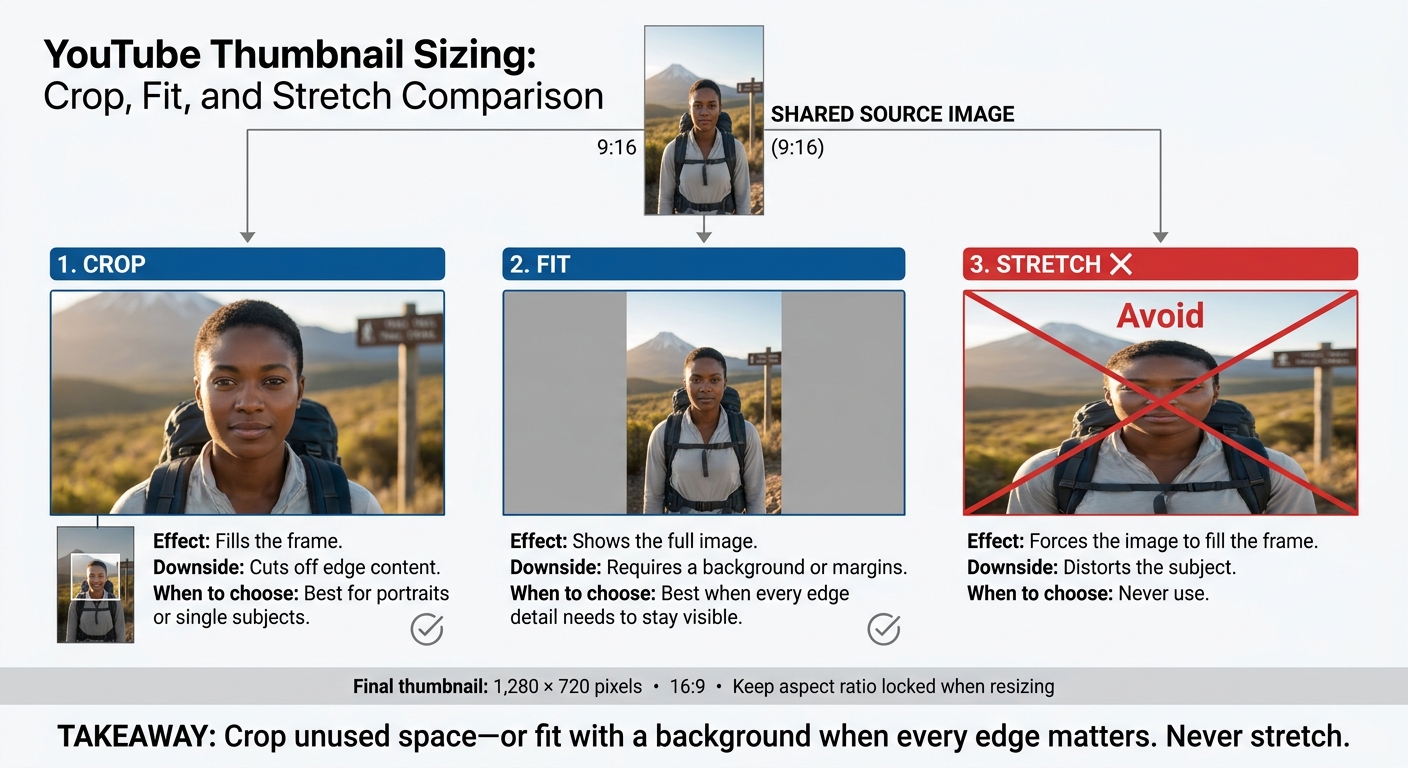
YouTube Thumbnails: Crop vs. Fit vs. Stretch
Choose Whether to Crop or Fit
Once you’ve checked image quality, fit the subject into a 16:9 frame. Pick the method that keeps the subject intact while matching YouTube’s frame.
| Method | Effect | Downside | When to choose |
|---|---|---|---|
| Crop | Fills the frame. | Cuts off edge content. | Best for portraits or single subjects. |
| Fit | Shows the full image. | Requires a background or margins. | Best when every edge detail needs to stay visible. |
| Stretch | Forces the image to fill the frame. | Distorts the subject. | Never use. |
If cropping removes an important detail at the edge, fit the image inside the canvas and fill the empty space with a background.
Position Your Image in a 16:9 Frame
Set your crop tool to 16:9. Position the main subject, then adjust the crop box around it. Before confirming, check faces, product edges, and room for text. For custom sizes, use height = width × 9/16.
A 1,920-pixel width needs a 1,080-pixel height.
If you’re fitting rather than cropping, create a canvas with those same proportions and scale the image proportionally inside it. Keep faces, logos, and text out of the lower-right corner - approximately a 100 × 30 pixel area - where YouTube places the video duration timestamp.
With the framing set, resize the image to its final thumbnail dimensions.
Resize to Exact Pixel Dimensions
Downsize the framed image to 1,280 × 720 pixels, keeping the aspect ratio locked to prevent stretching. Use Bicubic Sharper when downscaling to preserve sharp edges.
Resize once from the master file. Repeated JPG saves add compression loss. Check the resized image before exporting.
Finish and Export Your Thumbnail
After resizing, add text only if it remains clear at thumbnail size.
Add Text and Design Elements
Keep text readable on the finished 1280 × 720 canvas. Aim for 3–5 bold words that add context instead of repeating the video title. Use strong contrast, plus a subtle stroke or shadow on busy backgrounds. Preview the image at thumbnail size to check readability. For more inspiration, browse our YouTube thumbnail guides for different niches.
ThumbnailCreator can help you edit text and layouts faster after resizing.
Choose JPG or PNG and Adjust File Size
Choose the format that keeps the details you need.
| Feature | JPG | PNG |
|---|---|---|
| Best suited to | Photographs and complex scenes | Graphics, logos, and sharp text |
| Transparency | Not supported | Supported; a solid background is safer |
| Compression artifacts | May soften text or add halos around edges | Lossless compression preserves edges |
| Typical file size | Usually smaller | Often larger, especially for photos |
Start your JPG export at 90% quality. If the file is too large, lower the quality gradually and check faces and text edges with each change. For PNG files, try compression optimization to reduce file size. Confirm that the export has the correct dimensions, format, and file size.
Fix Common Thumbnail Image Problems
Open the exported file and check it at both full size and thumbnail size - not just in the editor’s preview. If the original image is blurry, use a better source. If blur appears only after export, adjust the resizing or compression settings.
| Visible problem | Likely cause | Fix |
|---|---|---|
| Stretched subject | Width and height were scaled unevenly | Restore proportional scaling within a 16:9 composition. |
| Missing edge content | The crop cuts into the subject | Reposition the crop or fit the image with a background. |
| Blur or pixelation | Low-resolution source, upscaling, or repeated lossy saves | Use a better original; limit enlargements and lossy saves. |
| Oversized file | Detailed PNG or high JPG quality | Lower JPG quality or switch photos from PNG to JPG. |
| Accidental borders | The image does not fill the canvas | Crop to fill or add an intentional background. |
Conclusion: Check Your Thumbnail Before Uploading
After exporting, check these details before uploading:
- Dimensions: Exactly 1280 × 720 pixels.
- Format: JPG or PNG.
- File size: Under YouTube’s 2 MB limit.
- Small-size readability: Preview at 10–25% size. Your message should be clear within 2 seconds.
- Focal subject: Keep the subject intact, with no distortion.
- Timestamp clearance: Leave the lower-right corner free of text, faces, and logos.
FAQs
How do I resize a vertical photo for a thumbnail?
YouTube’s player doesn’t directly support vertical thumbnails. Start with a 1280×720-pixel (16:9) canvas, then crop or resize your photo to fit without stretching it.
Center your main subject to prevent key content from getting cut off. Keep everything within the central 960×540-pixel “safe zone,” and leave the bottom-right corner clear - the timestamp may appear there.
Export as JPG (recommended for photos) or PNG, and keep the file under 2 MB.
Should I sharpen my thumbnail before or after resizing?
Sharpen your thumbnail after resizing. A light unsharp mask can restore edge detail lost during resizing. Don’t overdo it: too much sharpening can create visible halos and lower image quality.
Why does my thumbnail look blurry after uploading?
Your thumbnail may look blurry if it’s smaller than 1280 × 720 pixels (16:9), you stretch a low-resolution image, or you apply heavy JPG compression. YouTube scales images down to fit, but small or heavily compressed files can still look soft.
Design and export at 1280 × 720 pixels. Set JPG quality to around 85–95%, or use PNG to keep text and graphics sharp.