

Thumbnail Size vs. Resolution: Key Differences
If you only remember one thing, remember this: size is the image dimensions, and resolution is how clear the image looks. For YouTube, the target is simple: 1,280 × 720 pixels, 16:9, and under 2 MB. If you miss the size rules, your upload can fail or crop badly. If the image quality is weak, it can look blurry even when the size is correct.
Here’s the short version in plain English:
- Thumbnail size = width and height in pixels, like 1,280 × 720
- Thumbnail resolution = how much detail those pixels show on screen
- DPI does not matter for YouTube thumbnails
- 640 px wide is the minimum, but 1,280 × 720 is the better target
- JPG, PNG, GIF, BMP, and WebP are supported
- Standard thumbnail file limit: under 2 MB
- A 1,280 × 720 image contains 921,600 total pixels
- Small images like 640 × 360 often look soft when stretched
- Very large images can add file weight without much gain after YouTube shrinks and compresses them
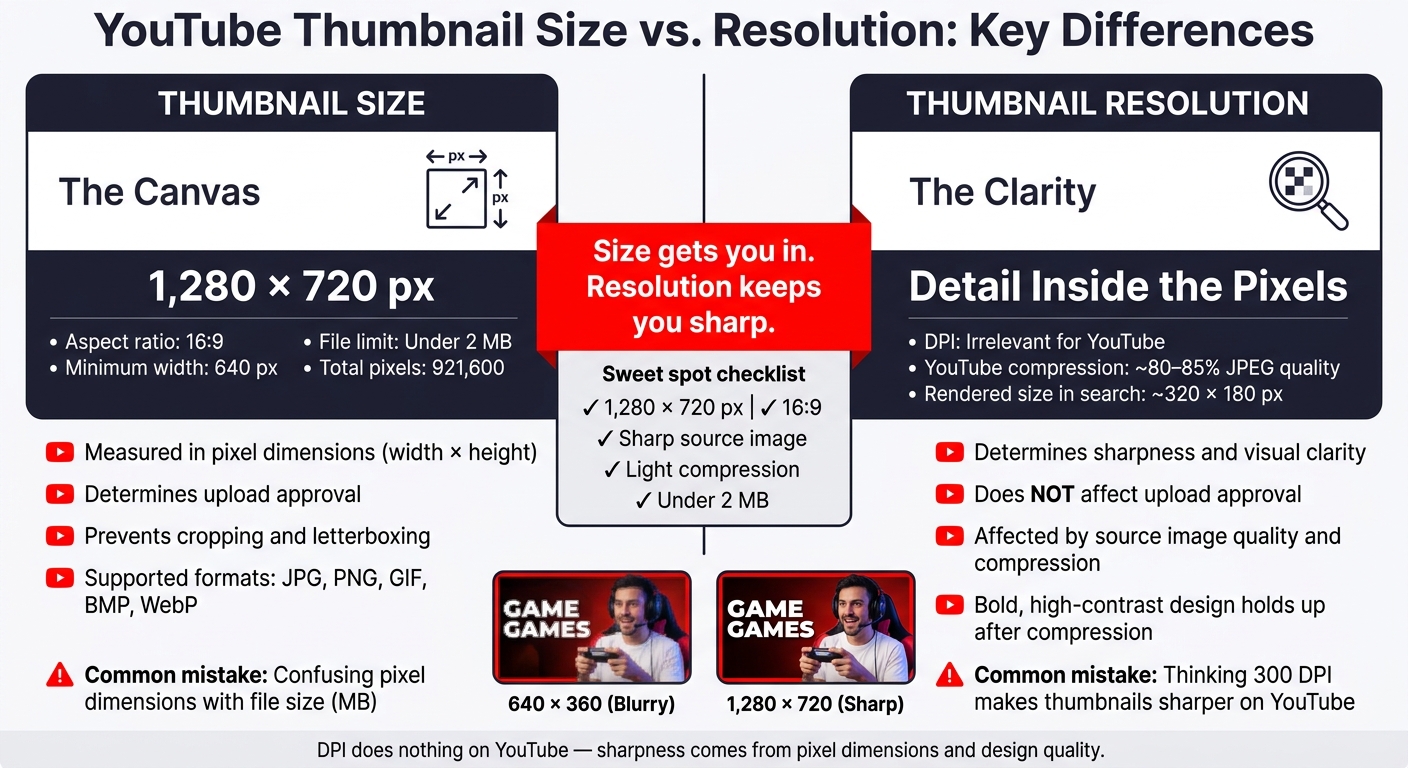
YouTube Thumbnail Size vs. Resolution: Key Differences at a Glance
Quick Comparison
| Factor | Thumbnail Size | Thumbnail Resolution |
|---|---|---|
| What it means | Image dimensions | Image clarity |
| Main job | Meets YouTube upload rules | Helps the thumbnail look sharp |
| Measured by | Pixels like 1,280 × 720 | Detail inside those pixels |
| Affects upload approval | Yes | No |
| Affects blur and sharpness | Indirectly | Yes |
| Common mistake | Mixing it up with MB | Thinking DPI fixes it |
I’d sum it up like this: you need the right canvas, a sharp source image, and light compression. Size gets you in. Resolution helps you look clean on phones, laptops, and TVs. That’s the whole point of the article, without the extra noise. For more specific advice, check out our YouTube thumbnail guides for different niches.
sbb-itb-b59debf
What Thumbnail Size Means for YouTube
Thumbnail size refers to pixel dimensions, not file size. In plain English, width and height decide how much detail your image can show. KB or MB only tell you how much storage the file uses. So the first thing to get right is the image's dimensions and aspect ratio.
Pixel Dimensions and Aspect Ratio
YouTube's recommended thumbnail size is 1,280 × 720 pixels. That size fits YouTube's 16:9 aspect ratio, which is the shape YouTube uses across desktop, mobile, and TV previews. If your thumbnail doesn't match that shape, YouTube may crop it or add letterboxing. That can chop off faces, text, or other key parts of the image.
The minimum accepted width is 640 pixels. Even so, 1,280 × 720 should be your starting point if you want the thumbnail to scale well across phones, laptops, and big-screen TVs. Smaller images often look a bit soft on high-resolution displays.
Choosing the right thumbnail style also impacts how these dimensions are utilized. Once the shape is set, the next limits are file type and file size.
File Limits and Supported Formats
YouTube accepts JPG, PNG, GIF, BMP, and WebP thumbnails. Standard thumbnails must stay under 2 MB.
| Format | Best For | Notes |
|---|---|---|
| JPG | Photo-heavy thumbnails | Smaller files for photo-based thumbnails |
| PNG | Text-heavy or graphic designs | Best for text and graphics; larger files |
| WebP | Flexible all-purpose use | Strong compression |
| GIF | Not recommended | Static image only |
| BMP | Not recommended | Technically supported, but unnecessarily large |
For most creators, JPG is the better pick for photo-based thumbnails, while PNG works well for flat graphics or text overlays. Both can fit under 2 MB at 1,280 × 720 with normal compression. It's worth checking the file size before you upload.
Resolution is what makes that properly sized image look sharp.
What Thumbnail Resolution Means and Why It Matters
If size sets the frame, resolution sets the detail inside it. At the same 1,280 × 720 dimensions, resolution decides how much detail the thumbnail can hold. That works out to 921,600 pixels. Each pixel carries color and detail, so the more pixels you start with, the more information YouTube has to work with when it shows your thumbnail on phones, laptops, and TVs.
Resolution as Pixel Count, Not Print DPI
A lot of people assume that setting an image to 300 DPI will make it look sharper on YouTube. It won’t. DPI is for print. YouTube ignores DPI and looks only at pixel dimensions. You can use free thumbnail tools to ensure your export settings are correct.
How Resolution Affects Visual Quality
At 1,280 × 720, text tends to look cleaner, faces look sharper, and the image scales down better on mobile. Upload something smaller, like 640 × 360, and YouTube has to enlarge it. That usually softens edges and makes text look less crisp.
That said, resolution isn’t the only thing shaping how sharp your thumbnail looks after YouTube processes it. Once your pixel count is right, design choices do a lot of the heavy lifting. YouTube compresses every thumbnail it gets, much like saving a JPEG at about 80% to 85% quality. Because of that, high contrast, bold text, and one clear focal point tend to hold up better after compression.
Thumbnail Size vs. Resolution: A Direct Comparison
Here’s the plain-English difference: size is the upload spec, while resolution is how the image looks on screen. Size affects YouTube approval and framing. Resolution affects sharpness.
| Factor | Thumbnail Size | Thumbnail Resolution |
|---|---|---|
| What it means | Pixel dimensions (width × height) | Visual detail and clarity within those pixels |
| What it measures | Canvas dimensions in pixels | How sharp, clean, and detailed the image looks |
| Effect on YouTube compliance | Directly determines upload acceptance and correct framing | Does not determine upload acceptance |
| Effect on visual quality | Helps prevent stretching or awkward cropping | Determines crispness, especially after scaling and compression |
| Practical YouTube targets | 1,280 × 720 px, 16:9, under 2 MB | 1,280 × 720 px, 16:9, under 2 MB |
How They Work Together in Real Uploads
Once the size is set, resolution decides whether the thumbnail still looks good after upload. A thumbnail at 1,280 × 720 px can meet YouTube’s size rules, but if it was stretched up from a small screenshot, it may still look soft and blurry around faces and text. And even when the dimensions are perfect, heavy compression can add blocky artifacts and fuzzy text, which makes the thumbnail less punchy.
So the next move is simple: start with source images that stay sharp when scaled, or use AI thumbnail generation to create high-resolution assets from scratch.
Choosing the Right Balance for YouTube
For most thumbnails, the sweet spot is a standard 1,280 × 720 canvas built from a sharp source image. After that, resolution becomes the main focus. Start with native HD or higher source images, use bold, high-contrast text, and keep the layout simple enough to read when YouTube shrinks the thumbnail to about 320 × 180 px in search results.
Common Mistakes When Creators Mix Up Size and Resolution
Now that the difference is clear, here are the mistakes that trip people up most often.
A lot of thumbnail issues happen because creators lump size, resolution, and file weight into one bucket. But they do different jobs. Size shapes framing. Resolution affects sharpness. File size affects upload limits. Mix those up, and things go sideways fast.
Treating DPI as a Quality Fix
This one gets people all the time.
A creator sees a blurry thumbnail, re-exports it at 300 DPI instead of 72 DPI, uploads it again, and expects it to look better on YouTube. Nothing changes. That’s because DPI is for print. It tells a printer how many ink dots fit into one inch. YouTube doesn’t care about DPI metadata. It displays thumbnails based on pixel dimensions only, so it treats both images the same. On YouTube, DPI never changes the rendered thumbnail.
Changing DPI also doesn’t add detail. If the image looks soft, the fix is simpler than people think: use a better source image or increase the actual pixel dimensions.
Mixing Up File Size with Pixel Dimensions
File size and sharpness are not the same thing.
Two thumbnails can both be 1,280 × 720 px and still end up with very different file sizes. Why? Because file size depends on compression, file format, and image complexity, not just pixel count.
Think of it like two suitcases that are the same size. One is packed tight, the other is half empty. Same outer dimensions, different weight.
For thumbnails, MB matters for upload limits and compression behavior. That’s it. It’s better to treat MB as a cap, not as a sign of image quality.
Uploading Thumbnails That Are Too Small or Too Large
Both ends of the spectrum can cause problems. Small thumbnails get stretched. Huge ones waste pixels.
When a thumbnail starts below 1,280 × 720 px - say 800 × 450 or 640 × 360 - YouTube and devices scale it up to fit the display area. But scaling up doesn’t create new detail. It just stretches what’s already there. The result is a soft, blurry image, and that can make text harder to read and faces less clear, especially on high-density displays.
On the flip side, a 4K thumbnail isn’t automatically sharper. YouTube shows thumbnails at fairly small rendered sizes, so all those extra pixels don’t do much once the image is shrunk down. Bigger files can also hit upload limits or get recompressed by YouTube, which can wipe out the quality gain the creator was chasing.
The sweet spot is pretty straightforward:
- 1,280 × 720 px
- 16:9
- sharp source art
- light compression
The main fix is to separate three things before export: canvas size, source quality, and file weight.
Using ThumbnailCreator to Get Size and Resolution Right
If you want a faster way to stick with the 1,280 × 720 standard, ThumbnailCreator gives you YouTube-ready presets from the start. That means less fiddling with setup and more time working on the part people actually notice: the design. Its presets, templates, and editing tools help you begin with the right canvas and keep everything easy to read.
Starting with the Right Dimensions
Start with the 16:9 preset so you don't have to set up the canvas by hand. ThumbnailCreator gives creators YouTube-friendly presets built around the recommended 1,280 × 720 px format. That keeps your canvas lined up with YouTube's 16:9 layout.
Its templates also help keep faces, text, and other key elements inside safe areas. That's a big deal, because a thumbnail can look fine on your desktop and then feel cramped on a phone. Keeping those parts in the right spots makes it easier to hold a clean layout across different screen sizes.
Getting Better Visual Quality Without Oversized Files
Once the canvas is set, the next job is readability, not stuffing in more pixels. What matters most is clear text, strong contrast, and one simple focal point. ThumbnailCreator's text editing tools make it easy to use bold fonts, high-contrast colors, strokes, and shadows so titles stay legible even at small sizes.
Face swapping and object swapping can help fix composition without making the file heavier. Cleaner backgrounds also cut visual clutter and help keep exports under control. The aim is simple: a sharp, readable thumbnail at standard YouTube size.
Conclusion: The Key Difference Between Thumbnail Size and Resolution
Thumbnail size refers to pixel dimensions. Resolution refers to how much detail those pixels show.
For YouTube, that leads to one simple baseline: 1,280 × 720 px, 16:9, JPG or PNG, and under 2 MB.
Once your upload settings are in place, the next job is clarity. Thumbnails tend to earn more clicks when they use strong contrast, one clear focal point, and large, easy-to-read text.
There’s also one last point that trips people up: DPI does nothing on YouTube. This is one of many thumbnail mistakes to avoid when designing for CTR. Sharpness comes from pixel dimensions and the quality of the design itself.
So yes, size and resolution work together. But they are not the same thing. Get both right, and your thumbnails stay sharp, compliant, and ready to earn the click.
FAQs
Why does my thumbnail still look blurry at 1,280 × 720?
Even at 1,280 × 720, a thumbnail can still look blurry. That usually happens when the design is too busy, the source image is low quality, or you pulled a soft frame from the video itself. On top of that, YouTube compression can make those problems stand out even more.
Low contrast is another common issue. On smaller screens, it can make text and main subjects look muddy or hard to pick out. Keep the text and focal point clear, and shrink the design down to 120–160 pixels before you publish. If it’s hard to read at that size, it’ll likely struggle on mobile too.
Should I use JPG or PNG for a YouTube thumbnail?
Choose the format that fits your design. Use JPG for photo-heavy thumbnails or complex color gradients, since it keeps image quality while keeping file sizes smaller. Use PNG for bold text, logos, or flat illustrations, because it keeps edges sharp and avoids fuzzy compression artifacts.
Whatever you pick, keep the final file under 2 MB for standard uploads.
Can a 4K thumbnail improve YouTube image quality?
No. Uploading a 4K thumbnail usually won’t make it look better. In some cases, it can even lead to upload issues.
YouTube recommends 1280 x 720 pixels with a 16:9 aspect ratio. That size is large enough to look sharp and still load fast.
Here’s the key thing: YouTube applies its own compression. So even if you upload a 4K image, YouTube will still process it. In most cases, that extra resolution doesn’t add more clarity. It just creates a larger file with no real upside.