

How to Use Trend Data for Better Thumbnails
Better thumbnails usually start with data, not guesswork. I look at CTR, impressions, search trends, and YouTube thumbnail trends to decide what subject, text, and layout to use.
Here’s the short version:
- I check YouTube Studio to find videos with high CTR
- I use Google Trends set to YouTube Search + United States to find rising search terms
- I study niche thumbnails for patterns like faces, close-ups, bold numbers, and strong contrast
- I test one thumbnail change at a time
- I keep the winners only if CTR goes up and watch time stays steady
A simple benchmark: if a video gets lots of impressions but only 3% to 4% CTR, the thumbnail may need work. On many channels, 5% to 7% CTR is strong, and 8% to 10%+ is top-tier.
I also keep the thumbnail easy to read on a phone:
- One main subject
- 1 to 4 words of overlay text
- Clear contrast
- One plain emotion or result
If I had to sum up the process in one line, it would be this: find what people already click, turn that into a thumbnail, then test it.
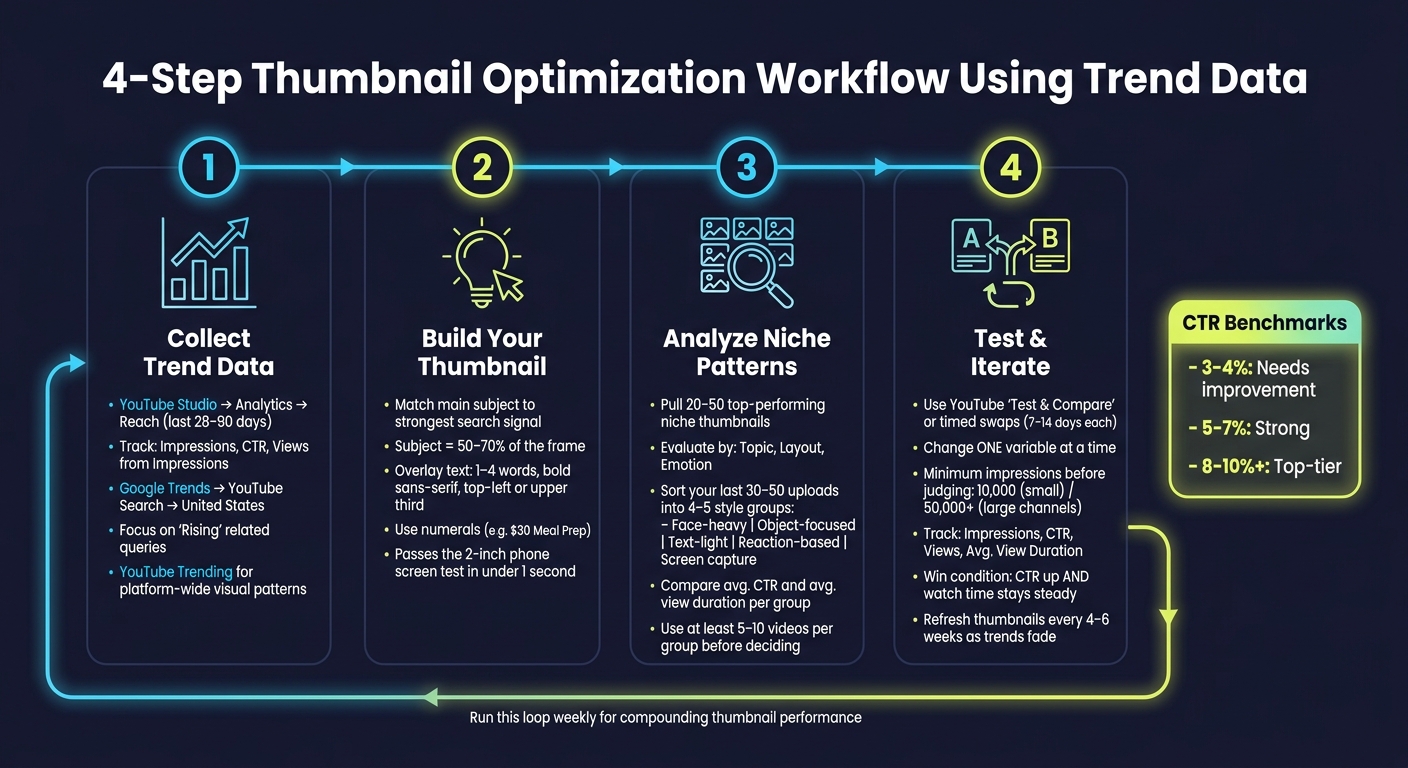
4-Step Thumbnail Optimization Workflow Using Trend Data
Step 1: Collect Trend Data from YouTube Studio and Google Trends
Use YouTube Studio to Find High-CTR Topics and Formats
Start in YouTube Studio → Analytics → Reach. Set the date range to the last 28–90 days so you have enough data to compare. That window gives you enough volume without dragging in old results that may not match what’s working now.
Pay close attention to:
- Impressions
- CTR (click-through rate)
- Views from impressions
These three metrics help you figure out which topics, wording, and thumbnail looks get clicks.
Next, open the Content tab and sort by CTR. Stick with videos that have several thousand impressions so you’re not judging a thumbnail on a tiny sample. Then study your top performers and look for patterns.
Ask simple questions:
- Is there a face in the thumbnail?
- Which emotion stands out: surprise, excitement, or calm?
- Is it a close-up or a wide shot?
- Which colors show up again and again?
This is where the data starts to turn into something you can use. Group videos by thumbnail style, like "face close-up + bold number" or "text-heavy", then compare the average CTR for each group. That makes it much easier to spot a format you can reuse instead of guessing every time.
The Audience tab gives you one more clue. Check Returning viewers and Top videos by watch time to see which topics keep people coming back. If the same themes show up more than once, that’s a strong hint those thumbnail topics are worth using again.
At this point, you’re not inventing ideas from scratch. You’re reading the signals your audience has already given you.
Use Google Trends for YouTube Search in the United States
Open Google Trends, set the location to United States, and change the search type to YouTube Search. Use 12 months for evergreen topics and 30–90 days for timely ones.
Start with your main topic and look at the Interest over time chart. Then scroll down to Related queries and focus on the "Rising" column. These are phrases people are typing into YouTube right now.
Short, specific searches like "meal prep for weight loss", "AI tools for students," or "no equipment workout" can turn into strong 3–5-word thumbnail text. When you use the same words viewers search for, your thumbnail lines up with what’s already on their mind.
Also use the Compare feature. If you’re choosing between two angles, such as "budget meal prep" vs. "healthy meal prep," Trends can show which one holds stronger interest in the U.S. during your chosen time frame. That can save you from picking a weaker topic just because it sounds good in your head.
Use the strongest query language to decide what your thumbnail should say next.
Source Comparison Table: YouTube Studio, Google Trends, and YouTube Trending
Each source answers a different question. When you use all three together, you get a better read on what to make and how to frame it.
| Source | Data Type | Best Thumbnail Use Case | Limitations |
|---|---|---|---|
| YouTube Studio | Internal CTR, impressions, audience insights | Identifying which topics and framing styles your existing audience already clicks | Only reflects your channel's history. |
| Google Trends | Search interest and related queries (YouTube Search, U.S.) | Finding rising keywords for text overlays and validating topic demand before you design | Relative data, not view counts. |
| YouTube Trending | Currently popular videos and visual patterns | Spotting broad style shifts - color palettes, layout types, and emotional cues - happening across the platform right now | Skews toward large channels and fast-moving trends. |
When a pattern shows up in your YouTube Studio data and also appears in Google Trends, pay attention. That overlap is a strong signal. If you also see it in YouTube Trending, that’s a decent sign the style has momentum across the platform.
Still, don’t lean too hard on YouTube Trending by itself. It can pull you toward big-channel patterns that don’t fit your audience or your topic.
Use the clearest signal to choose the thumbnail subject, text, and visual style in the next step.
sbb-itb-b59debf
The Thumbnail Experiment: Using Science to Boost CTR
Step 2: Turn Trend Signals into Thumbnail Choices
Take the strongest signal from Step 1 and use it to pick the subject, overlay, and layout.
Match the Thumbnail Subject to the Strongest Search Signal
Your thumbnail’s main subject should match the strongest search signal. Keep one subject in control, and let it take up about 50–70% of the frame.
Here’s a simple gut check: shrink the thumbnail to about 2 inches wide on your phone. If you can’t tell what the main subject is in under one second, the focal point needs work.
The framing should also change based on where the thumbnail shows up:
- Search: use direct, literal subject matches
- Home and Suggested: lean more into emotion or curiosity
Once the subject is clear, use that same signal to build a short overlay.
Turn Trend Language into 1–4 Word Overlays
Pull the main idea from the trend and compress it into 1–4 words. For example: cheap healthy meal prep → $30 Meal Prep.
Use numerals when you can. Keep overlays short, place them in the top-left or upper third, and use bold sans-serif text with strong contrast. Aim for 3–5 words max, but keep the core phrase at 1–4 words when possible. Don’t copy your video title. Add a hook instead, like a price, a time frame, or a result.
Use these same rules when you turn the idea into a reusable template.
Apply Trend Ideas Faster in ThumbnailCreator
When a trend spikes, go from signal to thumbnail in one pass. With ThumbnailCreator, you can duplicate a layout that already works, swap the subject, edit the text, and test the new trend fast.
Step 3: Compare Thumbnail Patterns and Build Stronger Versions
Review Niche Patterns by Topic, Layout, and Emotion
Now put your trend signals next to what already works in your niche.
Pull 20–50 recent high-performing videos from your niche using YouTube search, YouTube Trending, and competitor channels, filtered to a United States audience. Then review each thumbnail through three simple lenses:
- Topic: the main subject
- Layout: close-up face, single object, text-heavy, minimal background
- Emotion: surprise, curiosity, authority, calm
The goal here isn't to copy one thumbnail. It's to spot patterns that show up again and again.
Then compare those patterns with the trend keywords from Steps 1 and 2. For mobile viewers, keep an eye on thumbnails that use high contrast, one clear focal subject, and one obvious emotion. If it doesn't make sense at a glance, it's probably too busy.
Here's a simple example. If "AI tools" is trending in U.S. YouTube Search, and top thumbnails in that niche keep using a close-up face, a strong reaction, and a bold number, line that visual pattern up with the best trend keywords from Steps 1 and 2. That repeatable pattern matters more than any single thumbnail.
Once you've found the main pattern in your niche, the next step is to test whether that same style works on your own channel.
Track Your Own Thumbnail Groups in a Performance Table
After reviewing competitor thumbnails, sort your own thumbnails into the same kinds of visual groups.
Take your last 30–50 uploads and place them into 4–5 thumbnail style categories like face-heavy, object-focused, text-light, reaction-based, and screen capture. Each video should go into one primary group based on its main visual style.
Then build a simple spreadsheet using YouTube Studio data from the last 28–90 days.
| Thumbnail Group | Avg. Impressions | Avg. CTR (%) | Avg. View Duration | Notes |
|---|---|---|---|---|
| Face-heavy | - | - | - | Close crop, strong emotion |
| Object-focused | - | - | - | Product or result centered |
| Text-light | - | - | - | No overlay or 1–2 words |
| Reaction-based | - | - | - | Surprise, shock, curiosity |
| Screen capture | - | - | - | Charts, dashboards, timelines |
When you compare results, use at least 5–10 videos per group before making a call. A small sample can fool you.
Also check average view duration, not just CTR. A reaction thumbnail might get more clicks, but if it oversells the video, retention can drop. That's the trap.
Use the top group as your default thumbnail style, then keep testing from there.
Step 4: Test, Measure, and Update Thumbnails Over Time
Run A/B Tests or Timed Thumbnail Swaps
Start with the thumbnail pattern that performed best in Step 3. Use that as your baseline, then test one change at a time. That’s how you confirm whether data-driven testing or gut feeling is actually helping.
If YouTube’s "Test & Compare" feature is available, use it. Upload a few thumbnail versions and let YouTube show them to different viewers on its own. If you don’t have access to it, use time-based swaps instead: keep Thumbnail A live for 7–14 days, then switch to Thumbnail B for the same amount of time. Compare the same days of the week so weekly viewing habits in the U.S. don’t skew the results.
Keep each test tight. For example, swap one headline phrase for another while leaving the layout, face, and colors exactly the same. That makes it much easier to see whether the language pulled from Google Trends is the part making the difference. Aim for at least 10,000 impressions per variant on smaller channels or 50,000+ on larger ones before you make a call. Then check whether the trend-based change actually improves CTR.
Measure Results with CTR and Keep a Record
Track every test in a simple table. Pull these four metrics from YouTube Studio:
- impressions
- CTR
- views
- average view duration
Also look at traffic sources. If a trend phrase leads to more Search traffic, that’s worth writing down. Keep a log of each test so you can compare winners across your other thumbnail groups.
| Thumbnail Group | Variant | Change Tested | Impressions | CTR (%) | Views | Avg. View Duration | Main Traffic Sources |
|---|---|---|---|---|---|---|---|
| - | A | - | - | - | - | - | - |
| - | B | - | - | - | - | - | - |
| - | C | - | - | - | - | - | - |
A higher CTR only counts as a win if watch time stays steady. If CTR goes up but watch time falls, the thumbnail is promising more than the video delivers.
Thumbnail trends often fade after 4–6 weeks, so it makes sense to refresh older videos when their CTR starts slipping.
Conclusion: Use Trend Data as a Repeatable Thumbnail Workflow
The process is pretty simple: collect trend data each week, spot strong topics and phrases, build thumbnails around those signals, test one variable at a time, and keep what wins. Over time, you build a record of which trend-based choices lift CTR for your audience. If you run that loop on a regular basis, each new video starts with a better shot than the one before it.
FAQs
How long should I test a thumbnail before changing it?
Wait until the video has 500 to 1,000 impressions before you change the thumbnail. That gives you a better read on performance and helps you avoid reacting too early.
Established channels may get enough data in 24 to 48 hours. Smaller channels often need 1 to 2 weeks. As a rule of thumb, give it 7 to 14 days before you make a call, and check performance at the 24-hour, 7-day, and 28-day marks.
What if my CTR goes up but watch time drops?
This usually means your thumbnail is overpromising. People click, then realize the video doesn't line up with what they expected.
When viewers leave fast, YouTube may read that as a sign the video didn't deliver. And that can hurt how far the video spreads. The fix is pretty simple: adjust the thumbnail so it matches the video's actual topic and the value people will get from watching.
How often should I refresh older thumbnails?
Check YouTube Studio by comparing the last 7 days with the previous 28 days.
Don’t rush to swap a thumbnail the second a video looks a little slow. Wait until the video has at least 500–1,000 impressions before you decide whether it needs a refresh. That gives you enough data to make a call without guessing.
Testing a new design? Give it 7–14 days so the numbers can settle down before you judge the result. If the thumbnail still performs below your benchmarks after that, you can use ThumbnailCreator to make new versions fast and keep testing.