
Infographic Generator
Create AI-generated infographics from your YouTube videos — extract data points, customize size and colors, apply brand guidelines, and download shareable images.
The Infographic Generator extracts key data points from your YouTube video and turns them into a shareable infographic image. It's a two-step process: first extract and edit the data, then generate the visual with your choice of size, colors, and branding.
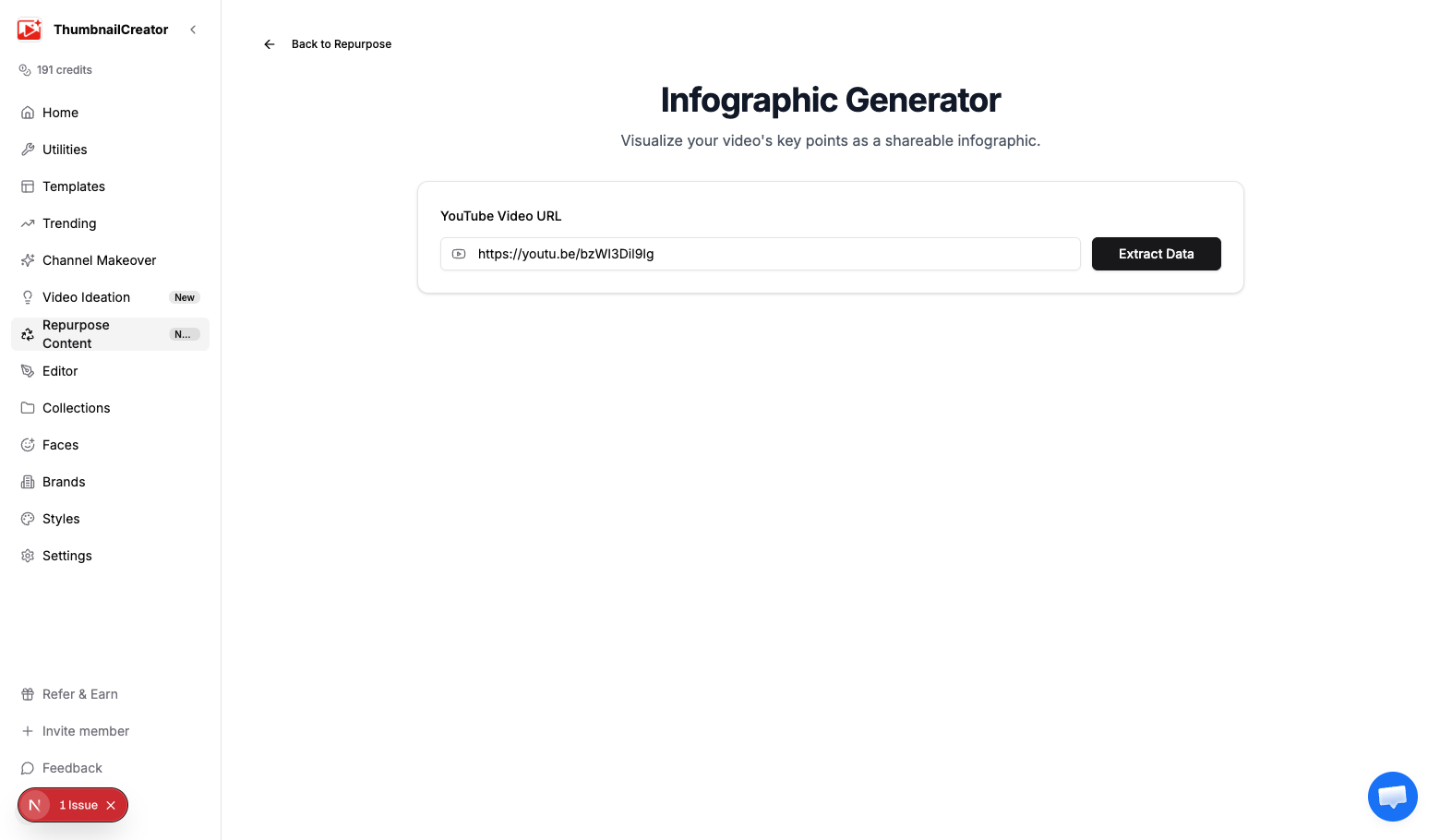
How It Works
The infographic generator uses a two-step process:
Step 1: Extract Data
- Go to Repurpose in the sidebar and analyze a video, or navigate directly to the infographic generator
- Paste your YouTube video URL
- Click Extract Data
- The AI analyzes the transcript and pulls out 5-8 structured data points
Step 2: Edit and Generate
After extraction, the data editor appears:
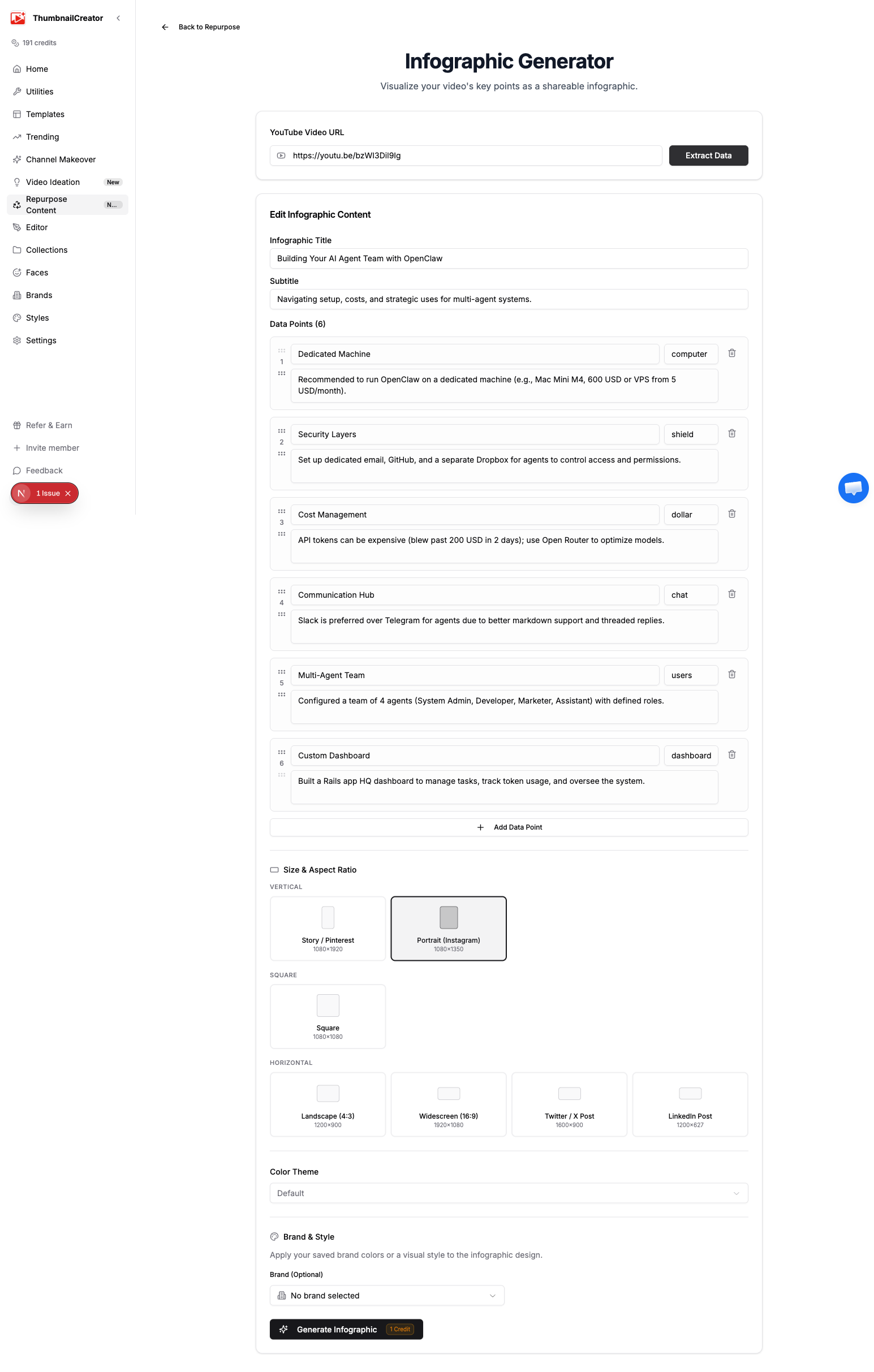
- Review and edit the extracted data (title, subtitle, data points)
- Choose your size, color theme, and optional brand/style
- Click Generate Infographic (costs 1 credit)
- Download the result
The Data Editor
The data editor lets you refine what appears on the infographic before generating:
- Title — The main headline of the infographic
- Subtitle — A supporting line below the title
- Data points (2-8) — Each point has:
- Heading — A short label (e.g., "Step 1" or "Key Finding")
- Content — The detail text for that point
- Icon — An emoji or icon representing the point
You can:
- Edit any field by clicking on it
- Add new data points (up to 8)
- Remove data points (minimum 2)
- Reorder data points by dragging
Size Options
Choose the right size for where you'll share the infographic:
| Size | Dimensions | Best for |
|---|---|---|
| Story | 1080 x 1920 | Instagram Stories, YouTube Shorts |
| Portrait | 1080 x 1350 | Instagram feed, Pinterest |
| Square | 1080 x 1080 | Instagram, Facebook, general use |
| Landscape | 1200 x 675 | Blog embeds, presentations |
| Wide | 1200 x 628 | Facebook sharing, Open Graph |
| 1200 x 675 | Twitter/X posts | |
| 1200 x 627 | LinkedIn posts and articles |
Color Themes
Choose from preset color themes to set the infographic's visual tone:
- Default — Clean, neutral palette
- Ocean — Cool blues and teals
- Sunset — Warm oranges and reds
- Forest — Natural greens and earth tones
- Royal — Deep purples and golds
- Midnight — Dark background with bright accents
Brand Integration
If you have saved brands in ThumbnailCreator, you can apply them to infographics:
- Select a brand from the Brand dropdown
- The infographic uses your brand's colors (primary color and custom color palette)
- The result matches your visual identity across all your content
Style Cloning
If you have saved styles, you can apply them to influence the infographic's visual design:
- Select a style from the Style dropdown
- The AI uses the style's visual characteristics (composition, lighting, effects) when generating
This is useful for maintaining visual consistency across your infographics and thumbnails.
Downloading
After generation, click Download to save the infographic as a PNG image at the resolution matching your selected size.
Pricing
Each infographic generation costs 1 credit. The data extraction step is free — you can extract and edit data as many times as you want before committing to generate.
Tips
- Edit the data points before generating — the AI extraction is a starting point, not the final version
- Use Portrait (1080x1350) for Instagram and Pinterest — it takes up more screen space in feeds
- Apply your brand to maintain consistent visual identity across all your infographics
- Use the Square format for the most versatile infographic — it works well on most platforms
- Create infographics from your most data-heavy videos (tutorials, listicles, research-based content)
- Embed infographics in your blog posts to break up text and add visual interest
- Share infographics on Pinterest with a link back to your video for an additional traffic source
Related
- Repurpose Your Videos — Overview of all repurpose content types
- Social Media Posts Generator — Generate posts to accompany your infographic
- Managing Brands — Set up brand colors for infographic generation
- Understanding Credits — How credits work