

Top 7 Tools For Copyright-Free Thumbnail Images
One bad thumbnail image can cost you a video - or your channel. A YouTube copyright strike can lead to takedowns, lost ad income, and if you get 3 strikes within 90 days, your channel can be removed.
If I were picking thumbnail image tools today, I’d keep it simple:
- Use sources that allow commercial use
- Check if edits like cropping, text, and overlays are allowed
- Avoid non-commercial, editorial, and unclear licenses
- Save a record of the URL, creator, license, and access date
- Start with images at 1,280 × 720 px or larger while avoiding common thumbnail mistakes that hurt performance.
This guide covers 7 tools that help with thumbnail images:
- ThumbnailCreator - AI-made thumbnails inside one tool
- Unsplash - photo backgrounds
- Pixabay - photos, vectors, and graphics
- Pexels - wide stock photos and video stills
- Google Images Usage Rights - search tool, but check the source page
- Flickr Creative Commons Search - license-based photo search
- StockSnap.io - CC0 photo library
What matters most is not just the image. It’s the license, the edit rights, the attribution rule, and whether the image fits a monetized YouTube thumbnail. Once you have your images, you can A/B test thumbnails to see which performs best.
Quick Comparison
| Tool | Best For | Commercial Use | Attribution | License Work |
|---|---|---|---|---|
| ThumbnailCreator | AI thumbnail making | Yes | No listed rule | Low |
| Unsplash | Clean photo backgrounds | Yes | Optional | Low |
| Pixabay | Photos, vectors, graphics | Yes | Usually no | Low |
| Pexels | Wide stock photos | Yes | Optional | Low |
| Google Images Usage Rights | Finding niche images | Depends on source | Depends on source | High |
| Flickr CC Search | Community photos | Depends on license | Often yes | High |
| StockSnap.io | CC0 backgrounds | Yes | Optional | Low |
In short: if I want the least license hassle, I’d start with Unsplash, Pexels, Pixabay, or StockSnap.io. If I need something custom around my face or brand look, I’d look at ThumbnailCreator. And if I use Google Images or Flickr, I’d double-check every image before I publish.
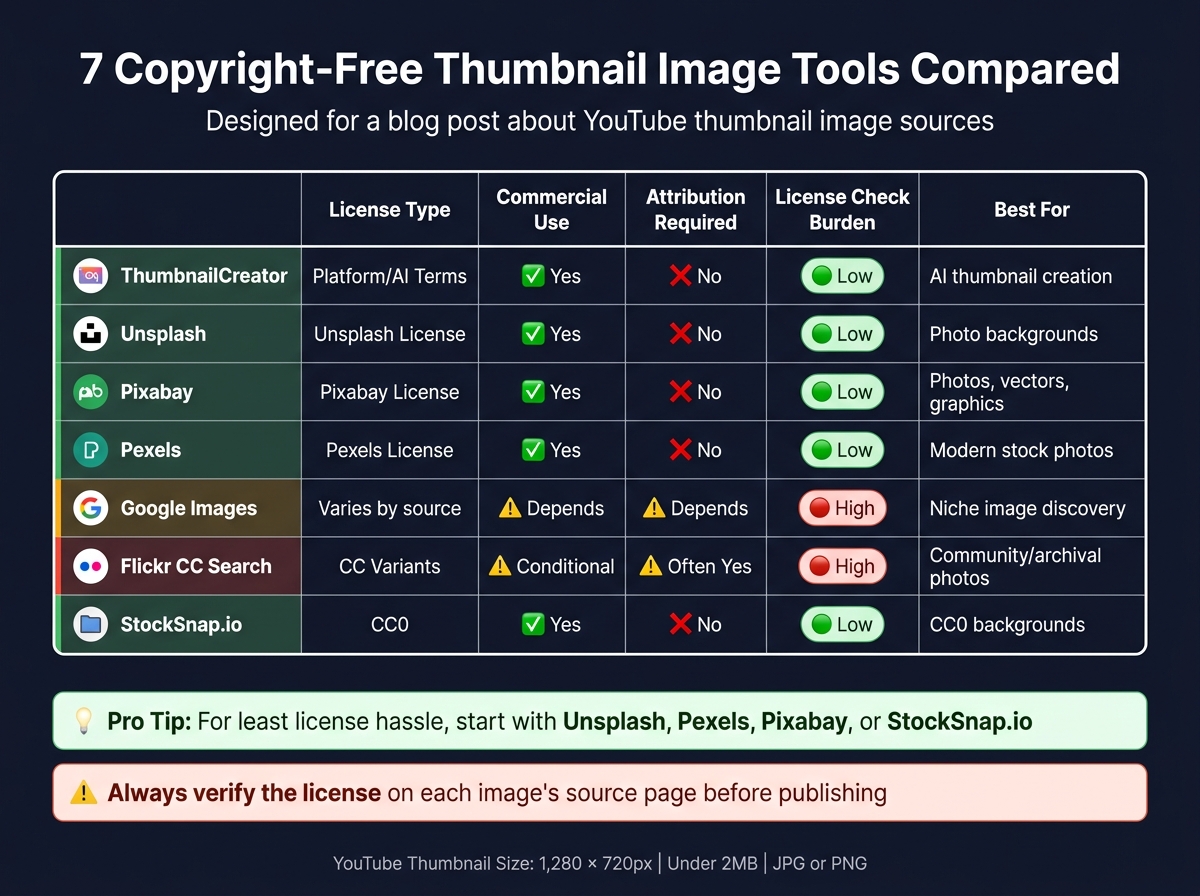
7 Copyright-Free Thumbnail Image Tools Compared
What To Look For In A Copyright-Free Thumbnail Image Tool
Free image tools don't all play by the same rules. Some give you broad rights. Others limit how you can use or edit an image. If you're making thumbnails for a monetized YouTube channel, you need to check the license with care. And not just the site-wide terms - use the current license shown on each image page.
Commercial Use And Monetization Rights
First, make sure the license clearly allows commercial use. If your channel makes money, the image needs to be cleared for ad-supported, sponsored, and branded use.
Be careful with licenses that only allow "personal" or "editorial" use. Those labels often block promotional uses like thumbnails. The safest move is to look for wording such as "free for commercial use" or "commercial and non-commercial projects" on the image's own license page, not only on the homepage.
And here's the part people miss: thumbnails are usually edited. You add text, crop the image, change the layout, maybe drop in overlays. So the license also needs to allow edited versions of the image.
After that, move to credit rules. Rights and attribution often come as a package.
Attribution Rules And Recordkeeping
Some licenses require attribution to the original creator. CC BY (Creative Commons Attribution) is a common example. If you use CC BY, credit the creator and link to the license in your description or credits.
Even when attribution isn't required, keep a simple record for every image you use. A spreadsheet is enough. Track the:
- Source URL
- Platform name
- Creator name
- License type
- Date accessed
That paper trail can save you a headache if a claim shows up later. If you compare real photos vs AI-generated thumbnails, add the tool name and keep a copy of its terms of use from the time you made the image.
Once the license checks out, the next step is fit. You need the right kind of image for the job.
Best Source By Image Type
License is only half the battle. The image itself also has to work for the thumbnail.
Stock sites like Unsplash, Pexels, and Pixabay are a good fit for backgrounds, textures, lifestyle shots, and objects. But steer clear of editorial images - like celebrities, news events, and branded products. Those often come with limits on promotional use.
If you need AI-generated visuals or layouts made with YouTube in mind, use tools built for face placement, high contrast, and click-focused formatting. That's usually a better fit than forcing a plain stock image to do everything.
Then comes the part that separates a decent thumbnail from a forgettable one: editing control.
Editing Flexibility For Distinct Thumbnails
Treat the image as a starting point, not the finished thumbnail. If you use an untouched stock photo, there's a good chance your thumbnail will look like everyone else's.
Look for tools that give you precise cropping, text overlays, background removal, cutouts, and face or object swaps. Those features help turn a plain base image into something that feels tied to your channel. Color grading and contrast changes help too. Small edits can go a long way.
Strong editing makes the thumbnail feel original instead of like a stock photo someone grabbed and uploaded as-is.
Image Quality And YouTube Size Requirements
Low-resolution thumbnails look sloppy and can hurt click-through rate. YouTube thumbnails should be 1,280 × 720 px, 16:9, under 2 MB, and at least 640 px wide. Supported formats include JPG and PNG.
Start with a source image that's 1,280 × 720 px or larger. Never upscale a small file and hope for the best. It usually looks rough.
Many tools made for YouTube thumbnails default to the right dimensions, which helps. Still, check your export settings before you upload anything.
Use these requirements to compare the tools in the next section.
sbb-itb-b59debf
1. ThumbnailCreator
ThumbnailCreator is an AI thumbnail generator for YouTube creators who want fast, editable visuals built from prompts, links, or reference images. In plain English: you can create, edit, and export a thumbnail in one place, which is handy when you don't want to jump between tools.
Because the image is generated inside the platform, the main thing to check is ThumbnailCreator's current terms of use, not a stock photo license from somewhere else. Right now, the public docs don't spell out a separate attribution rule or detailed license limits. So before you publish, save a copy of the tool's terms for your records.
Best Asset Type For Thumbnails
ThumbnailCreator works best when you want a thumbnail shaped around your face or a consistent brand look. Its face-aware generation can place your likeness into a scene while matching lighting and expression, which helps the result feel less stitched together. It also has Style Cloning, so you can upload a reference thumbnail and have the AI mirror that visual style for new videos.
Thumbnail-Specific Customization Potential
The built-in editor comes with AI-powered object swapping, background removal, text tools, and color controls. You also get YouTube-ready exports at 3,840 × 2,160 px as a JPEG under 2 MB.
Use it when you need a thumbnail centered on a face, brand style, or fast visual edits. If you'd rather start with ready-made source images than generated thumbnails, the next tools move into stock and search-based options.
2. Unsplash
If you need clean, high-resolution photos for a thumbnail, Unsplash is a simple place to start.
Commercial-Use License Clarity
Unsplash uses its own license. It allows free commercial use, including monetized YouTube thumbnails. You can’t sell unaltered copies as standalone products or use them to build a competing photo service.
Attribution Requirements
Attribution isn’t required, but giving credit is still a smart best practice.
Best Asset Type For Thumbnails
Unsplash is a good fit for lifestyle photography, cinematic backgrounds, and textures. It’s especially useful when you want high contrast, clear subject framing, and open space for text overlays - three things that make thumbnail design much easier.
Editing Workflow
Use a separate editor to add text to your thumbnails, manage branding, and finalize the layout. Track the image URL, creator, and download date. If you use Unsplash+, save the license certificate for each file.
If you want more image variety, the next tools cover broader stock-photo libraries and search-based sources.
3. Pixabay
Pixabay is a free stock library with photos, vectors, and graphics.
Commercial-Use License Clarity
Pixabay's Content License lets you use and edit assets for commercial projects, including monetized YouTube thumbnails. That said, there are two guardrails to watch: don't resell files as-is, and don't use branded or trademarked content in commercial thumbnails.
Attribution Requirements
You don't need to give credit for standard Pixabay content. But if an image is listed under a separate Creative Commons license, follow the license terms shown on that image's page.
Best Asset Type For Thumbnails
Pixabay is a good fit for thumbnail design when you need:
- High-contrast photos that work as backdrops for bold title text
- Vector illustrations that stay sharp after resizing
- Abstract backgrounds that make your text and branding pop
Its filters also help speed things up. You can narrow results by orientation, media type, and color palette, which makes it easier to find assets that match a thumbnail layout fast.
Thumbnail-Specific Customization Potential
Pixabay's Content License allows common thumbnail edits without extra permission. You can crop, recolor, add text overlays, combine images, or apply effects like blur and color grading.
A simple workflow works well here: start with a clean background or vector, then add your face, logo, and title text in your editor. If you're just starting out, check out our YouTube thumbnail beginners guide for more design tips. It's also smart to log the image URL and download date. If you want another searchable library with different licensing details, the next tool gives you more options.
4. Pexels
Pexels is a free stock library with photos and videos covered by its own simple license.
Commercial-Use License Clarity
Pexels keeps licensing pretty straightforward. It uses one license for both personal and commercial use, which includes monetized YouTube thumbnails. You can use an image in your thumbnail without much guesswork.
There is one clear limit: don't resell the image or distribute it as a standalone asset.
Attribution Requirements
Attribution isn't required. If you want to add credit in the description, that's fine, but it's optional.
Best Asset Type For Thumbnails
Pexels works well when you need horizontal photos or video stills that match a 16:9 thumbnail layout. That's a big plus for YouTube, where a ready-made wide image can save time and fit your design with less cropping.
If you need a fast background that already lines up with thumbnail dimensions, Pexels is often a solid pick when you compare thumbnail tools.
Thumbnail-Specific Customization Potential
Pexels allows editing, so you can crop, recolor, blur, and add text or graphics before exporting the final thumbnail. That gives you room to turn a stock image into something that feels more like your thumbnail, not just a generic background.
5. Google Images Usage Rights Filter
When stock sites come up empty, Google Images can help you spot image sources from around the web. Think of it as a fast search layer, not the final word on what you can use. Use the Usage rights filter to find image options, then go to the source page and check the license before you download or publish anything.
Commercial-Use License Clarity
This filter helps with discovery, but it does not give you legal cover. Google pulls license details from the source site, and that data can be missing, old, or tagged the wrong way. An image might still show a Creative Commons label in Google even if the source page has already changed its terms.
That’s why the safe move is simple: click through and read the license on the original page before using an image in a monetized thumbnail. When Google shows a Licensable badge, you can click it to see license details and, in some cases, a link to the full license text.
For commercial thumbnails, stick with:
- CC0
- CC BY
- CC BY-SA
Attribution Requirements
Use the license terms listed on the source page. If the image is under CC BY or CC BY-SA, include the creator credit and the license type in your description or credits.
Best Asset Type For Thumbnails
Google Images is most useful for finding background elements in various thumbnail styles and visuals you plan to edit heavily. It’s less safe for editorial or branded images, since those often come with tighter commercial-use limits.
Thumbnail-Specific Customization Potential
Most thumbnails need edits like cropping, text overlays, and compositing. So only use images that clearly allow derivative works. If the terms are vague, missing, or hard to read, pass on that result.
If you want a source with a more direct license page, move to the next option.
6. Flickr Creative Commons Search
When you need search results with a cleaner license trail, Flickr gives you something simple but useful: a direct check on the photo page. That matters when you're making thumbnails and don't want to guess what you can use.
Flickr’s license filters can help you find images cleared for commercial thumbnail use. That’s handy when you want a photo you can crop, add text to, and brand without falling back on the usual stock-photo look.
Commercial-Use License Clarity
Use the filters for Commercial use allowed or Commercial use & mods allowed, then double-check the license on the photo page itself. Skip any license that includes a Non-Commercial (NC) restriction.
A safe preference looks like this:
- Public Domain or CC0 when possible
- CC BY only when you can give attribution
Attribution Requirements
A lot of Flickr Creative Commons images need TASL attribution: the image Title, Author (linked to their profile), Source (linked to the original Flickr page), and License type.
For YouTube, put the title, creator, source link, and license in your description.
Best Asset Type For Thumbnails
Flickr is especially useful for natural, high-resolution photography: candid shots, real environments, and textures that don’t feel staged. That makes it a good fit when you need a background or scene that feels more human and less like a stock template.
Thumbnail-Specific Customization Potential
Flickr is a photo host, not an editor. While it provides raw assets, you might also consider AI thumbnail generation for more automated design workflows. So the usual move is to download the highest-resolution version, then use an external tool to add text, branding, and contrast changes.
It’s also smart to save the original URL and a screenshot of the license page.
If you want another free image library with simpler browsing, the next tool is StockSnap.io.
7. StockSnap.io
StockSnap.io keeps things simple: the whole library uses one CC0 license. That means you can use and edit photos for monetized thumbnails without checking each image one by one. If you want a low-hassle option, this is where StockSnap.io stands in the comparison table below.
Commercial-Use License Clarity
CC0 does not cover model, property, or trademark releases. So even if the photo itself is free to use, you may still need permission when it includes a recognizable person, a branded product, a trademark, or private property before putting it in a commercial YouTube thumbnail. A safer move is to stick with abstract or unbranded images for commercial thumbnails.
Attribution Requirements
Attribution is optional under CC0.
Best Asset Type For Thumbnails
For clickable thumbnails, backgrounds matter more than people think. They are a primary driver for hitting thumbnail CTR benchmarks across different niches. You want images that leave room for big text, a face cutout, and your branding.
StockSnap.io is best used for background and scene photography, especially:
- Office environments
- Tech setups
- Cityscapes
- Textures
- Abstract visuals
These image types tend to hold up well at thumbnail size because they give you space to layer on the parts that do the heavy lifting.
Thumbnail-Specific Customization Potential
Start by downloading the highest-resolution file available. Then crop it to a 1,280 × 720 pixel 16:9 frame, boost contrast and saturation, and add your overlay elements in a separate editor. That’s the point where you can bring in face swaps, text, and branding to make the image pop in the comparison table below.
Comparison Table
Use this table to line up the image source with the amount of license work you’re willing to handle.
| Tool | License Type | Commercial Use | Attribution Required | License Check Burden | Primary Thumbnail Use Case |
|---|---|---|---|---|---|
| ThumbnailCreator | Platform terms for AI-generated output | Yes | No | Low | End-to-end AI thumbnail creation |
| Unsplash | Unsplash License | Yes | No | Low | High-quality photo backgrounds |
| Pixabay | Pixabay License | Yes | No | Low | Mixed media: photos, vectors, illustrations |
| Pexels | Pexels License | Yes | No | Low | Modern, polished photos |
| Google Images Usage Rights Filter | Varies by source | Depends on source license | Depends on source license | High | Targeted discovery of niche images |
| Flickr Creative Commons Search | Creative Commons variants | Conditional | Depends on the exact license | High | Unique community and archival photos |
| StockSnap.io | CC0 | Yes | No | Low | CC0 backgrounds and scene photography |
The big divide here is pretty straightforward: some sources use simple licenses, while others require you to check each image one by one. Use the table above to narrow your options, then review the exact license details before you publish.
YouTube Thumbnail Ethics And License Check Tips
Free images still need source and license checks. Picking a site is only the first step. Before you build the thumbnail - and before you hit publish - run through a few basic checks.
Verify The Original Source
Always trace an image back to its original upload page. Don’t rely on a Google preview, a repost, or some random image roundup site. Those pages don’t control the license.
If you found the image in search, click through to the actual host platform and make sure the license appears there on the page itself.
Confirm The License Fits Monetized YouTube Use
Make sure each image clearly allows commercial use. This matters for monetized YouTube channels.
Also, check every image one by one. License terms can change from file to file, even on the same site.
Avoid Non-Commercial And Unclear Licenses
If the license is murky, move on. It’s not worth the risk.
Don’t use images marked "non-commercial", "no derivatives," or anything fuzzy like "free for personal use" on a monetized channel. Go with a source that states the terms in plain English instead.
Keep A Simple License Record
Keep a basic record for every image you use. A plain spreadsheet is enough.
Include:
- The image URL
- The creator’s name
- The license type
- The date you accessed it in MM/DD/YYYY format
Make The Thumbnail Clearly Distinct
Once the license checks are done, there’s one more test: does the thumbnail feel like your work?
Use the source as a starting point, not the finished asset. Change the layout, rewrite the text, shift the subject placement, and adjust the colors to create bold & vibrant thumbnails that are clearly your own.
Conclusion
The safest workflow is simple and easy to repeat. Start with a source that has a clear license, then turn the final design into something that feels like your own work. Once the rights are settled, put your attention on originality.
Use any source as a starting point, not the finish line. Then shape the thumbnail into something clearly yours. Nature and organic backgrounds plus your face, custom text, and a distinct color palette gives you a stronger base. That originality should still match the video's promise.
Accurate thumbnails build trust and set the right expectation for viewers. It also helps to test a few key parts, like:
- face crop
- contrast
- text length
Those small changes can improve clicks.
ThumbnailCreator helps speed up original thumbnail creation with AI generation, face swapping, and object swapping. But no tool can replace careful source checks, license review, and a final gut-check that the thumbnail honestly reflects the video.
FAQs
Can I use copyright-free images on a monetized YouTube channel?
Yes - but only if the image license clearly allows commercial use.
Since monetized YouTube videos count as commercial use, you should avoid licenses with NonCommercial (NC) limits.
Look for licenses such as CC0, CC BY, or CC BY-SA. Then check the terms on the image’s original page, not just the summary label.
“Free for personal use” is not enough for monetized content.
Do I need to credit the creator in my video description?
That comes down to the image license.
CC0 images usually don’t need credit. But CC BY and CC BY-SA do.
If attribution is required, add it to your video description using TASL:
- Title
- Author
- Source
- License
Always check the license terms before you publish.
What should I save as proof of an image’s license?
Keep a clear record for every thumbnail image you use. That means saving invoices, order IDs, download logs, and the date you checked the license.
It also helps to keep the original source, a screenshot of the license terms at the time of download, any permission emails, and basic asset details like the title, creator name, and any edits you made.
Put all of it in one rights log, such as a cloud folder or spreadsheet, so nothing slips through the cracks.